(一)首先实现html、css布局
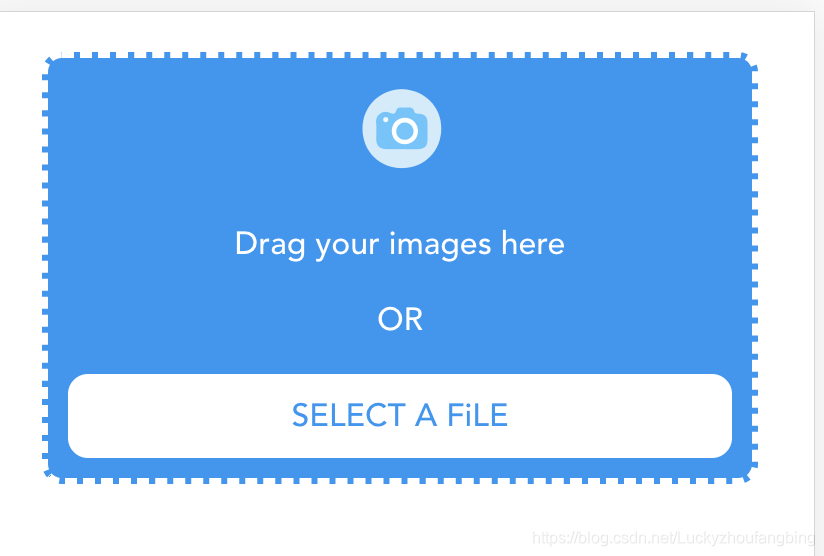
代码:
<template>
  <div class="image-uploader">
    <img :src="uploadIcon" class="icon"/>
    <p>Drag your images here</p>
    <p>OR</p>
    <div class="real-btn">
      SELECT A FiLE
      <input type="file" @change="inputChange" class="hide-btn">
    </div>
  </div>
</template>

<script>
import uploadIcon from '../assets/upload.png'
export default {
  name: 'imageUpload',
  data () {
    return {
      uploadIcon: uploadIcon
    }
  }
}
</script>

<style scoped>
.image-uploader {
  margin: 20px;
  border: 3px dashed #fff;
  background: #2196F3;
  padding: 10px;
  text-align: center;
  color: #fff;
  border-radius: 10px;
  font-weight: 500;
}
.real-btn {
  cursor: pointer;
  position: relative;
  padding: 10px 20px;
  background: #fff;
  border-radius: 10px;
  color: #2196F3;
}
.hide-btn {
  width: 100%;
  height: 100%;
  top: 0;
  left: 0;
  position: absolute;
  opacity: 0;
}
.icon {
  width: 50px;
  height: 50px;
}
</style>
到这一步,样式就算是写完了
注意!!
由于只有 input 的 type 等于 file 的时候才能调起电脑文件夹,所以 SELECT A FiLE 这个按钮是与 <input type="file"> 这个元素重叠的,点击 SELECT A FiLE 这个按钮其实是 点击 <input type="file">,然后将 input 这个标签隐藏

最后通过 opacity: 0;将真实的input 隐藏
(二)实现拖拽上传
(1)实现拖拽的效果需要 使用两个方法:dragEnter、dragLeave
这时候又遇到坑了,我在最外层父元素上绑定 dragEnter、dragLeave
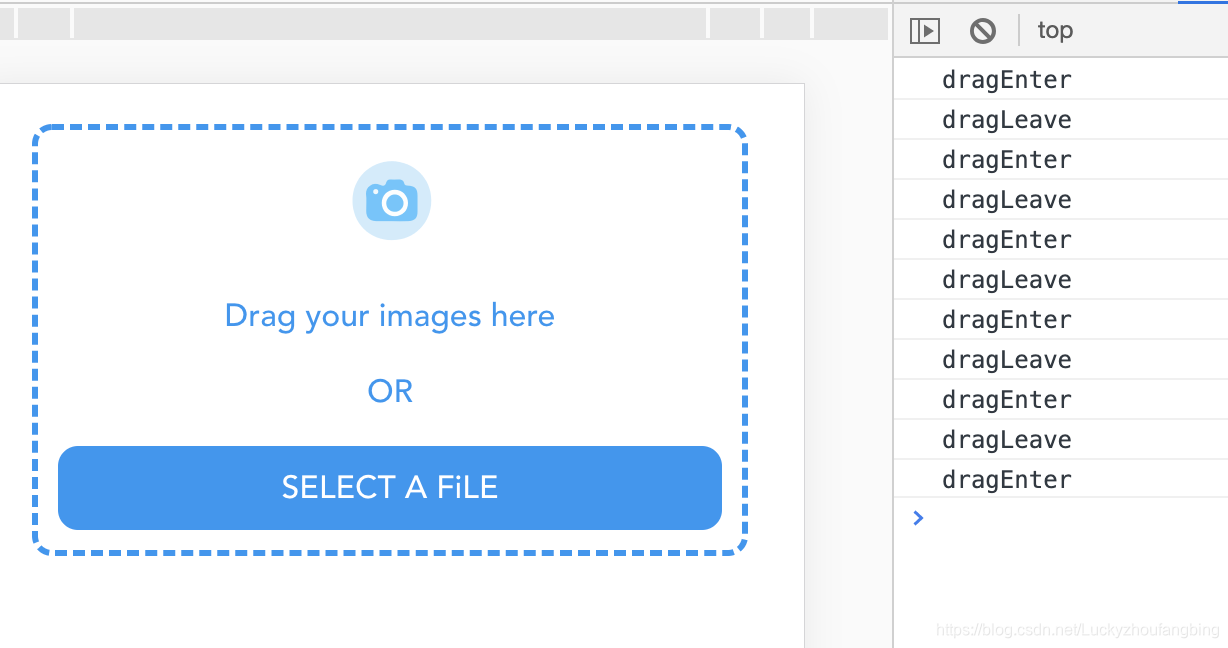
当将图片在父元素区域内拖动时,会不断触发 dragEnter、dragLeave,而不是 只有进来和出去触发,经过了解解释如下:
它是每进入一个新元素的同时就退出上一个元素,当退出父元素时,就不会有下一个进入的元素了, 所以进入的元素与退出的的元素相等,所以我们需要记录上次移入的节点
// 拖拽进入上传文件区
    dragEnter (e) {
      this.currentTarget = e.target // 当前进入的元素
      this.isDragging = true
    },
    // 拖拽离开上传文件区
    dragLeave (e) {
      if (e.target === this.currentTarget) {
        this.isDragging = false
      }
    }
(2)拖拽进去松手之后
触发 drop 事件
drop (e) {
      this.isDragging = false
      // 解决 e.dataTransfer.files 经常为空的问题
      var file = []
      file.forEach.call(e.dataTransfer.files, function (item) {
        file.push(item)
      }, false)
    },
拖进去的文件 在 e.dataTransfer.files 这个字段里,我们需要转成数组

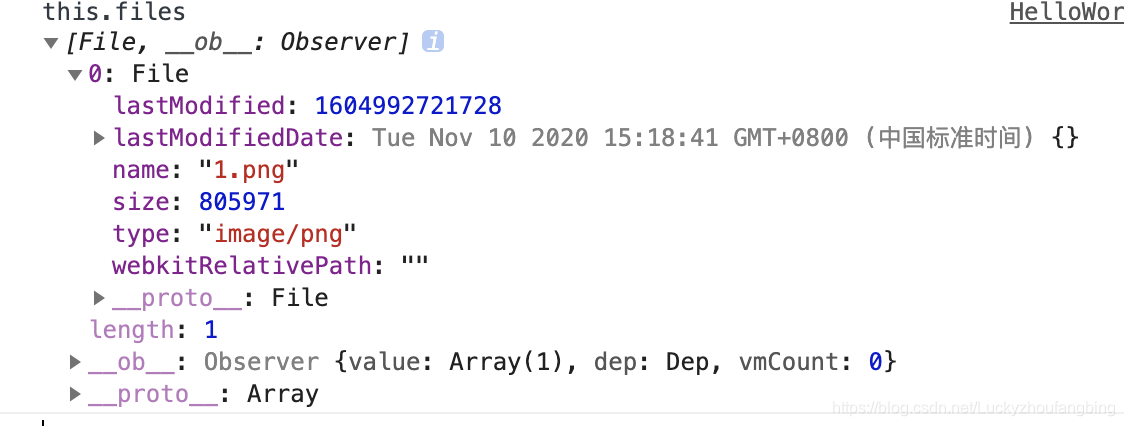
(3)通过 input 上传
<input type="file" @change="inputChange" class="hide-btn"> async inputChange (e) {
const base64 = await this.getBase64(e.target.files[0])
this.getImageUrl(base64, e.target.files[0].name)
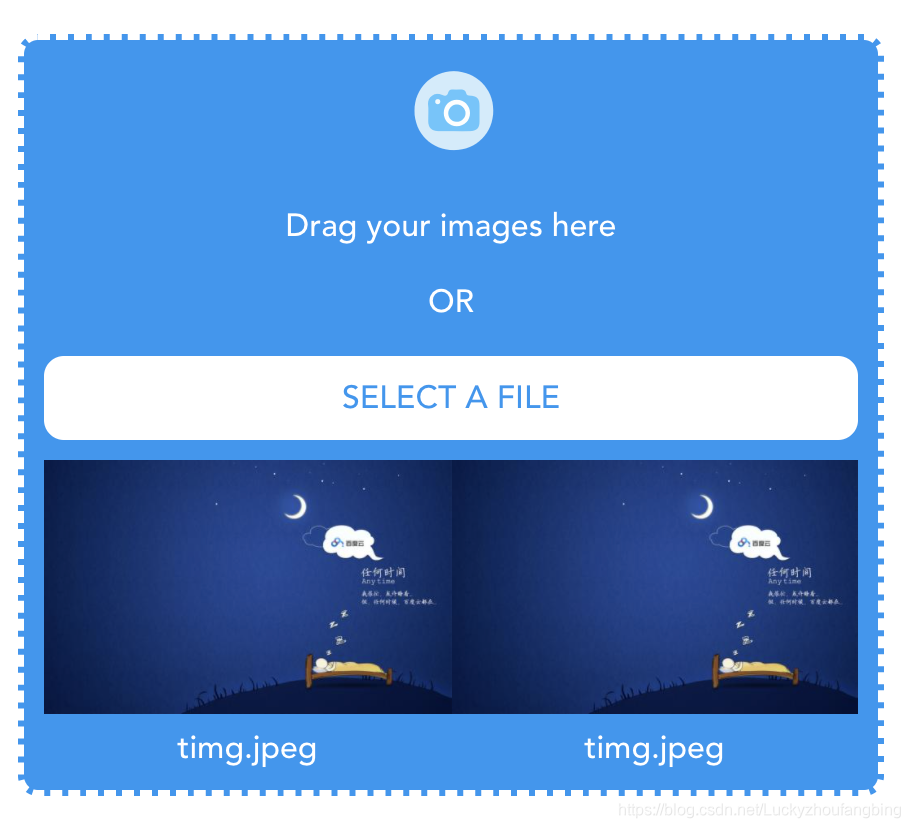
},上传结果图:
完整代码:
<template>
<div class="image-uploader"
@dragenter="dragEnter"
@dragleave="dragLeave"
@drop.prevent="drop"
@dragover.prevent
:class="[ isDragging ? 'isDraging' : '' ]"
>
<img :src="uploadIcon" class="icon"/>
<p>Drag your images here</p>
<p>OR</p>
<div
class="real-btn"
:class="[ isDragging ? 'isDraging-btn' : '' ]"
>
SELECT A FILE
<input type="file" @change="inputChange" class="hide-btn">
</div>
<!-- 上传图片展示列表 -->
<div v-show="files.length > 0" class="file-list">
<div
v-for="(fileItem) in files"
:key="fileItem.index"
class="list-item"
>
<img :src="fileItem.url" alt="">
<div>{{ fileItem.name }}</div>
</div>
</div>
</div>
</template>
<script>
import uploadIcon from '../assets/upload.png'
import axios from 'axios'
export default {
name: 'imageUpload',
data () {
return {
uploadIcon: uploadIcon,
isDragging: false, // 是否正在拖拽
currentTarget: null, // 上一个dragEnter的元素
files: [] // 文件上传列表
}
},
methods: {
// 拖拽进入上传文件区
dragEnter (e) {
this.currentTarget = e.target
this.isDragging = true
},
// 拖拽离开上传文件区
dragLeave (e) {
if (e.target === this.currentTarget) {
this.isDragging = false
}
},
// drop 是指将文件拖入父元素 松手触发的操作
// 必须阻止 dragover 的默认行为 不然 drop 不生效
// drop 也要阻止默认行为 不然拖进去后 浏览器自动打开该文件
drop (e) {
this.isDragging = false
// 解决 e.dataTransfer.files 经常为空的问题
// 把累数组转化成数组
var file = []
file.forEach.call(e.dataTransfer.files, function (item) {
file.push(item)
}, false)
// Array.from(e.dataTransfer.files).forEach((item) => { file.push(item) })
// 遍历对象 存入文件数组
file.forEach(async (item) => {
const base64 = await this.getBase64(item)
this.getImageUrl(base64, item.name)
})
},
 async inputChange (e) {
   const base64 = await this.getBase64(e.target.files[0])
   this.getImageUrl(base64, e.target.files[0].name)
 },
// 图片上传cdn 生成链接
getImageUrl (base64, fileName) {
const url = 'https://bird.ioliu.cn/v1?url=http://hn216.api.yesapi.cn'
axios.post(url, {
file: base64,
s: 'App.CDN.UploadImgByBase64',
app_key: '228290AC6E185D2121CD5878EDC4D010',
file_name: fileName
}).then((res) => {
this.files.push({
url: res.url,
name: fileName,
index: Math.random()
})
}).catch(() => {
// 使用默认的
const res = {url: 'https://dss0.bdstatic.com/70cFvHSh_Q1YnxGkpoWK1HF6hhy/it/u=191936283,2923048863&fm=26&gp=0.jpg'}
this.files.push({
url: res.url,
name: fileName,
index: Math.random()
})
})
},
// 图片转化成base64 便于上传cdn转成链接
getBase64 (file) {
return new Promise((resolve, reject) => {
let reader = new FileReader()
if (file) {
// 将文件以Data URL形式读入页面
let imgUrlBase64 = reader.readAsDataURL(file)
reader.onload = function (e) {
resolve(reader.result)
}
}
})
}
}
}
</script>
<style scoped>
.image-uploader {
margin: 20px;
border: 3px dashed #fff;
background: #2196F3;
padding: 10px;
text-align: center;
color: #fff;
border-radius: 10px;
font-weight: 500;
}
.image-uploader.isDraging {
background: #fff;
border: 3px dashed #2196F3;
color: #2196F3;
}
.real-btn {
cursor: pointer;
position: relative;
padding: 10px 20px;
background: #fff;
border-radius: 10px;
color: #2196F3;
}
.real-btn.isDraging-btn {
background: #2196F3;
color: #fff;
}
.hide-btn {
width: 100%;
height: 100%;
top: 0;
left: 0;
position: absolute;
opacity: 0;
}
.icon {
width: 50px;
height: 50px;
}
.file-list {
display: flex;
flex-wrap: wrap;
margin-top: 10px;
}
.file-list img {
width: 100%;
}
.list-item {
width: 50%;
}
</style>
(1)可以判断一下上传的文件类型,通过type字段,然后做相应的处理
比如类型不正确,然后进行报错提示
(2)还可以拿到上传文件的大小,通过size字段
版权声明:本文为Luckyzhoufangbing原创文章,遵循CC 4.0 BY-SA版权协议,转载请附上原文出处链接和本声明。