Electron-vue搭建配置、打包(有效避免报错解决方法)
1、vue init simulatedgreg/electron-vue 项目名称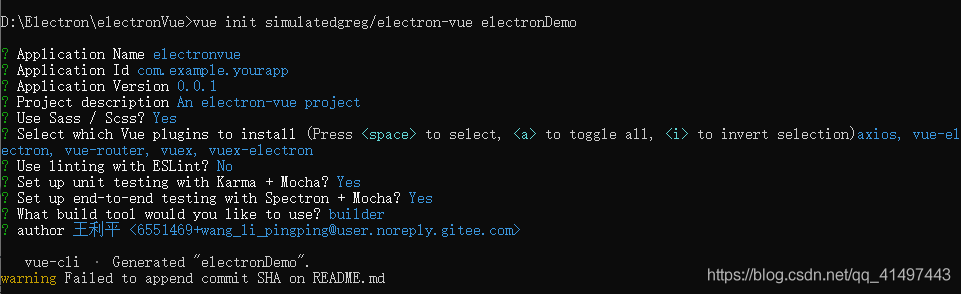
2、cd进入项目名称,安装依赖npm intsall
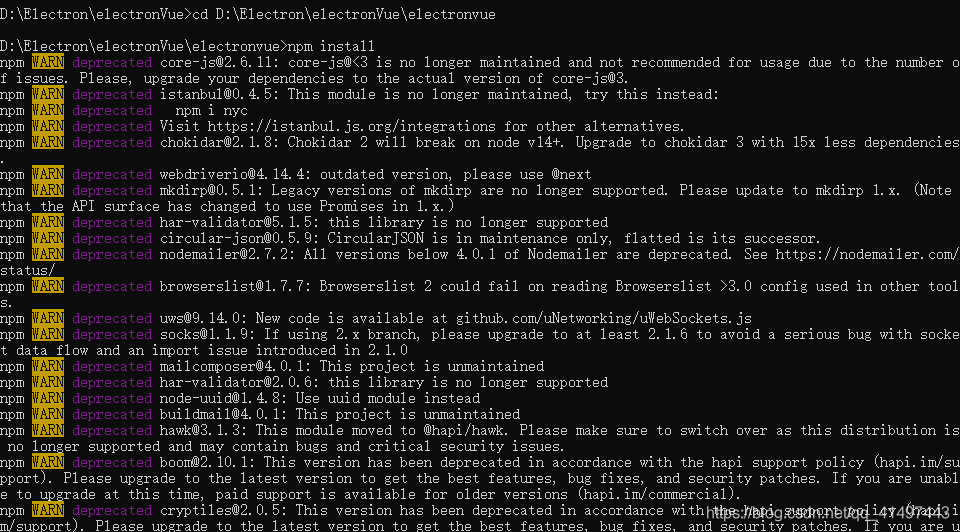
3、npm run dev启动项目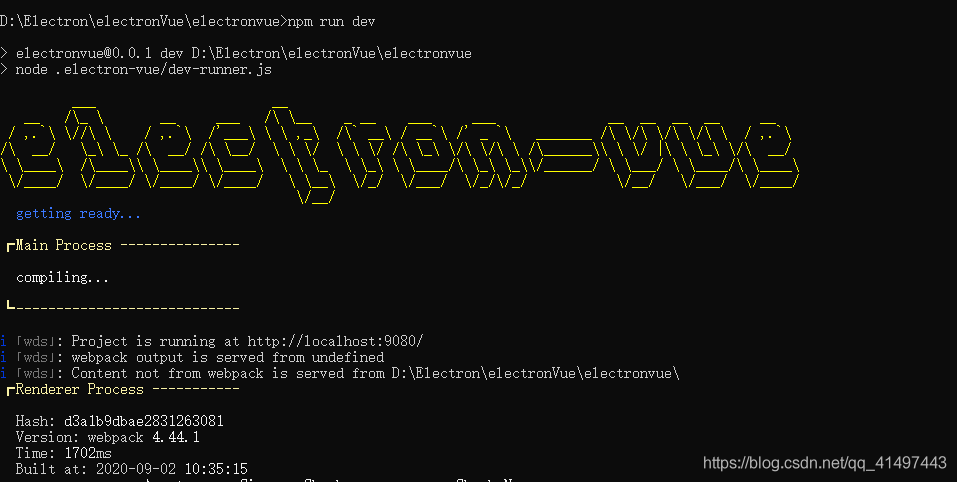
4、启动项目可能会报下面的错误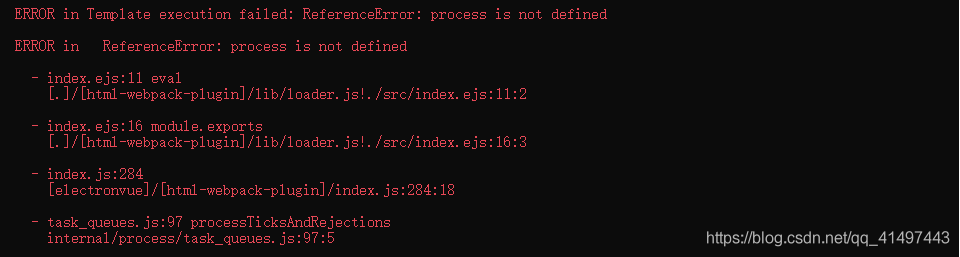
5、解决报错方法:
启动报错ReferenceError: process is not defined解决方法
找到.electron-vue/webpack.web.config.js 和.electron-vue/webpack.renderer.config.js中的HtmlWebpackPlugin,添加templateParameters:
templateParameters(compilation, assets, options) {
        return {
          compilation: compilation,
          webpack: compilation.getStats().toJson(),
          webpackConfig: compilation.options,
          htmlWebpackPlugin: {
            files: assets,
            options: options
          },
          process,
        };
      },
添加位置如下:
plugins: [
    new VueLoaderPlugin(),
    new MiniCssExtractPlugin({filename: 'styles.css'}),
    new HtmlWebpackPlugin({
      filename: 'index.html',
      template: path.resolve(__dirname, '../src/index.ejs'),
      templateParameters(compilation, assets, options) {
        return {
          compilation: compilation,
          webpack: compilation.getStats().toJson(),
          webpackConfig: compilation.options,
          htmlWebpackPlugin: {
            files: assets,
            options: options
          },
          process,
        };
      },
      minify: {
        collapseWhitespace: true,
        removeAttributeQuotes: true,
        removeComments: true
      },
      nodeModules: process.env.NODE_ENV !== 'production'
        ? path.resolve(__dirname, '../node_modules')
        : false
    }),
    new webpack.HotModuleReplacementPlugin(),
    new webpack.NoEmitOnErrorsPlugin()
  ],
6、再次启动项目,启动成功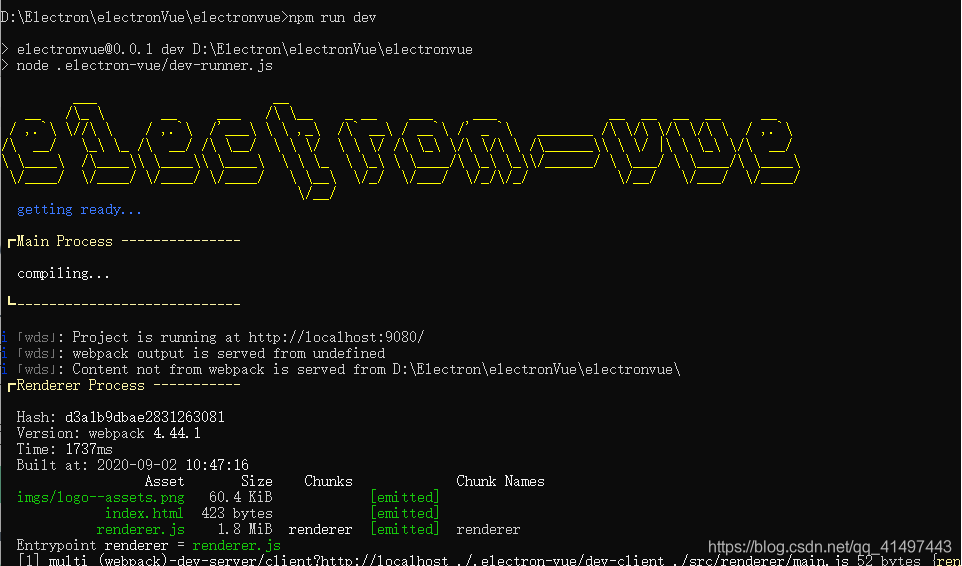
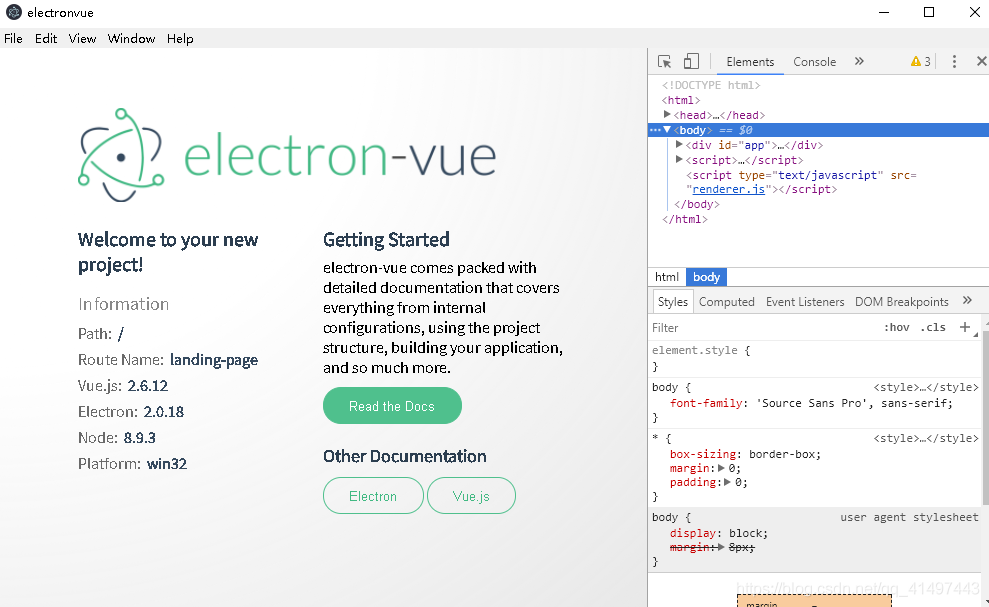
出现上述electron应用界面说明electron-vue搭建成功。
7、使用npm run build进行打包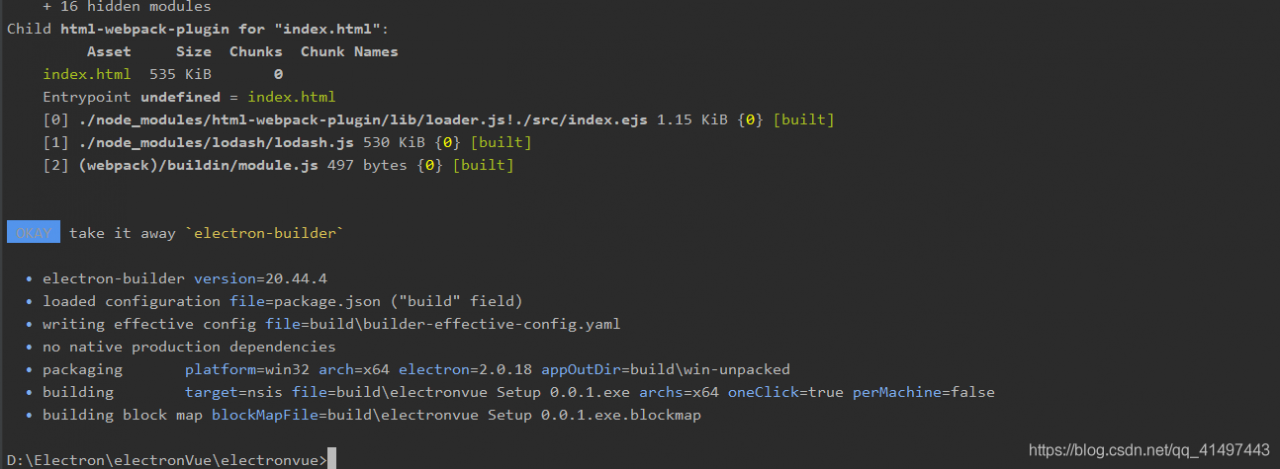
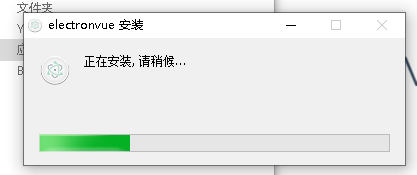
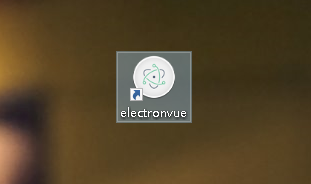
8、打包结束后在build文件夹下面就会出现打包后的桌面应用.exe文件,点击即可下载安装在电脑桌面上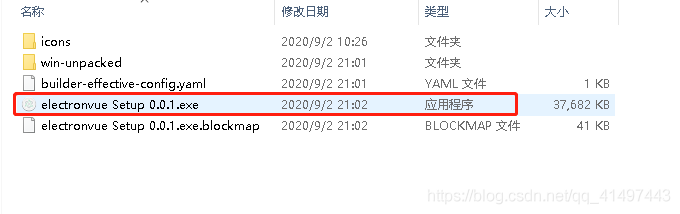 9、点击.exe文件进行点击安装
版权声明:本文为qq_41497443原创文章,遵循CC 4.0 BY-SA版权协议,转载请附上原文出处链接和本声明。