无废话,直接上步骤。
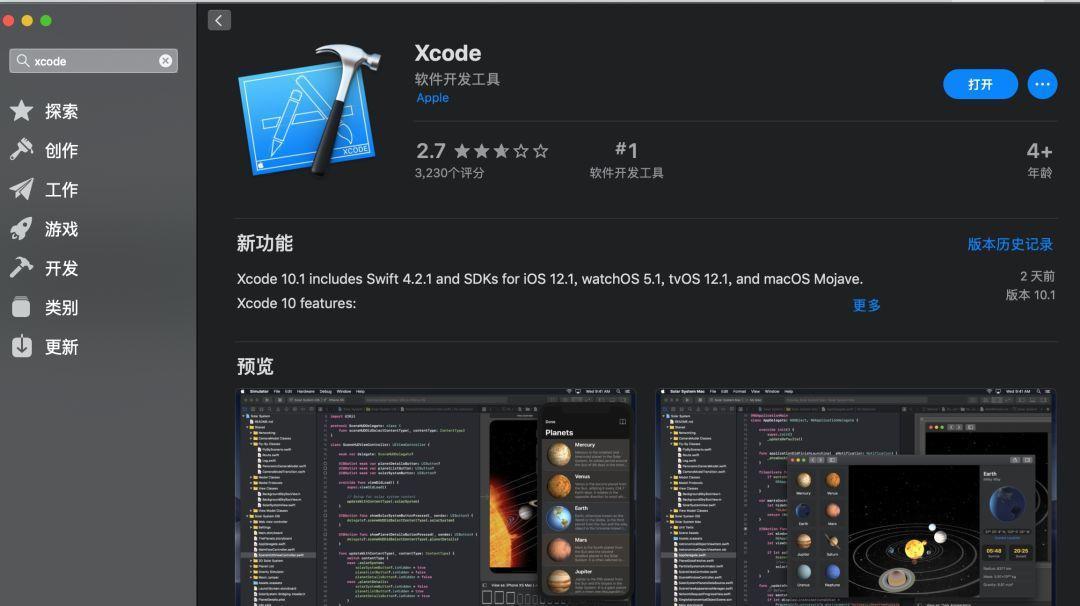
1) 安装 xcode。
打开App Store,搜索xcode,进行下载安装。
2)执行命令:
xcode-select --install
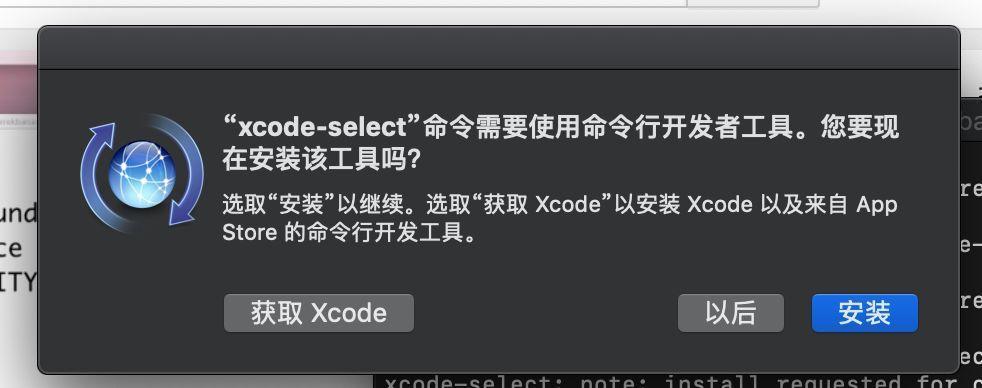
安装命令行工具。
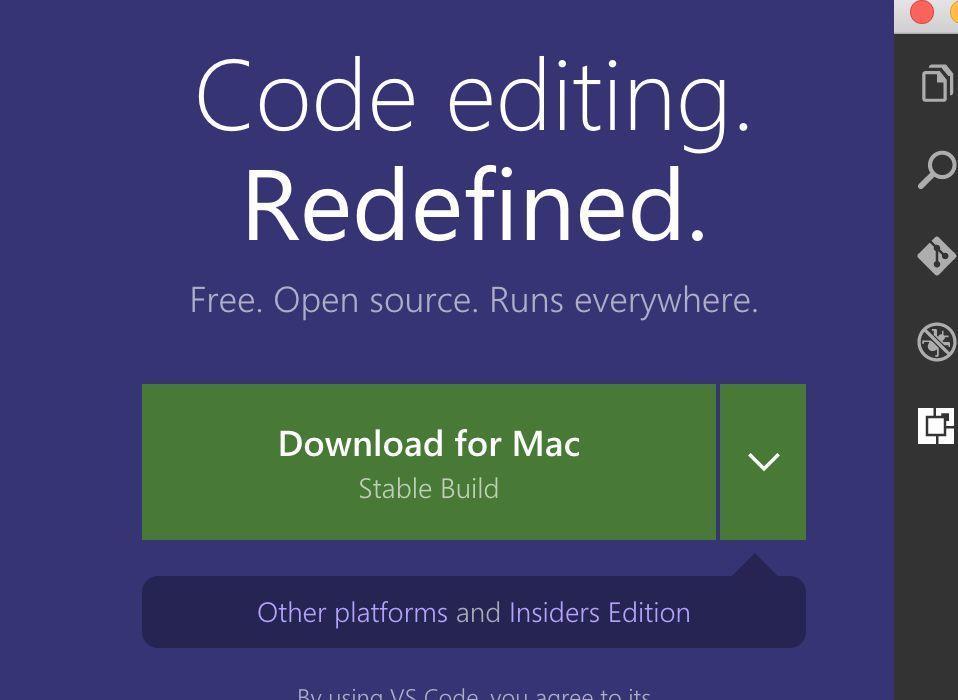
3)安装VS Code
4) 打开vs code。打开左侧扩展栏,
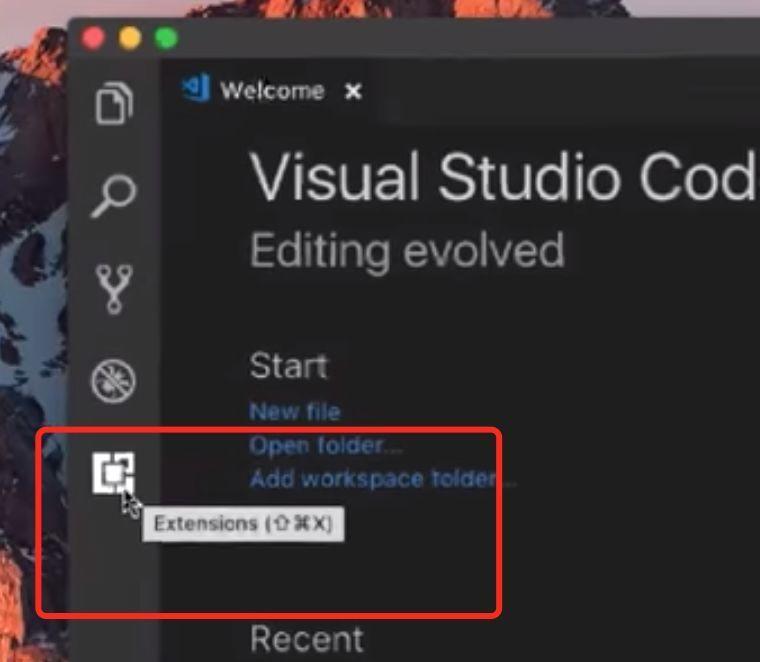
搜索“c++”。

安装该扩展。
5)打开一个保护.cpp文件的文件夹(没有就自己创建)
“command+shift+p”打开命令行工具窗口,输入或者选择“
Edit Configurations”命令。
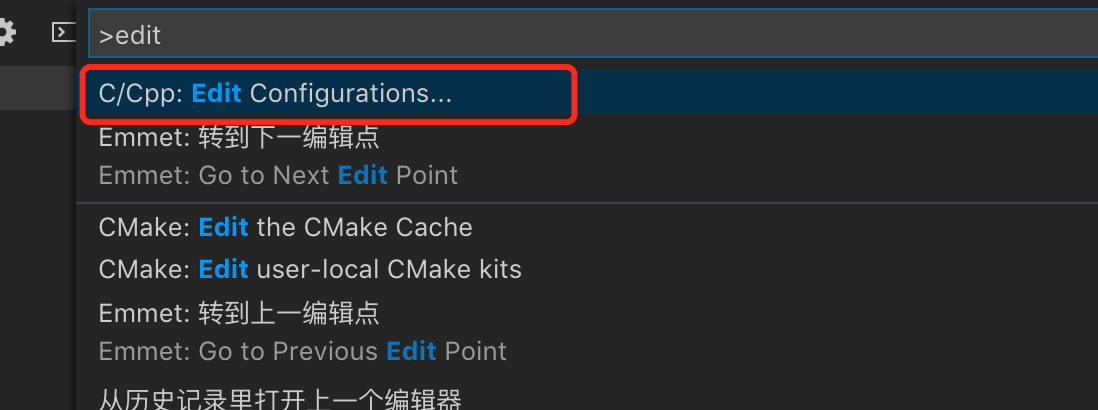
此时会在当前工作空间目录生成.vscode配置目录,同时在配置目录会生成一个c_cpp_properties.json文件。
配置include目录:
{
"configurations": [
{
"name": "Mac",
"includePath": [
"${workspaceFolder}/**",
"/Library/Developer/CommandLineTools/usr/include/c++/v1",
"/usr/local/include",
"/Library/Developer/CommandLineTools/usr/lib/clang/9.0.0/include",
"/Library/Developer/CommandLineTools/usr/include",
"/usr/include"
],
"defines": [],
"macFrameworkPath": [
"/System/Library/Frameworks",
"/Library/Frameworks"
],
"compilerPath": "/usr/bin/clang",
"cStandard": "c11",
"cppStandard": "c++17",
"intelliSenseMode": "clang-x64"
}
],
"version": 4
}
复制代码
6)
“command+shift+p”打开命令行工具窗口,输入或者选择“Tasks: Configure Task”
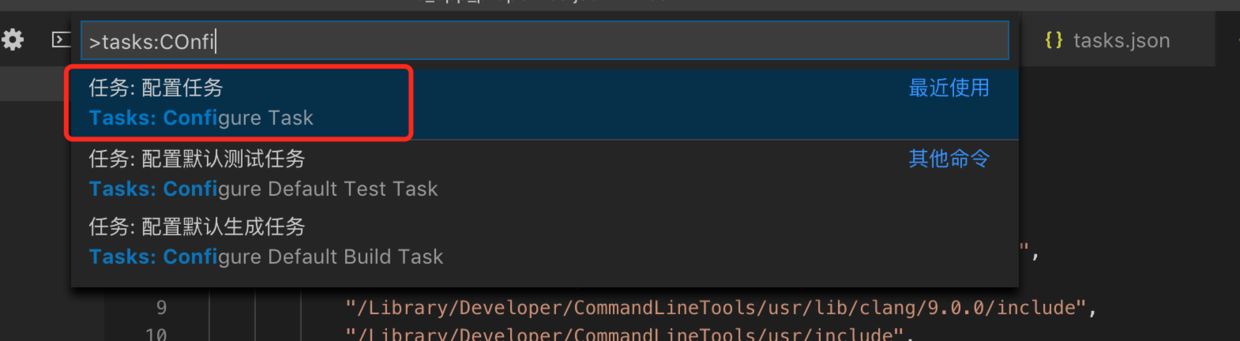
{
// See https://go.microsoft.com/fwlink/?LinkId=733558
// for the documentation about the tasks.json format
"version": "2.0.0",
"tasks": [
{
"label": "c++",
"command": "clang++",
"type": "shell",
"args": [
"./c++/hello.cpp",
"-std=c++11",
"-g"
],
"presentation": {
"echo": true,
"reveal": "always",
"focus": false,
"panel": "shared"
}
}
]
}
复制代码
7)配置launch.json。
“command+shift+p”打开命令行工具窗口,输入或者
选择Debug: Open launch.json命令。
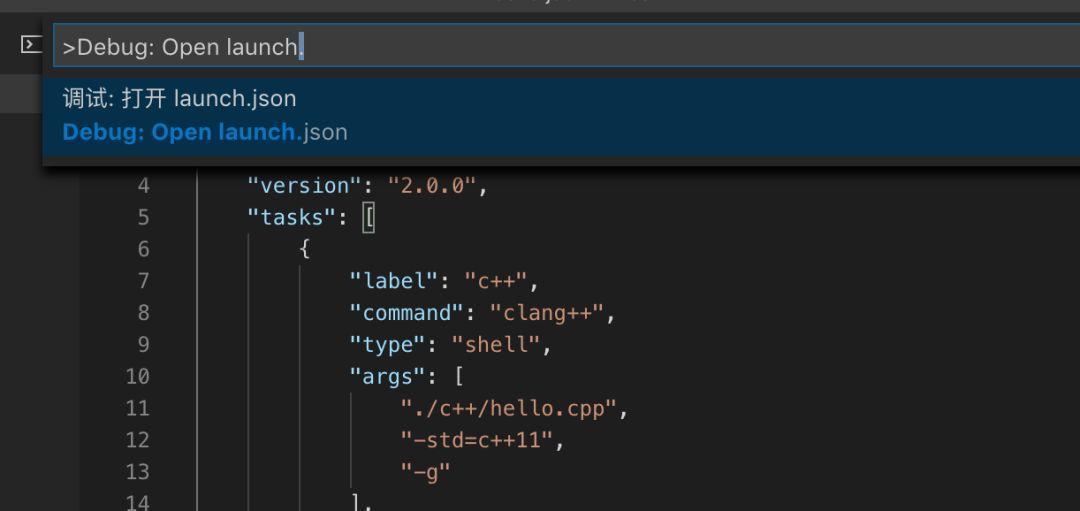
修改内容如下:
{
// 使用 IntelliSense 了解相关属性。
// 悬停以查看现有属性的描述。
// 欲了解更多信息,请访问: https://go.microsoft.com/fwlink/?linkid=830387
"version": "0.2.0",
"configurations": [
{
"name": "c/c++ Launch",
"type": "cppdbg",
"request": "launch",
"program": "${workspaceFolder}/a.out",
"args": [],
"stopAtEntry": false,
"cwd": "${workspaceFolder}",
"environment": [],
"externalConsole": true,
"MIMode": "lldb",
"preLaunchTask":"c++"
}
]
}
复制代码
8)开启调试
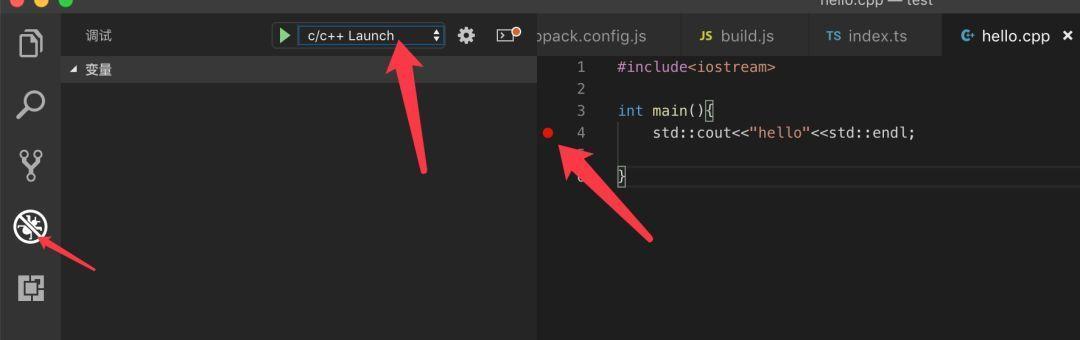
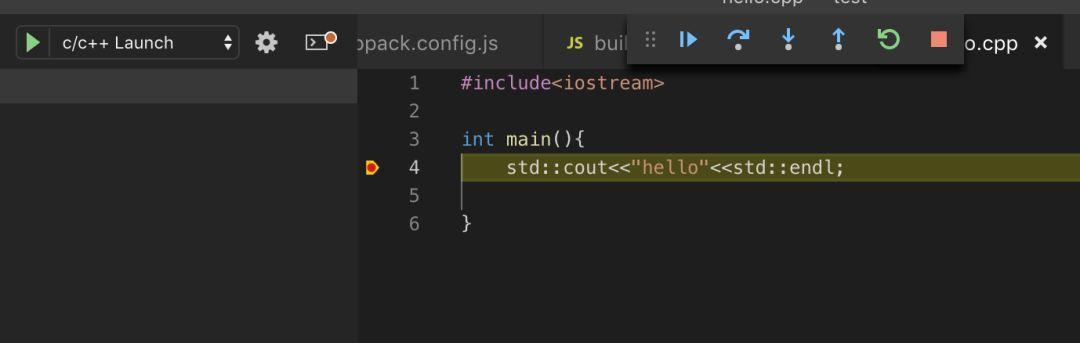
中途可能会提醒控制终端,需要赋予权限,允许即可。
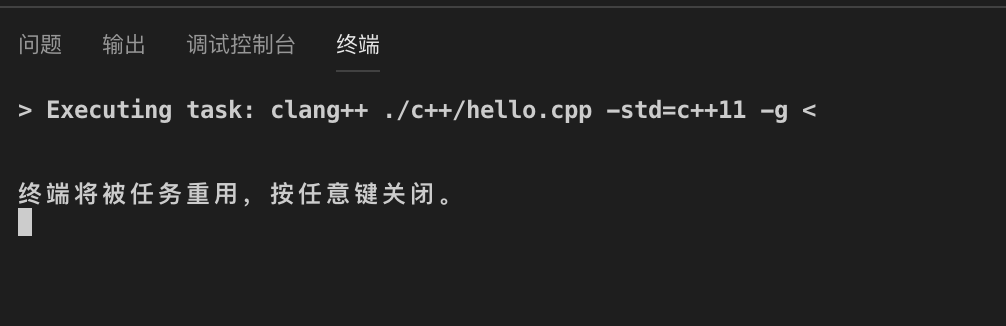
最后如果终端有类似的提示,输入回车结束终端调用。
可能遇到的问题:
可能遇到“xcrun: error: invalid active developer path (/Library/Developer/CommandLineTools), missing xcrun at: /Library/Developer/CommandLineTools/usr/bin/xcrun”
这样的报错,终端输入命令:
sudo xcode-select --switch /Applications/Xcode.app
复制代码
更多精彩内容,关注微信订阅号“玄魂工作室”(xuanhun521)