一、修改硬盘大小
关闭虚拟机→设置→硬盘→修改到自己需要的磁盘大小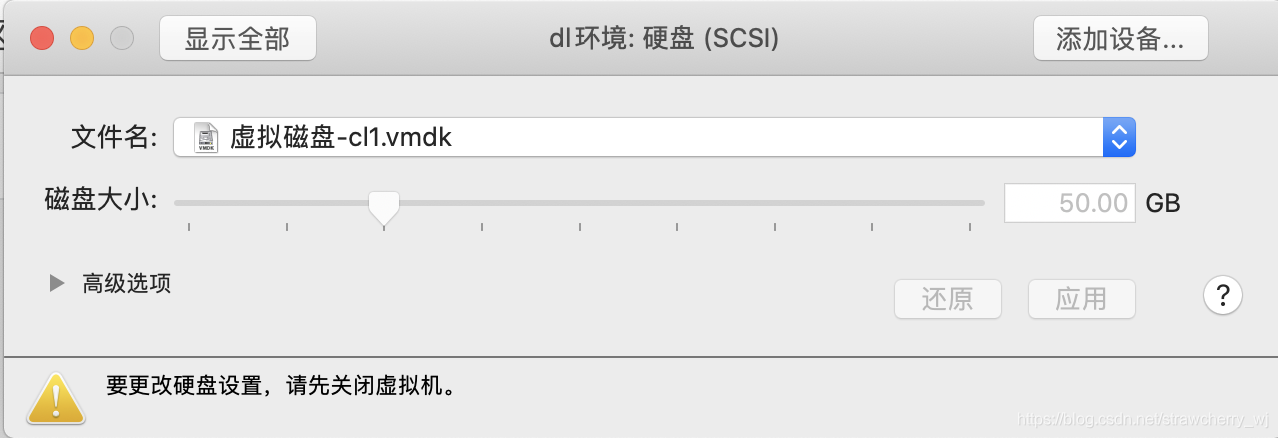
二、查看根目录当前磁盘使用情况统计
df -h
从左到右每一列分别代表: 文件系统的名称、 总磁盘空间大小、 已使用空间大小、 可用空间大小、 使用的磁盘空间百分比、 "安装在"指定的文件系统的挂载点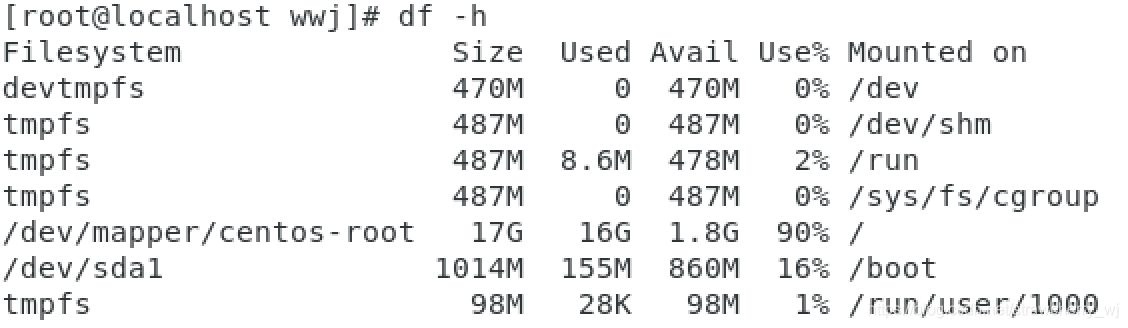
虽然在第1步已经设置过新的磁盘大小为50G,但是这里明显可以看出总磁盘大小依旧是之前的20G,这就涉及到分区问题。
三、(非必要步骤)清理缓存文件
查看各文件夹内存占用情况
du -h /home(目标文件夹)

通常/home/xxx/.cache/vmware中会有很多缓存文件
以drag_and_drop文件夹为例,清除其中所有缓存文件
cd /home/xxx/.cache/vmware/drag_and_drop
rm -rf *
四、修改分区,将磁盘空间分配给根目录
1、查看磁盘分区表
可以看到主机真实的磁盘大小是之前设置的50G左右
fdisk -l

2、创建分区
[root@localhost wwj]# fdisk /dev/sda
Welcome to fdisk (util-linux 2.23.2).

Changes will remain in memory only, until you decide to write them.
Be careful before using the write command.


Command (m for help): n
Partition type:
   p   primary (2 primary, 0 extended, 2 free)
   e   extended
Select (default p): p
Partition number (3,4, default 3): 3
First sector (41943040-104857599, default 41943040):
Using default value 41943040
Last sector, +sectors or +size{K,M,G} (41943040-104857599, default 104857599):
Using default value 104857599
Partition 3 of type Linux and of size 30 GiB is set

Command (m for help): w
The partition table has been altered!

Calling ioctl() to re-read partition table.

WARNING: Re-reading the partition table failed with error 16: Device or resource busy.
The kernel still uses the old table. The new table will be used at
the next reboot or after you run partprobe(8) or kpartx(8)
Syncing disks.
3、再次查看磁盘分区表
[root@localhost wwj]# fdisk -l /dev/sda

Disk /dev/sda: 53.7 GB, 53687091200 bytes, 104857600 sectors
Units = sectors of 1 * 512 = 512 bytes
Sector size (logical/physical): 512 bytes / 512 bytes
I/O size (minimum/optimal): 512 bytes / 512 bytes
Disk label type: dos
Disk identifier: 0x000c7cd9

   Device Boot      Start         End      Blocks   Id  System
/dev/sda1   *        2048     2099199     1048576   83  Linux
/dev/sda2         2099200    41943039    19921920   8e  Linux LVM
/dev/sda3        41943040   104857599    31457280   83  Linux ##新增
4、接收新的分区表信息
[root@localhost wwj]# partprobe
5、将分区格式化为ext4格式
[root@localhost wwj]# mkfs.ext4 /dev/sda3
mke2fs 1.42.9 (28-Dec-2013)
Filesystem label=
OS type: Linux
Block size=4096 (log=2)
Fragment size=4096 (log=2)
Stride=0 blocks, Stripe width=0 blocks
1966080 inodes, 7864320 blocks
393216 blocks (5.00%) reserved for the super user
First data block=0
Maximum filesystem blocks=2155872256
240 block groups
32768 blocks per group, 32768 fragments per group
8192 inodes per group
Superblock backups stored on blocks:
	32768, 98304, 163840, 229376, 294912, 819200, 884736, 1605632, 2654208,
	4096000

Allocating group tables: done
Writing inode tables: done
Creating journal (32768 blocks): done
Writing superblocks and filesystem accounting information: done
5、查看卷组名
[root@localhost wwj]# vgdisplay
  --- Volume group ---
  VG Name               centos #记录下centos
  System ID
  Format                lvm2
  Metadata Areas        1
  Metadata Sequence No  3
  VG Access             read/write
  VG Status             resizable
  MAX LV                0
  Cur LV                2
  Open LV               2
  Max PV                0
  Cur PV                1
  Act PV                1
  VG Size               <19.00 GiB
  PE Size               4.00 MiB
  Total PE              4863
  Alloc PE / Size       4863 / <19.00 GiB
  Free  PE / Size       0 / 0
  VG UUID               J1Y42w-Mfbh-D2E3-x3AN-eAwj-8uXP-yGFmmx
6、创建新物理卷
[root@localhost wwj]# pvcreate /dev/sda3
WARNING: ext4 signature detected on /dev/sda3 at offset 1080. Wipe it? [y/n]: y
  Wiping ext4 signature on /dev/sda3.
  Physical volume "/dev/sda3" successfully created.
7、扩展到卷组
[root@localhost wwj]# vgextend centos /dev/sda3
  Volume group "centos" successfully extended
8、查看根分区
[root@localhost wwj]# lvdisplay
  --- Logical volume ---
  LV Path                /dev/centos/swap
  LV Name                swap
  VG Name                centos
  LV UUID                UcMFe1-piPb-2nde-czW0-teDj-a211-l0xLz7
  LV Write Access        read/write
  LV Creation host, time localhost, 2021-05-29 13:14:18 +0800
  LV Status              available
  # open                 2
  LV Size                2.00 GiB
  Current LE             512
  Segments               1
  Allocation             inherit
  Read ahead sectors     auto
  - currently set to     8192
  Block device           253:1

  --- Logical volume ---
  LV Path                /dev/centos/root #记录路径
  LV Name                root
  VG Name                centos
  LV UUID                xmiDBZ-lUpb-uzTf-t2SA-dJxS-zZtu-VS0eaA
  LV Write Access        read/write
  LV Creation host, time localhost, 2021-05-29 13:14:18 +0800
  LV Status              available
  # open                 1
  LV Size                <17.00 GiB
  Current LE             4351
  Segments               1
  Allocation             inherit
  Read ahead sectors     auto
  - currently set to     8192
  Block device           253:0
9、扩展到容量逻辑分区
[root@localhost wwj]# lvextend /dev/centos/root /dev/sda3
  Size of logical volume centos/root changed from <17.00 GiB (4351 extents) to 46.99 GiB (12030 extents).
  Logical volume centos/root successfully resized.
10、刷新逻辑分区
[root@localhost wwj]# resize2fs /dev/centos/root
resize2fs 1.42.9 (28-Dec-2013)
resize2fs: Bad magic number in super-block while trying to open /dev/centos/root
Couldn't find valid filesystem superblock.
11、若报错,查看文件系统是不是xfs 的
[root@localhost wwj]# cat /etc/fstab

#
# /etc/fstab
# Created by anaconda on Sat May 29 13:14:18 2021
#
# Accessible filesystems, by reference, are maintained under '/dev/disk'
# See man pages fstab(5), findfs(8), mount(8) and/or blkid(8) for more info
#
/dev/mapper/centos-root /                       xfs     defaults        0 0
UUID=4a67fcc6-9d2e-4ddd-a92f-6afe811dd66e /boot                   xfs     defaults        0 0
/dev/mapper/centos-swap swap                    swap    defaults        0 0
12、若是,则用该命令
[root@localhost wwj]# xfs_growfs /dev/centos/root
meta-data=/dev/mapper/centos-root isize=512    agcount=4, agsize=1113856 blks
         =                       sectsz=512   attr=2, projid32bit=1
         =                       crc=1        finobt=0 spinodes=0
data     =                       bsize=4096   blocks=4455424, imaxpct=25
         =                       sunit=0      swidth=0 blks
naming   =version 2              bsize=4096   ascii-ci=0 ftype=1
log      =internal               bsize=4096   blocks=2560, version=2
         =                       sectsz=512   sunit=0 blks, lazy-count=1
realtime =none                   extsz=4096   blocks=0, rtextents=0
data blocks changed from 4455424 to 12318720
13、查看根目录
[root@localhost wwj]# df -h
Filesystem               Size  Used Avail Use% Mounted on
devtmpfs                 470M     0  470M   0% /dev
tmpfs                    487M     0  487M   0% /dev/shm
tmpfs                    487M  8.6M  478M   2% /run
tmpfs                    487M     0  487M   0% /sys/fs/cgroup
/dev/mapper/centos-root   47G   16G   32G  33% /
/dev/sda1               1014M  155M  860M  16% /boot
tmpfs                     98M   36K   98M   1% /run/user/1000
tmpfs                     98M     0   98M   0% /run/user/0
这时候已经变成47G
重启虚拟机生效
版权声明:本文为strawcherry_wj原创文章,遵循CC 4.0 BY-SA版权协议,转载请附上原文出处链接和本声明。