全新的微软Edge,使用了Chromium内核,配套的,微软为原生Windows程序提供了WebView2控件,以此提供内置网页的功能。
WebView2还是一个预览版本。
这里只是个开始,或引导,高级的东西还需你自己发挥。
本文基本遵照微软对于WebView2的Getting Started文档实现。
开始:
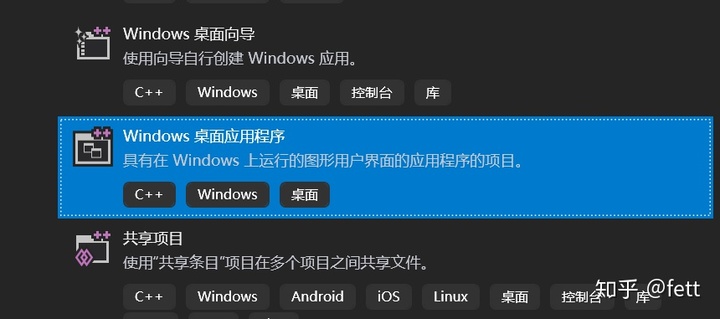
使用Visual Studio创建一个C++Win32桌面程序,VS2019,VS2017均可,前提是你安装了Win32相关功能。
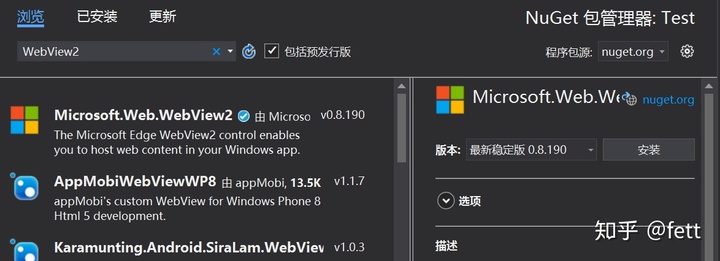
在解决方案资源管理器,项目,引用右击选“管理nuget程序包”,搜索WebView2,安装。
在项目WinMain函数所在文件头部include后面添加使用的头文件。
#include "WebView2.h"
#include <wrl.h>
#include <string>
引用WRL命名空间,并定义全局COM对象指针。
using namespace Microsoft::WRL;

// WebView窗口指针
static ComPtr<IWebView2WebView> webviewWindow;
在WinMain函数第一行设置进程的DPI识别能力,这样你的程序可以识别到高分辨率显示屏、高DPI设置,不至于模糊或错乱。
SetProcessDpiAwarenessContext(DPI_AWARENESS_CONTEXT_PER_MONITOR_AWARE_V2);在InitInstance函数里找到ShowWindow,在上面添加如下代码:
CreateWebView2EnvironmentWithDetails(nullptr, nullptr,
       WEBVIEW2_RELEASE_CHANNEL_PREFERENCE_CANARY, nullptr,
   Callback<IWebView2CreateWebView2EnvironmentCompletedHandler>(
     [hWnd](HRESULT result, IWebView2Environment* env) -> HRESULT {
       // 在主窗口上创建一个WebView
       env->CreateWebView(hWnd, Callback<IWebView2CreateWebViewCompletedHandler>(
         [hWnd](HRESULT result, IWebView2WebView* webview) -> HRESULT {
           if (webview != nullptr) {
             webviewWindow = webview;
           }

           // 为WebView添加一些设置
           IWebView2Settings* Settings;
           webviewWindow->get_Settings(&Settings);
           Settings->put_IsScriptEnabled(TRUE);
           Settings->put_AreDefaultScriptDialogsEnabled(TRUE);
           Settings->put_IsWebMessageEnabled(TRUE);

           // 适配父窗口的尺寸
           RECT bounds;
           GetClientRect(hWnd, &bounds);
           webviewWindow->put_Bounds(bounds);

           // 调度一个异步任务去浏览比应首页
           webviewWindow->Navigate(L"https://www.bing.com/");

           // 事件处理环节
           // 脚本处理环节
           // 宿主网页通讯环节
           return S_OK;
         }).Get());
       return S_OK;
     }).Get());
到这里就可以F5运行了。
可在注释中“事件处理环节”后面继续添加处理事件:
// 注册IWebView2NavigationStartingEventHandler事件,取消所有的非HTTPS访问。
EventRegistrationToken token;
webviewWindow->add_NavigationStarting(Callback<IWebView2NavigationStartingEventHandler>(
   [](IWebView2WebView* webview, IWebView2NavigationStartingEventArgs* args) -> HRESULT {
	   PWSTR uri;
	   args->get_Uri(&uri);
	   std::wstring source(uri);
	   if (source.substr(0, 5) != L"https") {
		   args->put_Cancel(true);
	   }
	   CoTaskMemFree(uri);
	   return S_OK;
   }).Get(), &token);
也可在注释中“脚本处理环节”调用脚本:
// 调度一个异步任务去添加冻结Object的初始化脚本
webviewWindow->AddScriptToExecuteOnDocumentCreated(L"Object.freeze(Object);", nullptr);
// 调度一个异步任务 去获取文档的URL
webviewWindow->ExecuteScript(L"window.document.URL;", Callback<IWebView2ExecuteScriptCompletedHandler>(
   [](HRESULT errorCode, LPCWSTR resultObjectAsJson) -> HRESULT {
	   LPCWSTR URL = resultObjectAsJson;
	   //doSomethingWithURL(URL);
	   return S_OK;
   }).Get());
也可在注释中“宿主网页通讯环节”与WebView进行通讯:
// 设置一个从WebView获取消息的处理器,并且将消息再返回给WebView
webviewWindow->add_WebMessageReceived(Callback<IWebView2WebMessageReceivedEventHandler>(
   [](IWebView2WebView* webview, IWebView2WebMessageReceivedEventArgs* args) -> HRESULT {
	   PWSTR message;
	   args->get_WebMessageAsString(&message);
	   // processMessage(&message);
	   webview->PostWebMessageAsString(message);
	   CoTaskMemFree(message);
	   return S_OK;
   }).Get(), &token);

// 调度一个异步任务添加初始化脚本:
// 1) 添加监听事件并弹出窗口显示消息
// 2) 投递网页的URL到宿主(我们的Win32 C++程序)
webviewWindow->AddScriptToExecuteOnDocumentCreated(
   L"window.chrome.webview.addEventListener('message', event => alert(event.data));"
   L"window.chrome.webview.postMessage(window.document.URL);",
   nullptr);
祝你好运!
微软例子代码的框架:
https://github.com/MicrosoftEdge/WebView2Samples/tree/master/WebView2Samplegithub.com参考:
Microsoft Edge WebView 2 for Win32 apps - Microsoft Edge Developmentdocs.microsoft.com
版权声明:本文为weixin_39990250原创文章,遵循CC 4.0 BY-SA版权协议,转载请附上原文出处链接和本声明。