判断当前浏览器类型及是不是指定浏览器类型
JavaScript判断浏览器类型一般有两种办法。
- 一种是根据各种浏览器独有的属性来分辨
- 另一种是通过分析浏览器的userAgent属性来判断的
需求目的是当前项目必须运行在谷歌浏览器
Chrome中,这样做的目的可以做插件监控项目稳定度,也保证不会被其它插件或者基本恶意攻击,安全性比较高
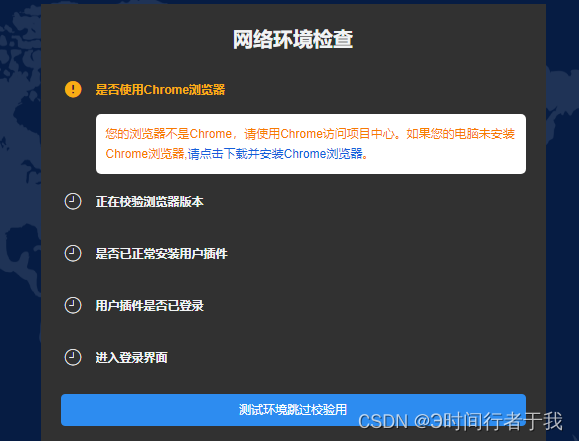
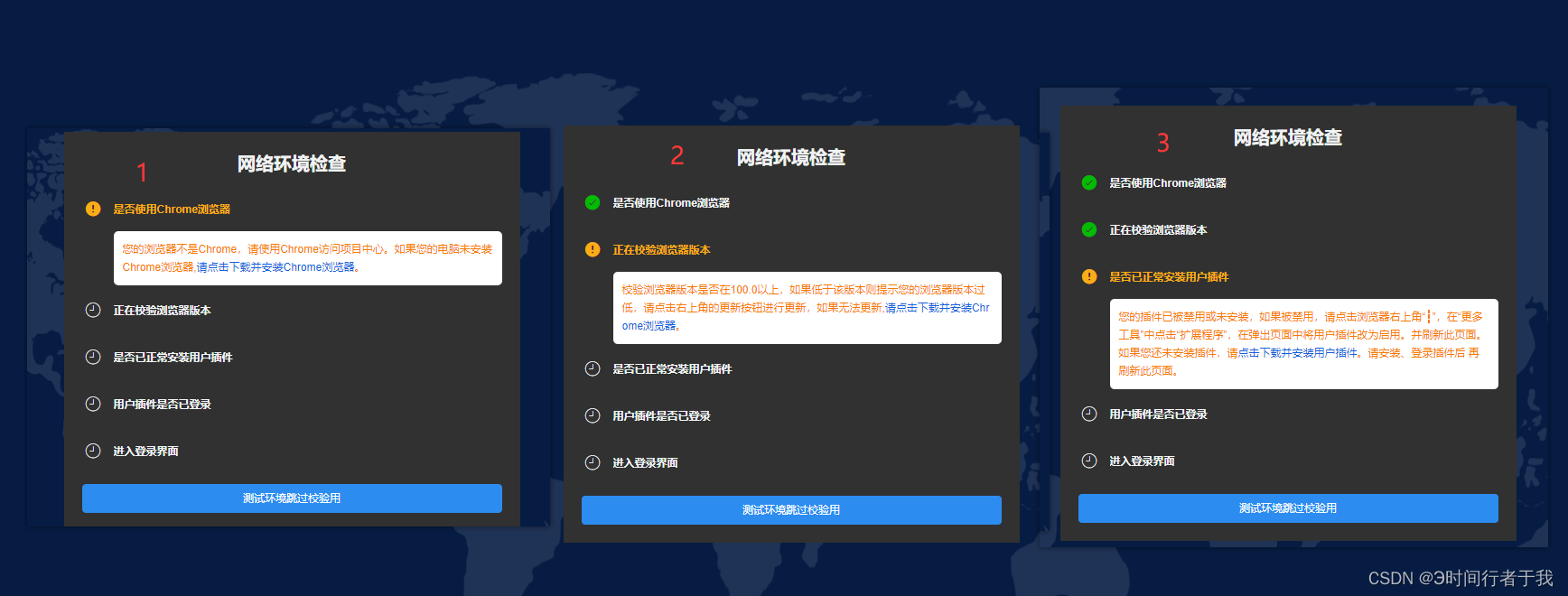
有两种判断法,建议使用第一种
1.第一种,使用toLowerCase转换小写
这样它随便怎么变都不影响你判断逻辑
 const explorer = window.navigator.userAgent.toLowerCase()
 if(explorer.indexOf("msie") >= 0) {
   console.log("IE")  //判断是否为IE浏览器
 }else if(explorer.indexOf("firefox") >= 0) {
   console.log("Firefox")  //是否为Firefox浏览器
 }else if(explorer.indexOf("chrome") >= 0) {
   console.log("Chrome")  //是否为Chrome浏览器
 }else if(explorer.indexOf("opera") >= 0) {
   console.log("Opera")   //是否为Opera浏览器
 }else if(explorer.indexOf("safari") >= 0) {
   console.log("Safari")  //是否为Safari浏览器
 }
2.第一种,使用浏览器原汁原味的判断方法
这样可能会导致以后某个浏览器它改大小写时你得重新改了
 const explorer = window.navigator.userAgent
 if(explorer.indexOf("MSIE") >= 0) {
   console.log("IE")  //判断是否为IE浏览器
 }else if(explorer.indexOf("Firefox") >= 0) {
   console.log("Firefox")  //是否为Firefox浏览器
 }else if(explorer.indexOf("Chrome") >= 0) {
   console.log("Chrome")  //是否为Chrome浏览器
 }else if(explorer.indexOf("Opera") >= 0) {
   console.log("Opera")   //是否为Opera浏览器
 }else if(explorer.indexOf("Safari") >= 0) {
   console.log("Safari")  //是否为Safari浏览器
 }
具体代码,vue写法
<template>
<div class="login">
<div class="steps" v-if="step!==5">
<div class="title">
<div>网络环境检查</div>
</div>
<Steps :current="step" direction="vertical" size="small" status="process">
<Step v-for="item in stepList" :key="item.id" >
<template #icon>
<!-- 未通过的-->
<Icon type="md-alert" class="steps_icon current " v-if="item.id===step&&stepMap===step&&stepMap<=stepList.length"/>
<!-- 当前选中的-->
<Icon type="md-sync" class="steps_icon icon_animation" style="color:#f1f3f4 " v-else-if="item.id===step"/>
<!-- 已通过的-->
<Icon type="ios-checkmark-circle" class="steps_icon" style="color: #00bb00" v-else-if="item.id<step" />
<!-- 还未检测的-->
<Icon type="ios-time-outline" class="steps_icon" v-else/>
<!-- </div> -->
</template>
<div slot="title" :class="(item.id===step&&step===stepMap&&stepMap<=stepList.length)?'current':''" style="color: #f1f3f4">
{{ item.title }}
</div>
<div slot="content">
<div class="content_txt" v-if="step===stepMap&&stepMap===item.id">
<!-- 不是谷歌的 -->
<div v-if="stepMap===1">您的浏览器不是Chrome,请使用Chrome访问项目中心。如果您的电脑未安装Chrome浏览器,<span @click="toHelp" class="content_txt_download">请点击下载并安装Chrome浏览器</span>。</div>
<!-- 不是最新的 -->
<div v-if="stepMap===2">校验浏览器版本是否在100.0以上,如果低于该版本则提示您的浏览器版本过低,请点击右上角的更新按钮进行更新,如果无法更新,<span @click="toHelp" class="content_txt_download">请点击下载并安装Chrome浏览器</span>。</div>
<!-- 插件未安装或未启用 -->
<div v-if="stepMap===3">您的插件已被禁用或未安装,如果被禁用,请点击浏览器右上角“┇”,在“更多工具”中点击“扩展程序”,在弹出页面中将用户插件改为启用。并刷新此页面。如果您还未安装插件,请<span @click="toHelp" class="content_txt_download">点击下载并安装用户插件</span>。请安装、登录插件后 再刷新此页面。</div>
<!-- 插件未登录 -->
<div v-if="stepMap===4"> 检测用户插件是否已登录,如果未登录则提示:您还未登录用户插件,请在右上角的弹窗中登录后刷新此页面。</div>
</div>
</div>
</Step>
</Steps>
<Button type="primary" long @click="skipVerification">测试环境跳过校验用</Button>
</div>
<div class="login-form " v-else>
<Form :model="loginForm" :label-width="0" :rules="loginRule" ref="loginForm">
<label class="title">项目中心</label>
<FormItem prop="userName">
<Input icon="person" :disabled="formDisabled" v-model="loginForm.userName" ref="loginFocus" size="large"
class="username" autofocus placeholder="请输入用户名"/>
</FormItem>
<FormItem prop="password">
<Input icon="locked" :disabled="formDisabled" v-model="loginForm.password" placeholder="请输入密码"
type="password" size="large" class="password" @keyup.enter.native="login"/>
</FormItem>
<FormItem>
<Button type="primary" long @click="login">登录</Button>
</FormItem>
</Form>
</div>
<div class="copyright">版权所有<span @click="skipVerification" >C</span> opyright©abin科技有限公司</div>
</div>
</template>
js
<script>
import './login.less'
import Bowser from "bowser";

export default {
  name: 'login',
  components: {},
  data() {
    return {
      step: 1,
      loginRule: {
        userName: [
          {required: true, message: '用户名不能为空', trigger: 'blur'}
        ],
        password: [
          {required: true, message: '密码不能为空', trigger: 'blur'}
        ]
      },
      loginForm: {
        userName: '',
        password: ''
      },
      formDisabled: false,
      isInstalled: false,
      stepList: [
        {
          title: '是否使用Chrome浏览器',
          id: 1,
        },
        {
          title: '正在校验浏览器版本',
          id: 2,
        },
        {
          title: '是否已正常安装用户插件',
          id: 3,
        },
        {
          title: '用户插件是否已登录',
          id: 4,
        },
        {
          title: '进入登录界面',
          id: 5,
        }
      ],
      stepMap: null
    }
  },
  mounted() {
    this.handerChormeOrOther() // 执行判断浏览器
  },
  methods: {
    login() {
      const _this = this
      _this.$refs.loginForm.validate((valid) => {
        if (valid) {
          // 填写账户密码校验通过之后,接口逻辑...
        }
      })
    },
    async handerChormeOrOther() {
      const browser = Bowser?.getParser(window.navigator.userAgent).getBrowser()
      const {name, version} = browser
      console.log(name)
      let stepMap = name === 'Chrome' ? 2 : 1
      if (stepMap === 2 && parseFloat(version) >= 100) {
        if (!window.chrome?.runtime) {
          stepMap = 3
        }
        // 判断是否安装了插件
        await window.chrome?.runtime?.sendMessage('cbkfiemhbdgdcjkenoomccmeceidlhmg', {action: 'isInstalled'}, (response) => {
          if (response) { // 判断是否安装了插件
            stepMap = 3
            //判断是否登录了插件
            !response?.storage? stepMap = 4:stepMap = 5
          }
        })
      }
      this.$nextTick(() => {
        // 根据step的值来使用计时器自增
        let timer = setInterval(() => {
          this.stepMap = stepMap
          this.step < stepMap? this.step++:clearInterval(timer)
        }, 500)
      })
    },
    toHelp(){ // 跳转到下载和安装 Chrome 页面
      this.$router.push({name: 'help',query:{type:this.stepMap}})
    },
    skipVerification() { // 直接到第五步,登录界面
     this.step=5
    }
  }
}
</script>
css
<style scoped lang="less">
.steps {
  min-width: 500px;
  min-height: 300px;
  background-color: #313131;
  padding: 20px;
  margin: 0 auto;
  margin-top: 100px;
  color: #f1f3f4;

  .title {
    text-align: center;
    font-size: 20px;
    font-weight: bold;
    margin-bottom: 20px;
  }
}

.ivu-steps /deep/ .ivu-steps-title, .ivu-steps /deep/ .ivu-steps-head {
  line-height: 25px;
  background-color: #313131;
}

/deep/ .ivu-steps-main {
  line-height: 40px;
}

/deep/ .ivu-steps-tail {
  display: none;
}

.steps_icon {
  width: 25px;
  height: 25px;
  line-height: 26px;
  //background-color: #f7f7f7;
  border-radius: 50%;
  color: #f1f3f4;
  font-size: 20px;
  cursor: pointer;
}

.steps_icon_loading {
  width: 25px;
  height: 25px;
  //background-color: #f7f7f7;
  border-radius: 50%;
  color: #f1f3f4;
  font-size: 20px;
  cursor: pointer;

}

.icon_animation {
  animation: rotation 1s linear infinite;
}

.current {
  // 设置成绿色字体
  color: #faad14 !important;
}

.content_txt {
  background-color: #ffffff;
  color: #F77A00;
  padding: 10px;
  font-size: 10px;
  border-radius: 5px;
  // 换行间隔
  line-height: 20px;
  width: 430px;
  // 自动换行
  word-break: break-all;
  // 消除p标签的默认样式
  .content_txt_download {
    // 鼠标样式
    cursor: pointer;
    color: #145FDB;
  }

}

details > summary {
  cursor: pointer;
  list-style: none;
}

@-webkit-keyframes rotation {
  0% {
    transform: rotate(0deg);
  }
  100% {
    transform: rotate(360deg);
  }
}


</style>
版权声明:本文为qq_45094682原创文章,遵循CC 4.0 BY-SA版权协议,转载请附上原文出处链接和本声明。