效果是这样的:

操作 :文本框输入快捷项的名字后,点击保存,快捷选项列会增加一个保存的快捷选项,
再次打开选择器后 ,会记录增加的快捷选项
第一步 添加 保存、确认按钮
1 首先要通过CSS改样式,把快捷选择的div 拉高 拉宽
代码如下:
.el-picker-panel__sidebar {
    height: 108%;
    border: 1px solid #e4e4e4;
    width: 100%;

}
改变后 效果是这样的:下边会出现一行空白区域 用来放操作按钮。
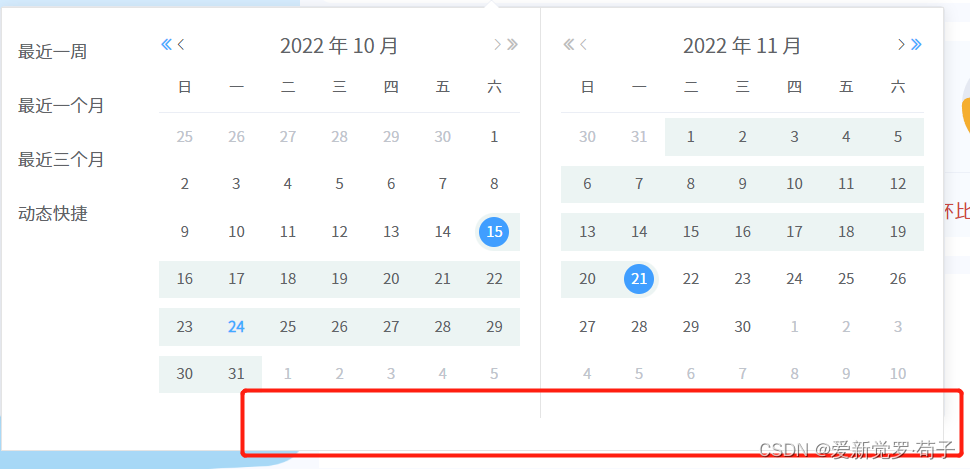
2 增加按钮和操作
配置 pickerOptions ,后白增加 两项,保存和确认。
pickerOptions: {
                shortcuts: [
                    {
                        text: "最近一周",
                        onClick(picker) {
                            const end = new Date();
                            const start = new Date();
                            start.setTime(start.getTime() - 3600 * 1000 * 24 * 7);
                            picker.$emit("pick", [start, end]);
                        },
                    },
                    {
                        text: "最近一个月",
                        onClick(picker) {
                            const end = new Date();
                            const start = new Date();
                            start.setTime(start.getTime() - 3600 * 1000 * 24 * 30);
                            picker.$emit("pick", [start, end]);
                        },
                    },
                    {
                        text: "最近三个月",
                        onClick(picker) {
                            const end = new Date();
                            const start = new Date();
                            start.setTime(start.getTime() - 3600 * 1000 * 24 * 90);
                            picker.$emit("pick", [start, end]);
                        },
                    },
                    /* {
                      text: "取消",
                      onClick(picker) {
                        const end = new Date();
                        const start = new Date();
                        start.setTime(start.getTime() - 3600 * 1000 * 24 * 90);
                        picker.$emit("pick", [start, end]);
                      },
                    }, */
                    {
                        text: "保存",
                        onClick(picker) {
                            let name = document.getElementById('hahaha').value
                            if (!name) return that.$message.warning('请输入快捷查询名称')
                            if (!that.value2.length) return that.$message.warning('请选则日期')
                            let shortcuts = localStorage.getItem('shortcuts') ? JSON.parse(localStorage.getItem('shortcuts')) : []
                            shortcuts.push({
                                text: name,
                                start: new Date(that.value2[0]),
                                end: new Date(that.value2[1]),
                                /* onClick(picker) {
                                  picker.$emit("pick", [new Date(that.value2[0]), new Date(that.value2[1])]);
                                }, */
                            })
                            if (shortcuts.length > 5) shortcuts.shift()
                            localStorage.setItem('shortcuts', JSON.stringify(shortcuts))
                            that.$emit('changeDate',that.value2)
                            that.$refs.datePick.pickerVisible = false;
                        },
                    },
                    {
                        text: "确认",
                        onClick(picker) {
                            that.$emit('changeDate',that.value2)
                            that.$refs.datePick.handleClose();
                        },
                    },
                ],
            },
然后更改按钮的位置和样式,继续在CSS写如下代码,到这里 CSS代码就写完了 。可以复制粘贴了。
.el-picker-panel__sidebar {
    height: 108%;
    border: 1px solid #e4e4e4;
    width: 100%;
    :last-child {
        color: #41acff;
        position: absolute;
        bottom: 5px;
        right: 5px;
        width: 50px;
    }
    :nth-last-child(2) {
        color: #71e41f;
        position: absolute;
        bottom: 5px;
        right: 55px;
        width: 50px;
    }
    :nth-last-child(2):hover {
        color: #71e41f!important;
    }
     :nth-last-child(3) {
        color: #333;
        position: absolute;
        bottom: 5px;
        right: 105px;
        width: 150px;
    }
}
第二步 加入交互
1 如何控制选择器的显示和隐藏
通过这个属性:pickerVisible
that.$refs.datePick.pickerVisible = false; 这是一个隐藏属性,在文档里平没有提到这个。
2 如何动态添加和记忆
原理是添加完成后通过本地缓存记录内容,再次打开选择器后读取缓存的内容
if (localStorage.getItem('shortcuts')) {
                let shortcutsStr = JSON.parse(localStorage.getItem('shortcuts'))
                this.pickerOptions.shortcuts.splice(3, this.pickerOptions.shortcuts.length - 5)
                shortcutsStr.reverse().map((item) => {
                    this.pickerOptions.shortcuts.splice(3, 0, {
                        text: item.text,
                        onClick(picker) {
                            picker.$emit("pick", [new Date(item.start), new Date(item.end)]);
                        },
                    })
                })
                console.log(this.pickerOptions.shortcuts)
            }
3 通过原生js方法添加input框
if (document.getElementById('hahaha')) document.getElementsByClassName('el-picker-panel__sidebar')[0].removeChild(document.getElementById('hahaha'))

            var a = document.createElement('input')
            a.setAttribute('id', 'hahaha')
            a.setAttribute('class', 'el-input__inner')
            a.setAttribute('placeholder', '请输入快捷选项名称')
            this.$nextTick(() => {
                document.getElementsByClassName('el-picker-panel__sidebar')[0].insertBefore(a, document.getElementsByClassName('el-picker-panel__shortcut')[document.getElementsByClassName('el-picker-panel__shortcut').length - 2])
            })
第三步 选则完成后 ,通过emit 像父组件发送选中的值
封装好的组件源码:
或者直接下载组件:https://download.csdn.net/download/AisinGioroGouzi/86814416
<template>
    <el-date-picker @change="changeTime" ref="datePick" v-model="value2" type="daterange" align="right"
        unlink-panels range-separator="至" value-format="yyyy-MM-dd" @focus="focus" @blur="getData()"
        start-placeholder="开始日期" end-placeholder="结束日期" :picker-options="pickerOptions">
    </el-date-picker>
</template>

<script>
export default {
    data() {
        var that = this;
        return {
            pickerOptions: {
                shortcuts: [
                    {
                        text: "最近一周",
                        onClick(picker) {
                            const end = new Date();
                            const start = new Date();
                            start.setTime(start.getTime() - 3600 * 1000 * 24 * 7);
                            picker.$emit("pick", [start, end]);
                        },
                    },
                    {
                        text: "最近一个月",
                        onClick(picker) {
                            const end = new Date();
                            const start = new Date();
                            start.setTime(start.getTime() - 3600 * 1000 * 24 * 30);
                            picker.$emit("pick", [start, end]);
                        },
                    },
                    {
                        text: "最近三个月",
                        onClick(picker) {
                            const end = new Date();
                            const start = new Date();
                            start.setTime(start.getTime() - 3600 * 1000 * 24 * 90);
                            picker.$emit("pick", [start, end]);
                        },
                    },
                    /* {
                      text: "取消",
                      onClick(picker) {
                        const end = new Date();
                        const start = new Date();
                        start.setTime(start.getTime() - 3600 * 1000 * 24 * 90);
                        picker.$emit("pick", [start, end]);
                      },
                    }, */
                    {
                        text: "保存",
                        onClick(picker) {
                            let name = document.getElementById('hahaha').value
                            if (!name) return that.$message.warning('请输入快捷查询名称')
                            if (!that.value2.length) return that.$message.warning('请选则日期')
                            let shortcuts = localStorage.getItem('shortcuts') ? JSON.parse(localStorage.getItem('shortcuts')) : []
                            shortcuts.push({
                                text: name,
                                start: new Date(that.value2[0]),
                                end: new Date(that.value2[1]),
                                /* onClick(picker) {
                                  picker.$emit("pick", [new Date(that.value2[0]), new Date(that.value2[1])]);
                                }, */
                            })
                            if (shortcuts.length > 5) shortcuts.shift()
                            localStorage.setItem('shortcuts', JSON.stringify(shortcuts))
                            that.$emit('changeDate',that.value2)
                            that.$refs.datePick.pickerVisible = false;
                        },
                    },
                    {
                        text: "确认",
                        onClick(picker) {
                            that.$emit('changeDate',that.value2)
                            that.$refs.datePick.handleClose();
                        },
                    },
                ],
            },
            value2: [],
        }
    },
    mounted() { },
    methods: {
        focus() {

            if (localStorage.getItem('shortcuts')) {
                let shortcutsStr = JSON.parse(localStorage.getItem('shortcuts'))
                this.pickerOptions.shortcuts.splice(3, this.pickerOptions.shortcuts.length - 5)
                shortcutsStr.reverse().map((item) => {
                    this.pickerOptions.shortcuts.splice(3, 0, {
                        text: item.text,
                        onClick(picker) {
                            picker.$emit("pick", [new Date(item.start), new Date(item.end)]);
                        },
                    })
                })
                console.log(this.pickerOptions.shortcuts)
            }
            if (document.getElementById('hahaha')) document.getElementsByClassName('el-picker-panel__sidebar')[0].removeChild(document.getElementById('hahaha'))

            var a = document.createElement('input')
            a.setAttribute('id', 'hahaha')
            a.setAttribute('class', 'el-input__inner')
            a.setAttribute('placeholder', '请输入快捷选项名称')
            this.$nextTick(() => {
                document.getElementsByClassName('el-picker-panel__sidebar')[0].insertBefore(a, document.getElementsByClassName('el-picker-panel__shortcut')[document.getElementsByClassName('el-picker-panel__shortcut').length - 2])
            })

        },
        changeTime(e) {
            //保证在选择完时间后,日期弹出框不会消失
            this.value2 = e;
            this.$refs.datePick.pickerVisible = true;
        },
        getData() {
            // document.getElementById('hahaha').value = '';
        },
    }
}
</script>

<style lang="less" scoped>
/deep/
.el-picker-panel__sidebar {
    height: 108%;
    border: 1px solid #e4e4e4;
    width: 100%;
    :last-child {
        color: #41acff;
        position: absolute;
        bottom: 5px;
        right: 5px;
        width: 50px;
    }
    :nth-last-child(2) {
        color: #71e41f;
        position: absolute;
        bottom: 5px;
        right: 55px;
        width: 50px;
    }
    :nth-last-child(2):hover {
        color: #71e41f!important;
    }
     :nth-last-child(3) {
        color: #333;
        position: absolute;
        bottom: 5px;
        right: 105px;
        width: 150px;
    }
}
</style>版权声明:本文为AisinGioroGouzi原创文章,遵循CC 4.0 BY-SA版权协议,转载请附上原文出处链接和本声明。