首先创建项目文件夹 vueTest,执行:
cd vueTest && npm init
安装webpack和vue
npm i -D webpack
npm i -D webpack-cli
npm i -S vue
创建下面的项目目录:
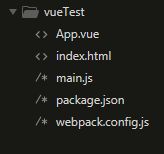
App.vue :
<template>
    <h1>Hello {{ msg }}</h1>
</template>
<script>
    export default {
        data(){
            return {
                msg: 'Vue.js'
            }
        }
    }
</script>
<style scoped>
    h1{
        font-family: 'Courier New';
        color: red;
    }
</style>
main.js :
import Vue from 'vue';
import App from './App.vue';

new Vue({
    el: '#app',
    render: h => h(App)
});
然后开始写webpack配置文件,写之前先安装各种loader
npm i -D vue-loader css-loader vue-template-compiler
还需要用extract-text-webpack-plugin插件将vue文件中的样式提取出来
npm i -D extract-text-webpack-plugin
如果webpack版本是4.0及以上请执行下面的命令:
npm i -D extract-text-webpack-plugin@next
webpack.config.js :
const path = require('path');
const VueLoaderPlugin = require('vue-loader/lib/plugin');
const ExtractTextPlugin = require('extract-text-webpack-plugin');

module.exports = {
    entry: './main.js',
    output: {
        filename: 'bundle.js',
        path: path.resolve(__dirname, './dist'),
    },
    resolve: {
        extensions: ['.js', '.vue', '.json'],
    },
    module: {
        rules: [
            {
                test: /\.vue$/,
                use: ['vue-loader'],
                exclude: /node_modules/
            },
            {
                test: /\.css$/,
                use: ExtractTextPlugin.extract({
                    use: ['css-loader']
                }),
                exclude: /node_modules/
            }
        ]
    },
    plugin: [
        new VueLoaderPlugin(),
        new ExtractTextPlugin('style.css')
    ]
}
然后在package.json里写一个启动脚本
{
    "name": "vuetest",
    "version": "1.0.0",
    "description": "",
    "main": "index.js",
    "scripts": {
        "test": "echo \"Error: no test specified\" && exit 1",
        "build": "webpack --config webpack.config.js"
    },
    "author": "",
    "license": "ISC",
    "devDependencies": {
        "css-loader": "^1.0.0",
        "extract-text-webpack-plugin": "^4.0.0-beta.0",
        "vue-loader": "^15.2.6",
        "vue-template-compiler": "^2.5.17",
        "webpack": "^4.16.4",
        "webpack-cli": "^3.1.0"
    },
    "dependencies": {
        "vue": "^2.5.17"
    }
}
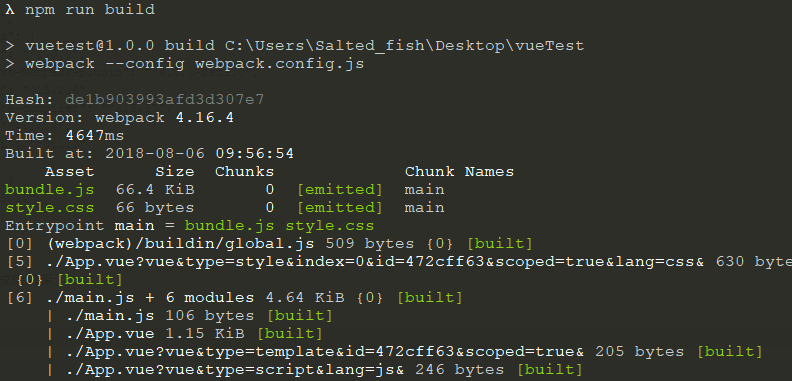
执行 npm run build 即可成功编译:
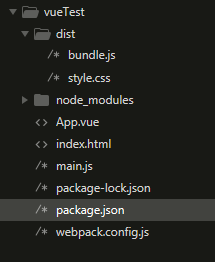
编译后的项目结构:
在index.html中写入:
<!DOCTYPE html>
<html lang="en">
<head>
    <meta charset="UTF-8">
    <title>Document</title>
    <link rel="stylesheet" href="./dist/style.css">
</head>
<body>
    <div id="app"></div>
    <script src="./dist/bundle.js"></script>
</body>
</html>
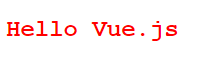
打开浏览器就看看到效果了:
转载于:https://www.cnblogs.com/qmdx00/p/9428705.html