- 本例使用tigier vnc,如果已经安装其他的vnc软件,请先remove, 例如sudo apt remove vnc4server
- 安装tigervnc
sudo apt install xserver-xorg-core
sudo apt install tigervnc-standalone-server tigervnc-xorg-extension tigervnc-viewer -y
- setup a password for vnc login:
$ vncpasswd - How to configuring Gnome 3 Desktop environment to use with VNC
You need to create a file name ~/.vnc/xstartup using a text editor such as vim command or nano command:
$ vi ~/.vnc/xstartup
Append the following:
#!/bin/sh
# Start Gnome 3 Desktop
[ -x /etc/vnc/xstartup ] && exec /etc/vnc/xstartup
[ -r $HOME/.Xresources ] && xrdb $HOME/.Xresources
vncconfig -iconic &
dbus-launch --exit-with-session gnome-session &
sudo chmod 777 ~/.vnc/xstartup
- How to start TigerVNC server
$ vncserver
One can setup desktop bit depth such as 8, 16, 24, 32 and Desktop geometry in {width}x{height} as follows:
$ vncserver -depth {8|16|24|32} -geometry {width}x{height}
$ vncserver -depth 32 -geometry 1680x1050
Verify it with the ss command and pgrep command/egrep command:
$ pgrep Xtigervnc
$ ss -tulpn | egrep -i 'vnc|590'
- sometimes vnc is only allowed to access from localhost, you have to disable via -localhost no
vncserver :1 -localhost no -geometry 1680x1050 -alwaysshared
vncserver :1 -localhost no -geometry 1680x1050 -alwaysshared
vncserver -kill :1
开启端口
iptables -I INPUT -p tcp --dport 5901 -j ACCEPT
VNC客户端连接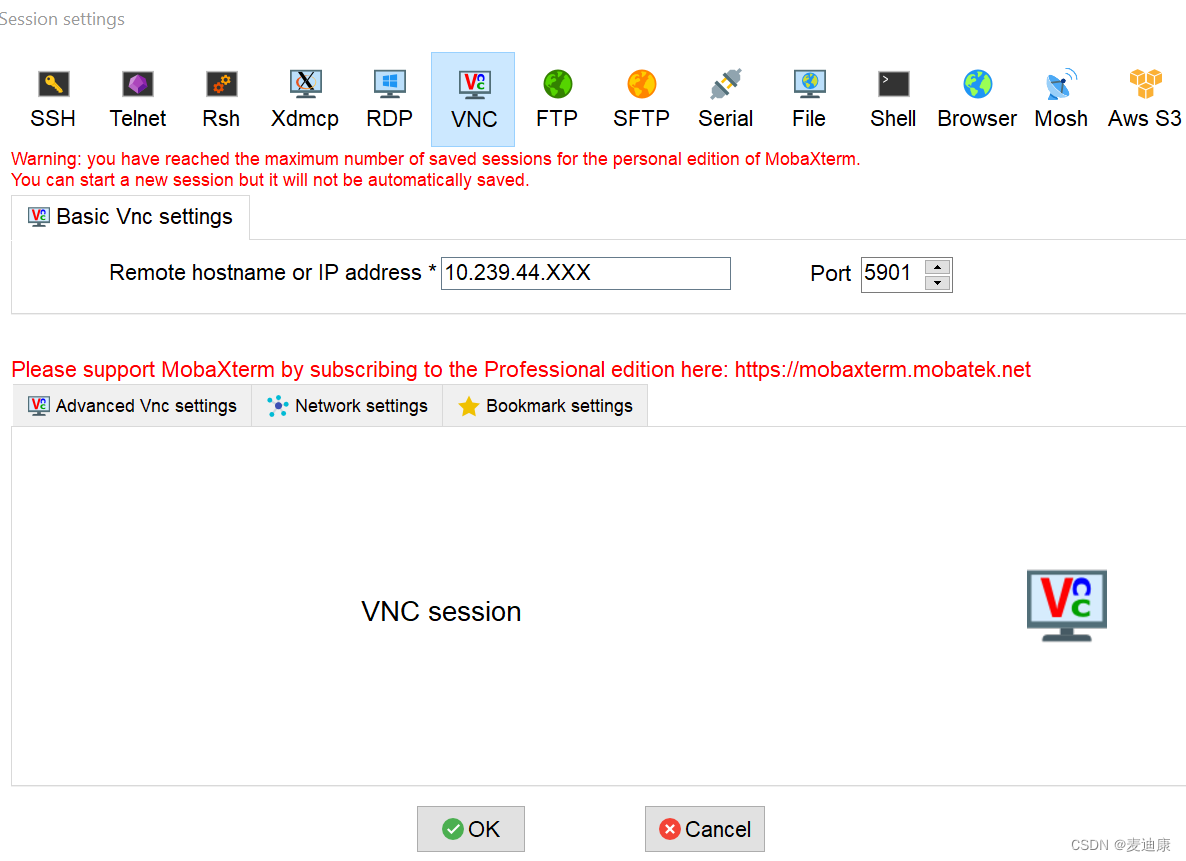
版权声明:本文为gaoping2736411763原创文章,遵循CC 4.0 BY-SA版权协议,转载请附上原文出处链接和本声明。