目录
目标
想把程序文件和生成文件分开来,生成在当前文件的out文件夹
过程
- 在保存代码的文件夹下面再建一个保存生成文件的文件夹,我生成了out文件夹
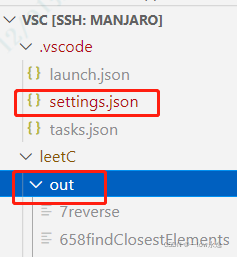
- 打开.vscode文件夹下面settings.json文件(这个json文件可以自己生成或复制过来,不影响使用)
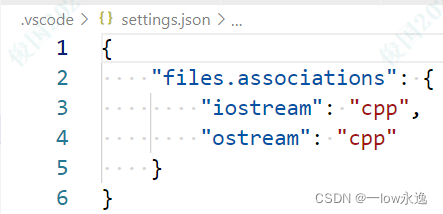
- 在settings.json中加入以下代码,我主要使用C++语言,所以只改这个,不同系统的shell语法不一样(斜杠与反斜杠),所以要进行区分
//原有指令 "code-runner.executorMap": { "c": "cd $dir && gcc $fileName -o $fileNameWithoutExt && $dir$fileNameWithoutExt", "cpp": "cd $dir && g++ $fileName -o $fileNameWithoutExt && $dir$fileNameWithoutExt", } - 在Linux系统安装的VSCode
"code-runner.executorMap": {
        "cpp": "cd $dir && g++ $fileName -o $dir/out/$fileNameWithoutExt && $dir/out/$fileNameWithoutExt",
      }
在Wins10系统安装的VSCode
    "code-runner.executorMap": {
        "cpp": "cd $dir && g++ $fileName -o .\\out\\$fileNameWithoutExt && .\\out\\$fileNameWithoutExt",
    }
//"cpp": "cd $dir && g++ $fileName -o之后共有两个路径名要修改, //现在只用其中一个作为说明 //"$dir"是指当前文件夹 //"/out/"是我在程序文件夹下新建的文件夹 //"$fileNameWithoutExt"是当前运行文件 -o $dir/out/$fileNameWithoutExt //例子:保存到绝对路径名中 -o D:/workFile/code/$fileNameWithoutExt
有警告,但不用管它,保存即可
- 完成,使用runner-code运行生成的文件直接保存到指定的文件夹
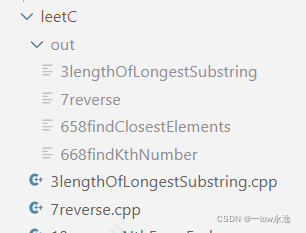
- 无补充
如何生成json代码
打开设置的方式多种多少,ctrl +shift +p或者其他都行,我用下面这种
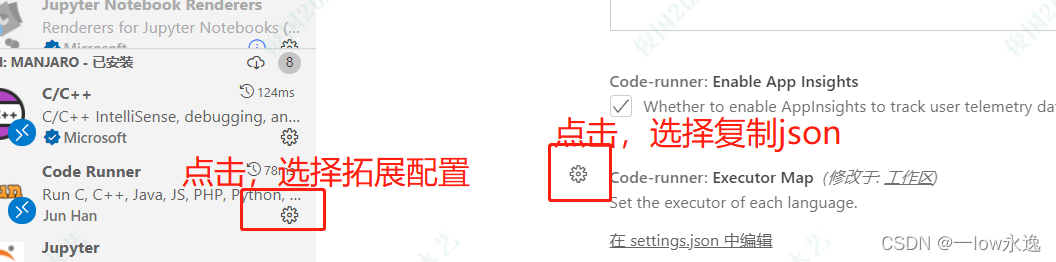
到文本上粘贴,就会看到超长一段,选择自己的语言保留即可,其他的删除或者不做修改就行
"code-runner.executorMap": {
  "javascript": "node",
  "java": "cd $dir && javac $fileName && java $fileNameWithoutExt",
  "c": "cd $dir && gcc $fileName -o $fileNameWithoutExt && $dir$fileNameWithoutExt",
  "cpp": "cd $dir && g++ $fileName -o $fileNameWithoutExt && $dir$fileNameWithoutExt",
  "objective-c": "cd $dir && gcc -framework Cocoa $fileName -o $fileNameWithoutExt && $dir$fileNameWithoutExt",
  "php": "php",
  "python": "python -u",
  "perl": "perl",
  "perl6": "perl6",
  "ruby": "ruby",
  "go": "go run",
  "lua": "lua",
  "groovy": "groovy",
  "powershell": "powershell -ExecutionPolicy ByPass -File",
  "bat": "cmd /c",
  "shellscript": "bash",
  "fsharp": "fsi",
  "csharp": "scriptcs",
  "vbscript": "cscript //Nologo",
  "typescript": "ts-node",
  "coffeescript": "coffee",
  "scala": "scala",
  "swift": "swift",
  "julia": "julia",
  "crystal": "crystal",
  "ocaml": "ocaml",
  "r": "Rscript",
  "applescript": "osascript",
  "clojure": "lein exec",
  "haxe": "haxe --cwd $dirWithoutTrailingSlash --run $fileNameWithoutExt",
  "rust": "cd $dir && rustc $fileName && $dir$fileNameWithoutExt",
  "racket": "racket",
  "scheme": "csi -script",
  "ahk": "autohotkey",
  "autoit": "autoit3",
  "dart": "dart",
  "pascal": "cd $dir && fpc $fileName && $dir$fileNameWithoutExt",
  "d": "cd $dir && dmd $fileName && $dir$fileNameWithoutExt",
  "haskell": "runhaskell",
  "nim": "nim compile --verbosity:0 --hints:off --run",
  "lisp": "sbcl --script",
  "kit": "kitc --run",
  "v": "v run",
  "sass": "sass --style expanded",
  "scss": "scss --style expanded",
  "less": "cd $dir && lessc $fileName $fileNameWithoutExt.css",
  "FortranFreeForm": "cd $dir && gfortran $fileName -o $fileNameWithoutExt && $dir$fileNameWithoutExt",
  "fortran-modern": "cd $dir && gfortran $fileName -o $fileNameWithoutExt && $dir$fileNameWithoutExt",
  "fortran_fixed-form": "cd $dir && gfortran $fileName -o $fileNameWithoutExt && $dir$fileNameWithoutExt",
  "fortran": "cd $dir && gfortran $fileName -o $fileNameWithoutExt && $dir$fileNameWithoutExt"
}
其他
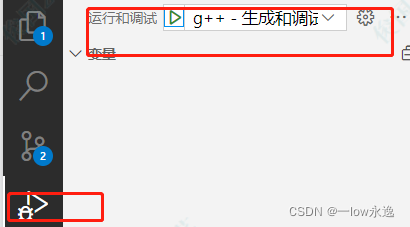
F5,不使用插件编译的,就修改tasks.json和launch.json文件即可,如果.vscode文件夹没有生成,就选侧边栏的debug选择调试,点第一个gcc,就会生成这两个文件
参考
版权声明:本文为weixin_42292586原创文章,遵循CC 4.0 BY-SA版权协议,转载请附上原文出处链接和本声明。