申明:文章中部分内容有涉及官方帮助或者网上资源整合,如有违权,请速与作者联系,谢谢!
作者:316191099@qq.com
培训:Skype for Business Server 2015-项目实战-培训-QQ群:65235615。(学员群,非所有人员都加。)
参照:
Create a file share
Skype for Business Server requires a file share so that computers throughout the topology can exchange files. Creating a file share is step 2 of 8 in the installation process for Skype for Business Server 2015. You can do steps 1 through 5 in any order. However, you must do steps 6, 7, and 8 in order, and after steps 1 through 5 as outlined in the diagram. For planning details about file share, see Environmental requirements for Skype for Business Server 2015.
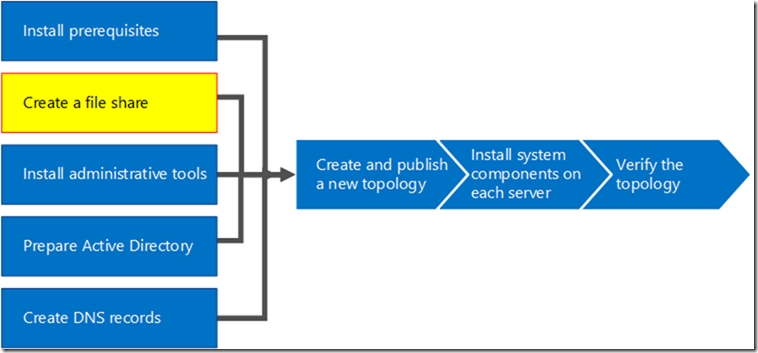
1. 文件共享
File Share
--------------------------------------------------------------------------------
Skype for Business Server 2015 is able to use the same file share for all file storage. You do need to keep the following in mind:
A file share needs to be on either direct attached storage (DAS) or a storage area network (SAN), and this includes the Distributed File System (DFS) as well as a redundant array of independent disks (RAID) for file stores. For further reading on DFS for Windows Server 2012, check out this DFS page.
We recommend a shared cluster for the file share. If you’re using one, you should cluster Windows Server 2012 or Windows Server 2012 R2. Windows Server 2008 R2 is acceptable as well. Why the latest Windows? Older versions may not have the right permissions to enable all features. You can use Cluster Administrator to create the file shares, and this Creating a Cluster KB article will help you with those details.
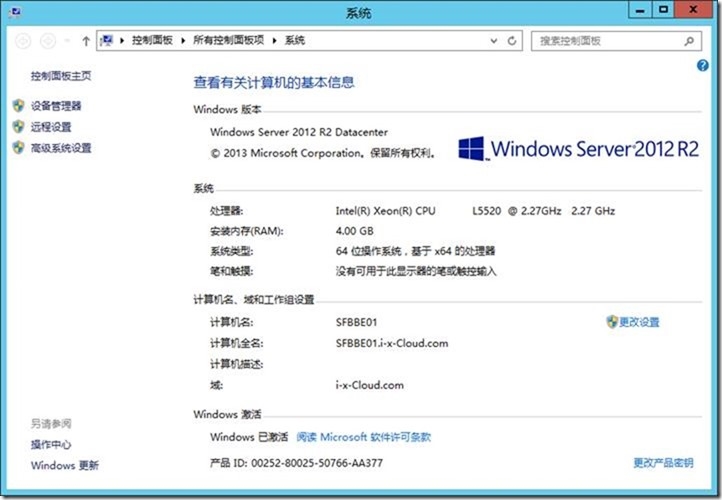
2. 登录-SFBBE01
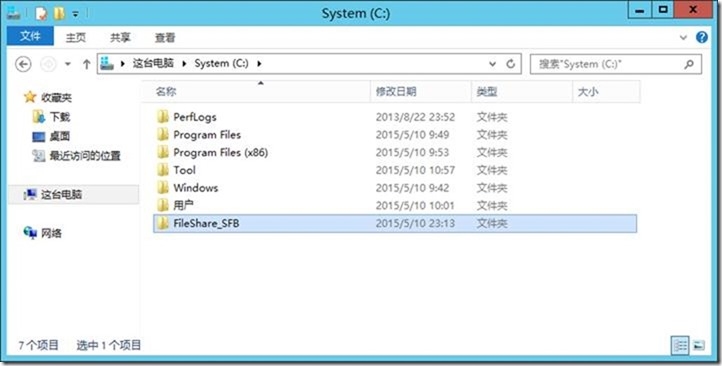
3. 创建-文件夹
FileShare_SFB
4. 共享-文件夹
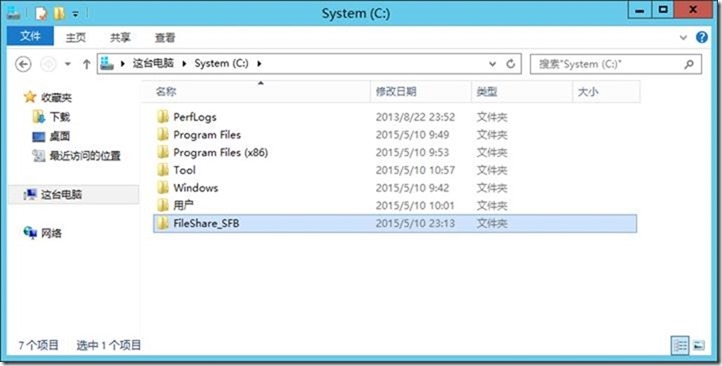
5. 选择-右键-共享-特定用户
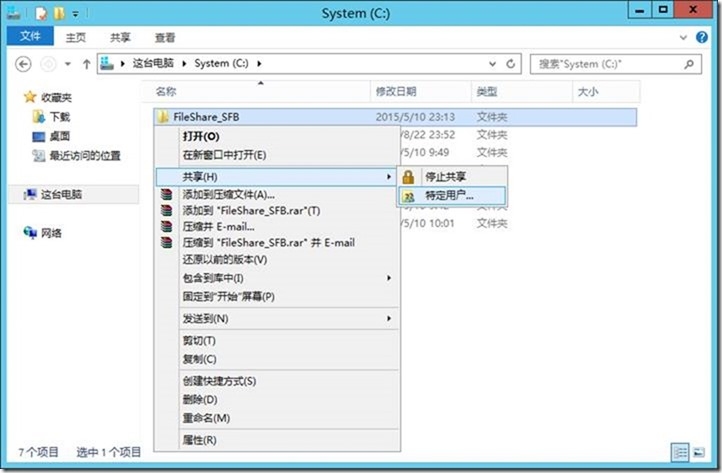
6. 选择-特定用户
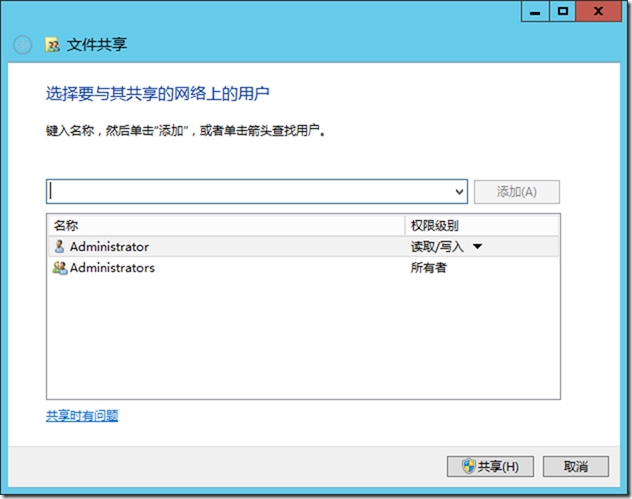
7. 添加-Everyone-读取-权限
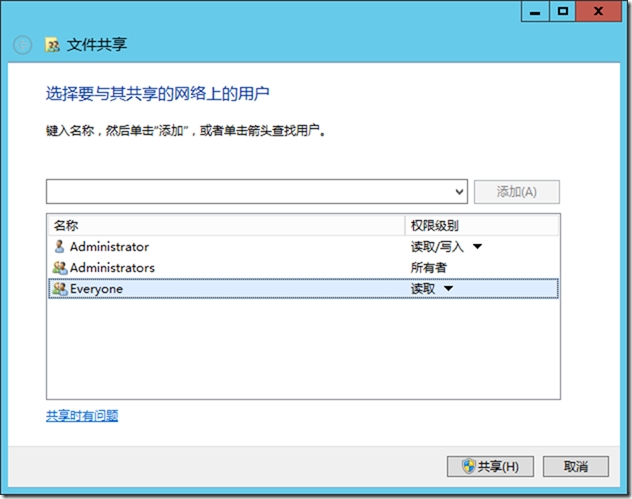
8. 选择-共享
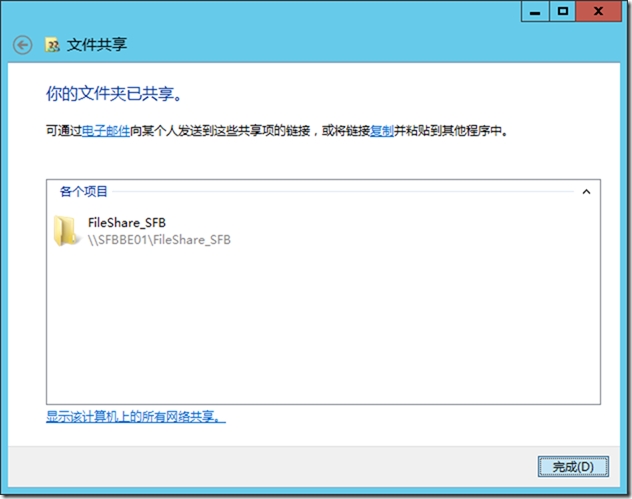
9. 选择-完成
10. 开始-运行-输入:
\\SFBBE01.i-x-Cloud.com\FileShare_SFB
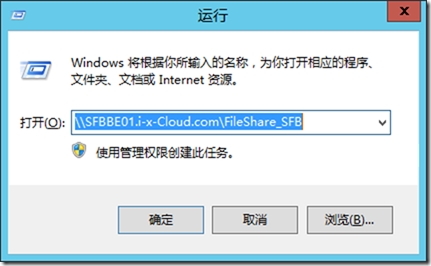
11. 选择-确定。
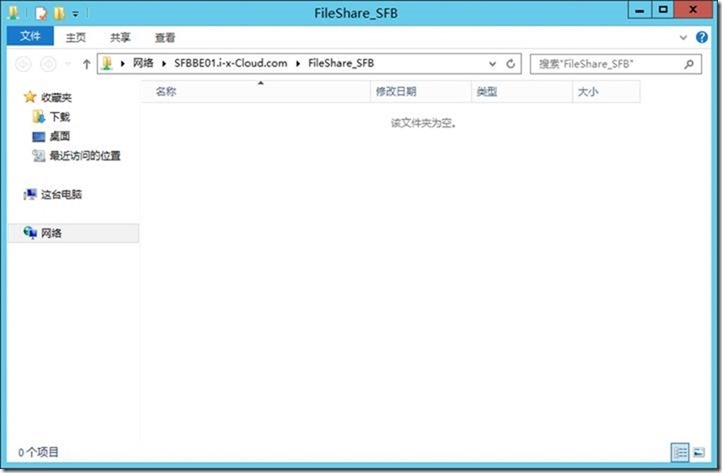
12. 测试-成功。