LVM 磁盘管理全流程
目录
实验环境
虚拟平台: VirtualBox 6.1.30
虚拟机: Ubuntu-focal-live
宿主机: Windows10-专业版
实验过程
0.创建新硬盘:
前提:关闭正在运行的虚拟机
在虚拟机管理平台,找到对应虚拟机 -> 明细 -> 存储 -> 添加虚拟硬盘,
增加已有的虚拟硬盘文件或者跟随虚拟硬盘创建向导生成新硬盘并添加;
1.硬盘分区
#查看存储硬件信息

lsblk
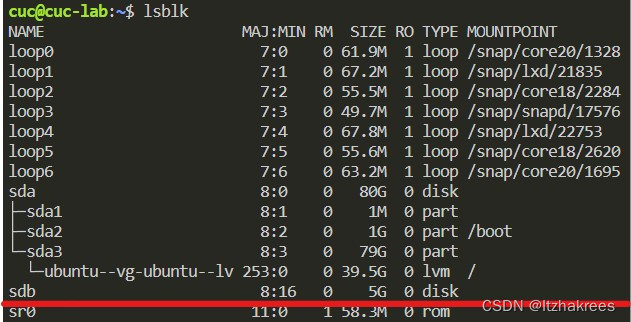
使用 lsblk 之后, 可见在 sda 硬盘的文件结构树之下, 还有一块 sdb 硬盘, 即还我们刚刚增加未分配的硬盘。
1.0 fdisk 分区
fdisk 用于小于 2TB 分区
# 在dev_name处输入lsblk查询到的设备名, 这里是sdb
sudo fdisk /dev/{{dev_name}}
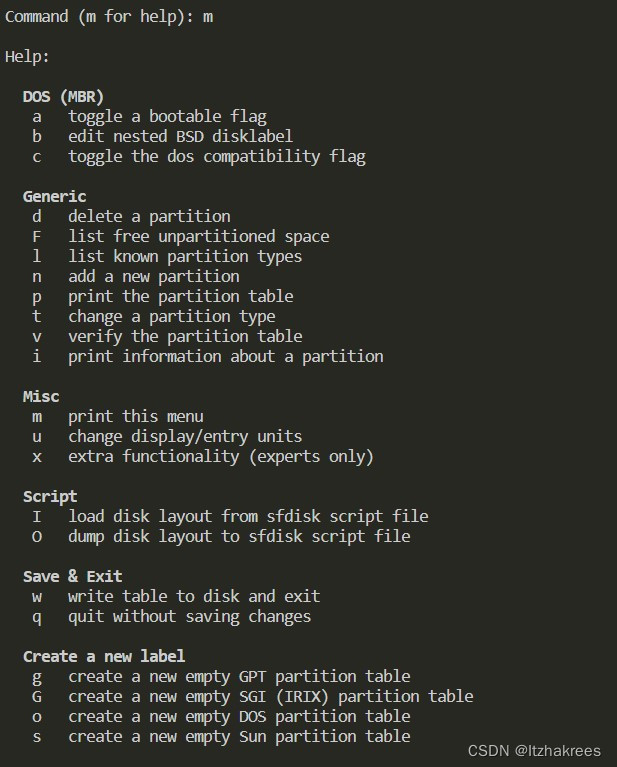
fdisk 启动时是以交互式的方式进行分配, 如果不知道如何分配, 在弹出的 Command (m for help): 后面直接输入 m 就能看到命令参数手册;
输入: p 获取确认硬盘信息, 防止错误操作;
# 获得信息
Command (m for help): p
Disk /dev/sdb: 5 GiB, 5368709120 bytes, 10485760 sectors
Disk model: VBOX HARDDISK
Units: sectors of 1 * 512 = 512 bytes
Sector size (logical/physical): 512 bytes / 512 bytes
I/O size (minimum/optimal): 512 bytes / 512 bytes
Disklabel type: dos
Disk identifier: 0x8e19f468
输入: n 进行分区操作;
Partition type
   p   primary (0 primary, 0 extended, 4 free) #主分区,还有4个可用
   e   extended (container for logical partitions) #拓展分区
Select (default p): #默认主分区,这里用设置主分区为例子;

Using default response p.
Partition number (1-4, default 1): #默认分区标号
First sector (2048-10485759, default 2048): #默认保留空间存储分区信息,尽量不更改
Last sector, +/-sectors or +/-size{K,M,G,T,P} (2048-10485759, default 10485759): +1G
#通过+/-size{K,M,G,T,P} 设置大小,默认是直接用光所有的存储空间,这里只分配了1GB

Created a new partition 1 of type 'Linux' and of size 1 GiB.
再输入: p 获取确认硬盘信息
# 可见已经存在刚才设置的1GB分区
Device     Boot Start     End Sectors Size Id Type
/dev/sdb1        2048 2099199 2097152   1G 83 Linux
因为硬盘空间没有分配完毕, 所以可以重复刚才的操作继续分区, 这次我们添加一个拓展分区;bash
# 新建分区
Command (m for help): n
Partition type
   p   primary (1 primary, 0 extended, 3 free)
   e   extended (container for logical partitions)
Select (default p): e #选择拓展分区
Partition number (2-4, default 2):
First sector (2099200-10485759, default 2099200):
Last sector, +/-sectors or +/-size{K,M,G,T,P} (2099200-10485759, default 10485759):
# 默认操作, 使用剩余的全部空间
Created a new partition 2 of type 'Extended' and of size 4 GiB.

Command (m for help): p
Disk /dev/sdb: 5 GiB, 5368709120 bytes, 10485760 sectors
Disk model: VBOX HARDDISK
Units: sectors of 1 * 512 = 512 bytes
Sector size (logical/physical): 512 bytes / 512 bytes
I/O size (minimum/optimal): 512 bytes / 512 bytes
Disklabel type: dos
Disk identifier: 0x8e19f468
# Id和Type上有明显不同, Id不同说明分区格式不同, 可能造成文件系统不兼容, 需要格外注意
Device     Boot   Start      End Sectors Size Id Type
/dev/sdb1          2048  2099199 2097152   1G 83 Linux
/dev/sdb2       2099200 10485759 8386560   4G  5 Extended
现有分区操作没有保存, 需要进行写操作正式确定分区
Command (m for help): w
The partition table has been altered.
Calling ioctl() to re-read partition table.
Syncing disks.
通过 lsblk 查看分区情况:
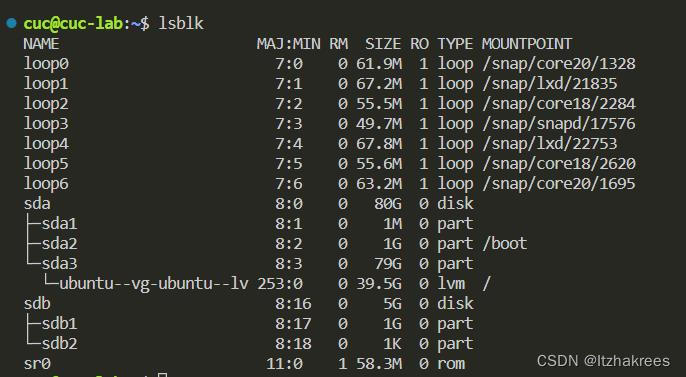
分区成功
1.1 gdisk 分区
fdisk 由于只能分较小区域的分区, 实际工作中并不实用, 实际常使用 gdisk, 但 gdisk 与 fdisk 操作几乎完全一致(gdisk 使用?调出帮助手册), 因此不在此详细描述 gdisk 的分区操作, 而只单纯展示一下分区流程
#启动gdisk
:~$sudo gdisk /dev/sdb
# gdisk界面
GPT fdisk (gdisk) version 1.0.5

Partition table scan:
  MBR: MBR only
  BSD: not present
  APM: not present
  GPT: not present


***************************************************************
Found invalid GPT and valid MBR; converting MBR to GPT format
in memory. THIS OPERATION IS POTENTIALLY DESTRUCTIVE! Exit by
typing 'q' if you don't want to convert your MBR partitions
to GPT format!
***************************************************************

#查询手册
Command (? for help): ?
b       back up GPT data to a file
c       change a partition's name
d       delete a partition
i       show detailed information on a partition
l       list known partition types
n       add a new partition
o       create a new empty GUID partition table (GPT)
p       print the partition table
q       quit without saving changes
r       recovery and transformation options (experts only)
s       sort partitions
t       change a partition's type code
v       verify disk
w       write table to disk and exit
x       extra functionality (experts only)
?       print this menu

#创建第一分区
Command (? for help): n #gdisk没有主分区与拓展分区的区别
Partition number (1-128, default 1):
First sector (34-10485726, default = 2048) or {+-}size{KMGTP}:
Last sector (2048-10485726, default = 10485726) or {+-}size{KMGTP}: +2G
Current type is 8300 (Linux filesystem)
Hex code or GUID (L to show codes, Enter = 8300): #设置分区格式, 可以输入L来查询支持的格式
Changed type of partition to 'Linux filesystem'

#创建第二分区
Command (? for help): n
Partition number (2-128, default 2):
First sector (34-10485726, default = 4196352) or {+-}size{KMGTP}:
Last sector (4196352-10485726, default = 10485726) or {+-}size{KMGTP}:
Current type is 8300 (Linux filesystem)
Hex code or GUID (L to show codes, Enter = 8300):
Changed type of partition to 'Linux filesystem'

#查询状态
Command (? for help): p
Disk /dev/sdb: 10485760 sectors, 5.0 GiB
Model: VBOX HARDDISK
Sector size (logical/physical): 512/512 bytes
Disk identifier (GUID): E9CCD0C8-44D8-43EE-91B5-99BA39AC8791
Partition table holds up to 128 entries
Main partition table begins at sector 2 and ends at sector 33
First usable sector is 34, last usable sector is 10485726
Partitions will be aligned on 2048-sector boundaries
Total free space is 2014 sectors (1007.0 KiB)
#两块分区信息
Number  Start (sector)    End (sector)  Size       Code  Name
   1            2048         4196351   2.0 GiB     8300  Linux filesystem
   2         4196352        10485726   3.0 GiB     8300  Linux filesystem

#确认写入
Command (? for help): w

Final checks complete. About to write GPT data. THIS WILL OVERWRITE EXISTING
PARTITIONS!!

Do you want to proceed? (Y/N): y
OK; writing new GUID partition table (GPT) to /dev/sdb.
The operation has completed successfully.
2.LVM 管理
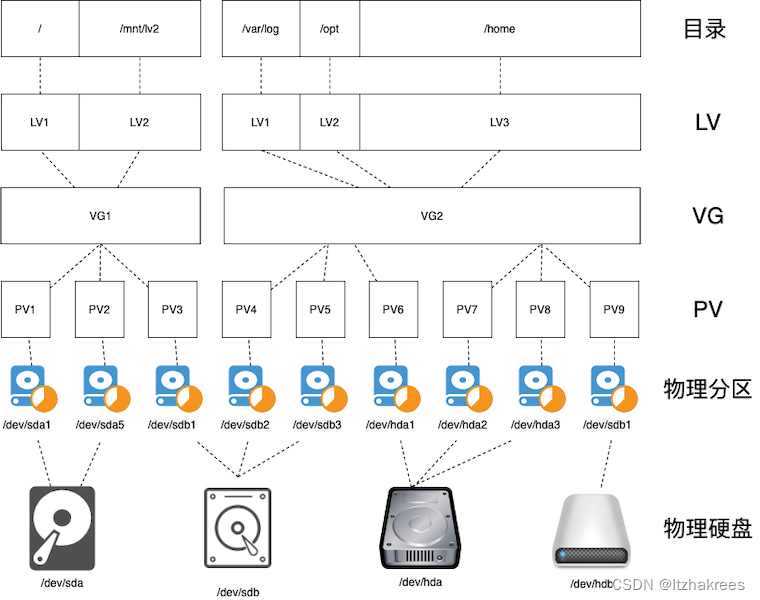
LVM 是一种可用在 Linux 内核的逻辑分卷管理器, 可用于管理磁盘驱动器或其他类似的大容量存储设备
2.0 PV 管理
# 在物理分区上创建 PV
pvcreate {{/dev/sdX1}}

# 查看所有可用 PV
pvs
pvscan
对我们[gdisk 生成的两块分区](#### 1.1 gdisk 分区)进行管理
# pvcreate 支持像下方例子命令一样批量生成
sudo pvcreate /dev/sdb{1,2}
# 等价于 pvcreate /dev/sdb1 && pvcreate /dev/sdb2
# 执行结果
Physical volume "/dev/sdb1" successfully created.
Physical volume "/dev/sdb2" successfully created.s
通过 pvs 和 pvscan 可以获知现有 pv 的信息, 二者显示内容有一定区别
# pvs
  PV         VG        Fmt  Attr PSize   PFree
  /dev/sda3  ubuntu-vg lvm2 a--  <79.00g <39.50g
  /dev/sdb1            lvm2 ---    2.00g   2.00g
  /dev/sdb2            lvm2 ---   <3.00g  <3.00g
# pvscan
  PV /dev/sda3   VG ubuntu-vg       lvm2 [<79.00 GiB / <39.50 GiB free]
  PV /dev/sdb1                      lvm2 [2.00 GiB]
  PV /dev/sdb2                      lvm2 [<3.00 GiB]
  Total: 3 [<84.00 GiB] / in use: 1 [<79.00 GiB] / in no VG: 2 [<5.00 GiB]
2.1 VG 管理
# 创建 VG
# 以下例子将 3 个物理分区加入到一个名为 ubuntu-vg 的 VG
vgcreate ubuntu-vg /dev/sda1 /dev/sdb1 /dev/sdc1
# 等价于 vgcreate ubuntu-vg /dev/sda{1,2,3}

# 从指定 VG 中移除一个 PV
vgreduce {{ubuntu-vg}} {{/dev/sdc1}}

# 将一个 PV 加入到一个指定 VG 中
vgextend {{ubuntu-vg}} {{/dev/sda5}}

# 查看缩略 VG 信息
vgs
vgscan

# 查看 VG 详细信息
vgdisplay
在我们的例子当中,我们将刚刚生成的两个 pv/dev/sdb1和/dev/sdb2加入到一个叫做test-vg
的 VG 当中:
root@:/root# vgcreate test-vg /dev/sdb1 /dev/sdb2
  Volume group "test-vg" successfully created

root@:/root# vgdisplay
  --- Volume group ---
  VG Name               test-vg
  System ID
  Format                lvm2
  Metadata Areas        2
  Metadata Sequence No  1
  VG Access             read/write
  VG Status             resizable
  MAX LV                0
  Cur LV                0
  Open LV               0
  Max PV                0
  Cur PV                2
  Act PV                2
  VG Size               4.99 GiB
  PE Size               4.00 MiB
  Total PE              1278
  Alloc PE / Size       0 / 0
  Free  PE / Size       1278 / 4.99 GiB
  VG UUID               0Sx5iK-J6wg-QBSb-aP98-aFcg-Mw4m-tfGD1S
成功生成了test-vg,且正好大小是 sdb1 和 sdb2 的大小总和;
2.2 LV 管理
# 创建lv
# -L 指定分区大小,-n 指定逻辑分区名称
lvcreate -L {{size}} -n {{demo-lv}} {{ubuntu-vg}}
# 对空余百分比大小指定
lvcreate -l {{100%FREE}} -n {{demo-lv}} {{ubuntu-vg}}

# 拓展lv
lvextend --size {{100}}%FREE {{logical_volume}}


# 查看 LV 详细信息
lvdisplay
继续操作 test-vg 来生成 lv
root@:/root# lvcreate -L 4G -n test-lv test-vg
  Logical volume "test-lv" created.

# lv生成成功
root@:/root#  lvs
  LV        VG        Attr       LSize  Pool Origin Data%  Meta%  Move Log Cpy%Sync Convert
  test-lv   test-vg   -wi-a-----  4.00g
  ubuntu-lv ubuntu-vg -wi-ao---- 39.50g
3.mkfs 文件系统设置
常用 mkfs 命令:
 - Build a Linux ext2 filesystem on a partition:
   mkfs {{path/to/partition}}

 - Build a filesystem of a specified type:
   mkfs -t {{ext4}} {{path/to/partition}}

 - Build a filesystem of a specified type and check for bad blocks:
   mkfs -c -t {{ntfs}} {{path/to/partition}}
通过lvdisplay 找到对应 lv 的Path, 该 Path 就是mkfs {{path/to/partition}} 中的{{path/to/partition}}
root@:/# lvdisplay | grep -i path
  LV Path                /dev/test-vg/test-lv
  LV Path                /dev/ubuntu-vg/ubuntu-lv
文件系统设定流程:
#以下操作均是在root权限下执行, 非root需sudo

root@:/# mkfs -t ext4 /dev/test-vg/test-lv
mke2fs 1.45.5 (07-Jan-2020)
Creating filesystem with 1048576 4k blocks and 262144 inodes
Filesystem UUID: 85c86322-dc48-445f-8db6-6ecdef7a8c3d
Superblock backups stored on blocks:
        32768, 98304, 163840, 229376, 294912, 819200, 884736

Allocating group tables: done
Writing inode tables: done
Creating journal (16384 blocks): done
Writing superblocks and filesystem accounting information: done
查询 mkfs 可以设置的文件类型, 可以通过输入mkfs. 然后快速补全两次查看:
~$ mkfs.
mkfs.bfs     mkfs.cramfs  mkfs.ext3    mkfs.fat     mkfs.msdos   mkfs.vfat
mkfs.btrfs   mkfs.ext2    mkfs.ext4    mkfs.minix   mkfs.ntfs    mkfs.xfs
实际上 mkfs.{{文件系统类型}} {{分区路径}} 等价于
mkfs -t {{文件系统类型}} {{分区路径}}
4.挂载分区
已经初始化的分区在挂载之前无法使用
# 将分区挂载到指定目录
mkdir -p {{path/to/target_directory}} # 创建挂载点
mount -t {{filesystem_type}} {{path/to/device_file}} {{path/to/target_directory}} #挂载
mount {{path/to/device_file}} {{path/to/target_directory}} #挂载, 不需要限制文件系统则可使用
df -h #查看结果中有无分区信息来判断是否挂载成功
比如, 挂载我们设置的 test-lv 过程:
root@:/# mkdir -p /mnt/test-lv
root@:/# mount /dev/test-vg/test-lv /mnt/test-lv/
root@:/# df -h
Filesystem                         Size  Used Avail Use% Mounted on
udev                               445M     0  445M   0% /dev
tmpfs                               98M  1.2M   97M   2% /run
/dev/mapper/ubuntu--vg-ubuntu--lv   39G  6.6G   31G  18% /
tmpfs                              489M     0  489M   0% /dev/shm
tmpfs                              5.0M     0  5.0M   0% /run/lock
tmpfs                              489M     0  489M   0% /sys/fs/cgroup
share                              150G  108G   43G  72% /home/cuc/share
/dev/sda2                          976M  304M  606M  34% /boot
/dev/loop0                          62M   62M     0 100% /snap/core20/1328
/dev/loop1                          68M   68M     0 100% /snap/lxd/21835
/dev/loop2                          56M   56M     0 100% /snap/core18/2284
/dev/loop3                          50M   50M     0 100% /snap/snapd/17576
/dev/loop4                          68M   68M     0 100% /snap/lxd/22753
/dev/loop5                          56M   56M     0 100% /snap/core18/2620
/dev/loop6                          64M   64M     0 100% /snap/core20/1695
share                              150G  108G   43G  72% /media/sf_share
tmpfs                               98M     0   98M   0% /run/user/1000
/dev/mapper/test--vg-test--lv      3.9G   16M  3.7G   1% /mnt/test-lv
挂载成功
5.后续拓展空间
# 卸载指定 LVM 分区
umount {{path/to/device_file}}

# 检查 ext2/ext3/ext4 分区是否有损坏
e2fsck -f {{path/to/device_file}}

# 分区扩容
lvresize --size +{{120G}} --resizefs {{volume_group}}/{{logical_volume}}
lvresize --size {{100}}%FREE {{volume_group}}/{{logical_volume}}

# 分区缩减(可能会由于缩减后存储容量不足导致数据丢失)
lvresize --size -{{120G}} --resizefs {{volume_group}}/{{logical_volume}}