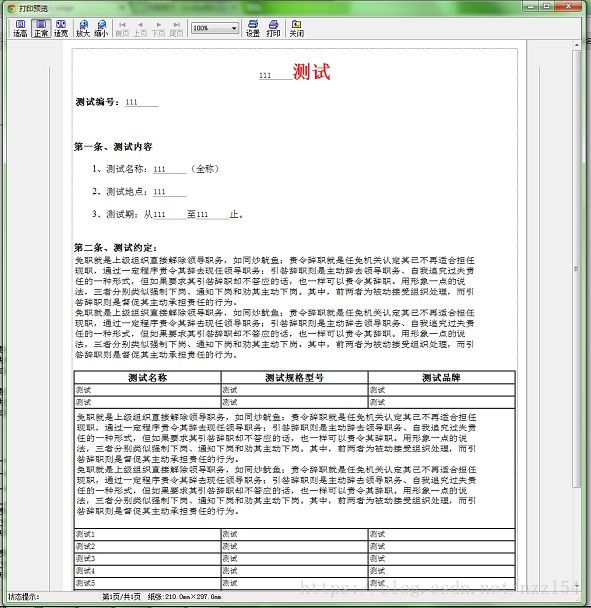
这两天研究这打印的js插件,html上图:
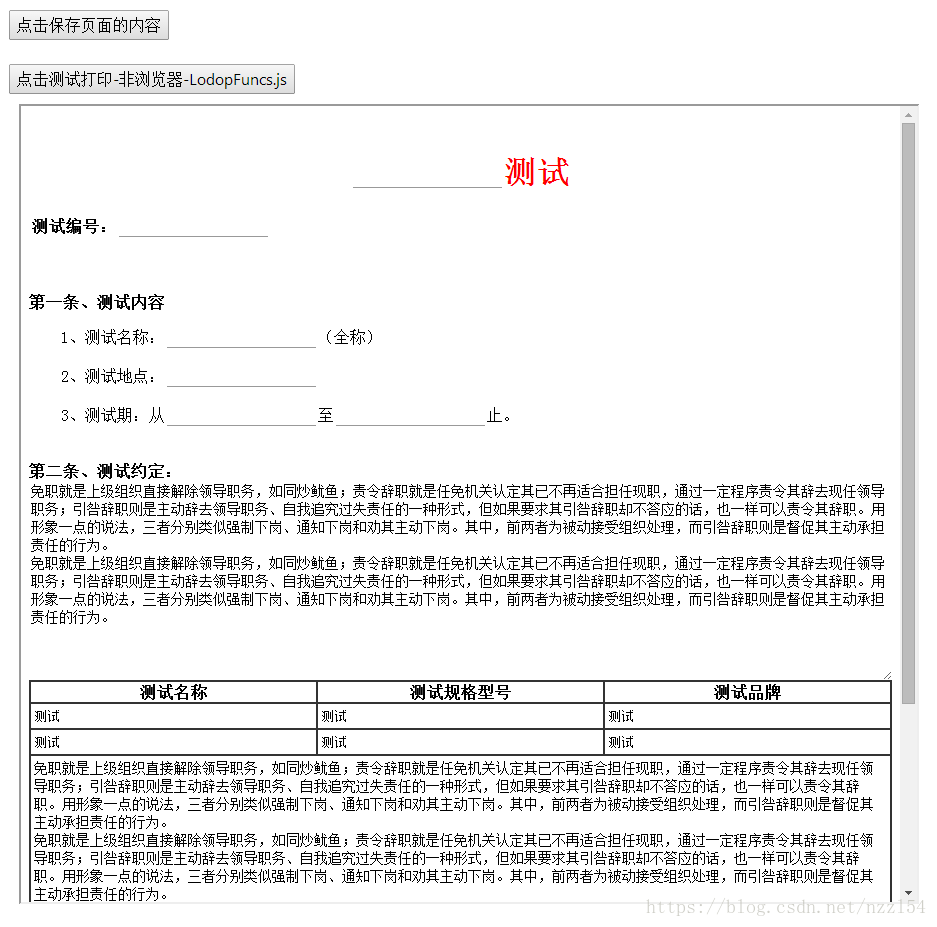
下载地址:http://www.lodop.net/download.html
下载好后,里面比较重要的就是这几个文件,因为他需要一些插件的支持,所以exe有必要的情况下最好放在你网页可以下载的地方,然后修改其js的引用路径,这样当客户没有安装exe的时候,可以直接在页面上下载exe来安装,下载后的html估计都是些打印样板,具体不深究,这里只说些用法。
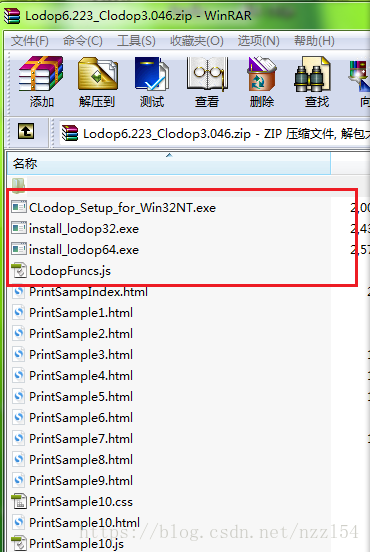
1、项目使用的是sprintboot加上maven管理的,第一步是放置js和其exe文件。
分别新建两个文件夹在static文件夹下,一个叫js文件夹,把Lodopfuncs.js放入这个文件夹,一个叫lodop文件夹,把三个exe放入该文件夹,然后记得在application.properties下写上静态映射:
spring.mvc.static-path-pattern=/static/**
2.首页NewFile-print.html
controller中添加映射
@GetMapping("/indexprint")
public String indexprint() {
return "/modelhtml/NewFile-print";
}
@GetMapping("/testPrint-native")
public String testPrintNative() {
return "/modelhtml/purchase-and-sale-contract";
}
html内容:这里设置了一个保存按钮,因为如果你想要写在input框里的内容能打印的话,需要setAttribute赋值才行,直接写在页面是无法打印你新写的东西的
<!DOCTYPE html>
<html xmlns:th="http://www.thymeleaf.org">
<head lang="en">
    <meta charset="UTF-8"/>
    <title>
    index page
    </title>
    <link rel="stylesheet" type="text/css" th:href="@{/static/js/bootstrap4/css/bootstrap.min.css}"/>
    <script th:src="@{/static/js/LodopFuncs.js}"></script>
    <object id="LODOP_OB" classid="clsid:2105C259-1E0C-4534-8141-A753534CB4CA" width="0" height="0">
    <embed id="LODOP_EM" type="application/x-print-lodop" width="0" height="0" pluginspage="/static/lodop/install_lodop32.exe">
    </embed>
    </object>
</head>
<body>

<div style = "margin-top: 10px; margin-left:10px; argin-buttom:20px">
<input id = "button" type="button" value="点击保存页面的内容"  onClick = "testPrintSave()"></input>
<br></br>
<br></br>
<input id = "button6" type="button" value="点击测试打印-非浏览器-LodopFuncs.js"  onClick = "print()"></input>
<br></br>
<iframe id ="testIframe" style="text-align:center;margin-left: 10px;margin-top:10px"
     src = "/testPrint-native" width='900' height='800'></iframe>
</div>
<textarea rows="15"  cols="80" style="display: none;" id="textarea011">
<table border="1" width="360" height="220" style="border-collapse:collapse; border:solid 1px" bordercolor="#000000">
  <tr>
    <td width="100%" height="240">

      <font face="隶书" size="5" style="letter-spacing: 10px">郭德强</font>
      <p align="center"><font face="宋体" size="3">科学家</font></p>
      <p align="left"><font face="宋体" size="3"> 地址:中国北京社会科学院附近东大街西胡同</font></p>
      <p align="left"><font face="宋体" size="3"> 电话:010-88811888</font></p>
      <br></br>

    </td>
  </tr>
</table>
</textarea>
</body>
 <script  type="text/javascript" src="http://libs.baidu.com/jquery/2.1.4/jquery.min.js"></script>
 <script type="text/javascript">
/*<![CDATA[ */
var ctxPath = "";
//存储
function testPrintSave(){
	var htDoc = document.getElementById('testIframe').contentWindow.document;
	var setparam = htDoc.getElementsByClassName("setparam");
	for(var i=0;i<setparam.length;i++){
		setparam[i].setAttribute("value",setparam[i].value);
	}
	alert("保存成功!");
	/* var c = htDoc.documentElement.outerHTML;
	var printer = document.getElementById("testIframe").contentWindow;
	printer.document.body.innerHTML = c;
	printer.print();

	setTimeout(function(){
		var htDoc22 = document.getElementById('testIframe').contentWindow.document;
		console.log("点击打印按钮后的延时方法执行 ");
		htDoc22.getElementById('restore-listener').click();
	},500); */
}

var LODOP; //声明为全局变量
//页面下载打印
function print() {
	var htm =document.getElementById("testIframe").value;
	var url1='/testPrint-native';
	var url= '/testPrint';
    $.ajax({
        url: url,
        data: {id: 1},
        success: function (rsData) {
        	LODOP = getLodop(document.getElementById('LODOP_OB'), document.getElementById('LODOP_EM'));
        	var missionName = "打印任务名111";
        	var htDoc = document.getElementById('testIframe').contentWindow.document;
        	var printinfo = "";
            printinfo = htDoc.documentElement.outerHTML;
        	alert("任务:"+missionName+"-"+printinfo);
        	LODOP.PRINT_INIT(missionName); //首先一个初始化语句
        	//LODOP.ADD_PRINT_HTM(10,55,"100%","100%",document.getElementById("textarea011").value);
        	LODOP.ADD_PRINT_HTM(0,0,"100%","100%",printinfo);
        	//LODOP.ADD_PRINT_URL(0,0,"100%","100%",url1);//然后多个ADD语句及SET语句
        	//LODOP.SET_SHOW_MODE("MESSAGE_PARSING_URL","");//该语句隐藏进度条或修改提示信息
        	LODOP.PREVIEW();
        	//LODOP.PRINT();                               //最后一个打印(或预览、维护、设计)语句

        }
    });
}

/*]]>*/
</script>
<script th:src="@{/static/js/bootstrap4/js/jquery-1.12.4.js}"></script>
<script th:src="@{/static/js/bootstrap4/js/bootstrap.min.js}"></script>
</html>
3、打印页面html:这里在2中可以看到,是在iframe中嵌入了一个html,下面便是那个html
<head>
<meta charset="UTF-8"/>
<style>
p {  text-indent:2em; }
font-test { color:#F00; }
.div-contract { height: 80px;}
.div-content { }
.inpt{  border:none;border-bottom:1px solid #999;}
.inpt-red { border:none; border-bottom:1px solid #F00}
.noborder  {  border:none; }
.bold { font-weight:bold }
textarea {
    outline: 0 none;
    border:none;
    display: block;
    overflow: hidden;
    width: 100%;
    min-width: 100%;
    max-width:100%;
    min-height: 140px;
    font-size: 14px;
    font: 14px/0.2;
    line-height: 18px;
    padding:2px;
    resize: vertical;
}
</style>
<script src="http://libs.baidu.com/jquery/2.1.4/jquery.min.js"></script>
</head>

<body>
<div id = "div-body" style = "width:100%;">
<div id = "test-div">
<input id = "restore-listener" type="button" value="点击建立新的监听" style = "display:none" onClick = "setListener()"></input><br></br>
<h1  align="center">
<input type="text" id ="htname" name="purchaseAndSaleContract" class="inpt setparam"/><span class = "bold"><font color="#FF0000">测试</font></span>
</h1>
<div class = "div-contract" >
<table class = "noborder">
<tr >
<td class = "bold" align="left">测试编号:<input type="text" name="contractCode" class="inpt setparam"/></td>
</tr>
</table>
</div>

<div class = "div-content1" >
<span class = "bold">第一条、测试内容</span>
<br></br>
<p>
1、测试名称:<input type="text" id="CGMC_if" class="inpt al-left setparam"/>(全称)
</p>
<p>
2、测试地点:<input type="text" id="GCDD_if" class="inpt al-left setparam"/>
</p>
<p>
3、测试期:从<input type="text" id="GHQKS_if" class="inpt setparam"/>至<input type="text" id="GHQZ_if" class="inpt setparam"/>止。
</p>
<br></br>
<span class = "bold">第二条、测试约定:</span><br></br>
<textarea id = "textarea_id1" style = "min-height: 200px; width:100%;align:center;height:220px">
免职就是上级组织直接解除领导职务,如同炒鱿鱼;责令辞职就是任免机关认定其已不再适合担任现职,通过一定程序责令其辞去现任领导职务;引咎辞职则是主动辞去领导职务、自我追究过失责任的一种形式,但如果要求其引咎辞职却不答应的话,也一样可以责令其辞职。用形象一点的说法,三者分别类似强制下岗、通知下岗和劝其主动下岗。其中,前两者为被动接受组织处理,而引咎辞职则是督促其主动承担责任的行为。
免职就是上级组织直接解除领导职务,如同炒鱿鱼;责令辞职就是任免机关认定其已不再适合担任现职,通过一定程序责令其辞去现任领导职务;引咎辞职则是主动辞去领导职务、自我追究过失责任的一种形式,但如果要求其引咎辞职却不答应的话,也一样可以责令其辞职。用形象一点的说法,三者分别类似强制下岗、通知下岗和劝其主动下岗。其中,前两者为被动接受组织处理,而引咎辞职则是督促其主动承担责任的行为。
</textarea>
</div>
<table border="1" cellpadding="1" cellspacing="0" bordercolor = "#333333" style="width:100%;align:center">
<tr >
<td class = "bold" align="center">测试名称</td>
<td class = "bold" align="center" >测试规格型号</td>
<td class = "bold" align="center">测试品牌</td>
</tr>

<tr>
<td><input type="text" class = "noborder" value = "测试"/></td>
<td><input type="text" class = "noborder" value = "测试"/></td>
<td><input type="text" class = "noborder" value = "测试"/></td>
</tr>

<tr>
<td><input type="text" class = "noborder" value = "测试"/></td>
<td><input type="text" class = "noborder" value = "测试"/></td>
<td><input type="text" class = "noborder" value = "测试"/></td>
</tr>
<tr>
<td colspan="5" align="left" >
<textarea id = "textarea_id2" style ="width:100% ; height: 220px">
免职就是上级组织直接解除领导职务,如同炒鱿鱼;责令辞职就是任免机关认定其已不再适合担任现职,通过一定程序责令其辞去现任领导职务;引咎辞职则是主动辞去领导职务、自我追究过失责任的一种形式,但如果要求其引咎辞职却不答应的话,也一样可以责令其辞职。用形象一点的说法,三者分别类似强制下岗、通知下岗和劝其主动下岗。其中,前两者为被动接受组织处理,而引咎辞职则是督促其主动承担责任的行为。
免职就是上级组织直接解除领导职务,如同炒鱿鱼;责令辞职就是任免机关认定其已不再适合担任现职,通过一定程序责令其辞去现任领导职务;引咎辞职则是主动辞去领导职务、自我追究过失责任的一种形式,但如果要求其引咎辞职却不答应的话,也一样可以责令其辞职。用形象一点的说法,三者分别类似强制下岗、通知下岗和劝其主动下岗。其中,前两者为被动接受组织处理,而引咎辞职则是督促其主动承担责任的行为。
</textarea>
</td>
</tr>
<tr>
<td><input type="text" class = "noborder" value = "测试1"/></td>
<td><input type="text" class = "noborder" value = "测试"/></td>
<td><input type="text" class = "noborder" value = "测试"/></td>
</tr>

<tr>
<td><input type="text" class = "noborder" value = "测试2"/></td>
<td><input type="text" class = "noborder" value = "测试"/></td>
<td><input type="text" class = "noborder" value = "测试"/></td>
</tr>
<tr>
<td><input type="text" class = "noborder" value = "测试3"/></td>
<td><input type="text" class = "noborder" value = "测试"/></td>
<td><input type="text" class = "noborder" value = "测试"/></td>
</tr>

<tr>
<td><input type="text" class = "noborder" value = "测试4"/></td>
<td><input type="text" class = "noborder" value = "测试"/></td>
<td><input type="text" class = "noborder" value = "测试"/></td>
</tr>

<tr>
<td><input type="text" class = "noborder" value = "测试5"/></td>
<td><input type="text" class = "noborder" value = "测试"/></td>
<td><input type="text" class = "noborder" value = "测试"/></td>
</tr>

<tr>
<td><input type="text" class = "noborder" value = "测试6"/></td>
<td><input type="text" class = "noborder" value = "测试"/></td>
<td><input type="text" class = "noborder" value = "测试"/></td>
</tr>
<tr>
<td><input type="text" class = "noborder" value = "测试7"/></td>
<td><input type="text" class = "noborder" value = "测试"/></td>
<td><input type="text" class = "noborder" value = "测试"/></td>
</tr>

</table>
</div>
</div>
</body>
4、LodopFuncs.js:最后就是改这个的映射exe地址了,下面是改成了适配我项目路径的exe(偷懒只显示要改的地方,别的代码照常哦,不要乱删),当点击打印按钮发现没有安装exe的时候,出现的链接就可以下载我放在项目上的exe来下载,不需要再自己去搜索下载。
function getLodop(oOBJECT,oEMBED){
    //var strHtmInstall="<br><font color='#FF00FF'>打印控件未安装!点击这里<a href='install_lodop32.exe' target='_self'>执行安装</a>,安装后请刷新页面或重新进入。</font>";
    //var strHtmUpdate="<br><font color='#FF00FF'>打印控件需要升级!点击这里<a href='install_lodop32.exe' target='_self'>执行升级</a>,升级后请重新进入。</font>";

    var strHtmInstall="<br><font color='#FF00FF'>打印控件未安装!点击这里<a href='/static/lodop/install_lodop32.exe' target='_self'>执行安装</a>,安装后请刷新页面或重新进入。</font>";
    var strHtmUpdate="<br><font color='#FF00FF'>打印控件需要升级!点击这里<a href='/static/lodop/install_lodop32.exe' target='_self'>执行升级</a>,升级后请重新进入。</font>";
    var strHtm64_Install="<br><font color='#FF00FF'>打印控件未安装!点击这里<a href='/static/lodop/install_lodop64.exe' target='_self'>执行安装</a>,安装后请刷新页面或重新进入。</font>";
    var strHtm64_Update="<br><font color='#FF00FF'>打印控件需要升级!点击这里<a href='/static/lodop/install_lodop64.exe' target='_self'>执行升级</a>,升级后请重新进入。</font>";
    var strHtmFireFox="<br><br><font color='#FF00FF'>(注意:如曾安装过Lodop旧版附件npActiveXPLugin,请在【工具】->【附加组件】->【扩展】中先卸它)</font>";
    var strHtmChrome="<br><br><font color='#FF00FF'>(如果此前正常,仅因浏览器升级或重安装而出问题,需重新执行以上安装)</font>";
    var strCLodopInstall="<br><font color='#FF00FF'>CLodop云打印服务(localhost本地)未安装启动!点击这里<a href='/static/lodop/CLodop_Setup_for_Win32NT.exe' target='_self'>执行安装</a>,安装后请刷新页面。</font>";
    var strCLodopUpdate="<br><font color='#FF00FF'>CLodop云打印服务需升级!点击这里<a href='/static/lodop/CLodop_Setup_for_Win32NT.exe' target='_self'>执行升级</a>,升级后请刷新页面。</font>";
    var LODOP;
}
5、最后来张打印效果图: