Mac vscode配置c++11
在Mac vscode默认配置中,c++的标准为c++98,有很多语法支持不了,查网上的资料,发现有些资料里写的改上去没效果,特此记录一下,避免之后再踩坑。本文是使用mac上的clang编译器
首先是新建好文件夹,在里面可以添加上如下的测试程序:
#include <iostream>
#include <vector>
#include <string>

using namespace std;

int main()
{
    vector<string> msg {"Hello", "C++", "World", "from", "VS Code", "and the C++ extension!"};

    for (const string& word : msg)
    {
        cout << word << " ";
    }
    cout << endl;
}
然后从主菜单中,选取“终端”>“配置默认生成任务”。将出现一个下拉菜单,列出VS Code在您的机器上找到的编译器的各种预定义构建任务。选择C/C++ clang++构建活动文件以构建编辑器中当前显示(活动)的文件。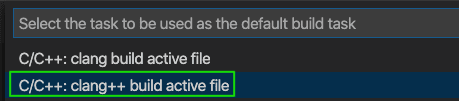
然后将.vscode 文件夹下tasks.json改为如下代码:
{
  // See https://go.microsoft.com/fwlink/?LinkId=733558
  // for the documentation about the tasks.json format
  "version": "2.0.0",
  "tasks": [
    {
      "type": "shell",
      "label": "clang++ build active file",
      "command": "/usr/bin/clang++",
      "args": [
        "-std=c++17",
        "-stdlib=libc++",
        "-g",
        "${file}",
        "-o",
        "${fileDirname}/${fileBasenameNoExtension}"
      ],
      "options": {
        "cwd": "${workspaceFolder}"
      },
      "problemMatcher": ["$gcc"],
      "group": {
        "kind": "build",
        "isDefault": true
      }
    }
  ]
}
launch.json改为
{
  // Use IntelliSense to learn about possible attributes.
  // Hover to view descriptions of existing attributes.
  // For more information, visit: https://go.microsoft.com/fwlink/?linkid=830387
  "version": "0.2.0",
  "configurations": [
    {
      "name": "clang++ - Build and debug active file",
      "type": "cppdbg",
      "request": "launch",
      "program": "${fileDirname}/${fileBasenameNoExtension}",
      "args": [],
      "stopAtEntry": true,
      "cwd": "${workspaceFolder}",
      "environment": [],
      "externalConsole": false,
      "MIMode": "lldb",
      "preLaunchTask": "clang++ build active file"
    }
  ]
}
c_cpp_properties.json文件
{
  "configurations": [
    {
      "name": "Mac",
      "includePath": ["${workspaceFolder}/**"],
      "defines": [],
      "macFrameworkPath": [
        "/Library/Developer/CommandLineTools/SDKs/MacOSX.sdk/System/Library/Frameworks"
      ],
      "compilerPath": "/usr/bin/clang",
      "cStandard": "c11",
      "cppStandard": "c++17",
      "intelliSenseMode": "clang-x64"
    }
  ],
  "version": 4
}
理论上以上操作就OK了。但是如果想要使用code runner使其按照c++11标准编译,那么还需要设置code runner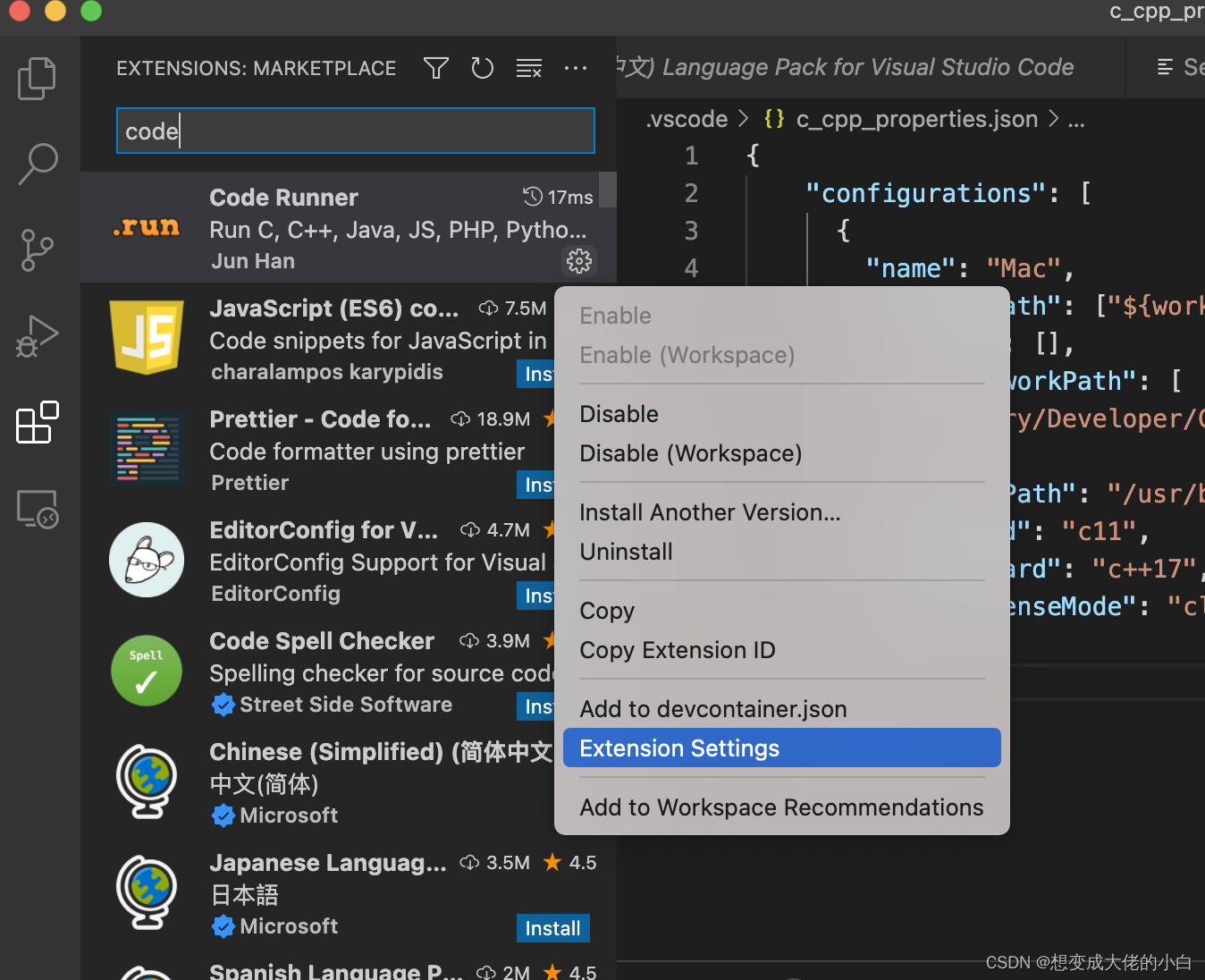
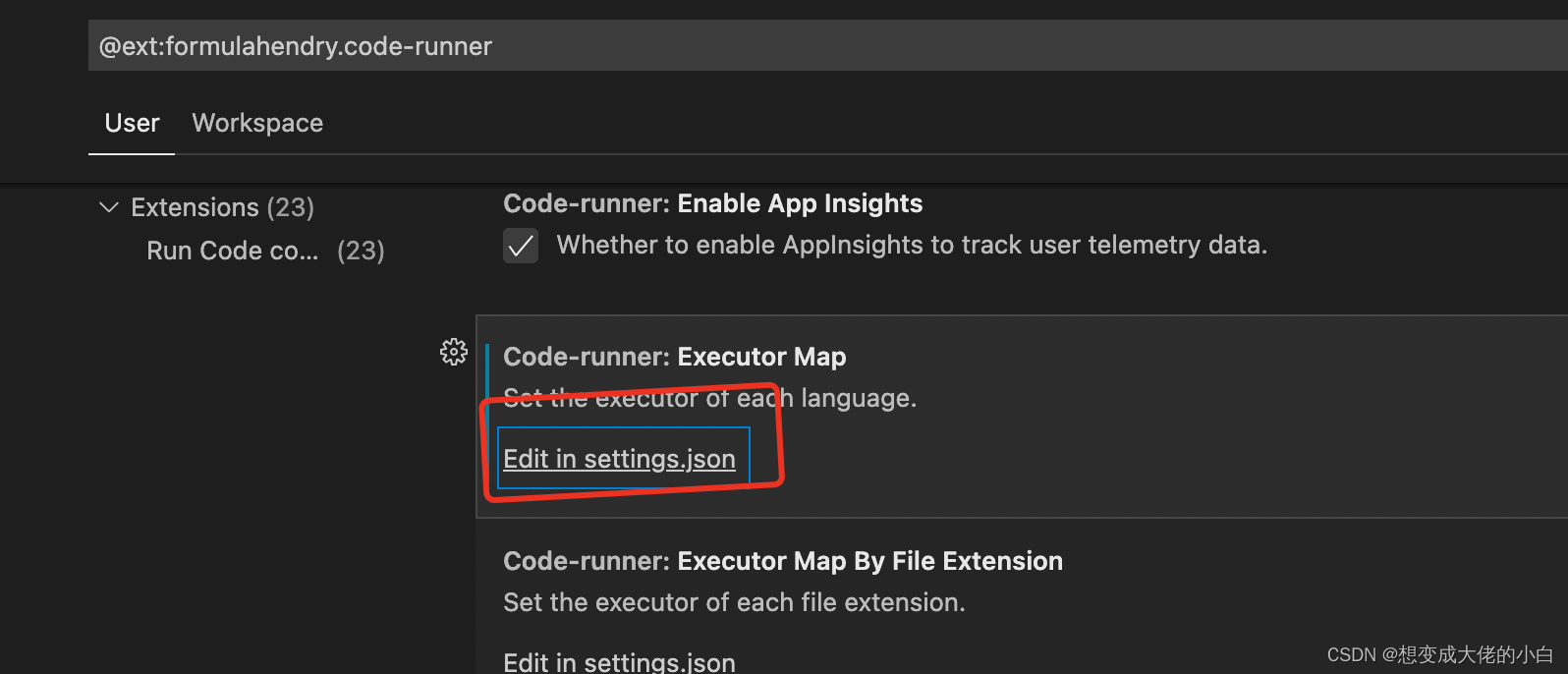
在setting.json加上以下代码即可
    "code-runner.runInTerminal": true,
    "C_Cpp.default.cppStandard": "c++11",
    "code-runner.executorMap": {

        "cpp": "cd $dir && g++ $fileName -o $fileNameWithoutExt -std=c++14 && $dir$fileNameWithoutExt"
    },
    "files.associations": {
        "typeinfo": "cpp"
    },
版权声明:本文为weixin_45774350原创文章,遵循CC 4.0 BY-SA版权协议,转载请附上原文出处链接和本声明。