目录
窗口文字显示
RPG maker mv提供了若干种可以显示文字的组件,其中比较常见的就是窗口组件。那么我们来看看,如何在窗口上显示文字。
下面看一个例子:
//-----------------------------------------------------------------------------
// Window_Upgrade_Describe
//
// 升级项说明信息显示窗口(空)类
// 鼠标移动到升级项上时显示
function Window_Upgrade_Describe() {
	this.initialize.apply(this, arguments);
}
Window_Upgrade_Describe.prototype = Object.create(Window_Base.prototype);
Window_Upgrade_Describe.prototype.constructor = Window_Upgrade_Describe;

Window_Upgrade_Describe.prototype.initialize = function(x, y) {
	var width = this.windowWidth();
	var height = this.windowHeight();
	Window_Base.prototype.initialize.call(this, x, y, width, height);

	this.contents.fontSize = 24;
	this.changeTextColor(this.normalColor());
	this.drawText("可以铸造", 0, 0, 200, 'left');
	this.changeTextColor(this.tpGaugeColor2());
	this.drawText("优良", this.textWidth("可以铸造"), 0, 200, 'left');
	this.changeTextColor(this.normalColor());
	this.drawText("级装备", this.textWidth("可以铸造优良"), 0, 200, 'left');
};
Window_Upgrade_Describe.prototype.windowWidth = function() {
	return BUILDING_UPGRADE_DESCRIBE_WINDOW_WIDTH;
};
Window_Upgrade_Describe.prototype.windowHeight = function() {
	return BUILDING_UPGRADE_DESCRIBE_WINDOW_HEIGHT;
};
RPG maker mv提供了一个窗口基类对象(Window_Base),这个窗口基类对象提供了一整套文字显示相关的接口。我们先来看上面这个例子,我们自定义了一个窗口基类对象的子类对象(Window_Upgrade_Describe),在子类对象的initialize方法中准备窗口显示的文字。当我们在需要地方new这个子类对象时,就会调用到子类对象的initialize方法,在initialize方法方法中构建要在窗口上显示的文字。
现在我们看看具体是调用了哪些接口来显示文字的。
this.contents.fontSize = 24;
首先我们注意到了contents成员,这个成员其实是Window_Base的成员,通过继承得到的。在Window_Base中contents是一个bitmap对象(也是RPG maker mv提供的一个组件),窗口上的文字其实是描绘在contents成员上的,我们可以通过contents.fontSize设置窗口文字的字体大小。
this.changeTextColor(this.normalColor());
接下来我们看到了changeTextColor()方法,它也是继承自Window_Base对象,用来设置字体的颜色。参数是normalColor()方法的对象,通过名字可以了解是窗口通常色,还有若干类似的方法,分别返回RPG maker mv框架内部使用到的颜色,具体我们稍后再说。
this.drawText("可以铸造", 0, 0, 200, 'left');
最后我们看到最重要的一个方法了,drawText也是继承自Window_Base对象,用来显示文字。drawText()方法有五个参数,分别是:
- 要显示的文字(字符串)
- 显示的开始位置的x值
- 显示的开始位置的y值
- 字符串的宽度
- 文字对齐方式(靠左、居中还是靠右)
this.textWidth("可以铸造")
我们再来看一个有意思的辅助方法,textWidth也是继承自Window_Base对象,它可以计算并返回字符串的宽度,注意上面这个“可以铸造”返回的可不是4哦,是在屏幕上对应的像素点宽度。
结合前面的代码,我们可以看到显示文字的一般步骤:
- 设置字体大小
- 设置字体颜色
- 显示文字
字体的颜色
Window_Base对象提供了若干方法来获取框架内使用到的颜色对象:
通常色
Window_Base.prototype.normalColor = function() {
	return this.textColor(0);
};
系统色
Window_Base.prototype.systemColor = function() {
	return this.textColor(16);
};
危机色
Window_Base.prototype.crisisColor = function() {
	return this.textColor(17);
};
死亡色
Window_Base.prototype.deathColor = function() {
	return this.textColor(18);
};
计量器背景色
Window_Base.prototype.gaugeBackColor = function() {
	return this.textColor(19);
};
血量计量器色1
Window_Base.prototype.hpGaugeColor1 = function() {
	return this.textColor(20);
};
血量计量器色2
Window_Base.prototype.hpGaugeColor2 = function() {
	return this.textColor(21);
};
魔法计量器色1
Window_Base.prototype.mpGaugeColor1 = function() {
	return this.textColor(22);
};
魔法计量器色2
Window_Base.prototype.mpGaugeColor2 = function() {
	return this.textColor(23);
};
魔法消耗色
Window_Base.prototype.mpCostColor = function() {
	return this.textColor(23);
};
力量上升色
Window_Base.prototype.powerUpColor = function() {
	return this.textColor(24);
};
力量下降色
Window_Base.prototype.powerDownColor = function() {
	return this.textColor(25);
};
技能值计量器色1
Window_Base.prototype.tpGaugeColor1 = function() {
	return this.textColor(28);
};
技能值计量器色2
Window_Base.prototype.tpGaugeColor2 = function() {
	return this.textColor(29);
};
技能值消耗色
Window_Base.prototype.tpCostColor = function() {
	return this.textColor(29);
};
颜色对象到底是什么
通过上面的接口实现可以看到,所有的颜色对象都是通过textColor()接口返回的。那么textColor()接口究竟做了什么呢?
Window_Base.prototype.textColor = function(n) {
	var px = 96 + (n % 8) * 12 + 6;
	var py = 144 + Math.floor(n / 8) * 12 + 6;
	return this.windowskin.getPixel(px, py);
};
函数中的Math.floor()是一个向下取整的动作,可以看到整个函数根据输入的n计算出一个(px,py)值,再根据(px,py)取得Pixel。这里的Pixel是通过windowskin成员的getPixel()方法取得,那么windowskin是什么呢?
Window_Base.prototype.loadWindowskin = function() {
	this.windowskin = ImageManager.loadSystem('Window');
};
啊,原来windowskin 是一个Image对象,而这个Image对象是根据“Window.png”图片创建的。这里可能有的同学对ImageManager比较陌生,它是全局静态对象,负责读取、管理框架使用到的所有图片。上面就是通过ImageManager对象的loadSystem()方法创建了一个Image对象,或者更准确的说是一个Bitmap对象。
再来看看看getPixel ()方法的说明:
/**
* Returns pixel color at the specified point.
*
* @method getPixel
* @param {Number} x The x coordinate of the pixel in the bitmap
* @param {Number} y The y coordinate of the pixel in the bitmap
* @return {String} The pixel color (hex format)
*/
pixel color,一种采用十六进制形式表示颜色的字符串。
好的,现在我们来看看Window.png是一张怎样的图片: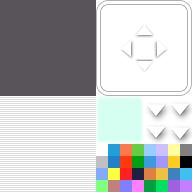
Window.png是一张192*192大小的bitmap,bitmap右下方的部分就是rpg maker mv系统框架的窗口所使用到的颜色。我们可以根据textColor()方法的算法来确定每种色块的整数值,即textColor()的入参与色块的对应关系。
颜色值列表
line 1
0

白色的,由于背景也是白色的,所以看不到~
1

2

3

4

5

6

7

line 2
8

9

10

11

12

13

14

15

line 3
16

17

18

19

20

21

22

23

line 4
24

25

26

27

28

29

30

31

字体大小
Window_Base对象提供了一个获取窗口默认字体大小的接口:
Window_Base.prototype.standardFontSize = function() {
    return 28;
};
通过前面的例子,我们知道可以通过设置contents对象的fontSize来改变字体大小。至于每种大小的数值,这里无法进行真实大小的对比,就不在这里展示了,大家实际用到时可以试一试。