虚拟机安装samba
1.第一步在linux上面安装samba
sudo apt install samba samba-common
2.修改你需要共享文件的权限
/./works this is share file path/
sudo chmod 777 ./works/
3.修改samba配置文件
/open config file*/
sudo vim /etc/samba/smb.conf
最后一行加下面的内容
#for config file,add the following code at the end of the file
[works]
comment = works
path = /home/cody/works
create mask = 0664
directory mask = 0775
public = yes
guest ok = yes
read only = no
browseable = yes
available = yes
writable = yes
4.重启samba服务
sudo service smbd restart
5.windows打开共享文件夹
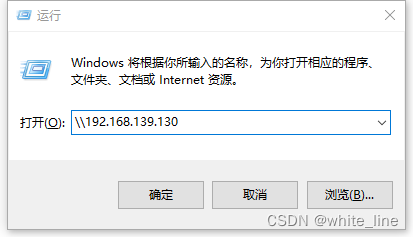
PS:ip地址为你当前linux的ip地址。
sudo pdbedit -L -v 列出当前的smb数据库用户
sudo pdbedit -a -u root 给samba加一个root用户
至此虚拟机samba安装结束
然后就可以在windows中用root用户来访问虚拟机中samba
接下来是windows操作
映射网络驱动器
右击->此电脑
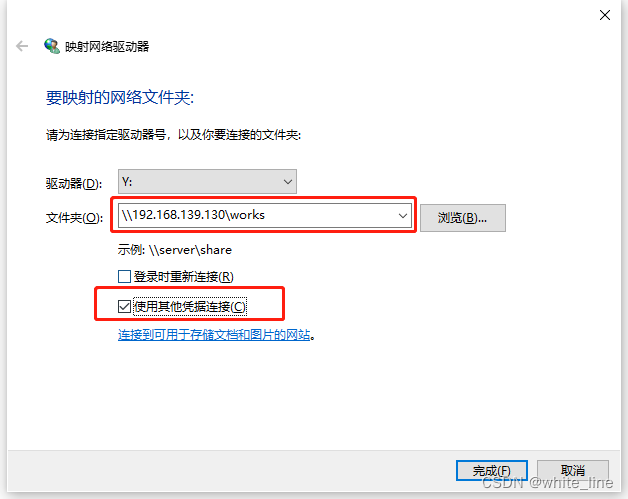
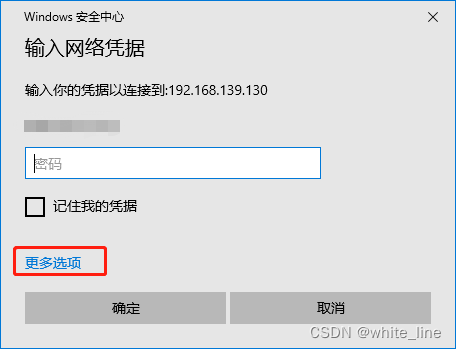
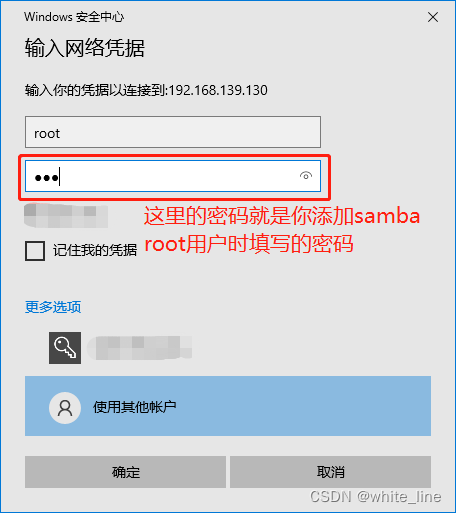
友情提示:
添加samba用户时不要直接用root用户,用你常用的用户,会更好点,以免不必要的麻烦
配置文件链接,有注释加的每一行的作用,有需要的可以看看
https://download.csdn.net/download/weixin_41903639/86763675
版权声明:本文为weixin_41903639原创文章,遵循CC 4.0 BY-SA版权协议,转载请附上原文出处链接和本声明。