线性布局
<?xml version="1.0" encoding="utf-8"?>

<!--
线性布局LinearLayout
    用于使所有子视图在单个方向(垂直或水平)保持对齐

        android:gravity="right|center_vertical"
        设置所有子组件对齐方式和位置排列

布局方向  android:orientation:
    - horizontal:水平
    - vertical:垂直

布局权重 - android:layout_weight:
    通过给子视图设置权重值,来分配子视图所占空间的权(比例)
-->
<LinearLayout xmlns:android="http://schemas.android.com/apk/res/android"
    android:layout_width="match_parent"
    android:layout_height="match_parent"
    android:orientation="vertical"
    android:gravity="right|center_vertical"
    >
    <Button
        android:id="@+id/bn1"
        android:layout_width="wrap_content"
        android:layout_height="wrap_content"
        android:text="@string/bn1"
        />

    <Button
        android:id="@+id/bn2"
        android:layout_width="wrap_content"
        android:layout_height="wrap_content"
        android:text="@string/bn2" />

    <Button
        android:id="@+id/bn3"
        android:layout_width="wrap_content"
        android:layout_height="wrap_content"
        android:text="@string/bn3"
        />

    <Button
        android:id="@+id/bn4"
        android:layout_width="wrap_content"
        android:layout_height="wrap_content"
        android:text="@string/bn4"
        />

</LinearLayout>

表格布局
<?xml version="1.0" encoding="utf-8"?>
<!--
TableLayout
表格布局
collapseColumns:设置需要隐藏的列的序号,多列用,隔开
shrinkColumns:设置允许被收缩的列
stretchColumns:设置允许被拉伸的列
-->
<LinearLayout
    xmlns:android="http://schemas.android.com/apk/res/android"
    android:layout_width="match_parent"
    android:layout_height="match_parent"
    android:orientation="vertical">

<!--    定义一个表格布局,指定2列允许收缩,第3列允许拉伸-->
    <TableLayout
        android:id="@+id/table1"
        android:layout_width="match_parent"
        android:layout_height="wrap_content"
        android:shrinkColumns="1"
        android:stretchColumns="2"
        >
        <!--    直接添加按钮 会自己占一行-->
        <Button
            android:layout_width="wrap_content"
            android:layout_height="match_parent"
            android:text="独自一行的按钮" />
<!--        添加一个表格行-->
        <TableRow>
            <Button
                android:layout_width="wrap_content"
                android:layout_height="match_parent"
                android:text="普通按钮" />
            <Button
                android:layout_width="wrap_content"
                android:layout_height="match_parent"
                android:text="收缩的按钮" />

            <Button
                android:layout_width="wrap_content"
                android:layout_height="match_parent"
                android:text="拉伸的按钮" />
        </TableRow>
    </TableLayout>


    <TableLayout
        android:id="@+id/table2"
        android:layout_width="match_parent"
        android:layout_height="wrap_content"
        android:collapseColumns="1"
        >
        <!--    直接添加按钮 会自己占一行-->
        <Button
            android:layout_width="wrap_content"
            android:layout_height="wrap_content"
            android:text="独自一行的按钮" />
        <!--        添加一个表格行-->
<!--        第2列被隐藏-->
        <TableRow>
            <Button
                android:layout_width="wrap_content"
                android:layout_height="wrap_content"
                android:text="普通按钮" />
            <Button
                android:layout_width="wrap_content"
                android:layout_height="wrap_content"
                android:text="普通按钮1" />

            <Button
                android:layout_width="wrap_content"
                android:layout_height="wrap_content"
                android:text="普通按钮2" />
        </TableRow>
    </TableLayout>

    <TableLayout
        android:id="@+id/table3"
        android:layout_width="match_parent"
        android:layout_height="wrap_content"
        android:stretchColumns="1,2"
        >
        <!--    直接添加按钮 会自己占一行-->
        <Button
            android:layout_width="wrap_content"
            android:layout_height="wrap_content"
            android:text="独自一行的按钮" />
        <!--        添加一个表格行-->
        <TableRow>
            <Button
                android:layout_width="wrap_content"
                android:layout_height="wrap_content"
                android:text="普通按钮" />
            <Button
                android:layout_width="wrap_content"
                android:layout_height="wrap_content"
                android:text="拉伸的按钮" />

            <Button
                android:layout_width="wrap_content"
                android:layout_height="wrap_content"
                android:text="拉伸的按钮" />
        </TableRow>

        <TableRow>
            <Button
                android:layout_width="wrap_content"
                android:layout_height="wrap_content"
                android:text="普通按钮" />
            <Button
                android:layout_width="wrap_content"
                android:layout_height="wrap_content"
                android:text="拉伸的按钮" />
        </TableRow>
    </TableLayout>


</LinearLayout>

帧布局
<?xml version="1.0" encoding="utf-8"?>
<FrameLayout xmlns:android="http://schemas.android.com/apk/res/android"
    android:layout_width="match_parent"
    android:layout_height="match_parent">
<!--
FrameLayout
帧布局
-->
    <TextView
        android:layout_width="wrap_content"
        android:layout_height="wrap_content"
        android:id="@+id/view1"
        android:layout_gravity="center"
        android:width="320dp"
        android:height="320dp"
        android:background="#f00"/>

    <TextView
        android:layout_width="wrap_content"
        android:layout_height="wrap_content"
        android:id="@+id/view2"
        android:layout_gravity="center"
        android:width="280dp"
        android:height="280dp"
        android:background="#0f0"/>

    <TextView
        android:layout_width="wrap_content"
        android:layout_height="wrap_content"
        android:id="@+id/view3"
        android:layout_gravity="center"
        android:width="240dp"
        android:height="240dp"
        android:background="#00f"/>

    <TextView
        android:layout_width="wrap_content"
        android:layout_height="wrap_content"
        android:id="@+id/view4"
        android:layout_gravity="center"
        android:width="200dp"
        android:height="200dp"
        android:background="#f0f"/>

    <TextView
        android:layout_width="wrap_content"
        android:layout_height="wrap_content"
        android:id="@+id/view5"
        android:layout_gravity="center"
        android:width="160dp"
        android:height="160dp"
        android:background="#0ff"/>

    <TextView
        android:layout_width="wrap_content"
        android:layout_height="wrap_content"
        android:id="@+id/view6"
        android:layout_gravity="center"
        android:width="120dp"
        android:height="120dp"
        android:background="#ff0"/>
</FrameLayout>

实现霓虹灯效果
package com.zc.myapplication1;

import androidx.appcompat.app.AppCompatActivity;

import android.app.Activity;
import android.os.Bundle;
import android.os.Handler;
import android.os.Message;
import android.widget.TextView;

import java.lang.ref.WeakReference;
import java.util.Timer;
import java.util.TimerTask;

public class MainActivity extends Activity {

    int[] names = new int[] {R.id.view1,R.id.view2,R.id.view3,
            R.id.view4,R.id.view5,R.id.view6};
    TextView[] views =  new TextView[names.length];
    class MyHandler extends Handler{
        private WeakReference<MainActivity> activity;
        public MyHandler(WeakReference<MainActivity> activity){
            this.activity = activity;
        }
        private int currentColor = 0;
        int [] colors = new int[] {R.color.red,R.color.black,R.color.purple_200,
                R.color.purple_500,R.color.purple_700,R.color.teal_700};
        public void handleMessage(Message msg){
            //表明消息由本程序发送
            if(msg.what == 0x123){
                for (int i = 0, len = activity.get().names.length;i<len ;i++) {

                    activity.get().views[i].setBackgroundResource(colors[(i+currentColor)%colors.length]);
                }
                currentColor++;
            }
            super.handleMessage(msg);
        }
    }
    private Handler handler = new MyHandler(new WeakReference<>(this));

    @Override
    protected void onCreate(Bundle savedInstanceState) {
        super.onCreate(savedInstanceState);
        setContentView(R.layout.layout_frame);
        for (int i = 0; i < names.length; i++) {
            views[i] = findViewById(names[i]);
        }
        new Timer().schedule(new TimerTask() {
            @Override
            public void run() {
                handler.sendEmptyMessage(0x123);
            }
        },0,200);

    }
}
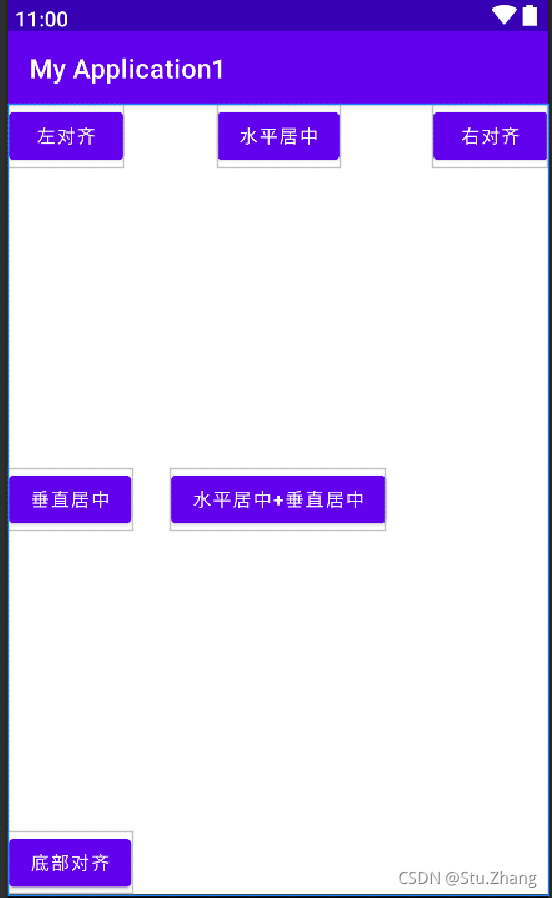
约束布局
<?xml version="1.0" encoding="utf-8"?>
<androidx.constraintlayout.widget.ConstraintLayout xmlns:android="http://schemas.android.com/apk/res/android"
    xmlns:tools="http://schemas.android.com/tools"
    android:layout_width="match_parent"
    android:layout_height="match_parent"
    xmlns:app="http://schemas.android.com/apk/res-auto">

        <Button
            android:layout_width="wrap_content"
            android:layout_height="wrap_content"
            android:text="左对齐"
            app:layout_constraintLeft_toLeftOf="parent"
            app:layout_constraintTop_toTopOf="parent"/>

        <Button
            android:layout_width="wrap_content"
            android:layout_height="wrap_content"
            android:text="右对齐"
            app:layout_constraintRight_toRightOf="parent"
            app:layout_constraintTop_toTopOf="parent"/>

        <Button
            android:layout_width="wrap_content"
            android:layout_height="wrap_content"
            android:text="水平居中"
            app:layout_constraintLeft_toLeftOf="parent"
            app:layout_constraintRight_toRightOf="parent"
            tools:ignore="MissingConstraints" />

        <Button
            android:layout_width="wrap_content"
            android:layout_height="wrap_content"
            android:text="垂直居中"
            app:layout_constraintBottom_toBottomOf="parent"
            app:layout_constraintTop_toTopOf="parent"
            tools:ignore="MissingConstraints" />

        <Button
            android:layout_width="wrap_content"
            android:layout_height="wrap_content"
            android:text="底部对齐"
            app:layout_constraintBottom_toBottomOf="parent"
            app:layout_constraintLeft_toLeftOf="parent"/>

        <Button
            android:layout_width="wrap_content"
            android:layout_height="wrap_content"
            android:text="水平居中+垂直居中"
            app:layout_constraintBottom_toBottomOf="parent"
            app:layout_constraintLeft_toLeftOf="parent"
            app:layout_constraintRight_toRightOf="parent"
            app:layout_constraintTop_toTopOf="parent"/>


</androidx.constraintlayout.widget.ConstraintLayout>
版权声明:本文为weixin_53451443原创文章,遵循CC 4.0 BY-SA版权协议,转载请附上原文出处链接和本声明。