
windows wmic
WMIC or Windows Management Interface Command is a simple command line tool used to issue WMI commands. WMI command generally used to query all of the system related information like Computer Name, BIOS Serial Number, Mac Address etc.
WMIC或Windows管理界面命令是用于发布WMI命令的简单命令行工具。 WMI命令通常用于查询所有与系统相关的信息,例如计算机名称,BIOS序列号,Mac地址等。
批量WMIC (Batch WMIC)
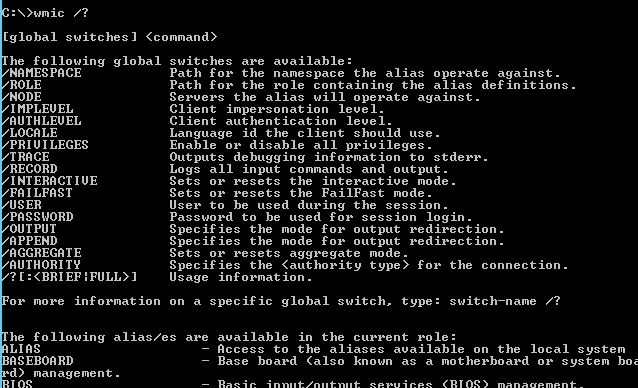
WMIC provides two type of usage. Batch usage is the most popular where we can issue WMI commands into MS-DOS or PowerShell like below.
WMIC提供两种用法。 批处理用法是最流行的,我们可以将WMI命令发布到MS-DOS或PowerShell中,如下所示。
> wmic /?
交互式WMIC命令行 (Interactive WMIC Command Line)
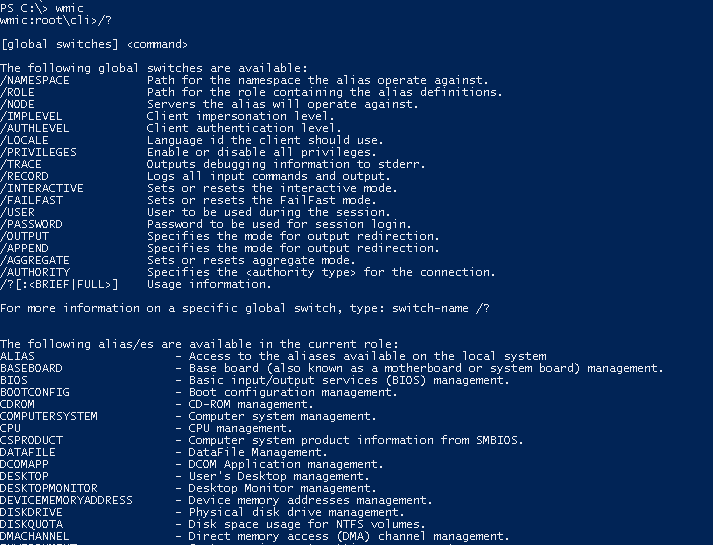
WMIC also provides an interactive shell where we can issue wmic options as commands. We can enter VMIC interactive shell just running wmic command like below.
WMIC还提供了一个交互式外壳,我们可以在其中发布wmic选项作为命令。 我们可以像下面这样运行wmic命令来进入VMIC交互式shell。
PS> wmic
查找计算机制造商和型号(Find Computer Manufacturer and Model)
We can use Computer option in order to print the current system manufacturer and model.
我们可以使用Computer选项来打印当前的系统制造商和型号。
> wmic ComputerSystem GET Model

打印计算机名称(Print Computer Name)
Computer name can be printed with the computersystem and name options like below.
可以使用以下computersystem和name选项来打印computersystem name 。
> wmic computersystem get name

打印BIOS序列号(Print BIOS Serial Number)
Every computer system have a serial number. This serial number is unique to the system. We can print current system serial number with the bios and serialnumber options like below.
每个计算机系统都有一个序列号。 该序列号是系统唯一的。 我们可以使用下面的bios和serialnumber选项打印当前系统的序列号。
> wmic bios get serialnumber

打印网络接口Mac地址(Print Network Interface Mac Addresses)
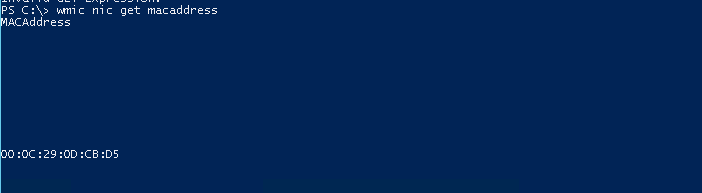
wmic command also provides operations about the Network Interface. We can use nic option with different extra options like macaddress ,description.
wmic命令还提供有关网络接口的操作。 我们可以将nic选项与其他不同的选项一起使用,例如macaddress , description 。
> wmic nic get macaddress
打印主板型号和编号(Print Motherboards Model and Number)
Mothterboards have some model and model number information. We can print motherboard model with the following command.
滑行板具有一些型号和型号信息。 我们可以使用以下命令打印主板型号。
> wmic baseboard get product

打印RAM或物理内存大小(Print RAM or Physical Memory Size)
We can use wmic command in order to get RAM or Physical Memory Size information with the following command.
我们可以使用wmic命令来通过以下命令获取RAM或物理内存大小信息。
> wmic COMPUTERSYSTEM get TotalPhysicalMemory

打印所有正在运行的应用程序,程序及其RAM /内存使用情况(Print All Running Application, Programmes, and Their RAM/Memory Usage)
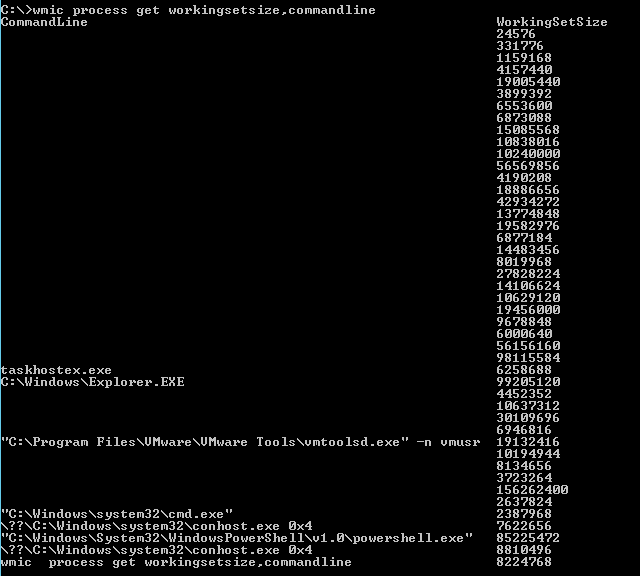
We can print currently running applications, programmes and their RAM or Memory usage with the process option like below.
我们可以使用如下所示的process选项来打印当前正在运行的应用程序,程序及其RAM或内存使用情况。
> wmic process get workingsetsize,commandline
打印分区名称,大小和类型(Print Partition Name, Size, and Type)
We can use partition option with the name,size and type options to print partitions information and file system type.
我们可以使用partition选项与name , size和type选择打印分区信息和文件系统类型。
> wmic partition get name,size,type

清单服务(List Services)
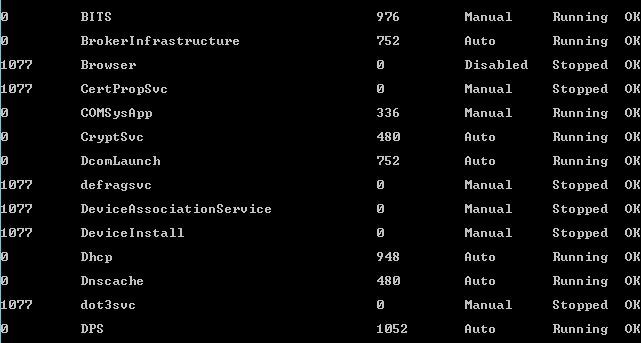
We can list currently installed Services on the system. We will use service option with the list and brief options like below.
我们可以列出系统上当前安装的服务。 我们将在list使用service选项,并在下面提供brief选项。
> wmic service list brief
列出流程 (List Processes)
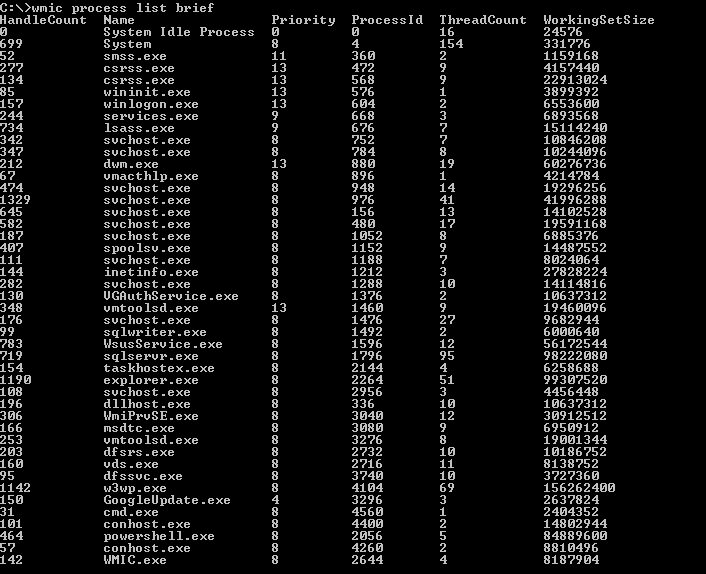
Currently running process and brief information about the can be listed lie below.
下面列出了当前正在运行的进程以及有关的简要信息。
> wmic process list brief
杀死给定过程(Kill Given Process)
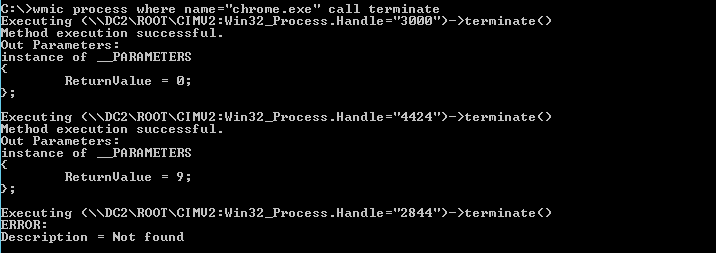
Even we can use wmic to kill the current running process. We will use process option with the where statement and related terminate command. In this example, we will kill the process named chrome.exe which can be listed with the previous command.
甚至我们都可以使用wmic杀死当前正在运行的进程。 我们将结合使用process选项和where语句以及相关的terminate命令。 在此示例中,我们将chrome.exe名为chrome.exe的进程,该进程可以与前面的命令一起列出。
>wmic process where name="chrome.exe" call terminate
列出启动应用程序(List Startup Applications)
After the Windows operating system is started some applications are started automatically. These applications are different from services. They are generally called Startup Applications. We can list these Startup Applications with the wmic like below.
Windows操作系统启动后,一些应用程序将自动启动。 这些应用程序与服务不同。 它们通常被称为Startup Applications 。 我们可以使用以下wmic列出这些启动应用程序。
> wmic startup list brief

将WMIC输出写入文件(Write WMIC Output Into A File)
We can redirect any wmic command output into a file. We will use the redirect operator > . In this example, we will write the process list into a file named processes.txt . Keep in mind that we should have write access to the current working directory.
我们可以将任何wmic命令输出重定向到文件中。 我们将使用重定向运算符> 。 在此示例中,我们将流程列表写入名为processes.txt的文件中。 请记住,我们应该对当前工作目录具有写权限。
>wmic process list brief > process.txt
列出磁盘驱动器(HDD) (List Disk Drives (HDD))
We can use diskdrive option in order to list currently connected disk drives. These drives can be HDD or ISCSI or similar.
我们可以使用diskdrive选项来列出当前连接的磁盘驱动器。 这些驱动器可以是HDD或ISCSI或类似驱动器。
> wmic diskdrive get model,name,size

列出简短的操作系统信息 (List Brief Operating System Information)
We can also print basic operating system information. This will provide following inforation
我们还可以打印基本的操作系统信息。 这将提供以下信息
- Build Number内部编号
- Organization组织
- Registered USer注册用户
- Serial Number序列号
- System Directory系统目录
- Version版
>wmic os list brief

翻译自: https://www.poftut.com/windows-wmic-windows-management-interface-command-tutorial-with-examples/
windows wmic