前言
配置完了hexo,你是否对自带的主题不满意呢?本篇文章将教你如何更改及美化hexo主题。如果你还有没有安装hexo,请移步我的上一篇文章。
hexo主题推荐
hexo next
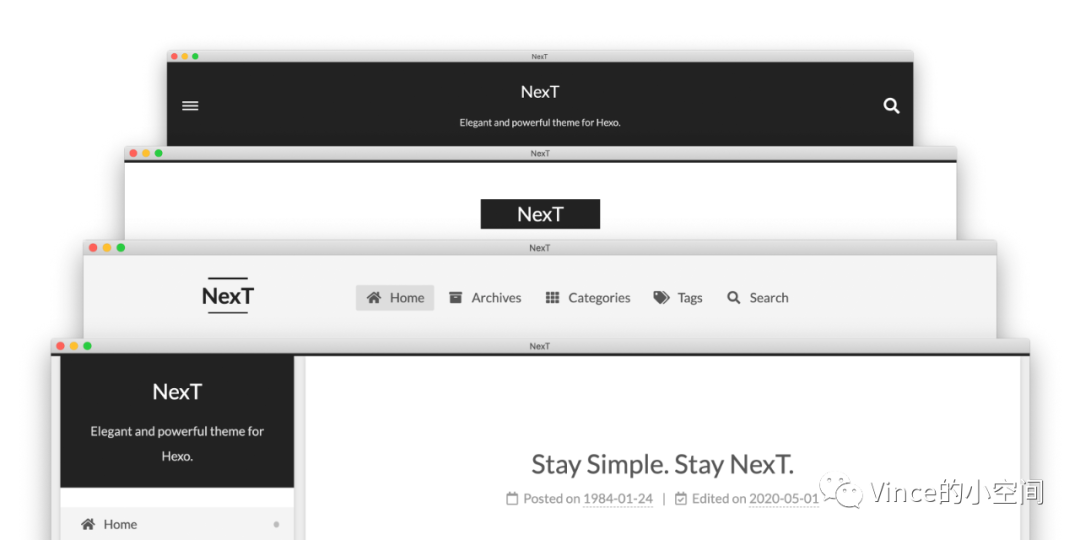
hexo-theme-next应该是目前最广泛使用的hexo主题了,优点是简洁,定制度高,因为代码是开源的,所以有很多开发者维护。由于前任管理员不提供权限,故开发了一个新的分支,详情。最新版本为8.0也是我在使用的版本,8.0及前版本请使用github搜索功能。
hexo kaze
hexo-theme-kaze是我在Themes|Hexo里面找到的一款很漂亮的主题,支持黑、白两种模式,界面简洁。

hexo next主题安装及美化
更改基本站点信息
在你的博客根目录下打开 _config.yml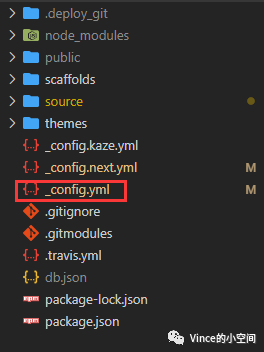
在site栏目下可以更改你的基本站点信息
title: Vince's Blog
subtitle: ''
description: 'Vince的博客'
keywords:
author: Vince
language: zh-CN
timezone: ''
同时,记得把网站url改成自己的站点名
url: http://www.haomingzhang.com
安装hexo next主题
如果你正在使用hexo 5.0及以上版本,可以使用以下命令安装:
$ cd your_site_dir
$ npm install hexo-theme-next
或者使用git submodule克隆到本地(我在使用的方法,下文也会使用此方法的路径,npm安装的主题路径在node_modules里,其他操作不变。使用submodule是为了更好的版本控制。):
$ cd your_site_dir
$ git submodule add https://github.com/next-theme/hexo-theme-next themes/next
切换到next主题
在你的博客根目录下打开 _config.yml
搜索themes,将里面的值改为next
theme: next
配置next主题
将 themes/next/_config.yml复制到你的博客根目录,重命名为_config.next.yml,linux可以使用以下命令:
$ cd your_site_dir
$ cp themes/next/_config.yml _config.next.yml
选择Schemes
打开 _config.next.yml,首先可以看到 Scheme Settings,里面提供了四种模式,对应上面介绍next的图片的四种,我用的是muse主题,可以根据自己的喜好更改。
# Schemes
scheme: Muse
#scheme: Mist
#scheme: Pisces
#scheme: Gemini
设置站点icon
在favicon中,可以设置侧边栏头像以及站点icon。需要把你的icon放在 source/img/目录下
favicon:
    small: /img/avatar.jfif
    medium: /img/avatar.jfif
    apple_touch_icon: /img/avatar.jfif
    safari_pinned_tab: /images/logo.svg
设置菜单栏
在menu下,可以设置菜单显示内容,此版本next支持font awesome图标,可以去官网寻找你喜欢的图标进行替换。注:相应的菜单栏需要有对应的页面才能打开,不然会404哦!
menu:
    home: / || fa fa-home
    #about: /about/ || fa fa-user
    tags: /tags/ || fa fa-tags
    categories: /categories/ || fa fa-th
    archives: /archives/ || fa fa-archive
    guestbook: /guestbook/ || fa fa-book
    #schedule: /schedule/ || fa fa-calendar
    #sitemap: /sitemap.xml || fa fa-sitemap
    #commonweal: /404/ || fa fa-heartbeat
开启tags/categories/留言板栏
举个栗子,开启tags:
$ cd your_site_dir
$ hexo new page tags
此时在你的 source/ 文件夹下会出现一个对应的tags文件夹,打开index.md并编辑为:
---
title: 标签
date: 2020-09-06 19:36:01
type: tags
comments: false
sitemap: false
---
即可开启tags,categories也是一样的操作,type改为categories即可。对于留言板来说,只需要将comments一栏改为true,type改为guestbook即可。
边栏设置
在sidebar选项下,有多个自定义选项,可以自行查看。
#调整边栏左右
#position: left
position: right

# Sidebar Display (only for Muse | Mist), available values:
#  - post    expand on posts automatically. Default.
#  - always  expand for all pages automatically.
#  - hide    expand only when click on the sidebar toggle icon.
#  - remove  totally remove sidebar including sidebar toggle.
display: post

# Sidebar padding in pixels.
padding: 18
# Sidebar offset from top menubar in pixels (only for Pisces | Gemini).
offset: 12
添加社交帐号
在social栏目下,可以自定义在边栏显示的社交帐号,可以根据需求自行添加。注:此处依然使用font awsome的图标,可以自行修改。
设置回到开头
将back2top的enable设置为true即可,边栏和滚动百分比可以按照需求自行添加。
back2top:
    enable: true
    # Back to top in sidebar.
    sidebar: false
    # Scroll percent label in b2t button.
    scrollpercent: true
设置已读进度条
将reading_progress的enable设置为true即可,位置颜色和高度都可以调整。
# Reading progress bar
reading_progress:
    enable: true
    # Available values: top | bottom
    position: bottom
    color: "#37c6c0"
    height: 3px
小结
到此,你已经实现了基本的next安装及配置,是不是好看了很多呢?如果你还是对设置有疑惑,可以参考我reference中我的页面设置。
Upcoming Next
下一篇文章中,我会介绍一些我使用的插件。(已更新)
Reference
我的页面设置
点击查看原文可以进入我的博客留言哦!