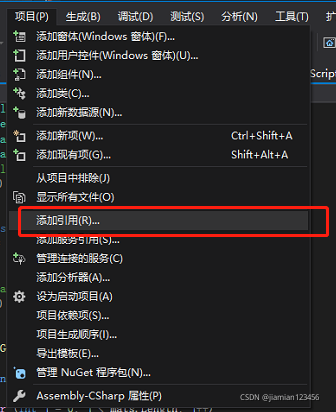
第一步:添加引用
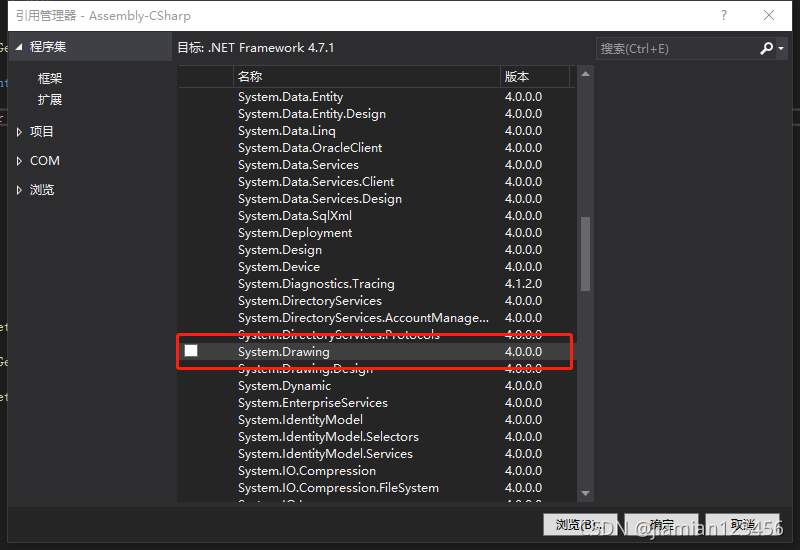
或者右键单击unity快捷方式,在文件位置中找到此文件,放到assets文件夹下。
路径如下:Editor\2019.4.10f1\Editor\Data\MonoBleedingEdge\lib\mono\unityjit\System.Drawing.dll
第二步:代码
using UnityEngine;
using System.Collections;
using System.Drawing;
using System.Collections.Generic;
using UnityEngine.UI;
using System.Drawing.Imaging;
using System.IO;
using System;
public class PlayerGIF : MonoBehaviour
{
public UnityEngine.UI.Image Im;
public GameObject[] Ims;
[SerializeField]//序列化域
private float fps = 30f;
private List<Texture2D> tex2DList = new List<Texture2D>();
private float time;
Bitmap mybitmp;
void Start()
{
System.Drawing.Image image = System.Drawing.Image.FromFile(Application.streamingAssetsPath + "/光_2.gif");
tex2DList = MyGif(image);
}
// Update is called once per frame
void Update()
{
if (tex2DList.Count > 0)
{
time += Time.deltaTime;
int index = (int)(time * fps) % tex2DList.Count;
if (Im != null)
{
Im.sprite = Sprite.Create(tex2DList[index], new Rect(0, 0, tex2DList[index].width, tex2DList[index].height), new Vector2(0.5f, 0.5f));
}
if (Ims.Length != 0)
{
for (int i = 0; i < Ims.Length; i++)
Ims[i].GetComponent<Renderer>().material.mainTexture = tex2DList[index];
}
}
}
private List<Texture2D> MyGif(System.Drawing.Image image)
{
List<Texture2D> tex = new List<Texture2D>();
if (image != null)
{
Debug.Log("图片张数:" + image.FrameDimensionsList.Length);
FrameDimension frame = new FrameDimension(image.FrameDimensionsList[0]);
int framCount = image.GetFrameCount(frame);//获取维度帧数
for (int i = 0; i < framCount; ++i)
{
image.SelectActiveFrame(frame, i);
Bitmap framBitmap = new Bitmap(image.Width, image.Height);
using (System.Drawing.Graphics graphic = System.Drawing.Graphics.FromImage(framBitmap))
{
graphic.DrawImage(image, Point.Empty);
}
Texture2D frameTexture2D = new Texture2D(framBitmap.Width, framBitmap.Height, TextureFormat.ARGB32, true);
frameTexture2D.LoadImage(Bitmap2Byte(framBitmap));
tex.Add(frameTexture2D);
}
}
return tex;
}
private byte[] Bitmap2Byte(Bitmap bitmap)
{
using (MemoryStream stream = new MemoryStream())
{
// 将bitmap 以png格式保存到流中
bitmap.Save(stream, ImageFormat.Png);
// 创建一个字节数组,长度为流的长度
byte[] data = new byte[stream.Length];
// 重置指针
stream.Seek(0, SeekOrigin.Begin);
// 从流读取字节块存入data中
stream.Read(data, 0, Convert.ToInt32(stream.Length));
return data;
}
}
}
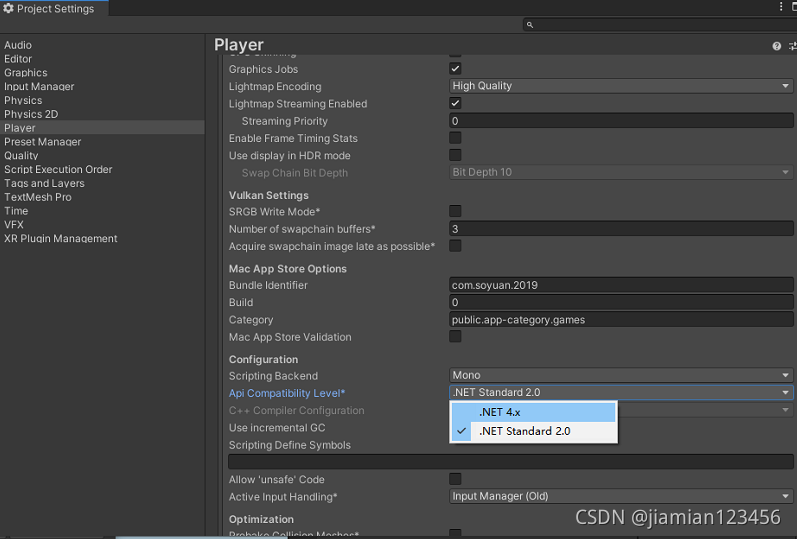
第三步:打包
在playersettings中更改设置,否则打包会失败