图片显示
1、本地图片
Image.asset加载项目资源包的图片
//先将图片拷贝到项目 images 目录中,然后在 pubspec.yaml文件配置文件相对路径到 assets

Image.asset('images/pic1.jpg'),
/// 加载本地资源gif图片
Image.asset('images/timg.gif', height: 200, width: 200),Image.file加载手机内置或外置存储的图片
//加载Android平台的外置存储图片需要AndroidManifest.xml配置android.permission.READ_EXTERNAL_STORAGE权限

Image.file(
  File('/0/images/cat.jpg'),
  width: 200,
  height: 200,
)
2、网络图片
Image.network无本地缓存
Image.network(
    'https://pic2.zhimg.com/v2-639b49f2f6578eabddc458b84eb3c6a1.jpg',
    width: 120,
    height: 120
),FadeInImage.assetNetwork淡入效果,无本地缓存
/// 有的时候我们需要像Android那样使用一个占位图或者图片加载出错时显示某张特定的图片,这时候需要用到 FadeInImage 这个组件

FadeInImage.assetNetwork(
  placeholder: 'images/avatar.png',
  image: 'https://pic1.zhimg.com/v2-7fab628481a26f025188b095b5cfafbc.jpg',
  width: 200,
  height: 200
)CachedNetworkImage第三方控件,有本地缓存和淡入效果
https://github.com/renefloor/flutter_cached_network_image

//1、将依赖框架配置到pubspec.yaml文件
dependencies:
  cached_network_image: ^2.5.0
//2、引入相关类
import 'package:cached_network_image/cached_network_image.dart';

//3、使用控件,默认自带图片淡入效果
CachedNetworkImage(
  imageUrl: 'https://pic4.zhimg.com/v2-19dced236bdff0c47a6b7ac23ad1fbc3.jpg',
  width: 200,
  height: 200,
)
圆形头像
1、CircleAvatar
CircleAvatar(
   //头像半径
   radius: 60,
    //头像图片
    backgroundImage: NetworkImage('https://pic2.zhimg.com/v2-639b49f2f6578eabddc458b84eb3c6a1.jpg'),
),
2、ClipOval
ClipOval( //圆形头像
   child: new Image.network(
      'https://pic2.zhimg.com/v2-639b49f2f6578eabddc458b84eb3c6a1.jpg',
      width: 120.0,
   ),
),
3、Container + BoxDecoration
Container(
  width: 120,
  height: 120,
  decoration: BoxDecoration(
    shape: BoxShape.circle,
    image: DecorationImage(
      image: NetworkImage('https://pic2.zhimg.com/v2-639b49f2f6578eabddc458b84eb3c6a1.jpg'),
      fit: BoxFit.cover
    )
  )
)
圆角图片
1、ClipRRect
 /// 使用裁剪来实现图片圆角
ClipRRect( //圆角图片
   borderRadius: BorderRadius.circular(8),
   child: Image.network(
        'https://pic2.zhimg.com/v2-639b49f2f6578eabddc458b84eb3c6a1.jpg',
        width: 120,
        height: 120
   ),
),
2、Container + BoxDecoration
/// 使用边框来实现图片圆角
Container(
  width: 120,
  height: 120,
  decoration: BoxDecoration(
    shape: BoxShape.rectangle,
    borderRadius: BorderRadius.circular(8),
    image: DecorationImage(
      image: NetworkImage('https://pic2.zhimg.com/v2-639b49f2f6578eabddc458b84eb3c6a1.jpg')
    )
  )
)
其他各种形状
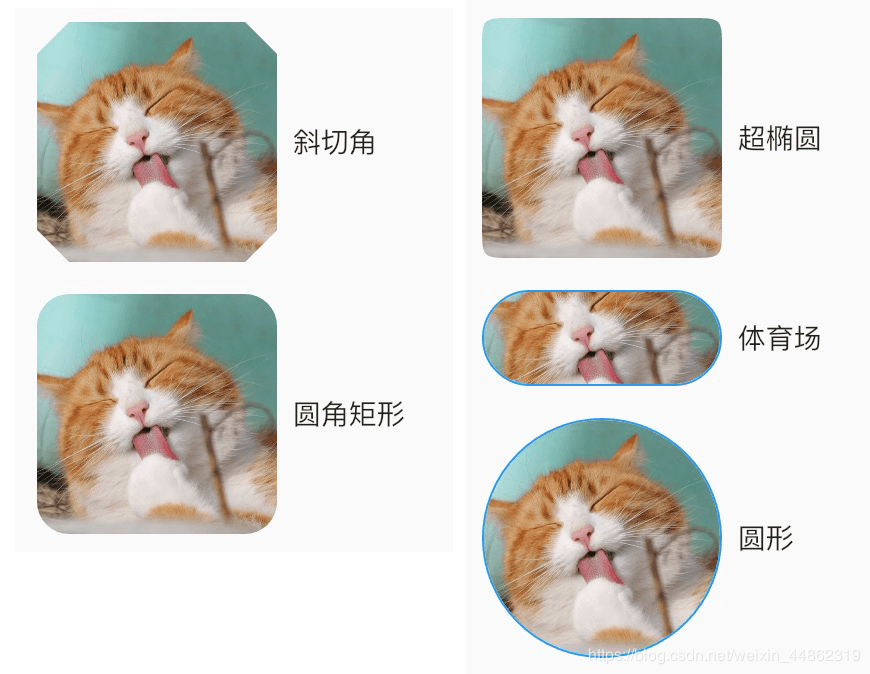
使用ShapeDecoration可以做出各种形状
- 斜切角:
BeveledRectangleBorder - 圆角:
RoundedRectangleBorder - 超椭圆:
SuperellipseShape - 体育场:
StadiumBorder - 圆形:
CircleBorder
//斜切角形状示例
Container(
  width: 120,
  height: 120,
  decoration: ShapeDecoration(
    shape: BeveledRectangleBorder(
      borderRadius: BorderRadius.circular(16)
    ),
    image: DecorationImage(
      fit: BoxFit.cover,
      image: NetworkImage('https://pic2.zhimg.com/v2-639b49f2f6578eabddc458b84eb3c6a1.jpg')
    )
  )
)
上面转载的链接 https://www.cnblogs.com/joe235/p/11199042.html
下面是自己工作中用到的
容器左上角和右下角有弧度
borderRadius: BorderRadius.only(
            topLeft: Radius.circular(20.0),
            topRight: Radius.zero,
            bottomLeft: Radius.zero,
            bottomRight: Radius.circular(20.0)),
      )

容器左右两边有弧度
borderRadius:BorderRadius.all(Radius.circular(Dimens.rgap_dp25))

容器底部加根线
decoration: BoxDecoration(
         color:Colors.white,
         border: Border(
           bottom: BorderSide(width:0.5,color:Colors.black12)
         )
       )

使用decoration实现颜色的渐变(左右渐变)
decoration: BoxDecoration(
          gradient: LinearGradient(
              begin: isOrientationLeftRight
                  ? Alignment.centerLeft
                  : Alignment.topCenter,
              end: isOrientationLeftRight
                  ? Alignment.centerRight
                  : Alignment.bottomCenter,
              colors: [gradientStart, gradientEnd]),
          /*阴影设置
              boxShadow: [
                new BoxShadow(
                  color: Colors.grey[500],
                  blurRadius: 20.0,
                  spreadRadius: 1.0,
                )
              ]*/
        ),
颜色混合图片
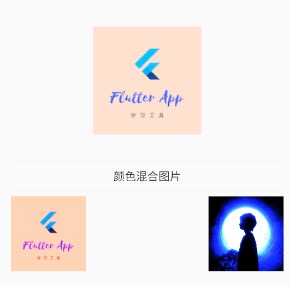
Row(children: <Widget>[
              Image.asset('images/flutter_logo.png',
                  width: 100,

                  /// 混合的颜色,和colorBlendMode一起使用
                  color: Colors.red,

                  /// 颜色和图片混合模式,功能较强大,其它模式参见官方文档或源码
                  colorBlendMode: BlendMode.overlay),
              Image.network(
                  "https://avatars2.githubusercontent.com/u/20411648?s=460&v=4",
                  width: 100,
                  colorBlendMode: BlendMode.colorDodge,
                  color: Colors.blue)
            ], mainAxisAlignment: MainAxisAlignment.spaceBetween),
centerSlice图片内部拉伸
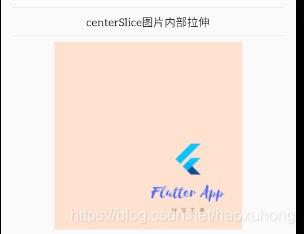
 Image.asset('images/flutter_logo.png',
                width: 250,
                height: 250,
                fit: BoxFit.contain,
                centerSlice:
                    Rect.fromCircle(center: const Offset(20, 20), radius: 1)),
matchTextDirection图片内部方向
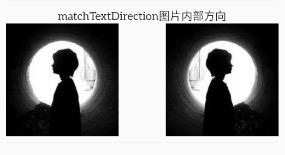
            Row(
                mainAxisAlignment: MainAxisAlignment.spaceBetween,
                children: <Widget>[
                  Directionality(
                      textDirection: TextDirection.ltr,
                      child: Image.network(
                          "https://avatars2.githubusercontent.com/u/20411648?s=460&v=4",
                          height: 150,
                          matchTextDirection: true,
                          fit: BoxFit.cover)),
                  Directionality(
                      textDirection: TextDirection.rtl,
                      child: Image.network(
                          "https://avatars2.githubusercontent.com/u/20411648?s=460&v=4",
                          height: 150,
                          matchTextDirection: true,
                          fit: BoxFit.cover))
                ]),
版权声明:本文为haoxuhong原创文章,遵循CC 4.0 BY-SA版权协议,转载请附上原文出处链接和本声明。