wx.chooseImage和wx.cloud.uploadFile是小程序上传图片到云数据库的两个很重要的函数。
其中,wx.chooseImage函数的作用是选择要上传的图片、wx.cloud.uploadFile函数的作用的将文件上传到云数据库中。
它们的详细参数可以在微信官方文档中查到: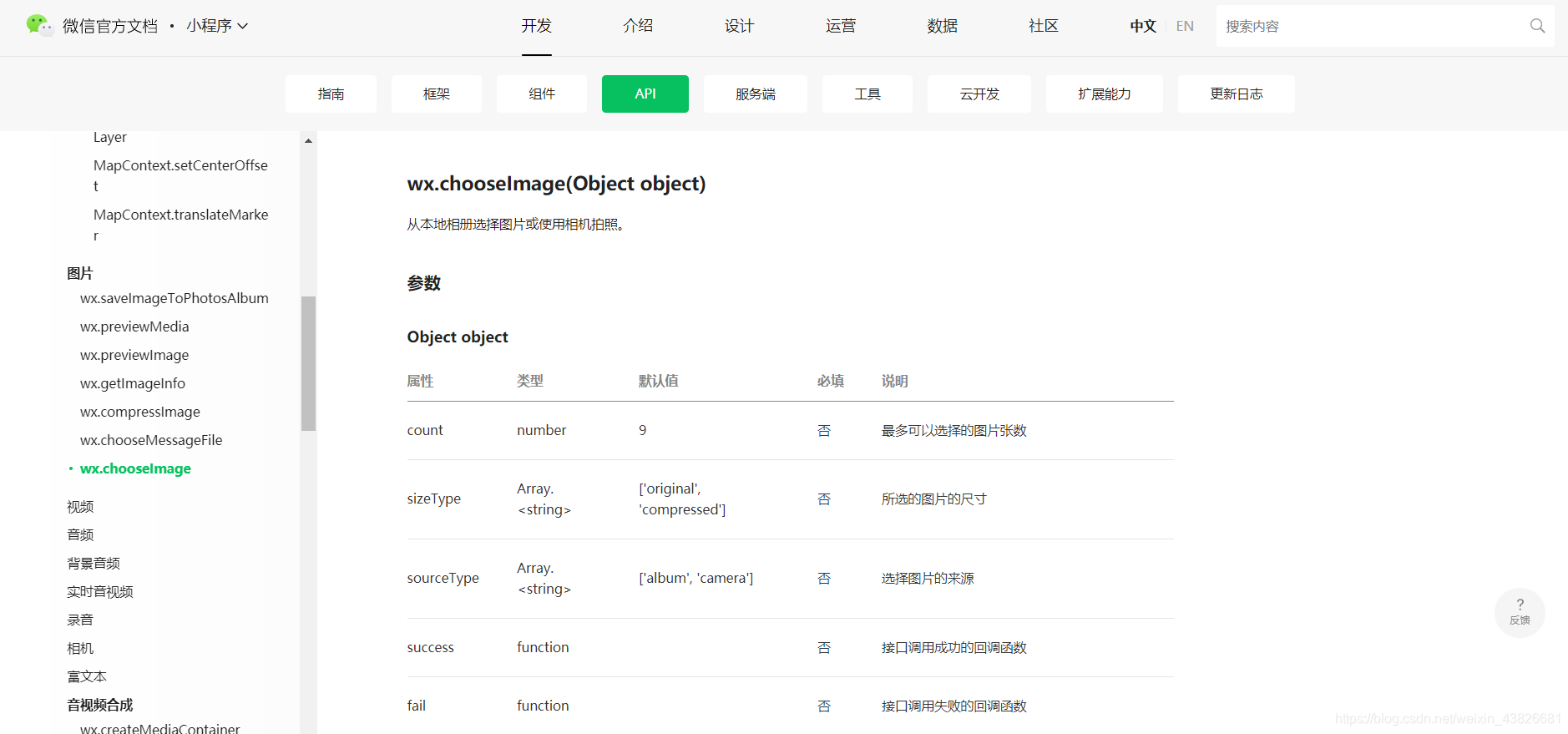
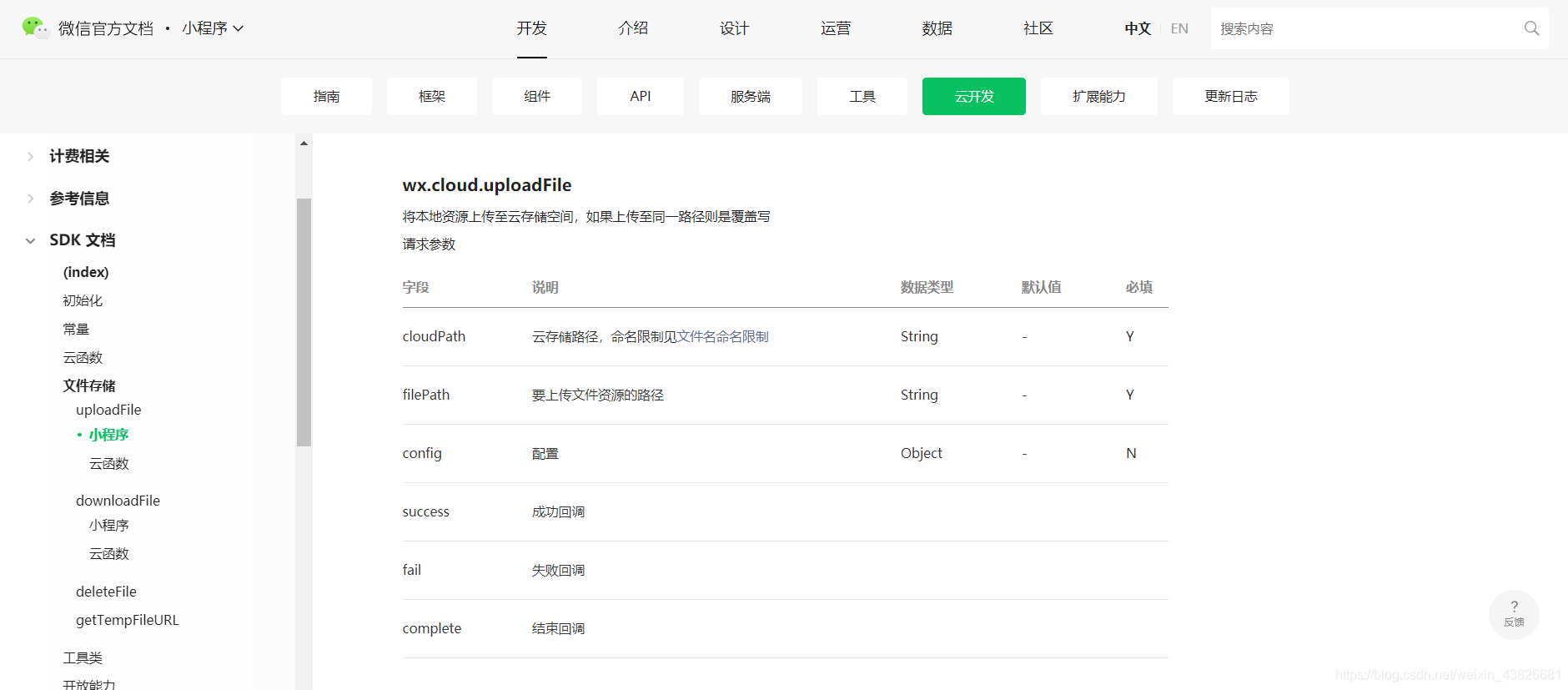
下面举几个示例来看看这两个函数的用法:
一、wx.chooseImage函数的返回值
示例:
wxml:
<button type="primary" bindtap="uploadPhoto" >上传图片</button>
js:
Page({

  data: {

  },

  uploadPhoto: function() {
    wx.chooseImage({
      count:2,
      sizeType:'compressed',
      sourceType:['album', 'camera'],
      success:res=>{
        console.log(res)
      }
    })
  },

  onLoad: function (options) {

  },
})
前端效果图:
后端运行结果: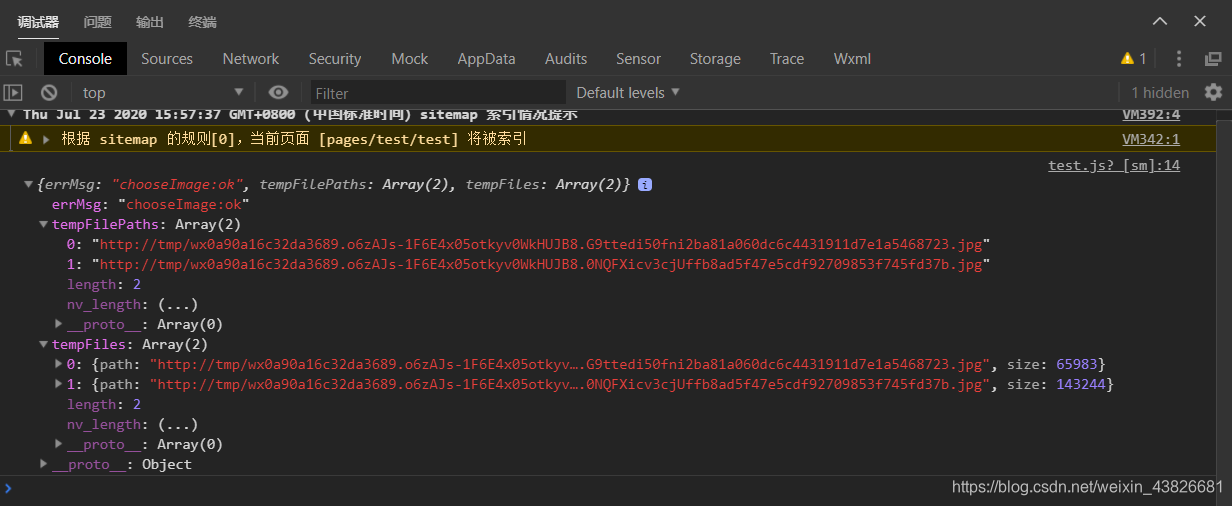
其中,wx.chooseImage函数返回的res中,tempFilePaths和tempFiles是最重要的。
二、两个函数联合使用实现上传图片到云数据库
示例:
wxml:
<button type="primary" bindtap="uploadPhoto" >上传图片</button>
js:
Page({

  data: {

  },

  uploadPhoto: function() {
    wx.chooseImage({
      count:1,
      sizeType:'compressed',
      sourceType:['album', 'camera'],
      success:res=>{
        // console.log(res.tempFilePaths[0])
        var photoTempPath = res.tempFilePaths[0]
        this.uploadPhotoToDatabase(photoTempPath)
      }
    })
  },

  uploadPhotoToDatabase: function(photoTempPath) {
    wx.cloud.uploadFile({
      cloudPath:"photo/"+Date.now()+".jpg",
      filePath:photoTempPath
    })
    .then(res=>{
      console.log(res)
    })
  },

  onLoad: function (options) {

  },
})
前端效果图:
后端运行结果: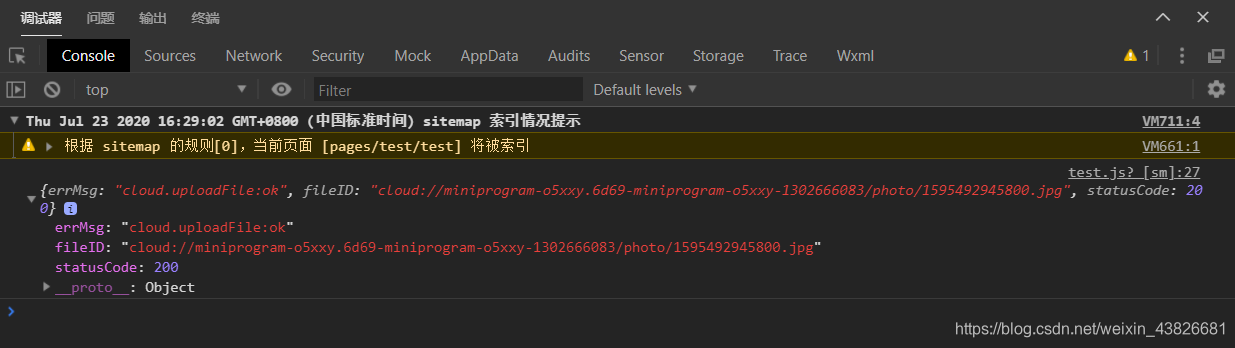
其中,wx.cloud.uploadFile函数返回的res中,fileID是最重要的。
数据库运行结果: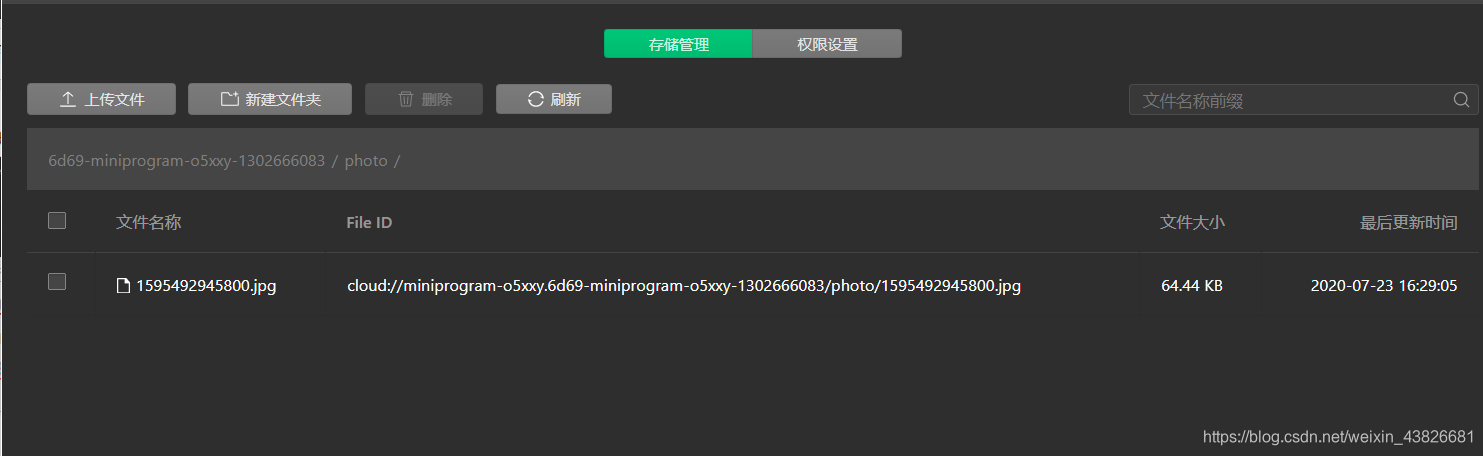
成功上传图片到云数据库。
三、改进:加了些提示框
js:
Page({

  data: {

  },

  uploadPhoto: function() {
    wx.chooseImage({
      count:1,
      sizeType:'compressed',
      sourceType:['album', 'camera'],
      success:res=>{
        // console.log(res.tempFilePaths[0])
        var photoTempPath = res.tempFilePaths[0]
        this.uploadPhotoToDatabase(photoTempPath)
      }
    })
  },

  uploadPhotoToDatabase: function(photoTempPath) {
    wx.showLoading({
      title:"正在上传......"
    })
    wx.cloud.uploadFile({
      cloudPath:"photo/"+Date.now()+".jpg",
      filePath:photoTempPath,
      success(res) {
        console.log(res)
        wx.hideLoading()
        wx.showToast({
          title:"上传成功!",
          duration:2000
        })
      },
      fail(res) {
        console.log(res)
        wx.hideLoading()
        wx.showToast({
          title:"上传失败,请检查网络!",
          icon:"none",
          duration:2000
        })
      }
    })
  },

  onLoad: function (options) {

  },
})
上传成功后弹出的提示框: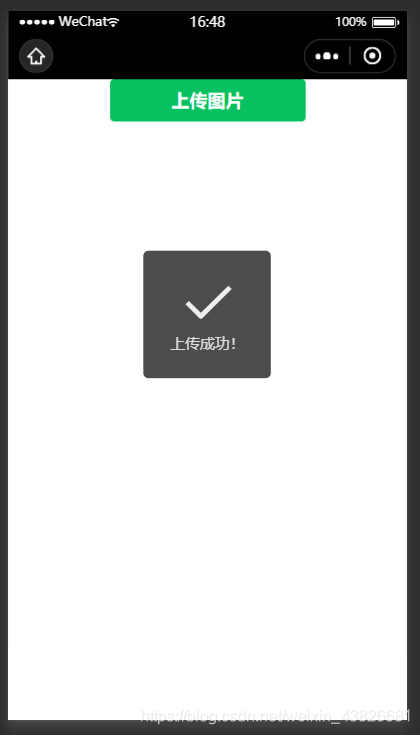
上传失败后弹出的提示框: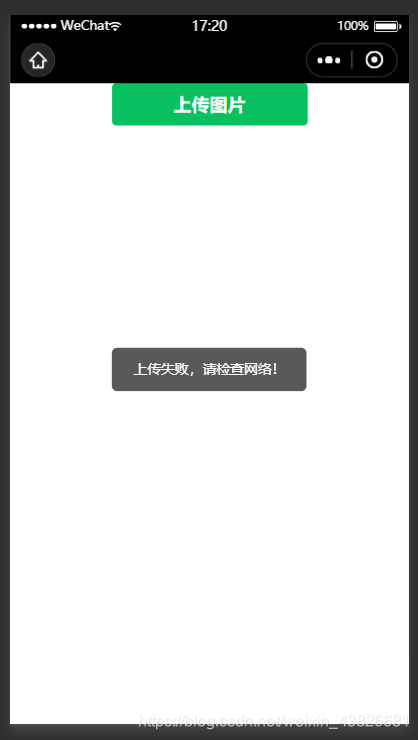
版权声明:本文为weixin_43826681原创文章,遵循CC 4.0 BY-SA版权协议,转载请附上原文出处链接和本声明。