前言
上一篇文章《selenium webdriver 是怎么运行的》用了一个简单的例子——搭出租车,形象地讲解selenium webdriver 是如何运行的,而这一篇文章可以理解为深入了解selenium是如何和浏览器驱动进行交互,也可以认为是乙醇老师写的《selenium是如何启动浏览器的》 文章的2.0版本 。
环境准备:
python 3.0以上
selenium 3.0以上
浏览器 Chrome
浏览器驱动 ChromeDriver
接口测试工具
小编的环境:
python 3.6.4
selenium 3.13
浏览器 :Chrome 68
浏览器驱动: ChromeDriver 2.38
接口测试工具:python requests
首先,我们运行下述代码块
#encoding:utf8
from selenium import webdriver
import logging
logging.basicConfig(level=logging.DEBUG)
dr = webdriver.Chrome()
dr.implicitly_wait(10)
#打开深圳-逸遥 博客园首页
dr.get('https://www.cnblogs.com/snailrunning')
#定位深圳-逸遥 第一篇博文标题
el = dr.find_element_by_css_selector('.postTitle a')
#点击第一篇博文标题
el.click()
运行结果:
DEBUG:selenium.webdriver.remote.remote_connection:
POST http://127.0.0.1:4102/session
{"capabilities": {"firstMatch": [{}], "alwaysMatch": {"browserName": "chrome", "platformName": "any", "goog:chromeOptions": {"extensions": [], "args": []}}},
"desiredCapabilities": {"browserName": "chrome", "version": "", "platform": "ANY", "goog:chromeOptions": {"extensions": [], "args": []}}}
DEBUG:selenium.webdriver.remote.remote_connection:
b'{"sessionId":"7cbbff953318267ef0089dc66f127051",
"status":0,
"value":{"acceptInsecureCerts":false,"acceptSslCerts":false,"applicationCacheEnabled":false,"browserConnectionEnabled":false,"browserName":"chrome","chrome":{"chromedriverVersion":"2.38.552522 (437e6fbedfa8762dec75e2c5b3ddb86763dc9dcb)","userDataDir":"C:\\\\Users\\\\lenovo\\\\AppData\\\\Local\\\\Temp\\\\scoped_dir13812_4179"},"cssSelectorsEnabled":true,"databaseEnabled":false,"handlesAlerts":true,"hasTouchScreen":false,"javascriptEnabled":true,"locationContextEnabled":true,"mobileEmulationEnabled":false,"nativeEvents":true,"networkConnectionEnabled":false,"pageLoadStrategy":"normal","platform":"Windows NT","rotatable":false,"setWindowRect":true,"takesHeapSnapshot":true,"takesScreenshot":true,"unexpectedAlertBehaviour":"","version":"68.0.3440.106","webStorageEnabled":true}}'
DEBUG:selenium.webdriver.remote.remote_connection:Finished Request
DEBUG:selenium.webdriver.remote.remote_connection:
POST
http://127.0.0.1:4102/session/7cbbff953318267ef0089dc66f127051/timeouts/implicit_wait
{"ms": 10000.0, "sessionId": "7cbbff953318267ef0089dc66f127051"}
DEBUG:selenium.webdriver.remote.remote_connection:
b'{"sessionId":"7cbbff953318267ef0089dc66f127051","status":0,"value":null}'
DEBUG:selenium.webdriver.remote.remote_connection:Finished Request
DEBUG:selenium.webdriver.remote.remote_connection:
POST http://127.0.0.1:4102/session/7cbbff953318267ef0089dc66f127051/url
{"url": "https://www.cnblogs.com/snailrunning", "sessionId": "7cbbff953318267ef0089dc66f127051"}
DEBUG:selenium.webdriver.remote.remote_connection:
b'{"sessionId":"7cbbff953318267ef0089dc66f127051","status":0,"value":null}'
DEBUG:selenium.webdriver.remote.remote_connection:Finished Request
DEBUG:selenium.webdriver.remote.remote_connection:
POST
http://127.0.0.1:4102/session/7cbbff953318267ef0089dc66f127051/element
{"using": "css selector", "value": ".postTitle a", "sessionId": "7cbbff953318267ef0089dc66f127051"}
DEBUG:selenium.webdriver.remote.remote_connection:
b'{"sessionId":"7cbbff953318267ef0089dc66f127051","status":0,"value":{"ELEMENT":"0.3612689441010788-1"}}'
DEBUG:selenium.webdriver.remote.remote_connection:Finished Request
DEBUG:selenium.webdriver.remote.remote_connection:
POST http://127.0.0.1:4102/session/7cbbff953318267ef0089dc66f127051/element/0.3612689441010788-1/click
{"id": "0.3612689441010788-1", "sessionId": "7cbbff953318267ef0089dc66f127051"}
DEBUG:selenium.webdriver.remote.remote_connection:
b'{"sessionId":"7cbbff953318267ef0089dc66f127051","status":0,"value":null}'
DEBUG:selenium.webdriver.remote.remote_connection:Finished Request
从上述代码运行结果,我们可以得出以下结论
对于每个Selenium命令,都会创建一个HTTP请求并将其发送到浏览器驱动程序
每一个命令的执行结果都会返回给自动化代码
ChromeDirver创建session时打开了浏览器
Selenium代码和浏览器驱动的交互都根据ChromeDriver创建的sessionId
文章到这里,很多测试的同学看了会头晕,没关系,我们现在先根据上述返回的结果来拆解一下请求的接口和返回,以及我们通过接口工具来模拟Selenium自动化代码来操纵浏览器
1、启动浏览器接口
请求方式:post
请求url : http://127.0.0.1:4102/session
请求body: {"capabilities": {"firstMatch": [{}], "alwaysMatch": {"browserName": "chrome", "platformName": "any", "goog:chromeOptions": {"extensions": [], "args": []}}},
"desiredCapabilities": {"browserName": "chrome", "version": "", "platform": "ANY", "goog:chromeOptions": {"extensions": [], "args": []}}}
返回body : b'{"sessionId":"7cbbff953318267ef0089dc66f127051",
"status":0,
"value":{"acceptInsecureCerts":false,"acceptSslCerts":false,"applicationCacheEnabled":false,"browserConnectionEnabled":false,"browserName":"chrome","chrome":{"chromedriverVersion":"2.38.552522 (437e6fbedfa8762dec75e2c5b3ddb86763dc9dcb)","userDataDir":"C:\\\\Users\\\\lenovo\\\\AppData\\\\Local\\\\Temp\\\\scoped_dir13812_4179"},"cssSelectorsEnabled":true,"databaseEnabled":false,"handlesAlerts":true,"hasTouchScreen":false,"javascriptEnabled":true,"locationContextEnabled":true,"mobileEmulationEnabled":false,"nativeEvents":true,"networkConnectionEnabled":false,"pageLoadStrategy":"normal","platform":"Windows NT","rotatable":false,"setWindowRect":true,"takesHeapSnapshot":true,"takesScreenshot":true,"unexpectedAlertBehaviour":"","version":"68.0.3440.106","webStorageEnabled":true}}'
1.1 开启ChomeDriver

Starting ChromeDriver 2.38.552522 开启ChromeDriver 版本号2.38.552522
(437e6fbedfa8762dec75e2c5b3ddb86763dc9dcb) on port 9515 监听的端口是9515
Only local connections are allowed. ; 只允许本地链接
1.2 构造请求
请求方式 :POST
请求地址 :http://localhost:9515/session
请求body :{"capabilities": {"firstMatch": [{}], "alwaysMatch": {"browserName": "chrome", "platformName": "any", "goog:chromeOptions": {"extensions": [], "args": []}}},
"desiredCapabilities": {"browserName": "chrome", "version": "", "platform": "ANY", "goog:chromeOptions": {"extensions": [], "args": []}}}
1.3 使用python requests 向 ChromeDriver发送请求
#encoding:utf8
import requests
session_url = 'http://localhost:9515/session'
session_pars = {"capabilities": {"firstMatch": [{}], \
"alwaysMatch": {"browserName": "chrome",\
"platformName": "any", \
"goog:chromeOptions": {"extensions": [], "args": []}}}, \
"desiredCapabilities": {"browserName": "chrome", \
"version": "", "platform": "ANY", "goog:chromeOptions": {"extensions": [], "args": []}}}
r_session = requests.post(session_url,json=session_pars)
print(r_session.json())
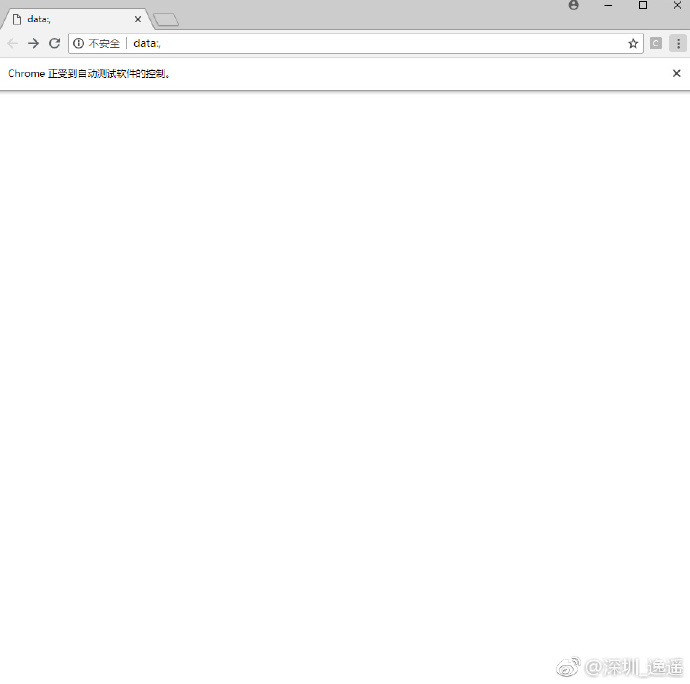
此时Chrome浏览器被打开
1.4 查看返回结果
{
"sessionId": "b2801b5dc58b15e76d0d3295b04d295c",
"status": 0,
"value": {
"acceptInsecureCerts": false,
"acceptSslCerts": false,
"applicationCacheEnabled": false,
"browserConnectionEnabled": false,
"browserName": "chrome",
"chrome": {
"chromedriverVersion": "2.38.552522 (437e6fbedfa8762dec75e2c5b3ddb86763dc9dcb)",
"userDataDir": "C:\\Users\\lenovo\\AppData\\Local\\Temp\\scoped_dir1792_5142"
},
"cssSelectorsEnabled": true,
"databaseEnabled": false,
"handlesAlerts": true,
"hasTouchScreen": false,
"javascriptEnabled": true,
"locationContextEnabled": true,
"mobileEmulationEnabled": false,
"nativeEvents": true,
"networkConnectionEnabled": false,
"pageLoadStrategy": "normal",
"platform": "Windows NT",
"rotatable": false,
"setWindowRect": true,
"takesHeapSnapshot": true,
"takesScreenshot": true,
"unexpectedAlertBehaviour": "",
"version": "68.0.3440.106",
"webStorageEnabled": true
}
}
2、打开深圳-逸遥的博客园
2.1 构造请求
请求方式 :POST
请求地址 :http://localhost:9515/session/:sessionId/url
注意: 上述地址中的 ":sessionId"
要用启动浏览器的请求返回结果中的sessionId的值
例如:我刚刚发送请求,启动浏览器,返回结果中"sessionId": "b2801b5dc58b15e76d0d3295b04d295c"
然后我构造 导航到"深圳-逸遥的博客园"的请求地址
请求地址:http://localhost:9515/session/b2801b5dc58b15e76d0d3295b04d295c/url
请求body :{"url": "https://www.cnblogs.com/snailrunning", "sessionId": "b2801b5dc58b15e76d0d3295b04d295c"}
2.2 使用python requests 向 ChromeDriver发送请求
#encoding:utf8
import requests
url = 'http://localhost:9515/session/b2801b5dc58b15e76d0d3295b04d295c/url'
pars = {"url": "https://www.cnblogs.com/snailrunning", "sessionId": "b2801b5dc58b15e76d0d3295b04d295c"}
r = requests.post(url,json=pars)
print(r.json())
浏览器打开”深圳-逸遥“的博客园

2.3 查看请求返回结果
{'sessionId': 'b2801b5dc58b15e76d0d3295b04d295c', 'status': 0, 'value': None}
3、定位”深圳-逸遥“第一篇博文的标题
3.1 构造请求
请求方式 :POST
请求地址 :http://localhost:9515/session/:sessionId/element
注意: 上述地址中的 ":sessionId"
要用启动浏览器的请求返回结果中的sessionId的值
例如:我刚刚发送请求,启动浏览器,返回结果中"sessionId": "b2801b5dc58b15e76d0d3295b04d295c"
然后我构造 查找页面元素的请求地址
请求地址:http://localhost:9515/session/b2801b5dc58b15e76d0d3295b04d295c/element
请求body :{"using": "css selector", "value": ".postTitle a", "sessionId": "b2801b5dc58b15e76d0d3295b04d295c"}
3.2 使用python requests 向 ChromeDriver发送请求
#encoding:utf8
import requests
url = 'http://localhost:9515/session/b2801b5dc58b15e76d0d3295b04d295c/element'
pars = {"using": "css selector", "value": ".postTitle a", "sessionId": "b2801b5dc58b15e76d0d3295b04d295c"}
r = requests.post(url,json=pars)
print(r.json())
3.3 查看请求返回的结果
{'sessionId': 'b2801b5dc58b15e76d0d3295b04d295c', 'status': 0, 'value': {'ELEMENT': '0.11402119390850629-1'}}
返回结果中的{'ELEMENT': '0.11402119390850629-1'}
官方文档称为:找到的元素的WebElement JSON对象,表示页面上的DOM元素,同时服务器分配给ELEMENT的值是不透明的(随机的) 这个ELEMENT的值会在针对该元素发出的所有后续命令中使用。
### 4、点击”深圳-逸遥“博客 第一篇博文的标题
4.1 构造请求
```
请求方式 :POST
请求地址 :http://localhost:9515/session/:sessionId/element/:id/click
注意: 上述地址中的 ":sessionId"
要用启动浏览器的请求返回结果中的sessionId的值
:id 要用元素定位请求后返回ELEMENT的值
例如:我刚刚发送请求,启动浏览器,返回结果中"sessionId": "b2801b5dc58b15e76d0d3295b04d295c"
元素定位,返回ELEMENT的值"0.11402119390850629-1"
请求body :{"id": "0.11402119390850629-1", "sessionId": "b2801b5dc58b15e76d0d3295b04d295c"}
4.2 使用python requests 向 ChromeDriver发送请求
encoding:utf8
import requests
url = 'http://localhost:9515/session/b2801b5dc58b15e76d0d3295b04d295c/element/0.11402119390850629-1/click'
pars ={"id": "0.5930642995574296-1", "sessionId": "b2801b5dc58b15e76d0d3295b04d295c"}
r = requests.post(url,json=pars)
print(r.json())
#### 浏览器导航到“深圳-逸遥”首页的第一篇博文

4.3 查看请求返回的结果
{'sessionId': 'b2801b5dc58b15e76d0d3295b04d295c', 'status': 0, 'value': None}
#### 文章末尾再炒一下旧饭
- 对于每个Selenium命令,都会创建一个HTTP请求并将其发送到浏览器驱动程序
- 每一个命令的执行结果都会返回给自动化代码
- 响应状态代码 status 等于0 ,即表示命令执行成功
- ChromeDirver创建session时打开了浏览器
- Selenium代码和浏览器驱动的交互都根据ChromeDriver创建的sessionId
#### 附带上述操作相关的接口文档——[selenium webdriver JsonWireProtocol](https://github.com/SeleniumHQ/selenium/wiki/JsonWireProtocol)
[WebDriver JsonWireProtocol 基本术语和概念 ](https://github.com/SeleniumHQ/selenium/wiki/JsonWireProtocol#basic-terms-and-concepts)
[请求响应说明](https://github.com/SeleniumHQ/selenium/wiki/JsonWireProtocol#messages)
[启动浏览器,创建sessionId](https://github.com/SeleniumHQ/selenium/wiki/JsonWireProtocol#session-1)
[导航指定url](https://github.com/SeleniumHQ/selenium/wiki/JsonWireProtocol#post-sessionsessionidurl)
[元素定位](https://github.com/SeleniumHQ/selenium/wiki/JsonWireProtocol#sessionsessionidelement)
[元素点击操作](https://github.com/SeleniumHQ/selenium/wiki/JsonWireProtocol#sessionsessionidelementidclick)
#### 参考文章
[乙醇 - selenium是如何启动浏览器的](https://www.cnblogs.com/nbkhic/p/9249330.html)
#### 推荐阅读
[乙醇 - selenium是如何启动浏览器的](https://www.cnblogs.com/nbkhic/p/9249330.html)
[深圳-逸遥 - Selenium WebDriver原理(一):Selenium WebDriver 是怎么工作的?](https://www.cnblogs.com/snailrunning/p/9413446.html)