原文链接
canvas原生实现直播视频弹幕效果。
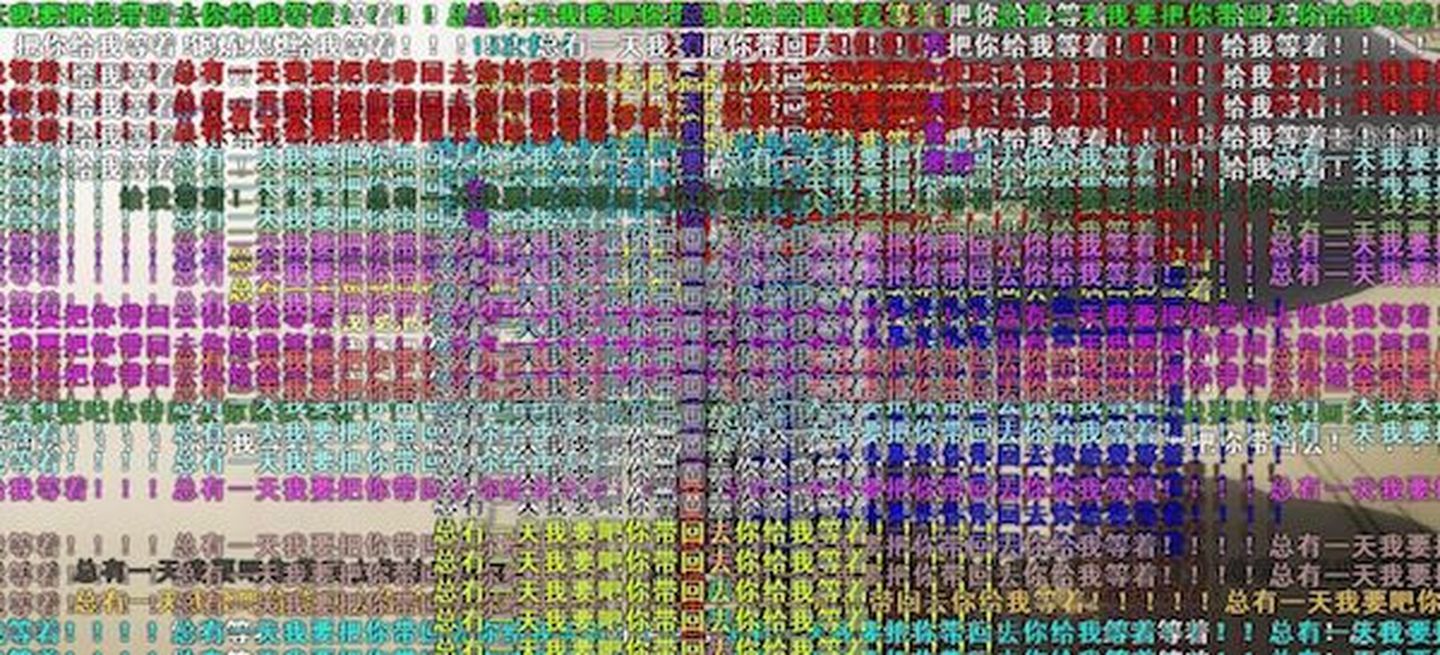
上一篇中用动态创建DOM元素实现弹幕效果,好处是可以在DOM元素上添加事件,但问题是当大量弹幕出现会造成页面卡顿,于是尝试用canvas绘制弹幕效果。
canvas知识
绘制文字
  let canvas = document.getElementById('canvas');
   let ctx = canvas.getContext('2d');
   ctx.font = '20px Microsoft YaHei';          //字体、大小
   ctx.fillStyle = '#000000';                  //字体颜色
   ctx.fillText('canvas 绘制文字', 100, 100);   //文本,字体x,y坐标
文本宽度
ctx.measureText('文本宽度').width清除绘制内容
ctx.clearRect(0, 0, width, height); 实现步骤
1、创建canvas元素利用绝对定位覆盖在视频上
2、创建Barrage类,添加的弹幕缓存到弹幕列表中,并记录相应弹幕信息
3、绘制弹幕文本,用文本偏移量控制移动速度
4、计算当文本超出画布时移出弹幕列表
代码
html
  <div style="position:relative;width:500px;height:400px;text-align:center;">
       <video controls="controls" autoplay="autoplay" style="width:100%;height:100%;">
           <source src="http://www.w3school.com.cn/i/movie.ogg" type="video/ogg" />
           <source src="http://www.w3school.com.cn/i/movie.mp4" type="video/mp4" />
           Your browser does not support the video tag.
       </video>

       <canvas id="canvas" width="500" height="400" style="position:absolute;top:0;left:0;">
           您的浏览器不支持canvas标签。
       </canvas>
   </div>
js
  (function () {

       class Barrage {
           constructor(canvas) {
               this.canvas = document.getElementById(canvas);
               let rect = this.canvas.getBoundingClientRect();
               this.w = rect.right - rect.left;
               this.h = rect.bottom - rect.top;
               this.ctx = this.canvas.getContext('2d');
               this.ctx.font = '20px Microsoft YaHei';
               this.barrageList = [];
           }

           //添加弹幕列表
           shoot(value) {
               let top = this.getTop();
               let color = this.getColor();
               let offset = this.getOffset();
               let width = Math.ceil(this.ctx.measureText(value).width);

               let barrage = {
                   value: value,
                   top: top,
                   left: this.w,
                   color: color,
                   offset: offset,
                   width: width
               }
               this.barrageList.push(barrage);
           }

           //开始绘制
           draw() {
               if (this.barrageList.length) {
                   this.ctx.clearRect(0, 0, this.w, this.h);
                   for (let i = 0; i < this.barrageList.length; i++) {
                       let b = this.barrageList[i];
                       if (b.left + b.width <= 0) {
                           this.barrageList.splice(i, 1);
                           i--;
                           continue;
                       }
                       b.left -= b.offset;
                       this.drawText(b);
                   }
               }
               requestAnimationFrame(this.draw.bind(this));
           }

           //绘制文字
           drawText(barrage) {
               this.ctx.fillStyle = barrage.color;
               this.ctx.fillText(barrage.value, barrage.left, barrage.top);
           }

           //获取随机颜色
           getColor() {
               return '#' + Math.floor(Math.random() * 0xffffff).toString(16);
           }

           //获取随机top
           getTop() {
               //canvas绘制文字x,y坐标是按文字左下角计算,预留30px
               return Math.floor(Math.random() * (this.h - 30)) + 30;
           }

           //获取偏移量
           getOffset() {
               return +(Math.random() * 4).toFixed(1) + 1;
           }

       }

       let barrage = new Barrage('canvas');
       barrage.draw();

       const textList = ['弹幕', '666', '233333333',
           'javascript', 'html', 'css', '前端框架', 'Vue', 'React',
           'Angular','测试弹幕效果'
       ];

       textList.forEach((t) => {
           barrage.shoot(t);
       })

   })();
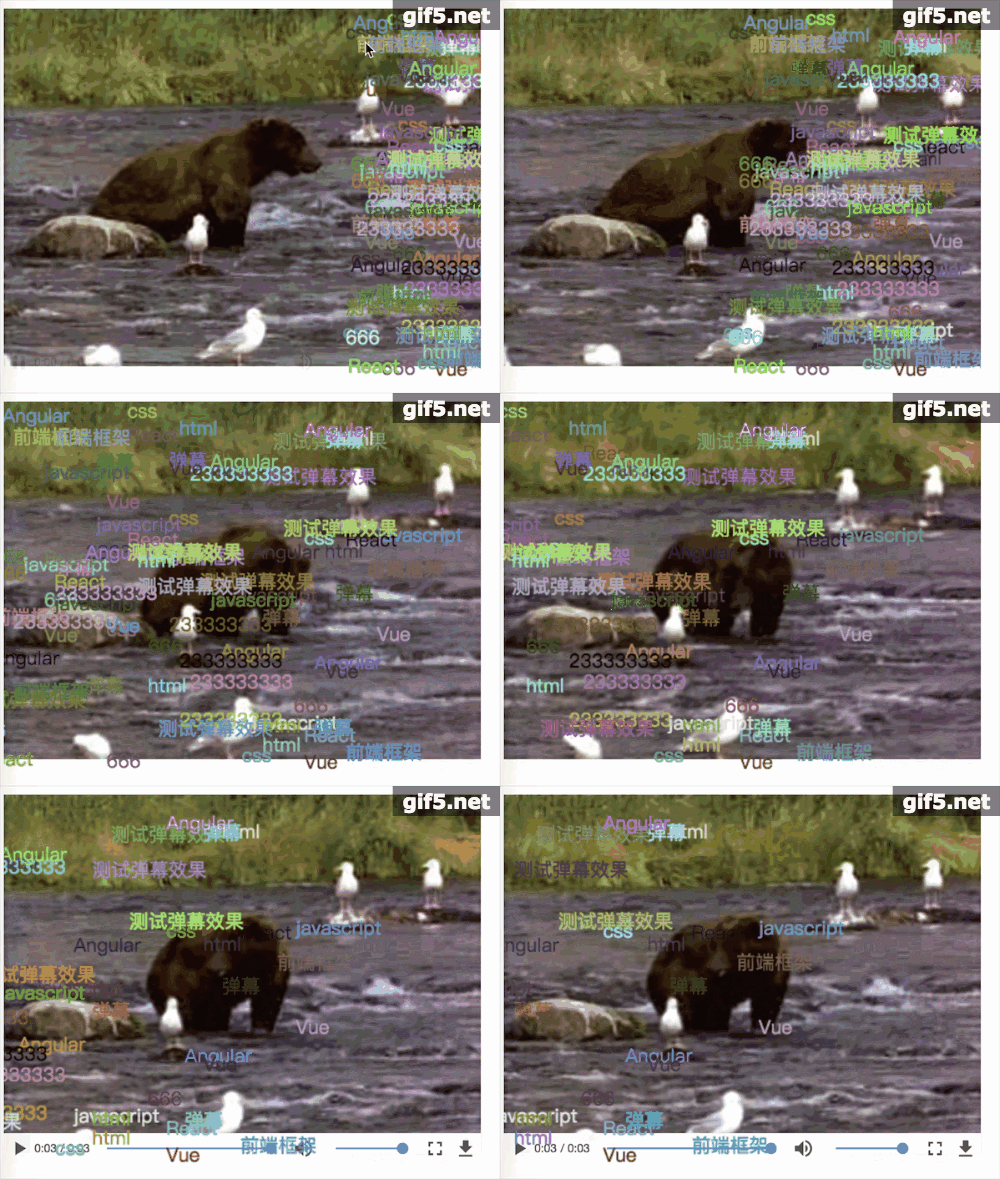
效果
总结
canvas可以实现很多动画效果,尤其是当我们需要动态创建大量元素时,使用canvas可以优化动画显示效果,改善用户体验,提升性能。
版权声明:本文为weixin_33754744原创文章,遵循CC 4.0 BY-SA版权协议,转载请附上原文出处链接和本声明。