针对Oracle配置Linux
Linux软件现已安装完毕,您需要针对Oracle对其进行配置。本部分将逐步讲解针对Oracle数据库11g第1版配置Linux的过程。
创建Oracle组和用户帐户
接下来,创建用于安装和维护Oracle数据库11g第1版软件的Linux组和用户帐户。用户帐户将称为oracle,而组将称为oinstall和dba。以root用户身份执行以下命令:
/usr/sbin/groupadd oinstall
/usr/sbin/groupadd dba
/usr/sbin/useradd -m -g oinstall -G dba oracle
id oracle
Ex:
# /usr/sbin/groupadd oinstall
# /usr/sbin/groupadd dba
# /usr/sbin/useradd -m -g oinstall -G dba oracle
# id oracle
uid=501(oracle) gid=502(oinstall) groups=502(oinstall),503(dba)
设置oracle帐户的口令:
passwd oracle
Ex:
# passwd oracle
Changing password for user oracle.
New password:
Retype new password:
passwd: all authentication tokens updated successfully.
创建目录
现在创建目录来存放Oracle数据库11g第1版软件及数据库文件。本指南在创建目录结构时所用的命名惯例符合最佳灵活结构(OFA)规范。有关OFA标准的更多信息,请参阅的。
以下假设在根文件系统中创建目录。这样做是为了简便起见,不建议将其作为通用做法。这些目录通常被创建为单独的文件系统。
以root用户身份执行以下命令:
mkdir -p /u01/app/oracle
chown -R oracle:oinstall /u01/app
chmod -R 775 /u01/app
配置Linux内核参数
Oracle数据库11g第1版需要以下所示的内核参数设置。给出的值都为最小值,因此如果您的系统使用一个更大的值,则不要进行更改。Linux允许在系统启动并运行时修改大多数内核参数,所以无需在修改内核参数后重启系统。
kernel.shmall = 2097152
kernel.shmmax = 536870912
kernel.shmmni = 4096
kernel.sem = 250 32000 100 128
fs.file-max = 65536
net.ipv4.ip_local_port_range = 1024 65000
net.core.rmem_default=4194304
net.core.wmem_default=262144
net.core.rmem_max=4194304
net.core.wmem_max=262144
注意,OEL 5已经为kernel.shmall和kernel.shmmax定义了值。如果默认值等于或大于要求值,则使用默认值。
如果您按照以上说明安装了Linux,且内核参数全部采用默认值,则只需在以root用户身份登录后执行下命令。
cat >> /etc/sysctl.conf <
kernel.shmmni = 4096
kernel.sem = 250 32000 100 128
fs.file-max = 65536
net.ipv4.ip_local_port_range = 1024 65000
net.core.rmem_default=4194304
net.core.wmem_default=262144
net.core.rmem_max=4194304
net.core.wmem_max=262144
EOF
/sbin/sysctl -p
Ex:
# cat >> /etc/sysctl.conf <
net.ipv4.ip_local_port_range = 1024 65000
net.core.rmem_default=262144
> kernel.shmmni = 4096
> kernel.sem = 250 32000 100 128
> fs.file-max = 65536
> net.ipv4.ip_local_port_range = 1024 65000
> net.core.rmem_default=4194304
> net.core.wmem_default=262144
> net.core.rmem_max=4194304
> net.core.wmem_max=262144
> EOF
# /sbin/sysctl -p
net.ipv4.ip_forward = 0
net.ipv4.conf.default.rp_filter = 1
net.ipv4.conf.default.accept_source_route = 0
kernel.sysrq = 0
kernel.core_uses_pid = 1
net.ipv4.tcp_syncookies = 1
kernel.msgmnb = 65536
kernel.msgmax = 65536
kernel.shmmax = 4294967295
kernel.shmall = 268435456
kernel.shmmni = 4096
kernel.sem = 250 32000 100 128
fs.file-max = 65536
net.ipv4.ip_local_port_range = 1024 65000
net.core.rmem_default = 4194304
net.core.wmem_default = 262144
net.core.rmem_max = 4194304
net.core.wmem_max = 262144
以root用户身份运行以下命令来验证您的设置:
/sbin/sysctl -a | grep shm
/sbin/sysctl -a | grep sem
/sbin/sysctl -a | grep file-max
/sbin/sysctl -a | grep ip_local_port_range
/sbin/sysctl -a | grep rmem_default
/sbin/sysctl -a | grep rmem_max
/sbin/sysctl -a | grep wmem_default
/sbin/sysctl -a | grep wmem_max
Ex:
# /sbin/sysctl -a | grep shm
kernel.shmmni = 4096
kernel.shmall = 268435456
kernel.shmmax = 4294967295
kernel.shm-use-bigpages = 0
# /sbin/sysctl -a | grep sem
kernel.sem = 250 32000 100 128
# /sbin/sysctl -a | grep file-max
fs.file-max = 65536
# /sbin/sysctl -a | grep ip_local_port_range
net.ipv4.ip_local_port_range = 1024 65000
# /sbin/sysctl -a | grep rmem_default
net.core.rmem_default = 4194304
# /sbin/sysctl -a | grep rmem_max
net.core.rmem_max = 4194304
# /sbin/sysctl -a | grep wmem_default
net.core.wmem_default = 262144
# /sbin/sysctl -a | grep wmem_max
net.core.wmem_max = 262144
为oracle用户设置Shell限制
Oracle建议对每个Linux帐户可以使用的进程数和打开的文件数设置限制。要进行这些更改,以root用户的身份执行下列命令:
cat >> /etc/security/limits.conf <
oracle soft nproc 2047
oracle hard nproc 16384
oracle soft nofile 1024
oracle hard nofile 65536
EOF
cat >> /etc/pam.d/login <
session required /lib/security/pam_limits.so
EOF
修改bash和ksh的默认配置文件以及cshell的默认登录脚本。
cat >> /etc/profile <
if [ \$USER = "oracle" ]; then
if [ \$SHELL = "/bin/ksh" ]; then
ulimit -p 16384
ulimit -n 65536
else
ulimit -u 16384 -n 65536
fi
umask 022
fi
EOF
cat >> /etc/csh.login <
if ( \$USER == "oracle" ) then
limit maxproc 16384
limit descriptors 65536
umask 022
endif
EOF
附录
使用SQL*Plus访问数据库
以oracle身份登录到Linux。设置环境。
设置Oracle环境变量:
$ . oraenv
ORACLE_SID = [demo1] ? demo1
The Oracle base for ORACLE_HOME=/u01/app/oracle/product/11.1.0/db_1 is /u01/app/oracle
运行SQL*Plus:
$ sqlplus
SQL*Plus: Release 11.1.0.6.0 - Production on Sun Nov 4 23:56:47 2007
Copyright (c) 1982, 2007, Oracle. All rights reserved.
Enter user-name: / as sysdba
Connected to:
Oracle Database 11g Enterprise Edition Release 11.1.0.6.0 - Production
With the Partitioning, OLAP, Data Mining and Real Application Testing options
SQL>
使用Oracle Enterprise Manager 11g数据库控制
在Web浏览器中,连接到安装过程中提供的URL。
例如:https://ds1.orademo.org:1158/em(如果数据库服务器不在DNS中,则必须使用IP地址代替主机名。)
User Name:SYSTEM
Password:
Connect As:Normal
单击
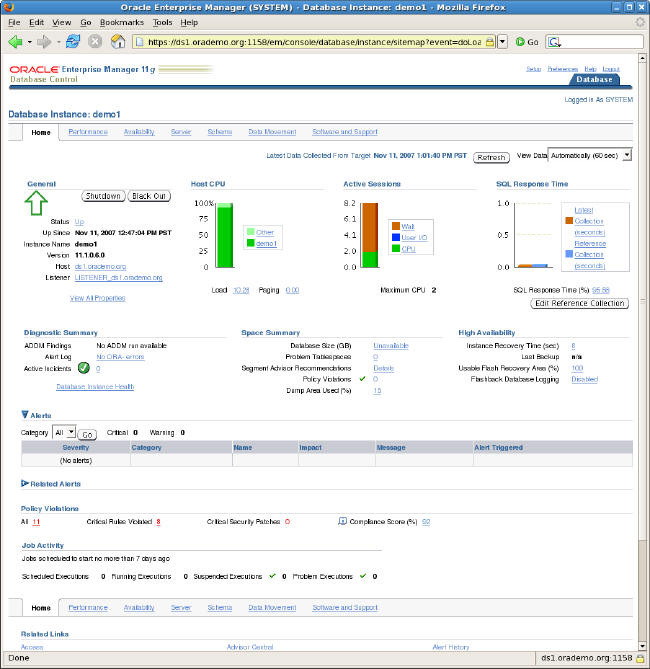
欢迎使用Oracle Enterprise Manager 11g数据库控制。
启动和停止Oracle企业管理器数据库控制:
$ emctl start dbconsole
$ emctl stop dbconsole
启动和停止监听器:
监听器接受客户端的连接请求,并在验证证书后创建数据库连接。要使用OEM,必须先启动监听器。
$ lsnrctl start
$ lsnrctl stop
启动和停止数据库:
启动和停止数据库的最简单方法是从OEM控制台启动和停止。要从命令行执行此操作,请在以oracle身份登录后使用SQL*Plus,如下所示:
启动:
$ sqlplus
SQL*Plus: Release 11.1.0.6.0 - Production on Mon Nov 5 00:00:31 2007
Copyright (c) 1982, 2007, Oracle. All rights reserved.
Enter user-name: / as sysdba
Connected to:
Oracle Database 11g Enterprise Edition Release 11.1.0.6.0 - Production
With the Partitioning, OLAP, Data Mining and Real Application Testing options
SQL> startup
ORACLE instance started.
Total System Global Area 849530880 bytes
Fixed Size 1303216 bytes
Variable Size 377490768 bytes
Database Buffers 465567744 bytes
Redo Buffers 5169152 bytes
Database mounted.
Database opened.
SQL> exit
停止:
$ sqlplus
SQL*Plus: Release 11.1.0.6.0 - Production on Mon Nov 5 00:00:31 2007
Copyright (c) 1982, 2007, Oracle. All rights reserved.
Enter user-name: / as sysdba
Connected to:
Oracle Database 11g Enterprise Edition Release 11.1.0.6.0 - Production
With the Partitioning, OLAP, Data Mining and Real Application Testing options
SQL> shutdown immediate
Database closed.
Database dismounted.
ORACLE instance shut down.
SQL> exit