用了106行代码就做了一个图片浏览器,python真的太强大了。废话少说,看看效果先!
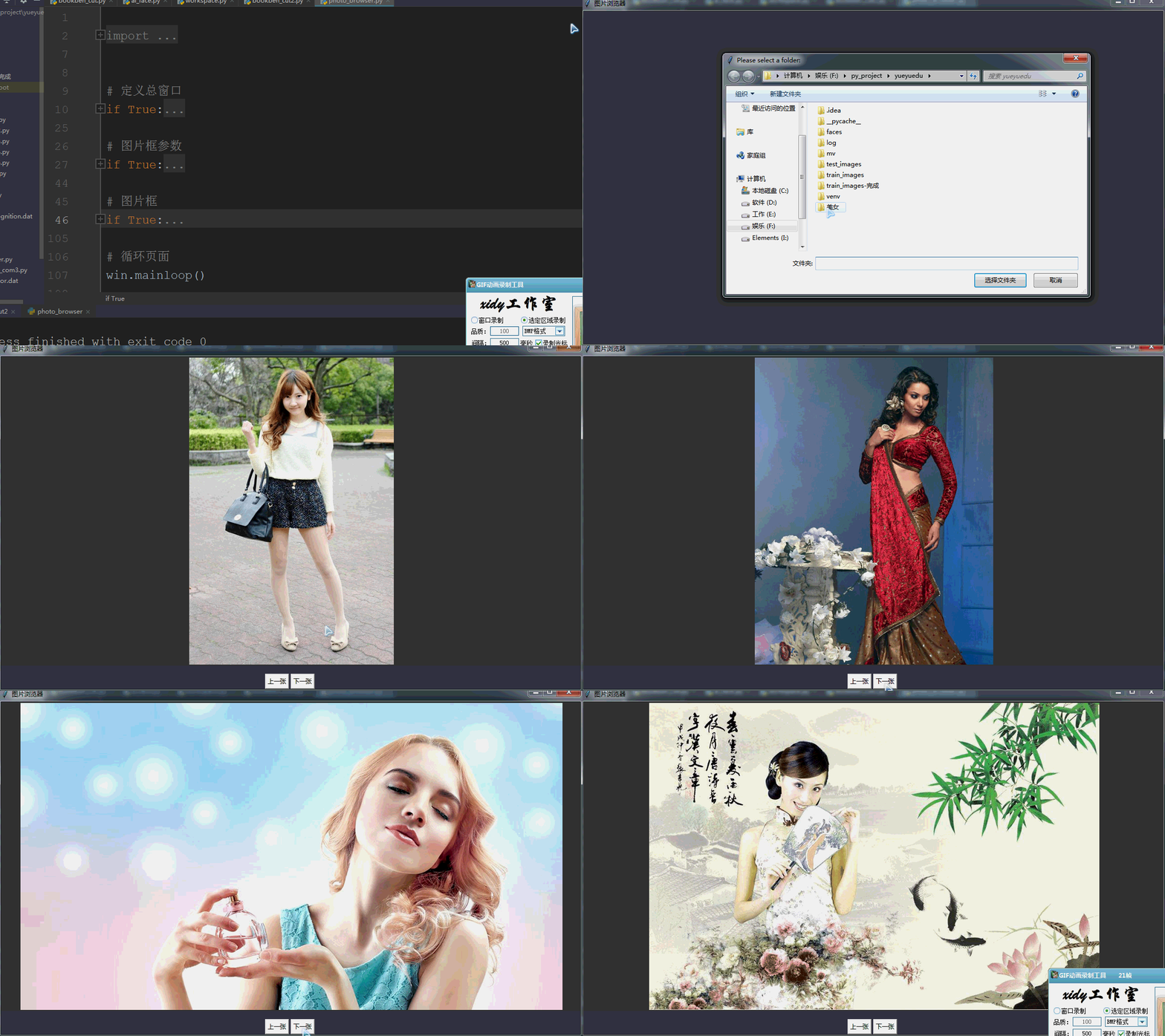
106行代码中还有不少代码是美化用的,真正功能的代码就没几句了。还是说说功能吧:
1. 打开文件夹,并只打开特定类型
2. 图片循环播放,
3. 图片锁定比例,自动适应窗口大小

说说设计思路吧:
用一个label盛放图片,
img_box = tk.Label(win, bg=img_box_bg, width=img_box_w, height=img_box_h, image=img2)用label.configure方法更换图片
img_box.configure(image=img)值得说的好像就这些了。下面给出完整代码吧。多说一句,用if Ture的目的就是为了把代码收起来好看一点。本来想找python其他定义语句块的…最后还是决定自创一个收语句的办法。
import os
import glob
import tkinter as tk
from tkinter import filedialog
from PIL import Image, ImageTk


# 定义总窗口
if True:
    win = tk.Tk()
    # 窗体参数
    win_width = 1130
    win_height = 650
    # 窗口在屏幕居中
    sw = win.winfo_screenwidth()  # 得到屏幕宽度
    sh = win.winfo_screenheight() - 80  # 得到屏幕高度
    x = (sw-win_width) / 2
    y = (sh-win_height) / 2

    win.title('图片浏览器')
    win.geometry("%dx%d+%d+%d" % (win_width, win_height, x, y))
    bg = tk.Label(win, bg='#3c3f41')
    bg.place(height=win_height, width=win_width, x=0, y=0)

# 图片框参数
if True:
    img_box_x = 0
    img_box_y = 0
    img_box_w = win_width
    img_box_h = win_height-50
    img_box_bg = '#313335'
    # 选择文件夹
    folder = filedialog.askdirectory(parent=win,
                                     initialdir=os.getcwd(),
                                     title="Please select a folder:")
    # 将文件夹中的所有图片读到数组中,这里是图片路径的集合
    img_files = glob.glob(os.path.join(folder, "*.jpg"))
    if not len(img_files):
        print('文件中没有jpg图片')
        os._exit(0)  # 文件夹中没有jpg图片就退出

    img_num = 0  # 当前显示图片的指针

# 图片框
if True:
    def front_img():
        """
        点击显示上一张图片
        """
        global img_num
        img_num -= 1
        if img_num < 0:
            img_num = len(img_files) - 1
        img = img_cut(img_files[img_num], img_box_w, img_box_h)
        img_box.configure(image=img)
        img_box.mainloop()


    def next_img():
        """
        点击显示下一张图片
        """
        global img_num
        img_num += 1
        if img_num == len(img_files):
            img_num = 0
        img = img_cut(img_files[img_num], img_box_w, img_box_h)
        img_box.configure(image=img)
        img_box.mainloop()


    def img_cut(img, max_w, max_h):
        """
        锁定图片比例,最大化填充图片框
        :param img: 图片路径
        :param max_w: 图片框的宽度
        :param max_h: 图片框的高度
        :return: 图片对象
        """
        img_original = Image.open(img)
        # 获取图像的原始大小,并根据原图片比例,最大化地显示在图片框中
        w, h = img_original.size
        f1 = 1.0 * max_w / w
        f2 = 1.0 * max_h / h
        factor = min([f1, f2])
        img_w = int(w * factor)
        img_h = int(h * factor)

        img_open = img_original.resize((img_w, img_h))
        img_png = ImageTk.PhotoImage(img_open)

        return img_png


    bt_next = tk.Button(win, text="下一张", command=next_img)
    bt_next.place(x=img_box_x + img_box_w / 2, y=img_box_y + img_box_h + 20)

    bt_front = tk.Button(win, text="上一张", command=front_img)
    bt_front.place(x=img_box_x + img_box_w / 2-50, y=img_box_y + img_box_h + 20)

    img2 = img_cut(img_files[0], img_box_w, img_box_h)
    img_box = tk.Label(win, bg=img_box_bg, width=img_box_w, height=img_box_h, image=img2)
    img_box.place(x=img_box_x, y=img_box_y)

# 循环页面
win.mainloop()
版权声明:本文为kwinawyeth原创文章,遵循CC 4.0 BY-SA版权协议,转载请附上原文出处链接和本声明。