小程序上传图片到远程服务器,上传完成后显示远程图片,也可进行预览。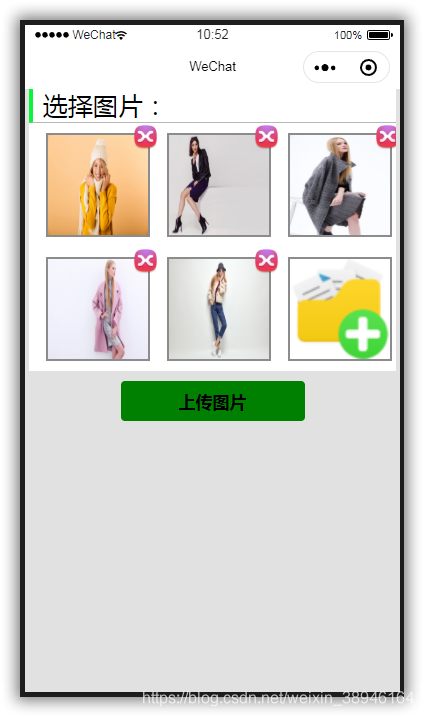


1.先上后端node代码
app.js
var express=require('express')
var app=express()
var multer=require('multer')
var fs=require('fs')
var path=require('path')
// var upload=multer({ dest: './tmp/' })

var createFolder = function(folder){
    try{
        fs.accessSync(folder);
    }catch(e){
        fs.mkdirSync(folder);
    }
};

var uploadFolder = './upload/img/'; // 保存的路径,需要自己创建
createFolder(uploadFolder);

// 通过 filename 属性定制
var storage = multer.diskStorage({
    destination: function (req, file, cb) {
        cb(null, uploadFolder);
    },
    filename: function (req, file, cb) {
        // 将保存文件名设置为 字段名 + 时间戳,比如 logo-1478521468943
        let suffix=file.mimetype.split('/')[1];//获取文件格式
        cb(null, file.fieldname + '-' + Date.now()+'.'+suffix);
    }
});

// 通过 storage 选项来对 上传行为 进行定制化
var upload = multer({ storage: storage })

app.post('/',upload.single('file'),function(req,res,next){
    //req.body contains the text fields
    console.log(req.file,'------',req.body,'-------',req.file.path);
    //res.end(req.file.buffer);
    // console.log(req.file.buffer.toString().length);
    res.end(req.file.filename); //给前端返回文件名
});

app.use(express.static(path.join(__dirname,'upload'))); //**设置upload文件夹下的所有文件能通过网址访问,用作静态文件web服务**//

app.listen(3000);
console.log('服务开启成功--127.0.0.1:3000')
2.小程序前端代码
index.wxml
<view class='pages'>
 <view class='top'><text class='top_name'>选择图片:</text></view>
 <!-- 图片 -->
 <view class="images_box">
    <block wx:key="index" wx:for="{{imgbox}}">
      <view class='img-box'>
        <image class='img' src='{{item}}'></image>
        <view class='img-delect' bindtap='imgDelete1' data-delindex="{{index}}">
          <image class='img' src='../images/delect.png' ></image>
        </view>
      </view>
    </block>

    <view class='img-box' bindtap='addPic1' wx:if="{{imgbox.length<9}}">
     <image class='img' src='../images/add_image.png'></image>
    </view>
 </view>

 <button bindtap='uploadimage'>上传图片</button>
</view>
index.wxss
page{
 background-color: rgba(200, 198, 201, 0.527);
}
.pages{
 width: 98%;
 margin: auto;
 overflow: hidden;
}
.top{
 width: 100%;
 overflow: hidden;
 margin: auto;
 font-size: 50rpx;
 background-color: white;
 border-left: 8rpx solid rgb(9, 245, 60);
 border-bottom: 1rpx solid rgba(117, 116, 116, 0.527);
}
.top_name{
 margin-left: 20rpx;
}

/* 图片 */
.images_box{
 width: 100%;
 display: flex;
 flex-direction: row;
 flex-wrap: wrap;
 justify-content: flex-start;
 background-color: white;
}
.img-box{
 border: 5rpx;
 border-style: solid;
 border-color: rgba(0, 0, 0, 0.452);
 width: 200rpx;
 height: 200rpx;
 margin-left: 35rpx;
 margin-top: 20rpx;
 margin-bottom: 20rpx;
 position: relative;
}
.img{
  width: 100%;
  height:100%;
}

/* 删除图片 */
.img-delect{
 width:50rpx;
 height:50rpx;
 border-radius:50%;
 position:absolute;
 right:-20rpx;
 top:-20rpx;
}

button{
 margin-top: 20rpx;
 background-color: green;
}

.img1{
 border: 5rpx;
 border-style: solid;
 border-color: rgba(0, 0, 0, 0.452);
 width: 200rpx;
 height: 200rpx;
}

.img2{
  width: 100%;
  height:100%;
}
index.js
var app = getApp();
var upimg = require("../../utils/upimg.js"); //引用自定义函数

Page({
  data: {
    imgbox: [], //选择图片后生成的临时地址数组
  },

  //*选择图片*//
  addPic1: function() {
    var imgbox = this.data.imgbox;
    var that = this;
    wx.chooseImage({
      count: 9,  // 最多可以选择的图片张数,默认9
      sizeType: ['original', 'compressed'], // original 原图,compressed 压缩图,默认二者都有
      sourceType: ['album', 'camera'], // album 从相册选图,camera 使用相机,默认二者都有
      success: function (res) {
        var tempFilePaths = res.tempFilePaths
        if (imgbox.length == 0) {
          imgbox = tempFilePaths
        } else if (9 > imgbox.length) {
          imgbox = imgbox.concat(tempFilePaths); //concat追加到数组
        }
        that.setData({
          imgbox: imgbox
        });
      },
    })
  },

  //*显示选择的图片*//
  imgbox: function (e) {
    this.setData({
      imgbox: e.detail.value
    })
  },

  //* 删除照片 *//
  imgDelete1: function (e) {
    let that = this;
    let index = e.currentTarget.dataset.delindex; //获取点击删除的索引,否则删除的永远是第一张
    let imgbox = this.data.imgbox;                  //对应wxml <view  bindtap='imgDelete1' data-delindex="{{index}}" >
    imgbox.splice(index, 1)
    that.setData({
      imgbox: imgbox
    });
  },

  //*上传图片*//
  uploadimage: function () {
    let that = this;
    let imgbox = this.data.imgbox;

    if (imgbox != 0) { //数组不为空的时候才执行
      wx.showToast({
        title: "上传中!",
        icon: 'success',
        duration: 5000,
      });

      upimg.uploadimg({ //调用upimg.js文件的uploadimg函数
        url: 'http://127.0.0.1:3000/', //后端接口地址
        path: imgbox, //选取图片的临时地址数组
      });

      setTimeout(function () { //延迟执行,目的是等待上一步的uploadimg函数执行完成赋值给全局变量后再执行下面的代码
        //console.log('2>' + getApp().globalData.imgurl);
        wx.navigateTo({
          url: "/pages/img/img"  //跳转到img页面
        });
        that.setData({
          imgbox: []  //清空选择的图片
        });

      }, 2000); //延迟时间2秒

    }else{
      wx.showToast({
        title: "请选择图片!",
        icon: 'success',
        duration: 1000,
      })
    }
  }
})
图片上传函数 upimg.js
var app = getApp();
var imgurln=[];

//多张图片上传
function uploadimg(data) {
  var that = this,
  i = data.i ? data.i : 0,//当前上传的哪张图片
  success = data.success ? data.success : 0,//上传成功的个数
  fail = data.fail ? data.fail : 0;//上传失败的个数
  wx.uploadFile({
    url: data.url, //从调用页面传入 -- url: 'http://127.0.0.1:3000/', //后端接口地址
    filePath: data.path[i], //从调用页面传入 --path: imgbox, //选取图片的地址数组
    name: 'file', //文件名称,根据自己的实际情况改
    formData: null, //这里是上传图片时一起上传的数据
    success: (resp) => {
      success++;//图片上传成功,图片上传成功的变量+1
      //console.log(resp.data) //在调试窗口显示后端返回的图片名称
      imgurln = imgurln.concat('http://127.0.0.1:3000/img/' + resp.data); //以图片名称拼接成网址,并追加到数组imgurln
      //console.log(i);
      //这里可能有BUG,失败也会执行这里,所以这里应该是后台返回过来的状态码为成功时,这里的success才+1
    },

    fail: (res) => {  //*失败
      fail++;//图片上传失败,图片上传失败的变量+1
      console.log('fail:' + i + "fail:" + fail);
    },

    complete: () => { //*完成,不论成功、失败都执行
      //console.log(i);
      i++;//这个图片执行完上传后,开始上传下一张
      if (i == data.path.length) {   //当图片传完时,停止调用
        app.globalData.imgurl =imgurln; //把远程图片的网址数组赋值给全局变量,以便在另一个页面显示远程图片
        console.log('1>'+app.globalData.imgurl);
        console.log('执行完毕');
        console.log('成功:' + success + " 失败:" + fail);
      } else {//若图片还没有传完,则继续调用函数
        //console.log(i);
        data.i = i;
        data.success = success;
        data.fail = fail;
        that.uploadimg(data);
      }
    }
  });
}

module.exports.uploadimg = uploadimg; //把uploadimg函数暴露,才能在其它js文件引用此函数。
3.上传完成后跳转到的页面
img.wxml
<view class='img1' wx:for='{{imgurl}}' wx:key='index'>
  <image class='img2' style="width: 100%; height:100%" mode="aspectFit" src='{{item}}'  catchtap="previewImage" data-src="{{item}}"></image>
</view>
img.wxss
.img1{
  display:flex;
  justify-content: center;   /*水平居中*/
  align-items:center;  /*垂直居中*/
  border: 5rpx;
  border-style: solid;
  border-color: rgba(0, 0, 0, 0.452);
  background:#ccc;
  width: 700rpx;
  height: 700rpx;
  margin:20rpx;
}
img.js
var app = getApp();
Page({
  // 页面的初始数据
  data: {
    imgurl:[],
  },

  // 监听页面加载
  onLoad: function (options) {
    this.setData({
      imgurl: getApp().globalData.imgurl
    });
  },

  previewImage: function (e) {
    var current = e.target.dataset.src
    wx.previewImage({
      current: current,
      urls: getApp().globalData.imgurl
    })
  }

})
版权声明:本文为weixin_38946164原创文章,遵循CC 4.0 BY-SA版权协议,转载请附上原文出处链接和本声明。