1.饼图
1.1效果图:
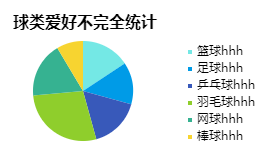
1.2option配置代码:
var option1 = {
                title: {//标题设置
                    text: '球类爱好不完全统计',
                    textStyle: {//主标题文本样式
                        fontSize: 16,
                        color: '#000'
                    },
                },
                tooltip: {//提示信息设置
                    // show: false, //是否显示鼠标移上去时饼图扇区提示,默认true
                    trigger: 'item',
                    //自定义控制提示格式
                    // formatter:'{b}:{c}人({d}%)'
                },
                legend: { //设置图例
                    top: '15%',//图例与盒子上边的距离
                    // bottom: '0',//图例与盒子下边的距离
                    // y: 'center',  //图例上下居中
                    left: '35%',//图例与盒子左边的距离
                    itemGap: 5, // 图例间隔
                    itemWidth: 4, //图例大小
                    itemHeight: 4, //图例大小
                    orient: 'vertical',// 图例水平或者垂直排列 horizontal   vertical
                    icon: "rectangle", //图例的形状
                    textStyle: { //图例文字的样式
                        color: '#000',
                        fontSize: 12
                    },
                    formatter: '{name}hhh'//自定义图例内容,还可以写方法形式function(name){ return '字符串' }
                },
                series: [
                    {
                        name: '喜爱度',//提示信息标题内容
                        type: 'pie',
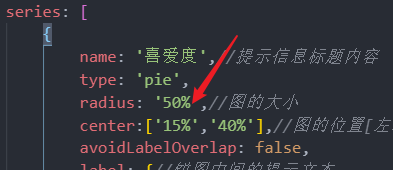
                        radius: '50%',//图的大小
                        center:['15%','40%'],//图的位置[左右,上下]
                        avoidLabelOverlap: false,
                        label: {//饼图中间的提示文本
                            show: false,//默认true
                            position: 'center',//显示位置
                        },
                        data: [
                            {value: '22', name: '篮球'},
                            {value: '19', name: '足球'},
                            {value: '23', name: '乒乓球'},
                            {value: '39', name: '羽毛球'},
                            {value: '25', name: '网球'},
                            {value: '12', name: '棒球'},
                        ],
                        itemStyle: {
                            normal: {
                                color: function(params){//自定义饼图颜色
                                    let colors = [
                                    '#74E8E5', '#009BE7', '#3859BA', '#8FCE2C', '#36B291', '#F7D430',
                                    '#EF8818'
                                    ]
                                    return colors[params.dataIndex]
                                }
                            }
                        }
                    }
                ]
            };
2.环形图
2.1效果图:
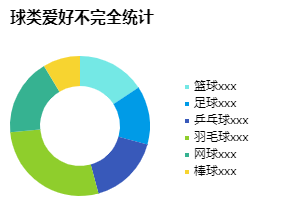
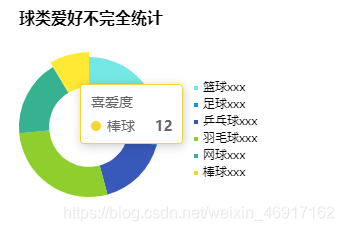
将上面的饼状图配置中的radius的值由字符串变为数组就好了

版权声明:本文为weixin_46917162原创文章,遵循CC 4.0 BY-SA版权协议,转载请附上原文出处链接和本声明。