相比于linux系统,windows缺少一个比较好用的包管理器,而第三方包管理器scoop则在一定程度上解决了这个问题,但是在使用scoop的过程中,往往会由于网络的原因使得软件的安装失败。下面介绍一个方法解决这个问题。
1 安装scoop
管理员权限打开 powershell
Set-ExecutionPolicy RemoteSigned
iwr -useb https://gitee.com/fanyi-ff/poocs/raw/master/install-scoop.ps1 | iex
2 使用scoop加速下载软件
2.1 如何加速下载软件
PS > scoop help install
Usage: scoop install <app> [options]

e.g. The usual way to install an app (uses your local 'buckets'):
     scoop install git

To install an app from a manifest at a URL:
     scoop install https://raw.githubusercontent.com/ScoopInstaller/Main/master/bucket/runat.json

To install an app from a manifest on your computer
     scoop install \path\to\app.json

Options:
  -g, --global              Install the app globally
  -i, --independent         Don't install dependencies automatically
  -k, --no-cache            Don't use the download cache
  -u, --no-update-scoop     Don't update Scoop before installing if it's outdated
  -s, --skip                Skip hash validation (use with caution!)
  -a, --arch <32bit|64bit>  Use the specified architecture, if the app supports it
查看scoop的安装帮助可以看出,有三种方式用scoop安装一个软件:
# 1 使用默认的安装方式安装一个软件
e.g. The usual way to install an app (uses your local 'buckets'):
     scoop install git

# 2 通过bucket中一个URL指向的清单文件(**.json)安装一个软件
To install an app from a manifest at a URL:
     scoop install https://raw.githubusercontent.com/ScoopInstaller/Main/master/bucket/runat.json

# 3 通过本地的清单文件(**.json)安装一个软件
To install an app from a manifest on your computer
     scoop install \path\to\app.json
下面随便选择一个软件,来查看其对应的清单文件是什么样子的。下面以软件llvm为例:
# 可以看到此软件在scoop的 main bucket 里面
PS > scoop search llvm
'main' bucket:
    llvm (14.0.3)
下面进入scoop的main bucket,查看其清单文件
https://github.com/ScoopInstaller/Main/blob/master/bucket/llvm.json
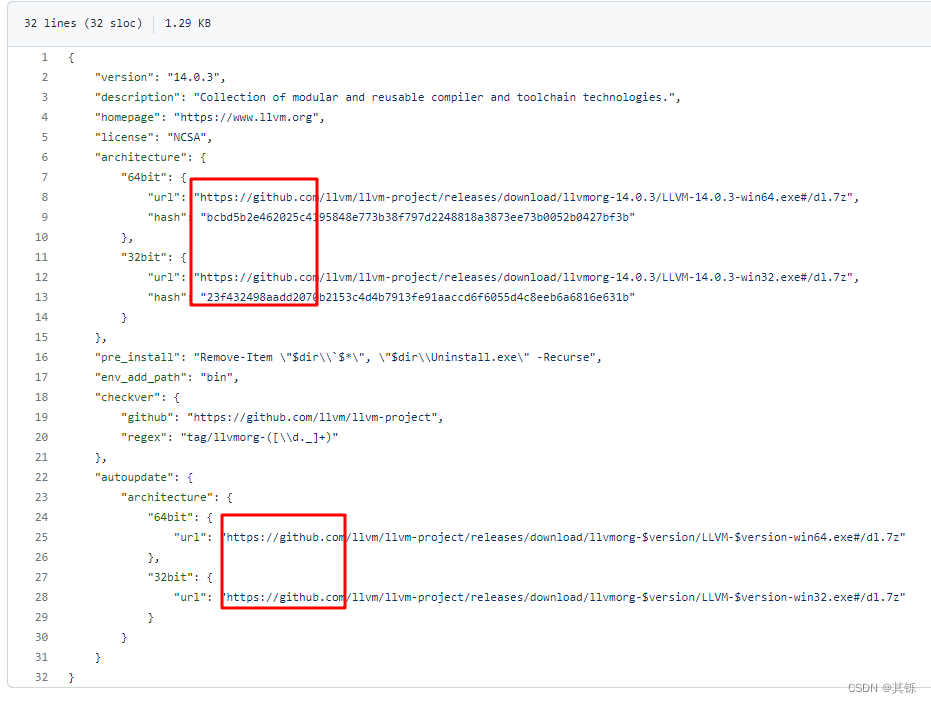
可以看到,清单文件中软件的下载地址是github.com,由此可以分析,软件下载慢正是由于网址的原因。那么便可以通过使用github的代理网站,加速下载软件:
https://ghproxy.com/
首先将该清单文件下载到本地,然后再修改其下载地址,使用上面查询到的安装方式三安装一个软件。
# powershell
PS > Invoke-WebRequest -Uri https://ghproxy.com/https://github.com/ScoopInstaller/Main/blob/master/bucket/llvm.json -OutFile llvm.json
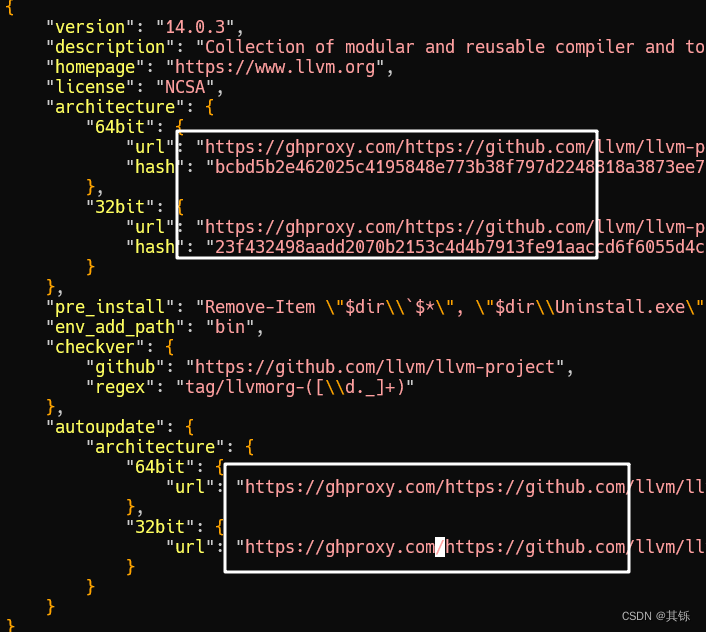
再使用修改过的清单文件重新下载llvm并观察下载效果。
PS > scoop install llvm.json
WARN  Purging previous failed installation of llvm.
ERROR 'llvm' isn't installed correctly.
Removing older version (14.0.3).
'llvm' was uninstalled.
WARN  Scoop uses 'aria2c' for multi-connection downloads.
WARN  Should it cause issues, run 'scoop config aria2-enabled false' to disable it.
WARN  To disable this warning, run 'scoop config aria2-warning-enabled false'.
Installing 'llvm' (14.0.3) [64bit]
Starting download with aria2 ...
Download: [#80ca50 114MiB/263MiB(43%) CN:5 DL:5.5MiB ETA:26s]
再次下载可以发现,尝试的修改是有效的,下载软件的速度达到了5兆字节每秒(Download: [#80ca50 114MiB/263MiB(43%) CN:5 DL:5.5MiB ETA:26s])。
2.2 编写powershell函数
下面将此过程编写为一个powershell函数,此后打开powershell,直接调用编写好的函数并传入参数就可以完美享受scoop的便利了。
https://github.com/ScoopInstaller/Main/blob/master/bucket/llvm.json
观察软件的清单文件的URL地址可以看出,要下载一个软件,要知道一个软件的bucket和软件名(清单文件名)。比如说llvm,其bucket为main,软件名为llvm,URL的其它部分都是不变的,所以一个软件对应的清单文件的URL格式为:
https://github.com/ScoopInstaller/***/blob/master/bucket/***.json
知道这些之后,下面就是替换清单文件中的软件源地址(如果其在github上,则用github的镜像网站),因此编写目标函数的三个要点就是:
- 软件仓库名(bucket)
- 软件名
- 修改软件源地址(若在github上,则改用github镜像网站)
由于大部分软件都是在github上面,因此这种方式是可行的,能解决大部分软件的下载问题。
注意:
- 请修改函数中保存软件清单文件的本地目录(
$basePath = "E:/toolbox/scoop/apps/"),否则函数无法正常工作 - 请将此函数结合多线程下载工具
aria2使用(kscoop -install aria2 -bucket main -noCache或scoop install aria2)
function kscoop {
    <#
    .SYNOPSIS
    加速托管在github上的scoop软件的下载及更新

    .DESCRIPTION
    加速托管在github上的scoop软件的下载及更新。支持软件的安装、更新、搜索,及
    通过本函数安装软件的查询。函数涉及两个主要变量:
        # 将此值更改为自己电脑上相应路径
        $basePath = "E:/toolbox/scoop/apps/"
        # 存储通过本函数安装的软件信息的文件
        $appListFile = Join-Path ${basePath} "AAAppsList.json"

    更新时,此方法只能更新用 kscoop -install 方式安装的软件,若要更新scoop原生方式安装的
    软件,需先卸载原来软件(scoop uninstall ***),再使用 kscoop -install 安装

    .PARAMETER install
    要安装软件的全限定名,或者软件清单文件(xx.json)对应的Url

    .PARAMETER bucket
    软件所在的 bucket

    .PARAMETER arch
    软件的架构,32bit 或 64bit,默认安装 64bit 的软件,使用 -arch 32bit 安装32位的软件

    .PARAMETER noCache
    安装时是否使用缓存,默认使用缓存,若开启此开关则不使用

    .PARAMETER update
    要更新软件的全限定名,或 * 。若参数值为 * ,则更新 $appListFile 中所有软件

    .PARAMETER search
    要搜索的软件的名字,不必是软件的全限定名,若名字有空格则用引号括住

    .PARAMETER list
    若开启此开关,则列出通过本函数安装过的软件

    .EXAMPLE
    kscoop -install grep -bucket main -noCache
    不使用缓存

    .EXAMPLE
    kscoop -install grep -bucket main
    使用缓存

    .EXAMPLE
    kscoop -install grep -bucket main -arch 32bit -noCache
    安装32位的软件

    .EXAMPLE
    kscoop -install https://github.com/ScoopInstaller/Main/blob/master/bucket/psutils.json -noCache
    通过 Url 安装一个软件

    .EXAMPLE
    kscoop -update llvm
    更新 $appListFile 中的某个软件

    .EXAMPLE
    kscoop -update *
    更新 $appListFile 中的所有软件

    .EXAMPLE
    kscoop -search grep
    使用浏览器在scoop仓库中搜索 grep

    .EXAMPLE
    kscoop -list
    列出 $appListFile 中的软件信息
    #>
    param (
        [Parameter(Mandatory, ParameterSetName = 'InstallApp')]
        [string]$install,
        [Parameter(ParameterSetName = 'InstallApp')]
        [string]$bucket,
        [Parameter(ParameterSetName = 'InstallApp')]
        [string]$arch = "64bit",
        [Parameter(ParameterSetName = 'InstallApp')]
        [Switch]$noCache,

        [Parameter(Mandatory, ParameterSetName = 'UpdateApp')]
        [string]$update,

        [Parameter(Mandatory, ParameterSetName = 'SearchApp')]
        [string]$search,

        [Parameter(Mandatory, ParameterSetName = 'ListApp')]
        [Switch]$list
    )

    begin {
        #将此值更改为自己电脑上相应路径
        $basePath = "E:/toolbox/scoop/apps/"
        #存储已安装软件信息的文件
        $appListFile = Join-Path ${basePath} "AAAppsList.json"
        if (!(Test-Path $appListFile)) {
			New-Item $appListFile -Force
        }

        #读取使用本方法安装的软件列表
        $appList = Get-Content $appListFile | ConvertFrom-Json
        $installedApps = @{}
        foreach ($app in $appList.psobject.Properties) {
            $installedApps.add($app.name, $app.value)
        }

        $urlPattern = "https://ghproxy.com/https://github.com/ScoopInstaller/{0}/blob/master/bucket/{1}.json"
    }

    process {
        switch ($PsCmdlet.ParameterSetName) {
            "InstallApp" {
                $install = $install.Trim()
                #参数为url
                if ($install -match "^https://github\.com/ScoopInstaller(/.+){5}\.json$") {
                    $bucket = $install.Split('/')[4]
                    $appName = $install.Substring($install.LastIndexOf('/') + 1).Replace(".json", '')
                }
                #参数为软件名
                if ($install -notmatch "^https://github\.com/ScoopInstaller.*json$") {
                    $appName = $install
                    #如果没有指明bucket,检查该软件之前是否安装过
                    if ([String]::IsNullOrEmpty($bucket)) {
                        if ($installedApps.Contains($appName)) {
                            $arch = $installedApps[$appName].arch
                            $bucket = $installedApps[$appName].bucket
                        } else {
                            Write-Host "${appListFile} 中找不到软件 ${appName},请指明软件 bucket" -ForegroundColor Red
                            return
                        }
                    }
                }
                $url = $urlPattern -f $bucket, $appName
                $jsonFile = Join-Path $basePath "${appName}.json"

                if ($noCache -or !(Test-Path $jsonFile)) {
                    $statusCode = k-scoop-down-helper -url $url -file $jsonFile
                    if ($statusCode -ne 200) { return }

                    scoop install $jsonFile -a $arch -k
                } else {
                    scoop install $jsonFile -a $arch
                }

                #将新软件记录到文件中
                if (-not $installedApps.Contains($appName)) {
                    $installedApps.Add($appName, @{ 'bucket' = $bucket; 'arch' = $arch })
                    $installedApps |ConvertTo-Json |Out-File $appListFile
                }
            }
            "UpdateApp" {
                $appName = $update
                #更新所有软件
                if ($appName -eq '*' ) {
                    foreach ($appName in $installedApps.keys) {
                        $bucket, $arch = $installedApps[$appName].bucket, $installedApps[$appName].arch
                        scoop uninstall $appName

                        $jsonFile = Join-Path $basePath "${appName}.json"
                        $url = $urlPattern -f $bucket, $appName
                        $statusCode = k-scoop-down-helper -url $url -file $jsonFile

                        scoop install $jsonFile -a $arch -k
                    }
                    Write-Host "`n一共更新 $($installedApps.count) 个软件:" -ForegroundColor Green
                    $installedApps.Keys | ForEach-Object { Write-Output "`t$_" }
                }
                #更新某个软件
                else {
                    if ($installedApps.contains($appName)) {
                        $bucket, $arch = $installedApps[$appName].bucket, $installedApps[$appName].arch
                        scoop uninstall $appName

                        $jsonFile = Join-Path $basePath "${appName}.json"
                        $url = $urlPattern -f $bucket, $appName
                        $statusCode = k-scoop-down-helper -url $url -file $jsonFile

                        scoop install $jsonFile -a $arch -k
                    }
                    else {
                        $prompt = "文件 ${appListFile} 不存在软件 ${appName},请确认软件名称是否正确"
                        Write-Host $prompt -ForegroundColor Red
                    }
                }
            }
            "SearchApp" {
                Start-Process msedge "https://scoop.sh/#/apps?q=${search}&s=0&d=1&o=true"
            }
            "ListApp" {
                Write-Host "${appListFile} 中的软件:`n"
                $installedApps
            }
        }
    }
}
function k-scoop-down-helper ($url, $file) {
    <#
    .DESCRIPTION
    根据scoop仓库中软件的 URL 地址,将软件对应的 json 文件下载到本地
    #>
    try {
        $Response = Invoke-WebRequest -Uri $url
        $StatusCode = $Response.StatusCode
    } catch {
        $StatusCode = $_.Exception.Response.StatusCode.value__
    }

    switch ($StatusCode) {
        200 {
            $sbResCont = [System.Text.StringBuilder]::new($Response.Content)

            [void]$sbResCont.Replace("https://github.com/","https://ghproxy.com/https://github.com/")
            [void]$sbResCont.Replace("https://raw.githubusercontent.com","https://ghproxy.com/https://raw.githubusercontent.com")
            Set-Content -Path $jsonFile -Value $sbResCont
            #sed -i '
            #s/https:\/\/github.com/https:\/\/ghproxy.com\/https:\/\/github.com/
            #s/raw.githubusercontent.com/raw.staticdn.net/
            #' $jsonFile
        }
        Default {
            Write-Host "出现错误,无法下载文件:`n`t${url}" -ForegroundColor Red
        }
    }

    return $StatusCode
}
1、将上面的函数保存到powershell的配置文件,在配置文件中的自定义内容,每次启动powershell时都会被自动加载。
powershell 5.x 配置文件位置
C:\Users\***\Documents\WindowsPowerShell\Microsoft.PowerShell_profile.ps1

powershell 7.x 配置文件位置
C:\Users\***\Documents\PowerShell\Microsoft.PowerShell_profile.ps1
2、将上面函数添加到配置文件后,请执行 .$profile 命令或关闭当前powershell,重新打开一个powershell,否则函数不生效。
3、不要删除路径 $basePath 中的任何文件。
2.2.1 安装、更新、搜索软件
注意:
- 首次使用本函数安装软件时需指明软件的全限定名和软件所在bucket。软件全限定名和bucket可通过
scoop search ***确定。 - 已经安装过的软件再次安装时不用指明bucket
- 本方法只对在github上面的软件有加速效果,并不是scoop仓库中所有软件都托管在github上,因此当安装、更新那些不在github上面的软件,仍可能出现下载速度慢的情况
PS > man kscoop


NAME
    kscoop

SYNOPSIS
    加速托管在github上的scoop软件的下载及更新


SYNTAX
    kscoop -install <String> [-bucket <String>] [-arch <String>] [-noCache] [<CommonParameters>]

    kscoop -update <String> [<CommonParameters>]

    kscoop -search <String> [<CommonParameters>]

    kscoop -list [<CommonParameters>]


DESCRIPTION
    加速托管在github上的scoop软件的下载及更新。支持软件的安装、更新、搜索,及
    通过本函数安装软件的查询。函数涉及两个主要变量:
        # 将此值更改为自己电脑上相应路径
        $basePath = "E:/toolbox/scoop/apps/"
        # 存储通过本函数安装的软件信息的文件
        $appListFile = Join-Path ${basePath} "AAAppsList.json"

    更新时,此方法只能更新用 kscoop -install 方式安装的软件,若要更新scoop原生方式安装的
    软件,需先卸载原来软件(scoop uninstall ***),再使用 kscoop -install 安装


PARAMETERS
    -install <String>
        要安装软件的全限定名,或者软件清单文件(xx.json)对应的Url

        Required?                    true
        Position?                    named
        Default value
        Accept pipeline input?       false
        Accept wildcard characters?  false

    -bucket <String>
        软件所在的 bucket

        Required?                    false
        Position?                    named
        Default value
        Accept pipeline input?       false
        Accept wildcard characters?  false

    -arch <String>
        软件的架构,32bit 或 64bit,默认安装 64bit 的软件,使用 -arch 32bit 安装32位的软件

        Required?                    false
        Position?                    named
        Default value                64bit
        Accept pipeline input?       false
        Accept wildcard characters?  false

    -noCache [<SwitchParameter>]
        安装时是否使用缓存,默认使用缓存,若开启此开关则不使用

        Required?                    false
        Position?                    named
        Default value                False
        Accept pipeline input?       false
        Accept wildcard characters?  false

    -update <String>
        要更新软件的全限定名,或 * 。若参数值为 * ,则更新 $appListFile 中所有软件

        Required?                    true
        Position?                    named
        Default value
        Accept pipeline input?       false
        Accept wildcard characters?  false

    -search <String>
        要搜索的软件的名字,不必是软件的全限定名,若名字有空格则用引号括住

        Required?                    true
        Position?                    named
        Default value
        Accept pipeline input?       false
        Accept wildcard characters?  false

    -list [<SwitchParameter>]
        若开启此开关,则列出通过本函数安装过的软件

        Required?                    true
        Position?                    named
        Default value                False
        Accept pipeline input?       false
        Accept wildcard characters?  false

    <CommonParameters>
        This cmdlet supports the common parameters: Verbose, Debug,
        ErrorAction, ErrorVariable, WarningAction, WarningVariable,
        OutBuffer, PipelineVariable, and OutVariable. For more information, see
        about_CommonParameters (https://go.microsoft.com/fwlink/?LinkID=113216).

INPUTS

OUTPUTS

    -------------------------- EXAMPLE 1 --------------------------

    PS > kscoop -install grep -bucket main -noCache
    不使用缓存

    -------------------------- EXAMPLE 2 --------------------------

    PS > kscoop -install grep -bucket main
    使用缓存

    -------------------------- EXAMPLE 3 --------------------------

    PS > kscoop -install grep -bucket main -arch 32bit -noCache
    安装32位的软件

    -------------------------- EXAMPLE 4 --------------------------

    PS > kscoop -install https://github.com/ScoopInstaller/Main/blob/master/bucket/psutils.json -noCache
    通过 Url 安装一个软件

    -------------------------- EXAMPLE 5 --------------------------

    PS > kscoop -update llvm
    更新 $appListFile 中的某个软件

    -------------------------- EXAMPLE 6 --------------------------

    PS > kscoop -update *
    更新 $appListFile 中的所有软件

    -------------------------- EXAMPLE 7 --------------------------

    PS > kscoop -search grep
    使用浏览器在scoop仓库中搜索 grep

    -------------------------- EXAMPLE 8 --------------------------

    PS > kscoop -list
    列出 $appListFile 中的软件信息
2.2.2 卸载软件
PS > scoop uninstall llvm # 直接使用原生命令即可