左边导航每次点击切换将会展示出对应组件的页面,极大的方便了快速切换内容,也可以在移动端使用
- 目录结构如图,在主页面home点击左侧导航可切换右边青色框内的内容

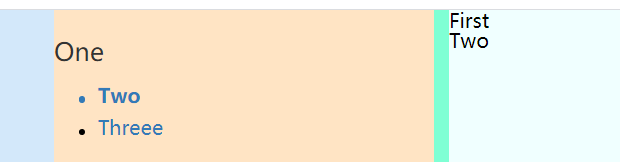
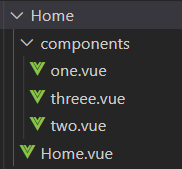
2、动态路由<component:is="componentnext"></component>用于切换组件,改变componentnext的组件名字即可,利用了动态绑定:class来指定此组件时此导航选中颜色的变化
2.代码即注释如下
<template>
  <div>
    <!-- <Top-head></Top-head> -->
    <div class="big-box">
      <div class="big-boxtwo">
        <div class="left">//左边区域
          <div v-for="item of List" :key="item.id">
            <h2 class="my-h2">{{ item.name }}</h2>
            <ul>//遍历data中的模拟数组
              <li
                v-for="twoItem of item.children"
                :key="twoItem.id"
                @click="leftClick(twoItem)"
                :class="
                  twoItem.id == leftActive ? 'active' : 'moren'
                "
              >//动态改变样式active表示活跃,id与其data中leftActive相同时说明在一个组件颜色变蓝,其他不符合条件的变为黑色
                <span
                  :class="
                    twoItem.id == leftActive ? 'span-active':'span-moren'
                  "
                >
                </span
                >{{ twoItem.name }}
              </li>
            </ul>
          </div>
        </div>
        <div class="right">
           <div><span  @click="showfirst" style="cursor: pointer;">OneFirst</span></div>
//可以回到初始页面
          <component
              :is="componentnext"
              ></component>//用于组件之间的跳转
        </div>
      </div>
    </div>
  </div>
</template>

<script>
// import TopHead from "@/components/Tophead.vue";
import One from "./components/one.vue"
import Two from "./components/two.vue"
import Threee from "./components/threee.vue"

export default {
  name: "Home",
  components: {
    // TopHead,
     One,
    Two,
    Threee
  },
  data() {
    return {
      List: [
        {
          id: "1",
          name: "One",
          children: [
            { id: "2", name: "Two", componentnext: "Two" },
            { id: "3", name: "Threee", componentnext: "Threee" },
          ],
        },
      ],
      leftActive: "1",
      componentnext: "One",
    };
  },
  methods: {
    leftClick(item) {
      var _this = this;
      _this.leftActive = item.id;//将id赋值到data中的leftActive以便匹配
      _this.componentnext = item.componentnext;//将数组中的组件名字传给data
    },
    showfirst(){
      var _this=this;
      _this.componentnext="One"//跳转回默认首页
    }
  },
};
</script>
<style scoped>
.big-box {
  background-color: rgb(211, 232, 250);
  height: 1000px;
}
.big-boxtwo{
  width: 80%;
  margin: 0 auto;
  background-color: aquamarine;
  height: 100%;
  display: flex;
  flex-direction: row;
  justify-content: space-between;
}
.left {
  width: 25%;
  background-color: bisque;
}
.right {
  width: 74%;
  background-color: azure;
}
.my-h2 {
  font-size: 20px;
  margin-top: 22px;
  margin-bottom: 11px;
  font-weight: 500;
  line-height: 1.1;
  color: #333;
}
ul > li {
  padding:5px 0 5px 20px;
  /* padding: 5px 0; */
  color: #337ab7;
  cursor: pointer;
}
.active {
  font-weight: bold;
}
.span-moren{
  display: inline-block;
  width: 5px;
  height: 5px;
  border-radius: 50%;
  background: #000;
  margin-right: 10px;
}
.span-active{
  display: inline-block;
  width: 5px;
  height: 5px;
  border-radius: 50%;
  background: #337ab7;
  margin-right: 10px;
}
</style>
版权声明:本文为weixin_51935690原创文章,遵循CC 4.0 BY-SA版权协议,转载请附上原文出处链接和本声明。