打开Java编辑器
在本小节中,你将学习如何使用编辑器打开 Java 源文件,以及 Java 编辑器的一些基本特性。
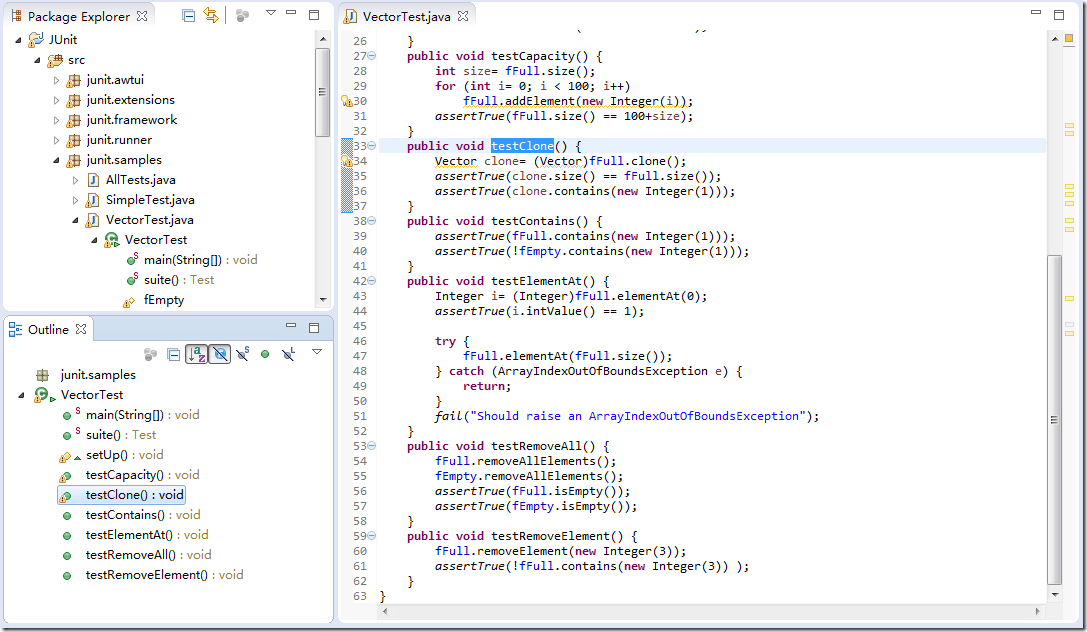
展开junit.samples包并选择VectorTest.java文件,你可以通过双击VectorTest.java 在编辑器中打开它。事实上,你可以通过双击打开 Java 源文件、类、方法和属性,比如,想打开VectorTest.java中的 testClone 方法,只需要展开包结构,然后双击方法名即可。
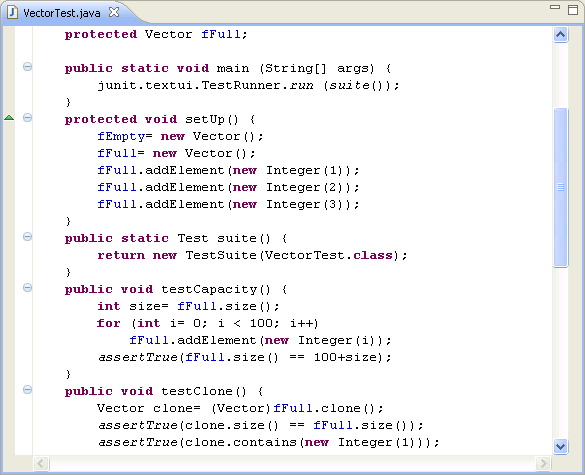
注意语法高亮。Java 源码中的不同元素会以不同颜色显示,常见着色不同的元素如下:常规注释
文档注释
关键字
字符串
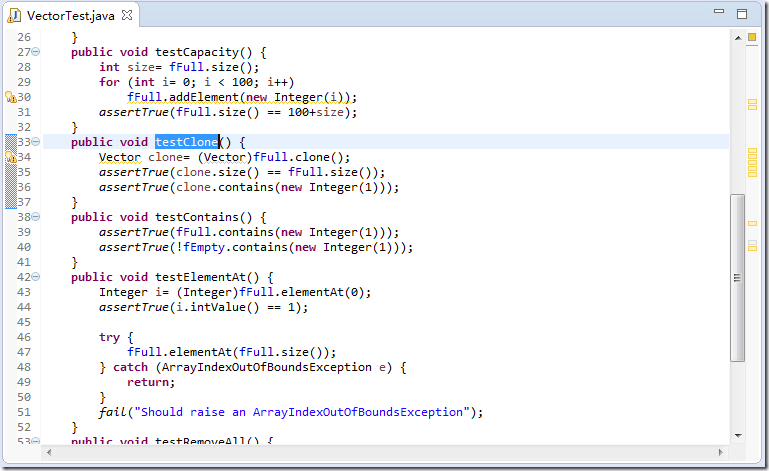
请看 Outline 视图。它展示了 Java 源文件的大致结构诸如 package 和 import 声明、属性、类型以及方法,并使用图标来标示 Java 元素,例如:(
 ) 表示 static(静态);(
 ) 表示 abstract (抽象);(
 ) 表示 final (不可更改);(
 ) 表示方法继承;(
 ) 表示实现接口;
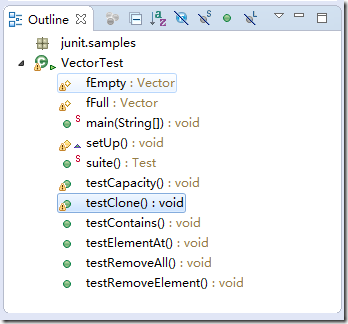
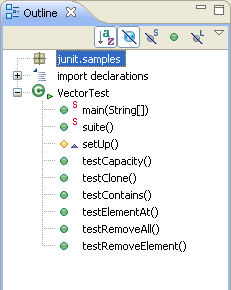
选中(取消)工具栏中的 Hide Fields(隐藏属性), Hide Static Members(隐藏静态成员), 和 Hide Non-Public Members(隐藏非公有成员)按钮可以改变 Outline视图中的内容。进入下一步之前请确保这些按钮没有被选中(后续演示需要)。
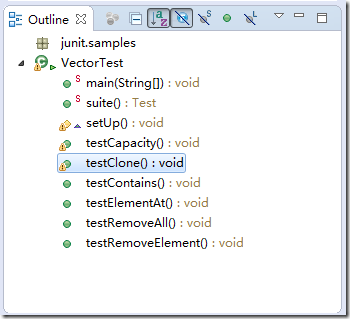
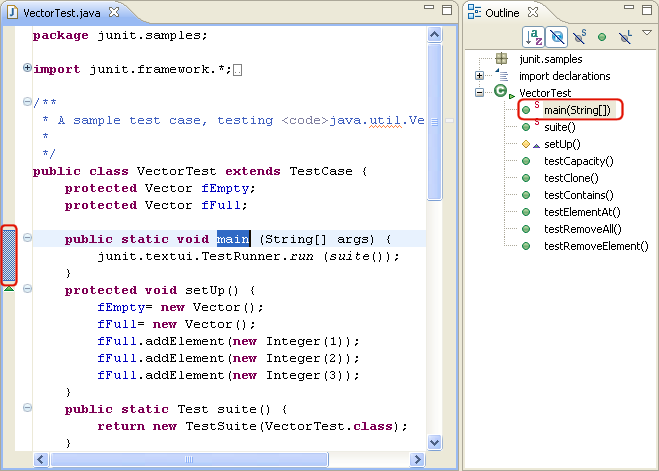
在 Outline 视图中选择不同元素,可以看到,它们会在编辑器的源文件中显示出来,此时,编辑器左侧垂直方向会显示一段范围标尺来指示该元素的范围。
(完)
(原文)
Opening a Java editor
In this section, you will learn how to open an editor for Java files. You will also learn about some of the basic Java editor features.
Expand the package junit.samples and select the file VectorTest.java. You can open VectorTest.java in the Java editor by double clicking on it. In general you can open a Java editor for Java files, types, methods and fields by simply double clicking on them. For example, to open the editor directly on the method testClone defined in VectorTest.java, expand the file in the Package Explorer and double click on the method.
Notice the syntax highlighting. Different kinds of elements in the Java source are rendered in unique colors. Examples of Java source elements that are rendered differently are:
 Regular comments
Javadoc comments
Keywords
Strings
Look at the Outline view. It displays an outline of the Java file including the package declaration, import declarations, fields, types and methods. The Outline view uses icons to annotate Java elements. For example, icons indicate whether a Java element is static (
), abstract (
), or final (
). Different icons show you whether a method overrides a method from a base class (
) or when it implements a method from an interface (
).
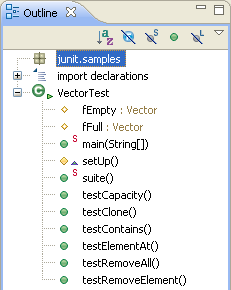
Toggle the Hide Fields, Hide Static Members, and Hide Non-Public Members buttons in the Outline view toolbar to filter the view's display. Before going to the next step make sure that the Hide Non-Public Members and Hide Static Fields and Methods buttons are not pressed.
In the Outline view, select different elements and note that they are again displayed in a whole file view in the editor. The Outline view selection now contains a range indicator on the vertical ruler on the left border of the Java editor that indicates the range of the selected element.
(END)