为什么安装 WSL Ubuntu?
- 物理机安装桌面版,配置国际互联网连接很困难,所以需要和Windows11 配合使用,无需担心学习过程中查资料的阻碍;
- 希望通过Anaconda配套的Python环境,来绘制函数图像,验证函数极限的一些计算,数形结合;
对本文读者的要求
- 应熟练掌握Linux常用命令,包括不限于文件管理,权限管理;
- 充分理解WSL Ubuntu只是一种程序安装环境的选择,同样可以在Linux发行版 桌面版安装,或者在服务器Linux版本上安装,又或者是直接使用Windows安装Anaconda;
- 特别声明:本文作者使用较为麻烦的操作实现,是在以上三种方案当中做的折中选择,可以兼顾Windows平台,访问国际互联网,本地使用Python3.10.4便于LeetCode刷题的需要。
操作步骤
控制面板 —> 开启或者关闭Windows更新,勾选 WSL和 Hyper-V
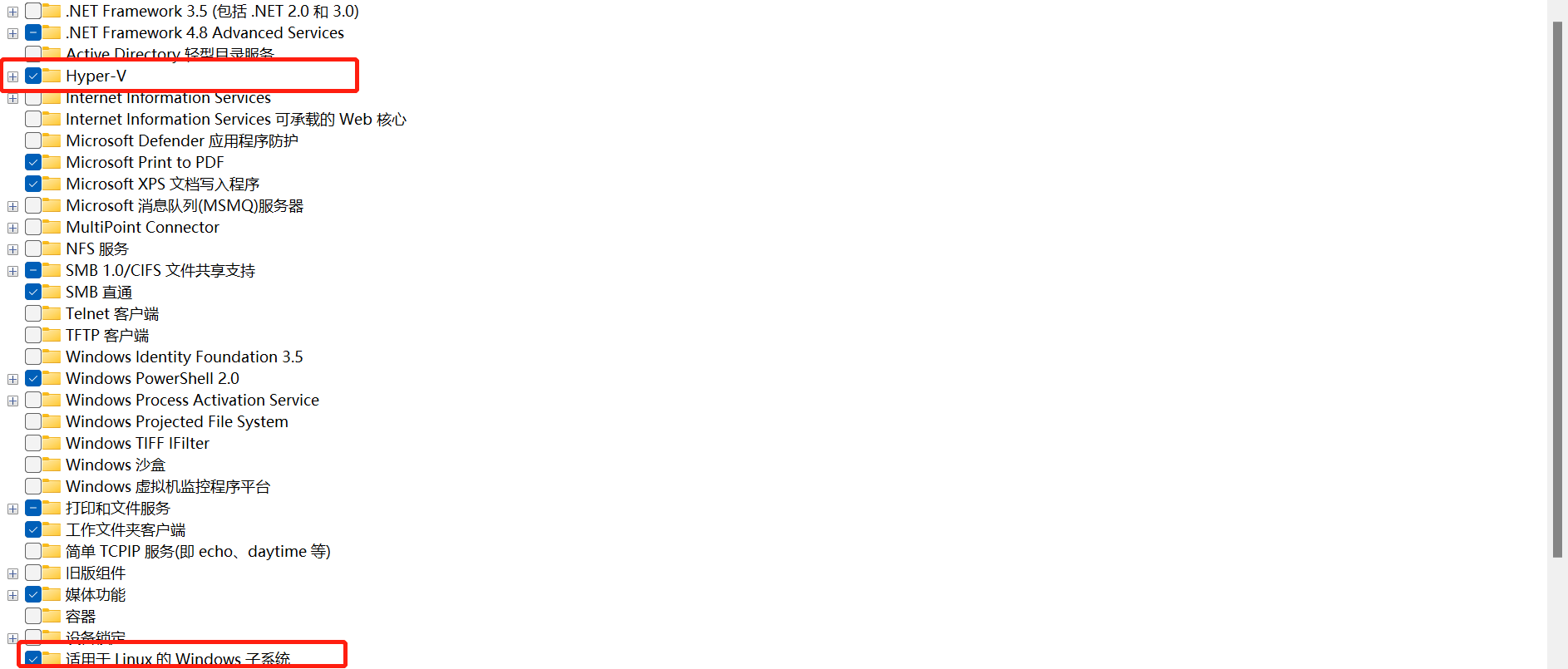
命令行操作
bcdedit /set hypervisorlaunchtype auto

# 安装WSL
wsl --install

# 启用WSL
dism.exe /online /enable-feature /featurename:Microsoft-Windows-Subsystem-Linux /all /norestart

# 开启虚拟化
dism.exe /online /enable-feature /featurename:VirtualMachinePlatform /all /norestart

# 重启机器
Restart-Computer

# 将WSL设置为默认
wsl.exe --set-default-version 2
安装 Windows Terminal
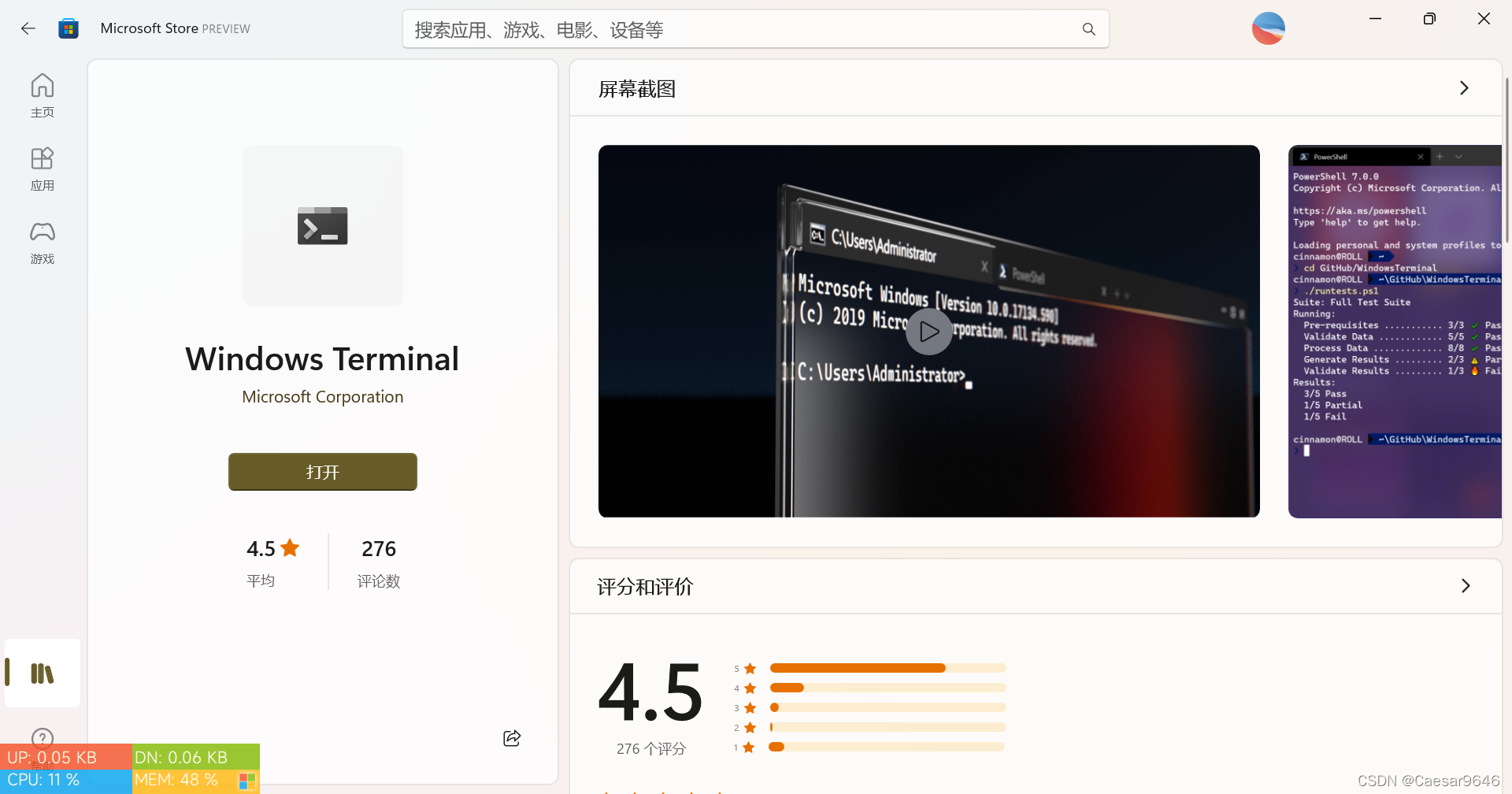
https://www.microsoft.com/store/productId/9N0DX20HK701
安装Ubuntu 1804
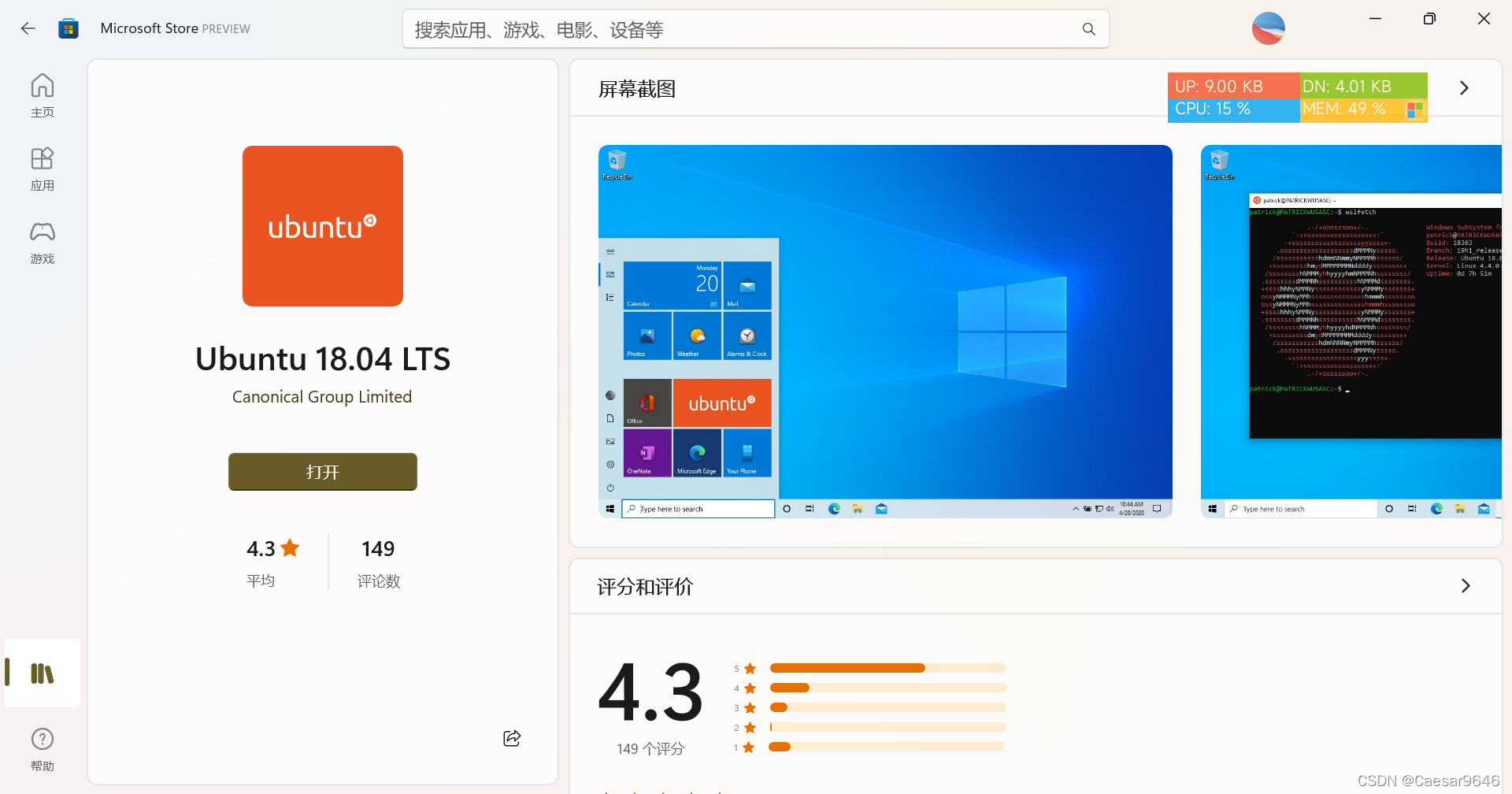
https://www.microsoft.com/store/productId/9N9TNGVNDL3Q
安装Powershell
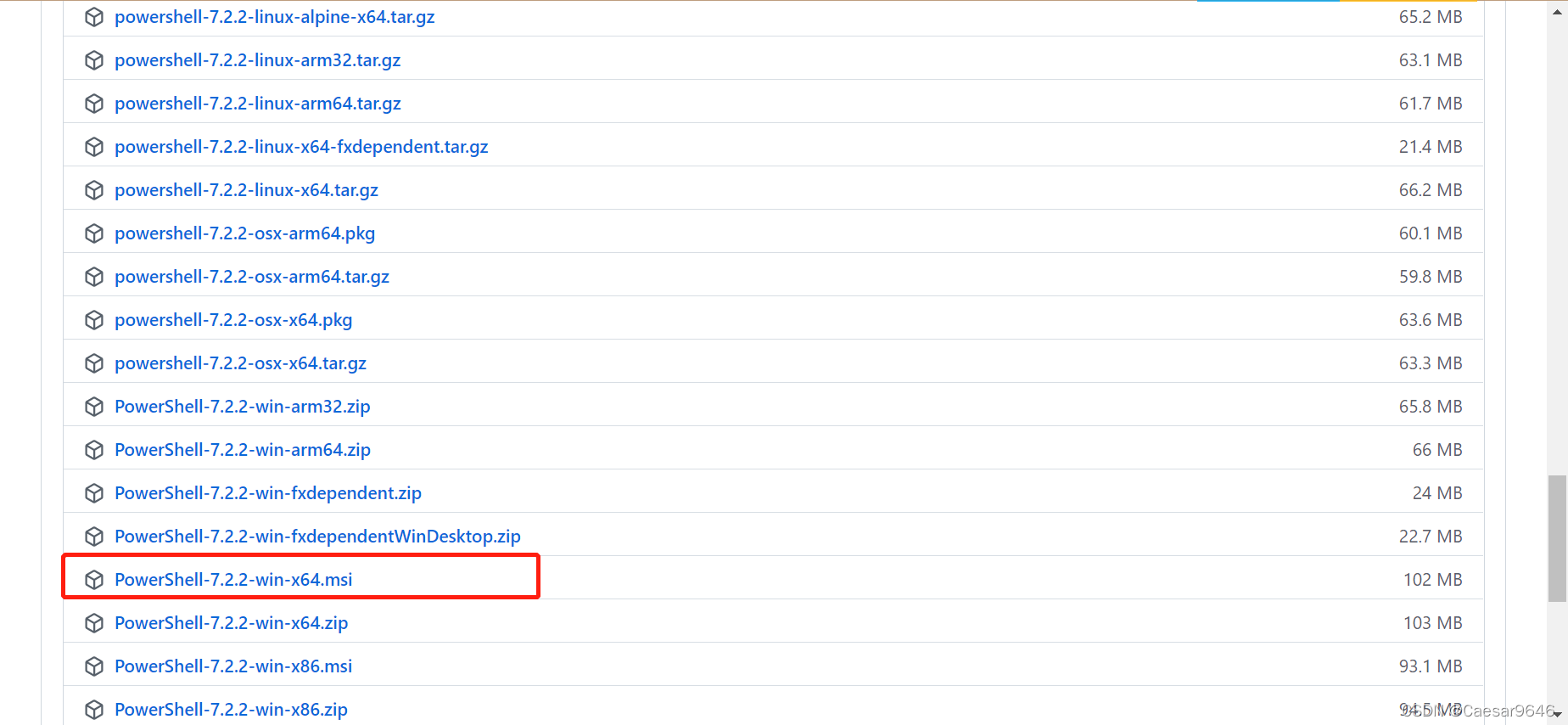
https://github.com/PowerShell/PowerShell/releases/tag/v7.2.2
更新Ubuntu
注意:
- 实测更新速度为 2M/s,基本满足需要,无需换源;
- 创建用户等同于Root用户,因此普通用户下执行安装命令
# 更新数据
sudo apt-get update
# 升级软件,更多命令请使用 sudo apt --help查看
sudo apt-get full-upgrade
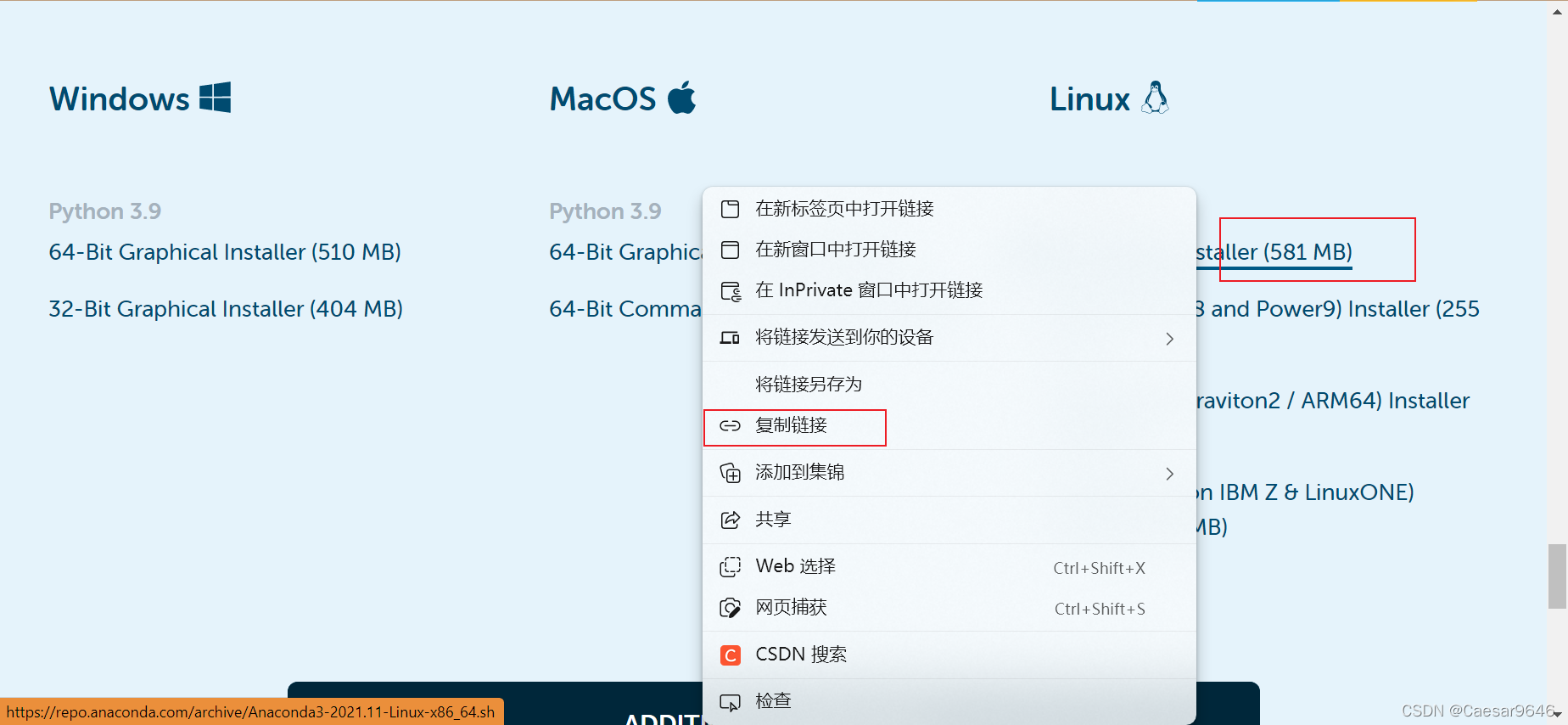
下载以及安装Anaconda
# 进入用户家目录
cd /surpass/home
# 创建文件夹
mkdir download
# 提权,避免程序运行过程中,因为权限不足导致的创建文件及文件夹失败
sudo su
weget https://repo.anaconda.com/archive/Anaconda3-2021.11-Linux-x86_64.sh
bash Anaconda3-2021.11-Linux-x86_64.sh
更新conda
更新所有库
conda update --all
更新 conda 自身
conda update conda
更新 anaconda 自身
conda update anaconda
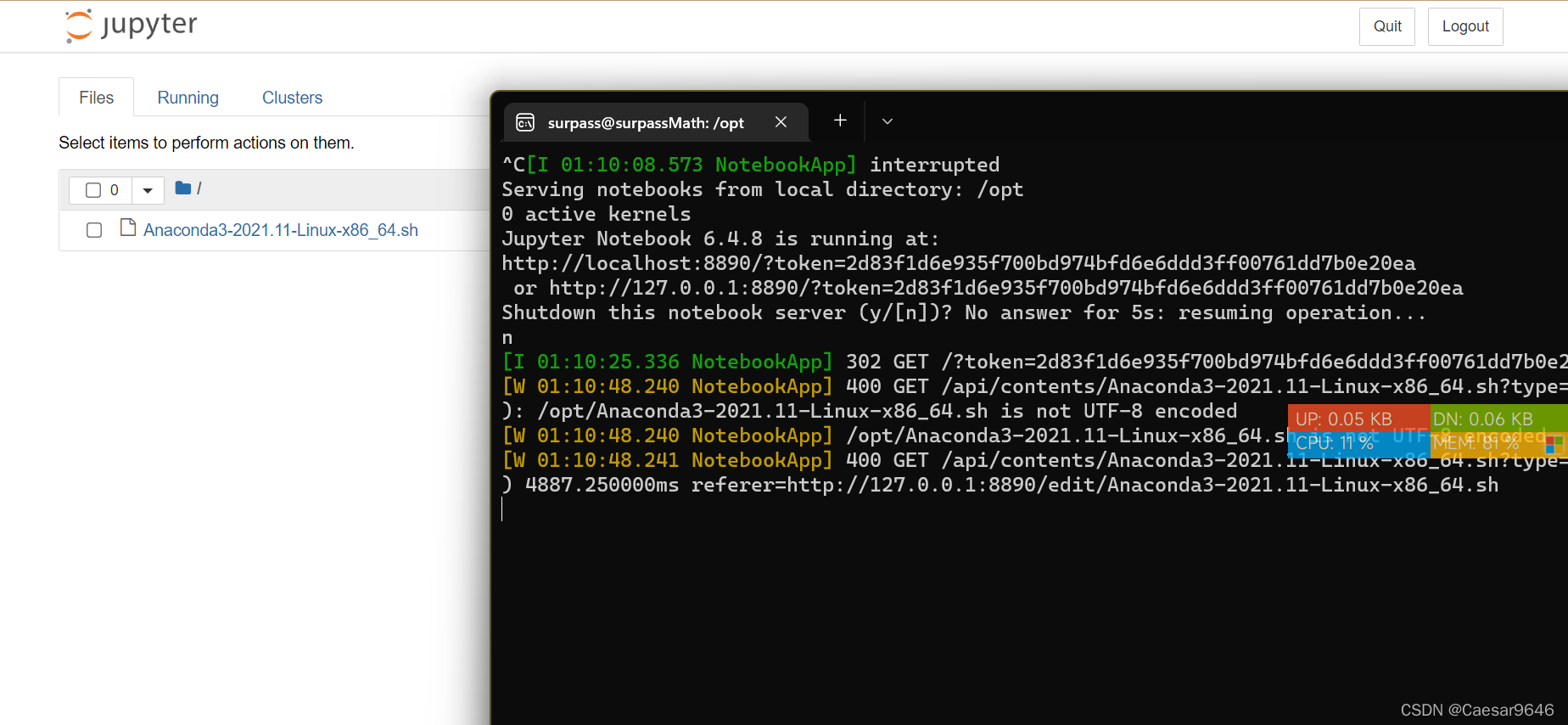
安装及启动 Jupyter notebook
pip install jupyter notebook
jupyter notebook
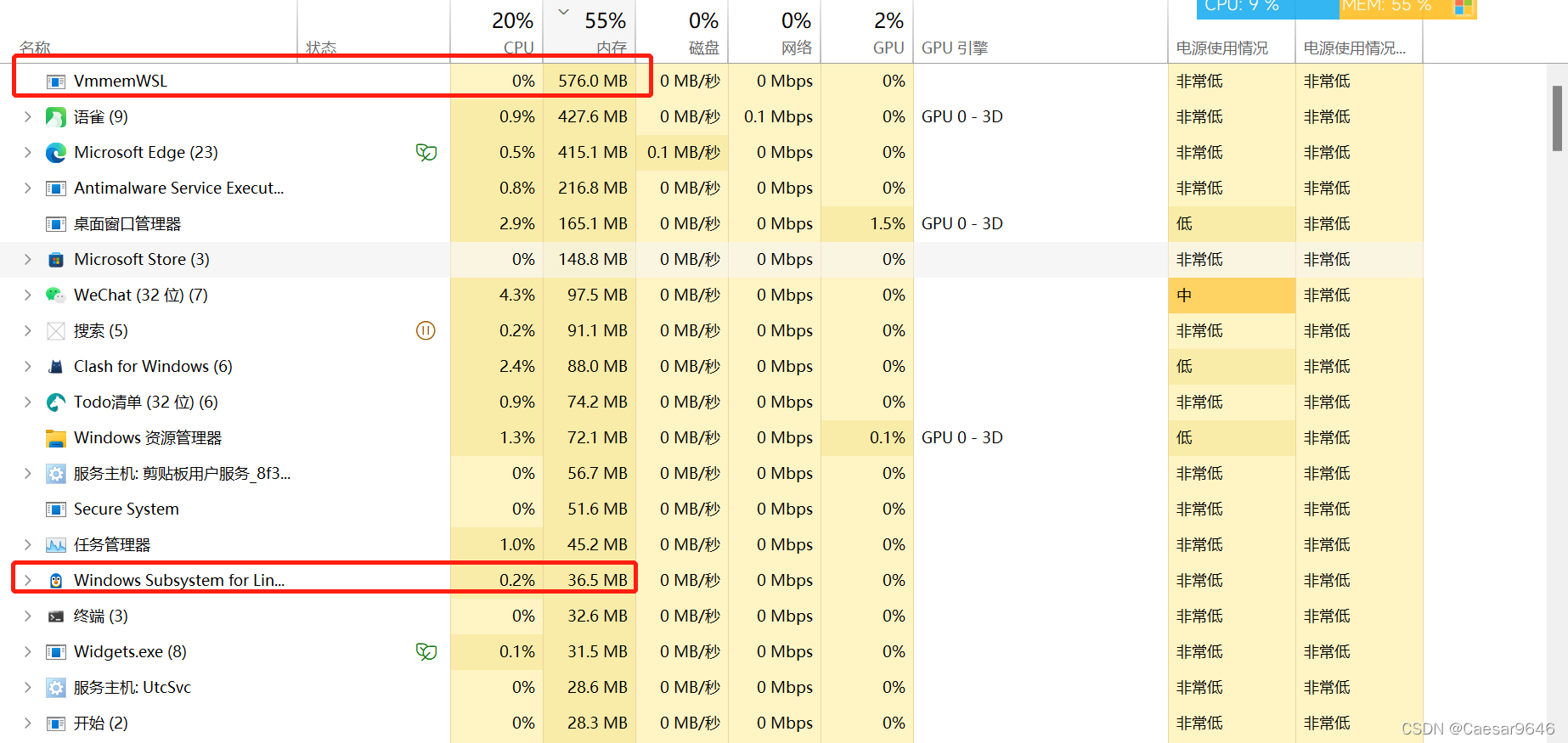
控制内存占用
# powershell 命令
wsl --shutdown
# 用户目录下新建,wsconfig,写入如下内容#.wslconfig
[wsl2]
memory=2GB
swap=2GB
localhostForwarding=true
参考与引用
安装WSL
https://zhuanlan.zhihu.com/p/462737849

https://zhuanlan.zhihu.com/p/475462241

https://zhuanlan.zhihu.com/p/462737849

# 微软关于WSL的官方文档
https://docs.microsoft.com/zh-cn/windows/wsl/basic-commands#:~:text=wsl%20--install%20--distribution%20%3CDistribution%20Name%3E%20%E9%80%9A%E8%BF%87%E5%B0%86%20%3CDistribution%20Name%3E,Linux%20%E5%8F%91%E8%A1%8C%E7%89%88%E8%BF%9B%E8%A1%8C%E5%AE%89%E8%A3%85%E3%80%82%20%E6%AD%A4%E5%91%BD%E4%BB%A4%E4%B9%9F%E5%8F%AF%E8%BE%93%E5%85%A5%E4%B8%BA%EF%BC%9A%20wsl%20-d%20%3CDistribution%20Name%3E%20%E3%80%82

# 固定IP【未操作】
https://blog.csdn.net/guo_ridgepole/article/details/121031044

# 解决内存占用过高的问题
https://blog.csdn.net/w15802080081/article/details/121619261
版权声明:本文为weixin_44638005原创文章,遵循CC 4.0 BY-SA版权协议,转载请附上原文出处链接和本声明。