1.封装动画函数实现轮播图功能
轮播图功能包括
1.自动播放功能
2.点击左右按钮切换图片功能(鼠标经过轮播图显示按钮)
3.点击小圆圈切换对应图片
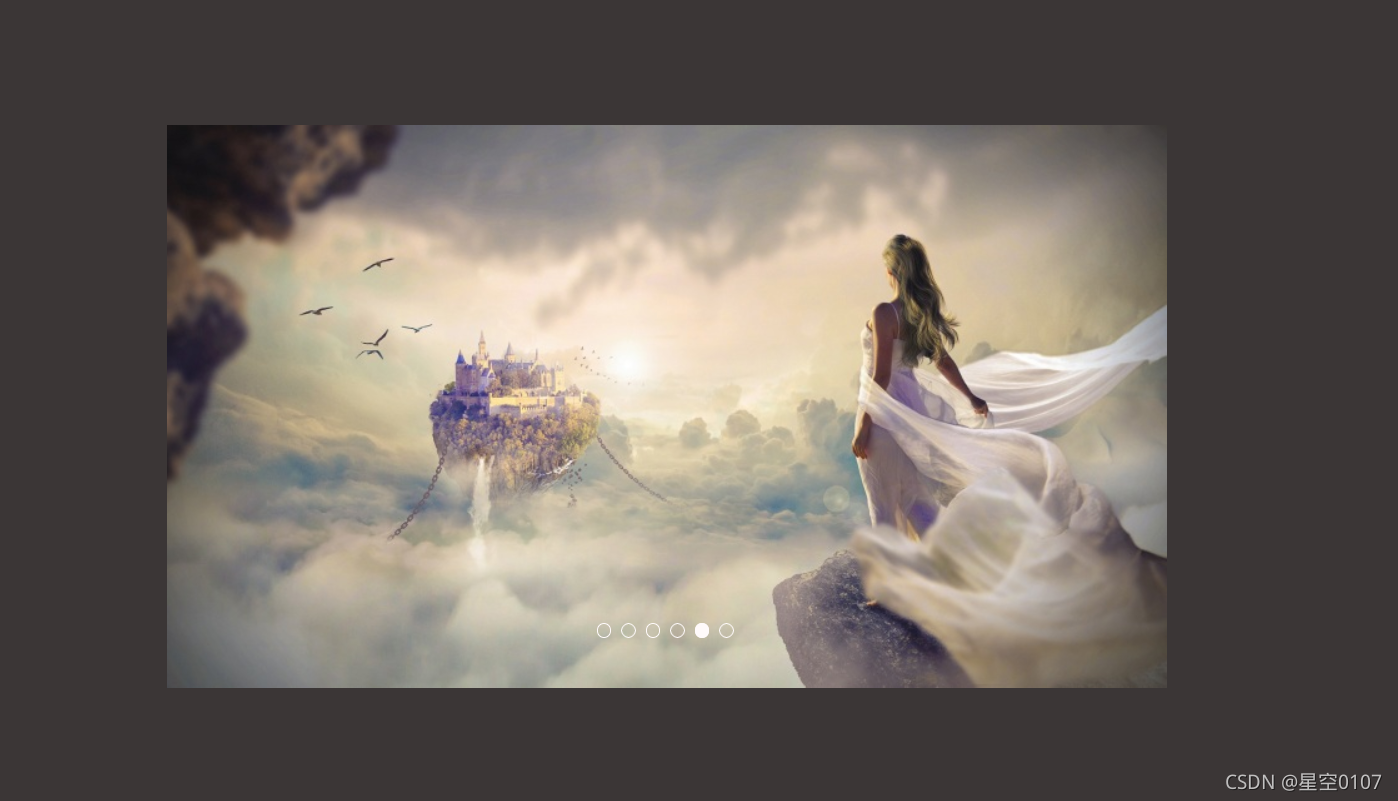
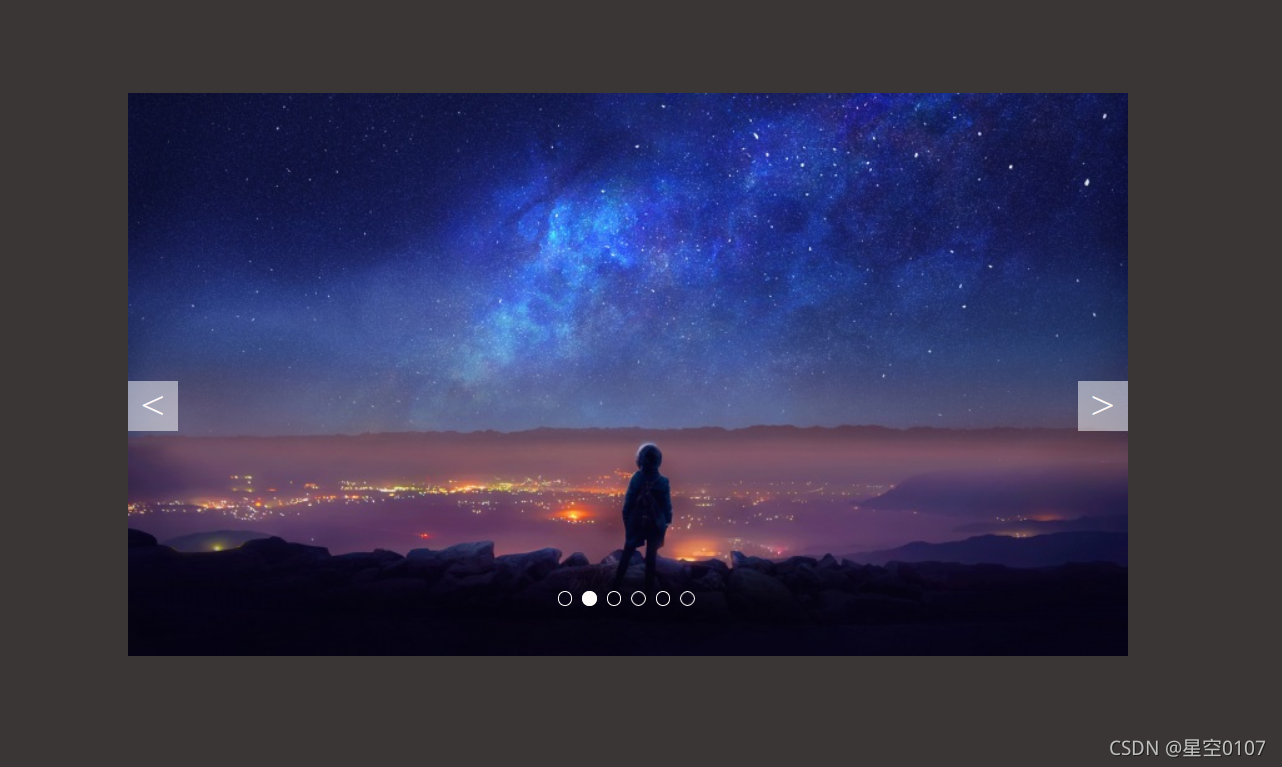
代码:
HTML:
<!DOCTYPE html>
<html lang="en">
<head>
<meta charset="UTF-8">
<meta http-equiv="X-UA-Compatible" content="IE=edge">
<meta name="viewport" content="width=device-width, initial-scale=1.0">
<title>Document</title>
<link rel="stylesheet" href="css/index.css">
<script src="js/animate.js"></script>
<script src="js/index.js"></script>
</head>
<body>
<div class="w">
<div class="main">
<div class="foucs f1">
<!-- 左侧按钮 -->
<a href="#" class="arrrow-l"><</a>
<!-- 右侧按钮 -->
<a href="#" class="arrrow-r">></a>
<!-- 图片 -->
<ul>
<li>
<a href="#">
<img src="images/186.jpg" alt="">
</a>
</li>
<li>
<a href="#">
<img src="images/187.jpg" alt="">
</a>
</li>
<li>
<a href="#">
<img src="images/188.jpg" alt="">
</a>
</li>
<li>
<a href="#">
<img src="images/189.jpg" alt="">
</a>
</li>
<li>
<a href="#">
<img src="images/190.jpg" alt="">
</a>
</li>
<li>
<a href="#">
<img src="images/191.jpg" alt="">
</a>
</li>
</ul>
<!-- 小圆圈 -->
<ol class="circle">
</ol>
</div>
</div>
</div>
</body>
</html>CSS样式:
* {
  margin: 0;
  padding: 0;
}
body {
  background: rgb(59, 54, 54);
}

li {
  list-style: none;
}

a {
  text-decoration: none;
}

.foucs {
  position: relative;
  width: 800px;
  height: 450px;
  margin: 100px auto;
  overflow: hidden;
}

.foucs ul {
  position: absolute;
  top: 0;
  left: 0;
  width: 700%;
  height: 450px;
}

.foucs ul li {
  float: left;
}

.arrrow-l {
  display: none;
  position: absolute;
  left: 0;
  top: 230px;
  width: 40px;
  height: 40px;
  font-size: 30px;
  text-align: center;
  line-height: 40px;
  color: snow;
  background: rgba(255, 255, 255, 0.5);
  z-index: 2;
}

.arrrow-r {
  display: none;
  position: absolute;
  right: 0;
  top: 230px;
  width: 40px;
  height: 40px;
  font-size: 30px;
  text-align: center;
  line-height: 40px;
  color: snow;
  background: rgba(255, 255, 255, 0.5);
  z-index: 2;
}

.foucs ol {
  position: absolute;
  bottom: 40px;
  left: 340px;
}

.foucs ol li {
  float: left;
  width: 10px;
  height: 10px;
  border: 1px solid snow;
  border-radius: 50%;
  margin: 0 4px;
}

.current {
  background-color: snow;
}
animate动画函数
function animate(obj, target, callback) {
  //清除上一次的动画函数
  clearInterval(obj.timer)

  obj.timer = setInterval(function () {
    //缓动动画公式,每次移动(目标位置-所在位置)/10
    var move = (target - obj.offsetLeft) / 10
    //判断位移正负,然后取整
    move = move > 0 ? Math.ceil(move) : Math.floor(move)
    //如果到达目标位置,则停止动画
    if (obj.offsetLeft == target) {
      clearInterval(obj.timer)
      if (callback) {
        callback()
      }
    }
    //改变动画位置
    obj.style.left = obj.offsetLeft + move + 'px'
  }, 15)
}
JS
window.addEventListener('load', function () {
  var Carousel = document.querySelector('.foucs')
  // 左按钮
  var left = document.querySelector('.arrrow-l')
  // 右按钮
  var right = document.querySelector('.arrrow-r')
  // 图片
  var ul = Carousel.querySelector('ul')
  //小圆圈
  var ol = Carousel.querySelector('ol')
  //照片大小
  var Carouselwidth = Carousel.offsetWidth

  //记录图片移动位置
  var num = 0
  //点击按钮让小圆圈动态变化
  var circle = 0

  //鼠标经过轮播图显示按钮
  Carousel.addEventListener('mouseenter', function () {
    left.style.display = 'block'
    right.style.display = 'block'
    //停止自动播放功能
    clearInterval(play)
    play = null;
  })
  //鼠标离开轮播图隐藏按钮
  Carousel.addEventListener('mouseleave', function () {
    left.style.display = 'none'
    right.style.display = 'none'
    //开始自动播放功能,不能加var,加了var就是局部变量了,鼠标经过轮播图事件里的claerInterval就会不起效果
      play = setInterval(function () {
      right.click()
    }, 2000)
  })

  for (var i = 0; i < ul.children.length; i++) {
    //根据图片数量动态生成小圆圈
    var li = document.createElement('li')
    li.setAttribute('index', i)
    ol.appendChild(li)

    //点击小圆圈图片移动
    li.addEventListener('click', function () {
      for (var i = 0; i < ol.children.length; i++) {
        ol.children[i].className = ''
      }
      this.className = 'current'

      var index = this.getAttribute('index')
      //让小圆圈选中状态为点击的初始状态
      num = index
      //让按钮点击初始值为点击的初始状态
      circle = index

      animate(ul, -index * Carouselwidth)
    })
  }
  //让第一个小圆圈为选中状态
  ol.children[0].className = 'current'

  //克隆第一张照片
  var first = ul.children[0].cloneNode(true)
  ul.appendChild(first)

  //点击右侧按钮
  right.addEventListener('click', function () {
    if (num == ul.children.length - 1) {
      ul.style.left = 0
      num = 0
    }
    num++
    animate(ul, -num * Carouselwidth)

    //点击按钮,小圆圈动态变化
    circle++
    if (circle == ol.children.length) {
      circle = 0
    }
    //排他法
    for (var i = 0; i < ol.children.length; i++) {
      ol.children[i].className = ''
    }
    ol.children[circle].className = 'current'
  })
  //点击左侧按钮
  left.addEventListener('click', function () {
    if (num == 0) {
      ul.style.left = -(ul.children.length - 1) * Carouselwidth + 'px'
      num = ul.children.length - 1
    }
    num--
    animate(ul, -num * Carouselwidth)

    //点击按钮,小圆圈动态变化
    circle--
    if (circle == -1) {
      circle = ol.children.length - 1
    }
    //排他法
    for (var i = 0; i < ol.children.length; i++) {
      ol.children[i].className = ''
    }
    ol.children[circle].className = 'current'
  })
//自动播放功能
  var play = setInterval(function () {
    right.click()
  }, 2000)
})
项目结构
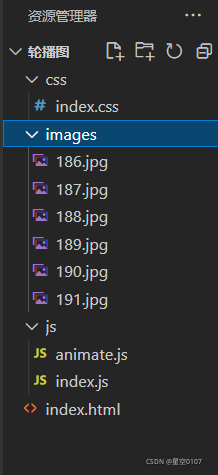
2.原生JS实现轮播图,主要原理是通过改变图片地址动态显示图片
功能大致和上面是一样的,就不截图了,直接贴代码
HTML:
<!DOCTYPE html>
<html lang="en">
<head>
<meta charset="UTF-8">
<meta http-equiv="X-UA-Compatible" content="IE=edge">
<meta name="viewport" content="width=device-width, initial-scale=1.0">
<title>Document</title>
<link rel="stylesheet" href="index.css">
<script src="index.js"></script>
</head>
<body>
<div class="Carousel">
<a href="" id="links">
<img src="" alt="" id="image">
</a>
<div class="left"><</div>
<div class="right">></div>
<div class="icon">
<ul>
<li>1</li>
<li>2</li>
<li>3</li>
<li>4</li>
<li>5</li>
<li>6</li>
</ul>
</div>
</div>
</body>
</html>CSS样式
*{
  margin: 0;
  padding: 0;
}
.Carousel {
  position: relative;
  width: 550px;
  height: 240px;
  background-color: blue;
  margin: 200px auto;
}

img{
  width: 550px;
  height: 240px;
}

li {
  list-style: none;
}
a {
  text-decoration: none;
}
.left {
  position: absolute;
  top: 120px;
  left: 0;
  width: 50px;
  height: 50px;
  background-color: rgba(255, 255, 255, 0.6);
  color: snow;
  font-size: 30px;
  text-align: center;
  display: none;
}

.right {
  position: absolute;
  top: 120px;
  right: 0;
  width: 50px;
  height: 50px;
  background-color: rgba(255, 255, 255, 0.6);
  color: snow;
  font-size: 30px;
  text-align: center;
  display: none;
}

.icon {
  position: absolute;
  bottom: 20px;
  left: 220px;
  width: 100px;
  height: 8px;

}


.icon  li{
  width:10px;
	height:4px;
	line-height:4px;
	text-align:center;
	background:#ccc;
	color:#fff;
	float:left;
	font-size:0px;
	margin-left:5px;
	opacity: 0.8;
}
JS
window.onload=function(){

    var Carousel = document.querySelector('.Carousel');
    var left = document.querySelector('.left');
    var right = document.querySelector('.right');
    var image=document.getElementById('image');
    var links=document.getElementById('links');
    var lis= document.getElementsByTagName('li');
    //第一张轮播图图片
    image.src="./images/ad01.jpg";
    //第一个小图标
    lis[0].style.background="black";
    var add=1;

    //鼠标经过轮播图
    Carousel.onmouseover=function(){
        left.style.display='block';
        right.style.display='block';
        clearInterval(lbt)
    }
//鼠标离开轮播图
    Carousel.onmouseout=function(){
        left.style.display='none';
        right.style.display='none';
        CarouselLBT();
    }
//设置自动播放
    function CarouselLBT(){
        lbt= setInterval(function(){
            add=add+1;
            if(add>6)
            {
                add=1;
            }
            //通过改变image地址改变图片的显示,取巧有规律设置图片名字,当然也可以用数组的形式存储图片地址
            image.src="./images/ad0"+add+".jpg";
            var x=add-1;
            for(var i=0;i<lis.length;i++)
            {
                lis[i].style.background="#ccc";
                if(i==x)
                {
                    lis[i].style.background="black";
                }

            }

        },2000);

    }

    CarouselLBT();

    //点击左按钮,移动图片

    left.onclick=function(){
        add=add-1;
        if(add<1){
            add=6;
        }
        //通过改变image地址改变图片的显示,取巧有规律设置图片名字,当然也可以用数组的形式存储图片地址
        image.src="./images/ad0"+add+".jpg";
        var x=add-1;
        for(var i=0;i<lis.length;i++)
        {
            lis[i].style.background="#ccc";
            if(i==x)
            {
                lis[i].style.background="black";
            }

        }
    }
//点击右按钮,移动图片
    right.onclick=function(){
        add=add+1;
        if(add>6){
            add=1;
        }
        image.src="./images/ad0"+add+".jpg";
        var x=add-1;
        for(var i=0;i<lis.length;i++)
        {
            lis[i].style.background="#ccc";
            if(i==x)
            {
                lis[i].style.background="black";
            }

        }
    }

//鼠标经过轮播图下方小圆圈,动态显示对应图片
    for(var i=0;i<lis.length;i++)
    {
        lis[i].onmouseover=function(){
            //获取小圆圈索引
            var y=this.innerHTML;
            var add=y;
            image.src="./images/ad0"+add+".jpg";
            var x=add-1;
            for(var i=0;i<lis.length;i++)
            {
                lis[i].style.background="#ccc";
                if(i==x)
                {
                    lis[i].style.background="black";
                }

            }
        }
    }

}
项目结构:
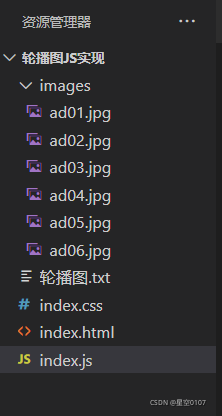
轮播图的实现网上应该能找到不少,但是还是希望这些能帮助到有需要的人,一起学习一起进步!!!
版权声明:本文为weixin_52263227原创文章,遵循CC 4.0 BY-SA版权协议,转载请附上原文出处链接和本声明。