示例图: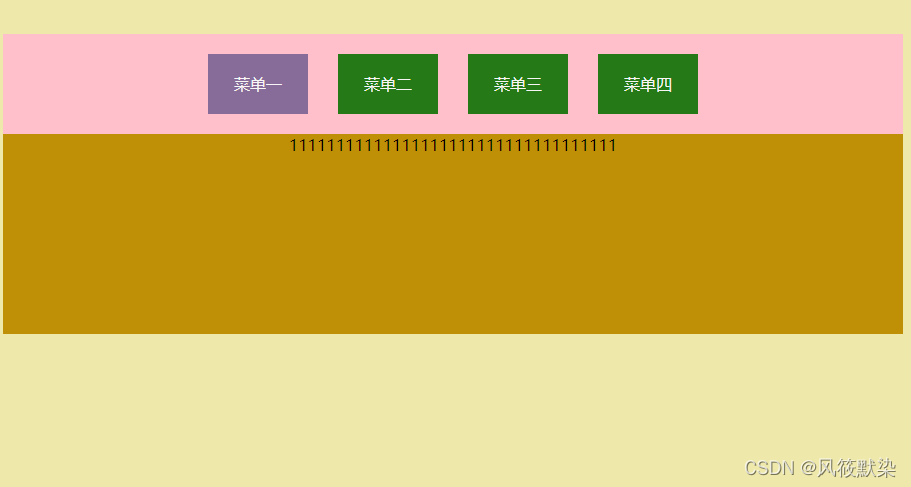
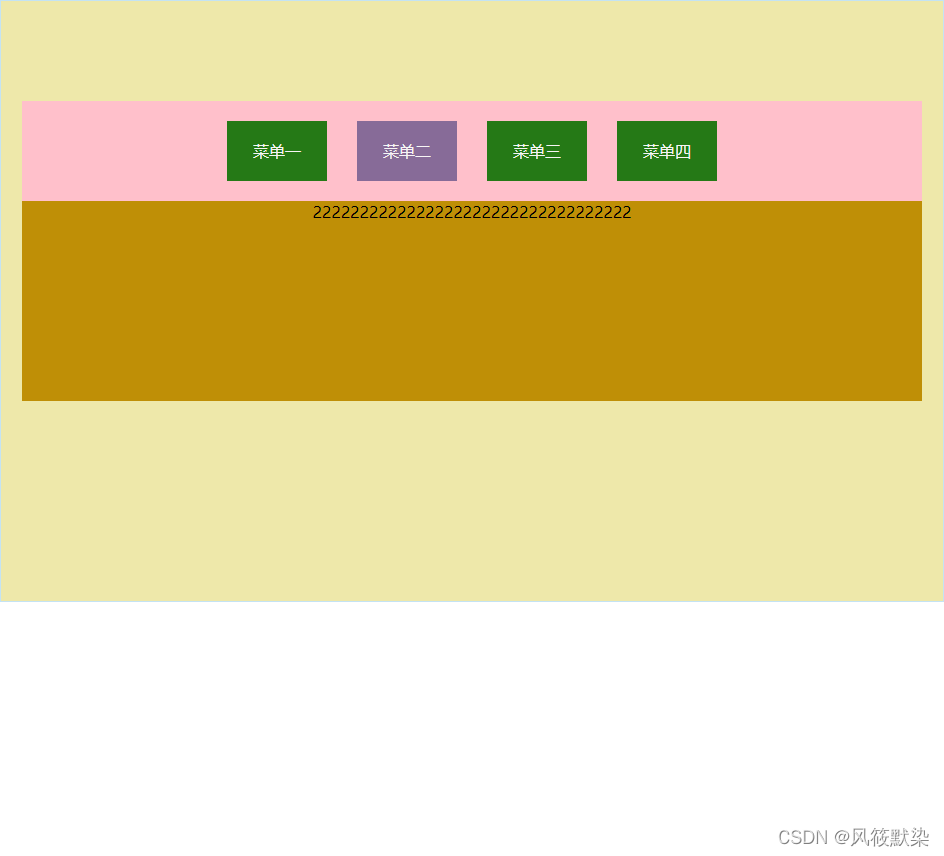
代码如下:
<!DOCTYPE html>
<html>
	<head>
		<meta charset="UTF-8">
		<title></title>
	</head>
	<script src="https://cdn.jsdelivr.net/npm/vue/dist/vue.js"></script>
	<style type="text/css">
		html,body {
			padding: 0;
			margin: 0;
		}
		a {
			text-decoration: none;
		}
		#app {
			height: 600px;
			text-align: center;
			border: 1px solid #C4E3F3;
			background: palegoldenrod;
		}
		nav {
			background: pink;
			width: 900px;
			margin: 0px auto;
			height: 100px;
			line-height: 100px;
			margin-top: 100px;
		}
		nav a {
			color: #f7f5f5;
			display: inline-block;
			width: 100px;
			height: 60px;
			line-height: 60px;
			margin-right: 30px;
			background: #876b98;
		}
		nav a:last-child {
			margin-right: 0px;
		}
		.active {
			background: #257916;
		}
		.content {
			width: 900px;
			height: 200px;
			margin: 0 auto;
			background: #bf8f06;
		}
	</style>
	<body>
		<div id="app">
			<nav>
				<a href="#" @click="addbg(i,item)" v-for="(item,i) in text" :class="{active:i!=nowIndex}">{{item}}</a>
			</nav>
			<div v-show="nowIndex === 0" class="content">
				11111111111111111111111111111111111
			</div>
			<div v-show="nowIndex === 1" class="content">
				2222222222222222222222222222222222
			</div>
			<div v-show="nowIndex === 2" class="content">
				3333333333333333333333333333333333
			</div>
			<div v-show="nowIndex === 3" class="content">
				444444444444444444444444444444444
			</div>
		</div>
		<script type="text/javascript">
			var demo = new Vue({
				el: '#app',
				data: {
					nowIndex: 0,
					active_text: '菜单一',
					text: ['菜单一', '菜单二', '菜单三', '菜单四']
				},
				methods: {
					addbg: function(index, active_text) {
						this.nowIndex = index;
						this.active_text = active_text;
					}
				}
			})
		</script>
	</body>
</html>
版权声明:本文为m0_51700376原创文章,遵循CC 4.0 BY-SA版权协议,转载请附上原文出处链接和本声明。