实现recycleView页面点击跳转功能
1. 功能实现要求
2.具体实现
- 创建四个Activity.java文件和对应的xml布局文件
- 设计xml布局文件
- 在MyAdapter.java文件中设置item监听,实现点击跳转功能
- 在AndroidManifest.xml文件中声明几个Activity
- 另:在详情页面进行再次点击跳转
3.效果展示
4.源代码地址
1. 功能实现要求
在上一次实验的基础页面上,对有recycleView的页面进行点击跳转设计,完成点击页面的某一行能跳转到详情页面的功能。
2.具体实现
- 创建四个Activity.java文件和对应的xml布局文件

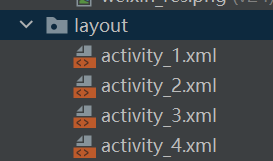
- 设计xml布局文件
<?xml version="1.0" encoding="utf-8"?>
<LinearLayout xmlns:android="http://schemas.android.com/apk/res/android"
    xmlns:app="http://schemas.android.com/apk/res-auto"
    xmlns:tools="http://schemas.android.com/tools"
    android:layout_width="match_parent"
    android:layout_height="match_parent"
    android:orientation="vertical"
    android:background="@drawable/back"
    tools:context=".Activity1">

    <LinearLayout
        android:layout_width="match_parent"
        android:layout_height="200dp">

        <ImageView
            android:id="@+id/imageView5"
            android:layout_width="190dp"
            android:layout_height="match_parent"
            android:layout_weight="1"
            app:srcCompat="@drawable/_1" />

        <TextView
            android:id="@+id/textView7"
            android:layout_width="wrap_content"
            android:layout_height="200dp"
            android:layout_weight="1"
            android:gravity="center"
            android:text="李侃"
            android:textColor="@color/purple_200"
            android:textSize="40sp" />
    </LinearLayout>

    <LinearLayout
        android:id="@+id/linearLayout"
        android:layout_width="match_parent"
        android:layout_height="350dp"
        android:orientation="horizontal">

        <TextView
            android:id="@+id/textView8"
            android:layout_width="match_parent"
            android:layout_height="match_parent"
            android:layout_weight="0.5"
            android:gravity="center"
            android:text="1998年4月11日出生于浙江省温州市,中国内地流行乐男歌手、影视男演员,中国内地男子组合S.K.Y天空少年断层C位,队长"
            android:textColor="@color/design_default_color_primary"
            android:textSize="27sp" />
    </LinearLayout>

    <LinearLayout
        android:id="@+id/message1"
        android:layout_width="match_parent"
        android:layout_height="match_parent"
        android:orientation="horizontal">

        <TextView
            android:id="@+id/textView9"
            android:layout_width="match_parent"
            android:layout_height="match_parent"
            android:gravity="center"
            android:text="发信息"
            android:textColor="@android:color/holo_red_light"
            android:textSize="27sp" />
    </LinearLayout>
</LinearLayout>
(四个xml布局文件差不多,这里只写一个)
- 在MyAdapter.java文件中设置item监听,实现点击跳转功能
@Override
    public void onBindViewHolder(@NonNull MyViewHolder holder, int position) {
        holder.imageView.setImageResource((int)(data.get(position).get("照片")));
        holder.textView1.setText(data.get(position).get("姓名").toString());
        holder.textView2.setText(data.get(position).get("电话").toString());

        //设置条目中的点击监听
        int i = holder.getAdapterPosition();
        holder.itemView.setOnClickListener(new View.OnClickListener() {
            @Override
            public void onClick(View v) {
                Intent intent=new Intent(context,jumpActivity[i]);
                context.startActivity(intent);
            }
        });
    }
- 在AndroidManifest.xml文件中声明几个Activity
<activity
      android:name=".Activity1"
      android:exported="true" />
<activity
      android:name=".Activity2"
      android:exported="true" />
<activity
      android:name=".Activity3"
      android:exported="true" />
<activity
      android:name=".Activity4"
      android:exported="true" />
- 另:在详情页面进行再次点击跳转
(代码和之前的步骤差不多,在每个Activity中设置监听,然后在AndroidManifest.xml文件中声明)
private LinearLayout linearLayout;
    @Override
    protected void onCreate(Bundle savedInstanceState) {
        super.onCreate(savedInstanceState);
        supportRequestWindowFeature(Window.FEATURE_NO_TITLE);
        setContentView(R.layout.activity_1);
        linearLayout = findViewById(R.id.message1);
        linearLayout.setOnClickListener(new View.OnClickListener() {
            @Override
            public void onClick(View v) {
                Intent intent = new Intent(getApplicationContext(), Activity1_detail.class);
                startActivity(intent);
            }
        });
    }
3.效果展示


4.源代码地址
版权声明:本文为Be_better27原创文章,遵循CC 4.0 BY-SA版权协议,转载请附上原文出处链接和本声明。