https://www.cnblogs.com/yhjoker/p/9831671.html#task
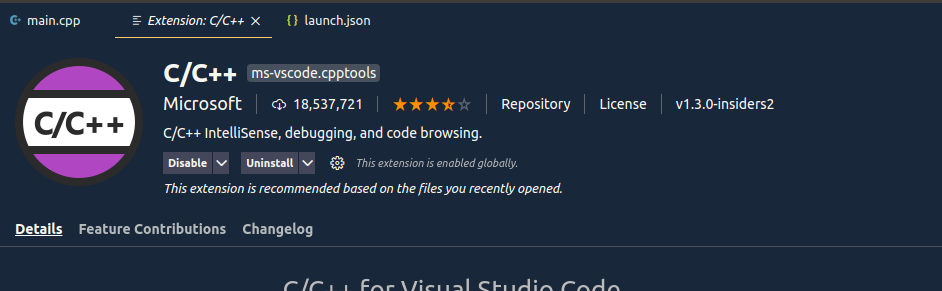
安装插件
编译
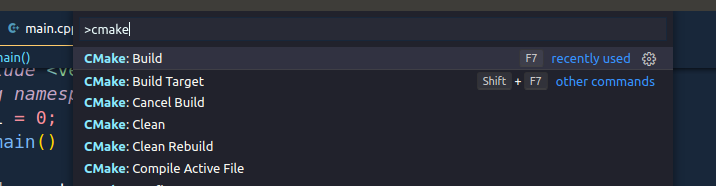
键盘输入 ctrl+shift+p ,选择 CMake:Build
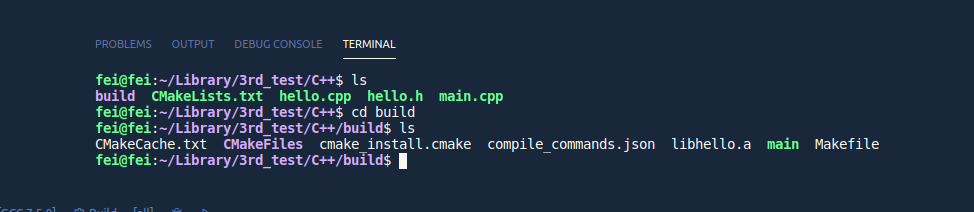
查看 build 文件夹下是否生成了可执行文件(如果代码内容有改动,需要重新 make 编译;或重复上一步操作)
配置 launch.json
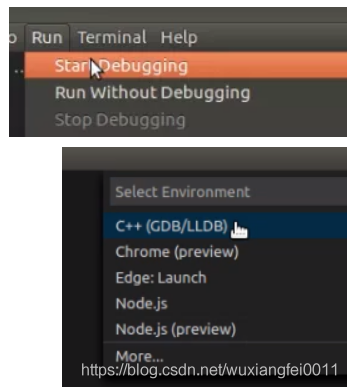
进入 Run > Start Debugging > C++ (GDB/LLDB)
软件自动打开 launch.json 文件
修改 program 后可执行程序的路径,此时即可调试+编译
{
    // Use IntelliSense to learn about possible attributes.
    // Hover to view descriptions of existing attributes.
    // For more information, visit: https://go.microsoft.com/fwlink/?linkid=830387
    "version": "0.2.0",
    "configurations": [
        {
            "name": "(gdb) Launch",    //名称
            "type": "cppdbg",
            "request": "launch",
            "program": "${workspaceFolder}/build/main",    //当前目录下编译后的可执行文件
            "args": [],
            "stopAtEntry": false,
            "cwd": "${workspaceFolder}",    //表示当前目录
            "environment": [],
            "externalConsole": false, // 在vscode自带的终端中运行,不打开外部终端
            "MIMode": "gdb",    //用gdb来debug
            "setupCommands": [
                {
                    "description": "Enable pretty-printing for gdb",
                    "text": "-enable-pretty-printing",
                    "ignoreFailures": true
                }
            ],
            // "preLaunchTask": "make"  //在执行debug hello world前,先执行build hello world这个task
        }
    ]
}
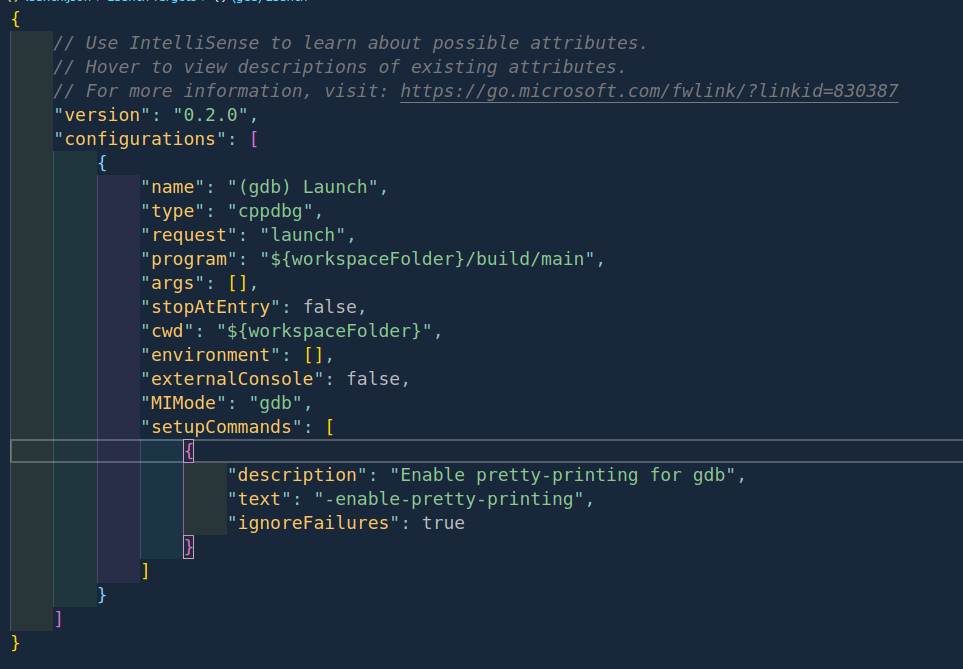
相关解释:
args后面填写可执行程序需要的参数
把"stopAtEntry"设置为"true"可以在主函数处停止
把"externalConsole"设置为"true"可以调用系统的终端