
这里没有用微信的人脸库,是用的百度的人脸库,首先去百度创建人脸库
百度智能云点击创建
选择左边导航栏=>人工智能=>人脸识别=>创建应用=>创建用户组

用户组名称为自己定义,这个等会我们还用的,接下来写一个页面来上传我们的人脸库
js
// pages/faceRegister/faceRegister.js
const app = getApp()
Page({

  /**
   * 页面的初始数据
   */
  data: {
    canIUse: wx.canIUse('button.open-type.getUserInfo'),
    nickName : "",
    src : "",//图片的链接
    token: "",
    base64: "",
    msg:""
  },

  //拍照
  takePhoto(){
  var that=this
   //拍照
   const ctx=wx.createCameraContext()
   ctx.takePhoto({
     quality: 'high',
     success: (res)=>{
       this.setData({
         src:res.tempImagePath //获取图片
       })
       //图片base64编码
       wx.getFileSystemManager().readFile({
         filePath:this.data.src, //选择图片返回的相对路径
         encoding: 'base64', //编码格式返回
         success: res=>{  //成功回调
          this.setData({
            base64: res.data
          })
         }
       })
     }//拍照成功结束
   })//调用相机结束
   //acess_token获取,qs:需要多次尝试
   wx.request({
     url: 'https://aip.baidubce.com/oauth/2.0/token',//是真实的接口地址
     data: {
      grant_type: 'client_credentials',
      client_id: '**************',//用你创建的应用的API Key
      client_secret: '*************'//用你创建的应用的Secret Key
     },
     header: {
      'Content-Type': 'application/json' // 默认值
     },
     success(res){
       that.setData({
        token: res.data.access_token//获取到token
       })
       console.log(res.data.access_token)
     }
   })
   console.log(this.data.nickName)
   //上传人脸进行注册-----
   wx.request({
    url: 'https://aip.baidubce.com/rest/2.0/face/v3/faceset/user/add?access_token=' + this.data.token,
    method: 'POST',
    data: {
      image: this.data.base64,
      image_type: 'BASE64',
      group_id: '**********',//自己建的用户组id
      user_id: "***********"//这里设置每张人脸的昵称
     },
     header: {
      'Content-Type': 'application/json' // 默认值
     },
     success(res){
      that.setData({
        msg:res.data.error_msg
      })
      console.log(res)
      //做成功判断
      if(that.data.msg == 'SUCCESS'){
        wx.showToast({
          title: '注册成功',
          icon: 'success',
          duration: 2000
         })
         wx.switchTab({
          url: '../mine/mine',
         })
      }
     }
   }),
     //失败尝试
     wx.showToast({
      title: '请重试',
      icon: 'loading',
      duration: 500
     })
  },
   error(e){
    console.log(e.detail)
   },
   //获取用户信息
    bindGetUserInfo: function(e){
    this.setData({
    nickName: e.detail.userInfo.nickName
   })
    wx.showToast({
    title: '授权成功',
    icon: 'success',
    duration: 1000
  })
 },
  btnreg:function(){
    wx.showModal({
      title: '注册须知',
      content: '先授权登陆,再拍照注册哦!网络可能故障,如果不成功,请再试一下!',
    })
  },


  /**
   * 生命周期函数--监听页面加载
   */
  onLoad: function (options) {

  },

  /**
   * 生命周期函数--监听页面初次渲染完成
   */
  onReady: function () {

  },

  /**
   * 生命周期函数--监听页面显示
   */
  onShow: function () {

  },

  /**
   * 生命周期函数--监听页面隐藏
   */
  onHide: function () {

  },

  /**
   * 生命周期函数--监听页面卸载
   */
  onUnload: function () {

  },

  /**
   * 页面相关事件处理函数--监听用户下拉动作
   */
  onPullDownRefresh: function () {

  },

  /**
   * 页面上拉触底事件的处理函数
   */
  onReachBottom: function () {

  },

  /**
   * 用户点击右上角分享
   */
  onShareAppMessage: function () {

  }
})
wxml
<!-- camera.wxml相机大小需要从重新设置 -->
<camera
 device-position="front"
 flash="off"
 binderror="error"
 style="width: 100%; height: 400px;"
></camera>

<!-- 需要使用 button 来授权登录 -->
<button
 wx:if="{{canIUse}}"
 open-type="getUserInfo"
 bindgetuserinfo="bindGetUserInfo"
 type="primary"
>
 授权
</button>
<view wx:else>请升级微信版本</view>

<!-- 拍照按钮 -->
<button type="primary" bindtap="takePhoto"> 拍照 </button>

<button bindtap='btnreg'> 注册须知 </button>
然后是人脸识别页面
js
// pages/takephoto/takephoto.js
const app = getApp()


Page({

  /**
   * 页面的初始数据
   */
  data: {
    count: 0, // 设置 计数器 初始为0
    countTimer: null, // 设置 定时器 初始为null
    complete: false
  },


  /**
   * 生命周期函数--监听页面加载
   */
  onLoad: function (options) {

  },

  /**
   * 生命周期函数--监听页面初次渲染完成
   */
  onReady: function () {
    if (wx.createCameraContext()) {
      this.cameraContext = wx.createCameraContext('myCamera')
      this.drawProgressbg();
      // this.drawCircle();
      this.countInterval();
    } else {
      // 如果希望用户在最新版本的客户端上体验您的小程序,可以这样子提示
      wx.showModal({
        title: '提示',
        content: '当前微信版本过低,无法使用该功能,请升级到最新微信版本后重试。'
      })
    }
    // this.bindChooiceProduct()
  },
  takePhoto(){
    wx.showLoading({
      title: '人脸识别中',
      mask: true
    })
    var that=this
    const ctx=wx.createCameraContext()
    ctx.takePhoto({
      quality:'high',
      success: (res) =>{
        var imgbase64Url = wx.getFileSystemManager().readFileSync(res.tempImagePath, "base64");
        that.setData({
          imgbase64Url:imgbase64Url
        })
        this.uploadImg()
      },
      fail: () => {
      },
      complete: () => {

      }
    })

  },
  error(e) {
    console.log(e.detail)
  },
  startdrawCanvas(){
    console.log('相机初始化成功')
  },
  //进行人脸识别
  uploadImg(){
    let that=this
   wx.request({
    url: 'https://aip.baidubce.com/oauth/2.0/token', //真实的接口地址
    data: {
     grant_type: 'client_credentials',
     client_id: 'Ze18aO02aelrBdodA37QScB5',
     client_secret: 'MeqLotXD7wXezMhhIBugCCZV1ClDyMDr'//用自己的
    },
    header: {
     'Content-Type': 'application/json' // 默认值
    },
    success(res) {
      that.setData({
       token: res.data.access_token//获取到token
      })
      //上传人脸进行比对
       wx.request({
        url: 'https://aip.baidubce.com/rest/2.0/face/v3/search?access_token=' + that.data.token,
        method: 'POST',
        data: {
         image: that.data.imgbase64Url,
         image_type: 'BASE64',
         group_id_list: 'ashuanbao123'//自己建的用户组id
        },
        header: {
         'Content-Type': 'application/json' // 默认值
        },

        success: res=>{
          wx.hideLoading()
          if(res.data.error_msg=='pic not has face'){
            that.goBack('未捕捉到人脸,请重新录入')
          }else{
            if(res.data.result.user_list[0].score>90){
              that.goBack('验证成功')
              //验证通过,跳转至管理页面
              setTimeout(function(){
                wx.navigateTo({
                  url: '../supplement/supplement',
              })
              },2)

            }else{
              that.goBack('人脸匹配失败,请重新录入')
            }

          }


        }
       })


    }

   })
  },

   //添加Banner
   bindChooiceProduct: function () {
    var that = this;
    wx.chooseImage({
      count: 3, //最多可以选择的图片总数
      sizeType: ['compressed'], // 可以指定是原图还是压缩图,默认二者都有
      sourceType: ['album', 'camera'], // 可以指定来源是相册还是相机,默认二者都有
      success: function (res) {
        // 返回选定照片的本地文件路径列表,tempFilePath可以作为img标签的src属性显示图片
        var tempFilePaths = res.tempFilePaths;
        console.log(tempFilePaths)
        //启动上传等待中...
        var url = wx.getFileSystemManager().readFileSync(tempFilePaths[0], "base64")
        console.log(encodeURIComponent(url))
        that.uploadImg(encodeURIComponent(url))
      }
    });
  },
  goBack(info){
    wx.showToast({
      title: info,
      icon: 'success',
      duration: 1000
     })
    // setTimeout(function(){
    //   wx.navigateBack();
    // },2000)
  },

  drawProgressbg: function () {
    // 使用 wx.createContext 获取绘图上下文 context
    var ctx = wx.createCanvasContext('canvasProgressbg')
    ctx.setLineWidth(5); // 设置圆环的宽度
    ctx.setStrokeStyle('#a9a9a9'); // 设置圆环的颜色
    ctx.setLineCap('round') // 设置圆环端点的形状
    ctx.beginPath(); //开始一个新的路径
    ctx.arc(110, 110, 100, 0, 2 * Math.PI, false);
    //设置一个原点(100,100),半径为90的圆的路径到当前路径
    ctx.stroke(); //对当前路径进行描边
    ctx.draw();
  },
  drawCircle: function (step) {
    var context = wx.createCanvasContext('canvasProgress');
    // 设置渐变
    var gradient = context.createLinearGradient(200, 100, 100, 200);
    gradient.addColorStop("0", "#2661DD");
    gradient.addColorStop("0.5", "#2661DD");
    gradient.addColorStop("1.0", "#2661DD");
    context.setLineWidth(5);
    context.setStrokeStyle(gradient);
    context.setLineCap('round')
    context.beginPath();
    // 参数step 为绘制的圆环周长,从0到2为一周 。 -Math.PI / 2 将起始角设在12点钟位置 ,结束角 通过改变 step 的值确定
    context.arc(110, 110, 100, -Math.PI / 2, step * Math.PI - Math.PI / 2, false);
    context.stroke();
    context.draw()
  },
  countInterval: function () {
    // 设置倒计时 定时器 每100毫秒执行一次,计数器count+1 ,耗时6秒绘一圈
    this.countTimer = setInterval(() => {
      if (this.data.count <= 60) {
        /* 绘制彩色圆环进度条
        注意此处 传参 step 取值范围是0到2,
        所以 计数器 最大值 60 对应 2 做处理,计数器count=60的时候step=2
        */
        this.drawCircle(this.data.count / (60 / 2))
        this.data.count++;
      } else {
        this.setData({
          complete: true
        });
        clearInterval(this.countTimer);
      }
    }, 100)
  },
  complateDis(){
    this.takePhoto()
  },


  /**
   * 生命周期函数--监听页面显示
   */
  onShow: function () {

  },

  /**
   * 生命周期函数--监听页面隐藏
   */
  onHide: function () {

  },

  /**
   * 生命周期函数--监听页面卸载
   */
  onUnload: function () {

  },

  /**
   * 页面相关事件处理函数--监听用户下拉动作
   */
  onPullDownRefresh: function () {

  },

  /**
   * 页面上拉触底事件的处理函数
   */
  onReachBottom: function () {

  },

  /**
   * 用户点击右上角分享
   */
  onShareAppMessage: function () {

  }
})
wxml
<view class="takephoto">
  <navigator open-type="navigateBack" hover-class="none" class="goBack">取消</navigator>
  <view class="distinguishing">
    <image src="../../images/distinguishing.png" />
  </view>
  <view class="camera">
    <canvas class="progress_bg" canvas-id="canvasProgressbg"></canvas>
    <canvas class="progress_canvas" canvas-id="canvasProgress"></canvas>
    <camera id='camera' device-position="front" bindinitdone="startdrawCanvas" flash="off" binderror="error">
      <cover-view class='cameraGai'>
        <cover-image src='../../images/circle.png' class='cover-image'></cover-image>
      </cover-view>
    </camera>
  </view>
  <view class="complete" bindtap="complateDis" wx:if="{{complete}}">完成</view>
  <i-message id="message" />
</view>
wxss
/* pages/takephoto/takephoto.wxss */
.takephoto{
  width: 100%;
}

.takephoto .camera{
  position: relative;
  display: flex;
  align-items: center;
  justify-content: center;
}

.takephoto camera {
  width: 220px;
  height: 220px;
  position: absolute;
  display: flex;
  align-items: center;
  justify-content: center;
  z-index: -99;
}

.takephoto .goBack {
  color: #1792f0;
  margin-left: 35rpx;
  font-size: 35rpx;
}

.distinguishing image{
  height: 370rpx;
  width: 100%;
}

.progress_bg {
  position: absolute;
  width: 220px;
  height: 220px;
}

.progress_canvas {
  width: 220px;
  height: 220px;
}

.takephoto .complete {
  border-top: 1rpx solid #e5e5e5;
  width: 100%;
  position: fixed;
  bottom: 0;
  background: #fff;
  color: #1792f0;
  font-size: 40rpx;
  height: 100rpx;
  line-height: 100rpx;
  text-align: center;
}
亲测有效,因为使用的是百度人脸库,如放在发布线上,则审核不会通过,感觉微信就有点使用霸王条款,这里提供两个办法解决:
1.如果不涉及给用户使用,是本公司自己人使用则审核的时候说明情况,不涉及用户隐私
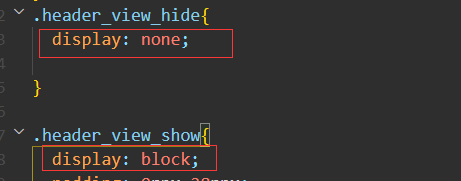
2.给人脸识别入口添加一个状态,这个状态通过后台控制,审核的时候,关闭人脸识别,审核通过则更改数据库状态,开放人脸识别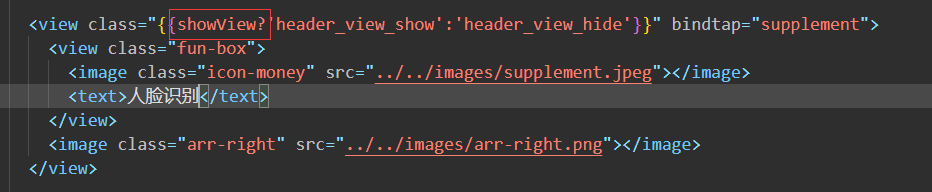

版权声明:本文为yuxiahaohao原创文章,遵循CC 4.0 BY-SA版权协议,转载请附上原文出处链接和本声明。