要实现的功能:
- 鼠标悬浮/点击折线图时显示 tootip
- tooltip 中的内容动态从后台获取
实现步骤:
1. 配置 tooltip
配置参数如下:
option: {
	tooltip: {
		trigger: "axis", //触发类型,'item'数据项图形触发,主要在散点图,饼图等无类目轴的图表中使用。 'axis'坐标轴触发,主要在柱状图,折线图等会使用类目轴的图表中使用。
          triggerOn: "click", //提示框触发的条件,'mousemove'鼠标移动时触发。'click'鼠标点击时触发。'mousemove|click'同时鼠标移动和点击时触发。'none'不在 'mousemove' 或 'click' 时触发
          showContent: true, //是否显示提示框浮层
          // alwaysShowContent:true,                 //是否永远显示提示框内容
          showDelay: 0, //浮层显示的延迟,单位为 ms
          hideDelay: 100, //浮层隐藏的延迟,单位为 ms
          enterable: true, //鼠标是否可进入提示框浮层中
          transitionDuration: 0, //提示框浮层的移动动画过渡时间,单位是 s,设置为 0 的时候会紧跟着鼠标移动
          position: "top",
          axisPointer: {
            // 坐标轴指示器配置项。
            type: "shadow", // 'line' 直线指示器  'shadow' 阴影指示器  'none' 无指示器  'cross' 十字准星指示器。
            axis: "auto", // 指示器的坐标轴。
            snap: true, // 坐标轴指示器是否自动吸附到点上
          },
          renderMode: "html", // 浮层的渲染模式,默认以 'html 即额外的 DOM 节点展示 tooltip;
          backgroundColor: "#d7d7d7", // 提示框浮层的背景颜色。
          borderColor: "#eef1f6", // 提示框浮层的边框颜色。
          borderWidth: 1, // 提示框浮层的边框宽。
          padding: 10, // 提示框浮层内边距,
          textStyle: {
            // 提示框浮层的文本样式。
            color: "black",
            fontStyle: "normal",
            fontWeight: "normal",
            fontFamily: "sans-serif",
            fontSize: 12,
          },
          extraCssText: "box-shadow: 0 0 3px rgba(0, 0, 0, 0.3);", // 额外附加到浮层的 css 样式
          confine: true, // 是否将 tooltip 框限制在图表的区域内。
          formatter: function (arg, ticket, callback) {}  // 具体实现参考下一小节
	}
}
2. 设置 formatter 动态请求数据
根据官网, formatter 有两种模式
这里使用第二种模式, 回调函数有三个参数: params, ticket, callback. 对于折线图, params 包含以下参数, 其中 name 对应 x 轴的值, value 对应 y 轴的值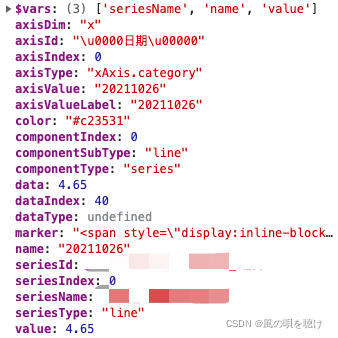
ticket 用于标识在图表中的操作, 配合 callback 使用, 个人理解就是让 callback 知道处理后的数据应返回到何处. formatter 的回调函数写法如下:
formatter: function(params, ticket, callback) {
	const requ_data = {
		arg: params.name
	}
	get_data(requ_data).then((res) => {
		const txt = `
			<b>${params.name}</b> <br/>
			请求得到的数据: ${res.data}
		`
		callback(ticket, formater)
	})
	return  `
		<b>${params.name}</b> <br/>
		请求得到的数据: loading
	`
}
注:
- 方法 get_data 从后端请求数据
- 请求数据返回前 tooltip 会显示
return的内容, 返回后显示callback的内容
3. 优化 tooltip 显示效果
按照上面的设置, 点击图表时会出现 tooltip, 如果想改为鼠标悬停时显示 tooltip, 需要把 option 中的 triggerOn 改为 mousemove, 但这样做的问题是鼠标在图表上移动时, 图表会不断的向后端发送请求, 而这会影响 tooltip 的显示速度. 解决这个问题的一个方法是对鼠标悬停时的请求做限制, 比如当鼠标悬停 0.5 秒时才发送请求, 设置方法如下
<template>
  <div id="myChart" ref="myChart" />
</template>

<script>
require("echarts/lib/chart/line");
require("echarts/lib/component/tooltip"); // tooltip组件
require("echarts/lib/component/title"); //  title组件
require("echarts/lib/component/legend"); // legend组件
require("echarts/lib/component/markPoint");

export default {
	data() {
		option: {}
	},
	methods() {
		init() {
		const echarts = require("echarts/lib/echarts");
      const myChart = echarts.init(this.$refs.myChart);
      // myChart.off('mouseover') //在这里加就解决了点击多次加载问题

      let timer;
      myChart.on("mouseover", "series", function (params) {
	        // console.log(params);
	        timer = setTimeout(() => {
	          //这里可以发送请求
	          myChart.dispatchAction({
	            type: "showTip",
	            seriesIndex: 0,
	            dataIndex: params.dataIndex,
	          });
	        }, 500); //鼠标悬停 0.5 秒才触发事件
	      });
	     myChart.on("mouseout", "series", function (params) {
         myChart.dispatchAction({
            type: "hideTip",
          });
            clearTimeout(timer);
          });

	      myChart.setOption(this.option);
		}
	}
}
option 中的 triggerOn 设为 click, 对 echarts 实例做了上面的设置之后, 鼠标点击和悬停都会出发 tooltip, 而且没有了多次触发请求的问题.
版权声明:本文为weixin_42902669原创文章,遵循CC 4.0 BY-SA版权协议,转载请附上原文出处链接和本声明。