Typora简单使用教程?
中文官网地址: \textcolor{black}{中文官网地址:}中文官网地址:https://typoraio.cn/,这么好用的笔记软件大家还不赶快下手。 \textcolor{black}{,这么好用的笔记软件大家还不赶快下手。},这么好用的笔记软件大家还不赶快下手。
1️⃣字体样式语法
标题
标题语法了解html都不陌生,有点儿类似,h1~h6类似这边的#号。数字越小(#号越少)标题越大,分六个等级。
定义标题有一下几种方式。
方式一:这个标题手敲就在文本前边敲#号,#和文本中间需又空格隔开。
方式二:快捷键,Ctrl+(1~6)。
方式三:在Typora文本编辑区右键鼠标,选择段落也可以插入标题。不止标题,还有其他样式设置
方式四:在编辑器中左上角的菜单栏选择段落去插入标题。不止标题,还有其他样式设置前两种方式应该比较常用(推荐),后两种适合小白 \textcolor{red}{前两种方式应该比较常用(推荐),后两种适合小白}前两种方式应该比较常用(推荐),后两种适合小白
| 标题 | 语法(方式一) | 快捷键(方式二) |
|---|---|---|
| 一级标题 | #一级标题 | Ctrl+1 |
| 二级标题 | ##二级标题 | Ctrl+2 |
| 三级标题 | ###三级标题 | Ctrl+3 |
| 四级标题 | ####四级标题 | Ctrl+4 |
| 五级标题 | #####五级标题 | Ctrl+5 |
| 六级标题 | ######六级标题 | Ctrl+6 |
标题展示效果如下:
一级标题
二级标题
三级标题
四级标题
五级标题
六级标题
字体样式(斜体,加粗,下划线,删除线等)
| 字体 | 语法(方式一) | 快捷键(方式二) |
|---|---|---|
| 斜体 | *文本* | Ctrl+I |
| 加粗 | **文本** | Ctrl+B |
| 下划线 | <u>文本</u> | Ctrl+U |
| 删除线 | ~~文本~~ | Alt+Shift+5 |
| 加粗斜体 | ***文本*** | 无 |
| 高亮 | ==文本== | 备注:需勾选高亮设置 |
| 文本居中 | <center>文本</center> | 无 |
| 文本颜色修改 | $\textcolor{颜色}{文本}$ | 备注:需勾选内联公式设置 |
展示效果顺序如下:
斜体
加粗
下划线
删除线
加粗斜体
高亮
文本颜色修改
G r e e n Y e l l o w \textcolor{GreenYellow}{GreenYellow}GreenYellow,Y e l l o w \textcolor{Yellow}{Yellow}Yellow,G o l d e n r o d \textcolor{Goldenrod}{Goldenrod}Goldenrod,D a n d e l i o n \textcolor{Dandelion}{Dandelion}Dandelion,A p r i c o t \textcolor{Apricot}{Apricot}Apricot,P e a c h \textcolor{Peach}{Peach}Peach,M e l o n \textcolor{Melon}{Melon}Melon,Y e l l o w O r a n g e \textcolor{YellowOrange}{YellowOrange}YellowOrange,O r a n g e \textcolor{Orange}{Orange}Orange,B u r n t O r a n g e \textcolor{BurntOrange}{BurntOrange}BurntOrange,B i t t e r s w e e t \textcolor{Bittersweet}{Bittersweet}Bittersweet,R e d O r a n g e \textcolor{RedOrange}{RedOrange}RedOrange,M a h o g a n y \textcolor{Mahogany}{Mahogany}Mahogany,M a r o o n \textcolor{Maroon}{Maroon}Maroon,B r i c k R e d \textcolor{BrickRed}{BrickRed}BrickRed,R e d \textcolor{Red}{Red}Red,O r a n g e R e d \textcolor{OrangeRed}{OrangeRed}OrangeRed,R u b i n e R e d \textcolor{RubineRed}{RubineRed}RubineRed,W i l d S t r a w b e r r y \textcolor{WildStrawberry}{WildStrawberry}WildStrawberry,S a l m o n \textcolor{Salmon}{Salmon}Salmon,C a r n a t i o n P i n k \textcolor{CarnationPink}{CarnationPink}CarnationPink,M a g e n t a \textcolor{Magenta}{Magenta}Magenta,V i o l e t R e d \textcolor{VioletRed}{VioletRed}VioletRed,R h o d a m i n e \textcolor{Rhodamine}{Rhodamine}Rhodamine,M u l b e r r y \textcolor{Mulberry}{Mulberry}Mulberry,R e d V i o l e t \textcolor{RedViolet}{RedViolet}RedViolet,F u c h s i a \textcolor{Fuchsia}{Fuchsia}Fuchsia,L a v e n d e r \textcolor{Lavender}{Lavender}Lavender,T h i s t l e \textcolor{Thistle}{Thistle}Thistle,O r c h i d \textcolor{Orchid}{Orchid}Orchid,D a r k O r c h i d \textcolor{DarkOrchid}{DarkOrchid}DarkOrchid,P u r p l e \textcolor{Purple}{Purple}Purple,P l u m \textcolor{Plum}{Plum}Plum,V i o l e t \textcolor{Violet}{Violet}Violet,R o y a l P u r p l e \textcolor{RoyalPurple}{RoyalPurple}RoyalPurple,B l u e V i o l e t \textcolor{BlueViolet}{BlueViolet}BlueViolet,P e r i w i n k l e \textcolor{Periwinkle}{Periwinkle}Periwinkle,C a d e t B l u e \textcolor{CadetBlue}{CadetBlue}CadetBlue,C o r n f l o w e r B l u e \textcolor{CornflowerBlue}{CornflowerBlue}CornflowerBlue,M i d n i g h t B l u e \textcolor{MidnightBlue}{MidnightBlue}MidnightBlue,N a v y B l u e \textcolor{NavyBlue}{NavyBlue}NavyBlue,R o y a l B l u e \textcolor{RoyalBlue}{RoyalBlue}RoyalBlue,B l u e \textcolor{Blue}{Blue}Blue,C e r u l e a n \textcolor{Cerulean}{Cerulean}Cerulean,C y a n \textcolor{Cyan}{Cyan}Cyan,P r o c e s s B l u e \textcolor{ProcessBlue}{ProcessBlue}ProcessBlue,S k y B l u e \textcolor{SkyBlue}{SkyBlue}SkyBlue,T u r q u o i s e \textcolor{Turquoise}{Turquoise}Turquoise,T e a l B l u e \textcolor{TealBlue}{TealBlue}TealBlue,A q u a m a r i n e \textcolor{Aquamarine}{Aquamarine}Aquamarine,B l u e G r e e n \textcolor{BlueGreen}{BlueGreen}BlueGreen,E m e r a l d \textcolor{Emerald}{Emerald}Emerald,J u n g l e G r e e n \textcolor{JungleGreen}{JungleGreen}JungleGreen,S e a G r e e n \textcolor{SeaGreen}{SeaGreen}SeaGreen,G r e e n \textcolor{Green}{Green}Green,F o r e s t G r e e n \textcolor{ForestGreen}{ForestGreen}ForestGreen,P i n e G r e e n \textcolor{PineGreen}{PineGreen}PineGreen,L i m e G r e e n \textcolor{LimeGreen}{LimeGreen}LimeGreen,Y e l l o w G r e e n \textcolor{YellowGreen}{YellowGreen}YellowGreen,S p r i n g G r e e n \textcolor{SpringGreen}{SpringGreen}SpringGreen,O l i v e G r e e n \textcolor{OliveGreen}{OliveGreen}OliveGreen,R a w S i e n n a \textcolor{RawSienna}{RawSienna}RawSienna,S e p i a \textcolor{Sepia}{Sepia}Sepia,B r o w n \textcolor{Brown}{Brown}Brown,T a n \textcolor{Tan}{Tan}Tan,G r a y \textcolor{Gray}{Gray}Gray,B l a c k \textcolor{Black}{Black}Black
当然颜色还有很多就不一一举例了,上边是这些颜色的单词(如上黑体没正常显示的在Typora上都会正常显示),根据更换字体颜色的语法去讲单词写入语法中,就出现如上效果,大小写不区分。如:
$\textcolor{black}{文本}$$\textcolor{#00fcfc}{文本}$$\textcolor{rgb(255,0,0)}{文本}$
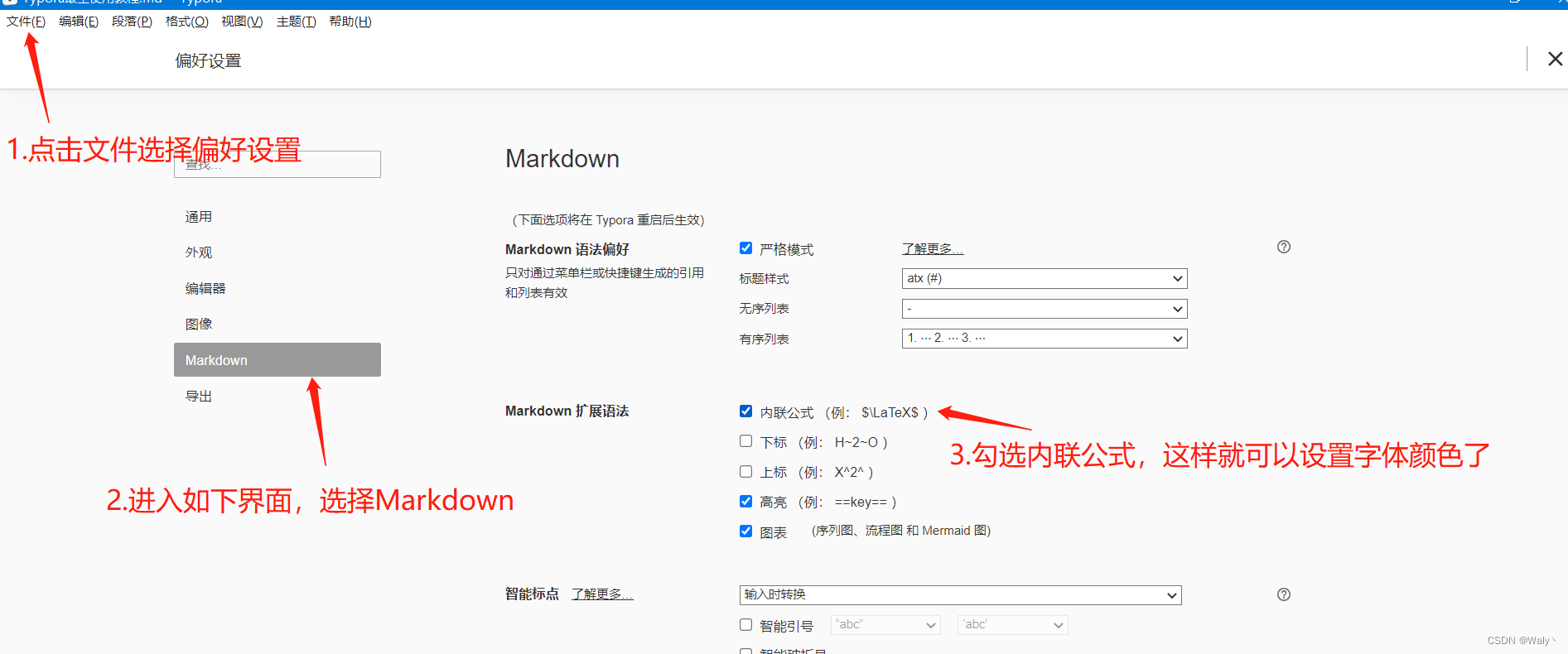
这边就列这如上三种常用颜色选择器模式,注意这块需要更改设置才能识别到字体样式,需要在Typora软件里更改设置。在左上角菜单栏里选择。
设置步骤:文件—— > 偏好设置—— > M a r k d o w n —— > 勾选内联公式即可;识别高亮语法设置同理勾选高亮即可。操作如下图 \textcolor{black}{设置步骤:文件——>偏好设置——>Markdown——>勾选内联公式即可;识别高亮语法设置同理勾选高亮即可。操作如下图}设置步骤:文件——>偏好设置——>Markdown——>勾选内联公式即可;识别高亮语法设置同理勾选高亮即可。操作如下图
2️⃣其他功能
超链接,图片,表情,等
| 作用 | 语法 | 快捷键 |
|---|---|---|
| 超链接 | [链接名称](网址),如:[百度一下](www.baidu.com) | Ctrl+K |
| 图片 | ,如: | Ctrl+Shift+I |
| 表情 | :表情单词: ? 更多表情参考 | 无 |
| 表格 | 表格语法就不介绍了,比较麻烦。建议使用快捷键或者鼠标右键生成 | Ctrl+T |
| 代码块 | ~~~java回车生成java代码块或```java回车生成,都是Esc下边那个键 | Ctrl+Shift+K |
| 有序标题 | 1. +空格 +回车 | Ctrl+Shift+[ |
| 无序标题 | - +空格 +回车 | Ctrl+Shift+] |
| 任务列表 | - [ ]看书,这块注意-空格容易和无序标题 - 冲突,推荐使用快捷键 | Ctrl+Shift+X |
| 引用 | > + 空格 | 无 |
| 分割线 | --- +回车;___ +回车;*** +回车 | 无 |
展示顺序效果图下:
链接:www.baidu.com ; 备注:Ctrl+点击链接,直接会打开链接页面
图片:
表情:?,?,? 。 更多表情参考
表格:
代码块:
Class Test1{
    public static void main(String []args){
        System.out.print("Hello,word");//注释
    }
}
有序标题:
有序标题1
有序标题2
有序标题3
无序标题:
- 无序标题1
- 无序标题2
- 无序标题3
任务列表:
- 看书
- 写字
- 画画
引用:
引用文字
?分割线
3️⃣图表,更多介绍参考
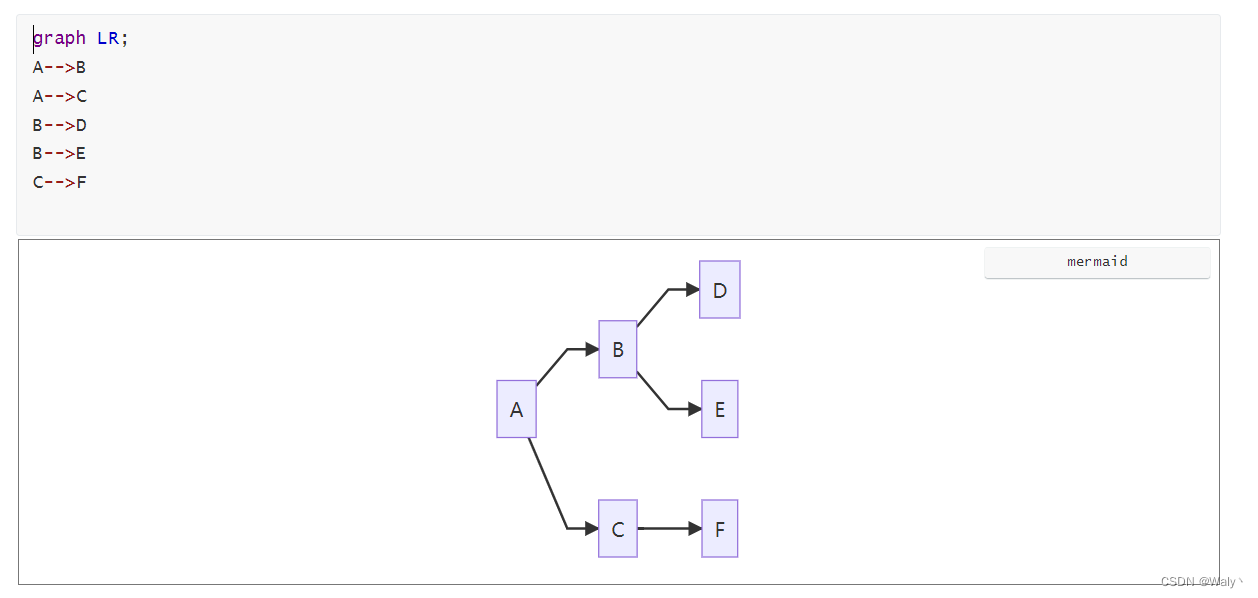
图表这里单独讲一下,是用代码块生成的,如:```Mermaid+回车或~~~mermaid,大小写不区分。代码块的功能其实很强大,它支持的格式还有很多(各种开发语言,各种文件格式),这里就不一一介绍了。(LR从左到右扩展流程图,TB从上往下扩展流程图)
?总结
养成记笔记的习惯,不仅能回顾知识点,还能提升学习效率(正所谓磨刀不误砍柴工),以上是我个人总结的一些Typora软件的一些常用操作希望能帮到大家。上述语法为Markdown格式,当然Typora功能远不止这些还有很多语法都可以组合使用,大家可以动手试一试,相信你们会发现新大陆。大家一起学习一起加油!!!