1、安装
以ubuntu为例,使用命令安装node.js
sudo apt install nodejs
sudo apt install npm
2、npm
npm的全称是Node Package Manager是Node.js的默认包管理器。
npm常用命令
npm -v:查看npm版本。
npm init:初始化后会出现一个package.json配置文件。可以在后面加上-y ,快速跳过问答式界面。
npm install:会根据项目中的package.json文件自动下载项目所需的全部依赖。
npm install 包名 --save-dev(npm install 包名 -D):安装的包只用于开发环境,不用于生产环境,会出现在package.json文件中的devDependencies属性中。
npm install 包名 --save(npm install 包名 -S):安装的包需要发布到生产环境的,会出现在package.json文件中的dependencies属性中。
npm list:查看当前目录下已安装的node包。
npm list -g:查看全局已经安装过的node包。
npm --help:查看npm帮助命令。
npm update 包名:更新指定包。
npm uninstall 包名:卸载指定包。
npm config list:查看配置信息。
npm 指定命令 --help:查看指定命令的帮助。
npm info 指定包名:查看远程npm上指定包的所有版本信息。
npm config set registry https://registry.npm.taobao.org: 修改包下载源,此例修改为了淘宝镜像。
npm root:查看当前包的安装路径。
npm root -g:查看全局的包的安装路径。
npm ls 包名:查看本地安装的指定包及版本信息。
npm ls 包名 -g:查看全局安装的指定包及版本信息。
npm全部命令
$ npm -h
npm <command>

Usage:

npm install        install all the dependencies in your project
npm install <foo>  add the <foo> dependency to your project
npm test           run this project's tests
npm run <foo>      run the script named <foo>
npm <command> -h   quick help on <command>
npm -l             display usage info for all commands
npm help <term>    search for help on <term>
npm help npm       more involved overview

All commands:

    access, adduser, audit, bin, bugs, cache, ci, completion,
    config, dedupe, deprecate, diff, dist-tag, docs, doctor,
    edit, exec, explain, explore, find-dupes, fund, get, help,
    hook, init, install, install-ci-test, install-test, link,
    ll, login, logout, ls, org, outdated, owner, pack, ping,
    pkg, prefix, profile, prune, publish, rebuild, repo,
    restart, root, run-script, search, set, set-script,
    shrinkwrap, star, stars, start, stop, team, test, token,
    uninstall, unpublish, unstar, update, version, view, whoami

Specify configs in the ini-formatted file:
    /home/lesen/.npmrc
or on the command line via: npm <command> --key=value

More configuration info: npm help config
Configuration fields: npm help 7 config

npm@8.5.1 /usr/share/nodejs/npm
3、编辑
推荐使用vscode编辑器来编辑node.js工程。
3.1 下载
官网地址:https://code.visualstudio.com/
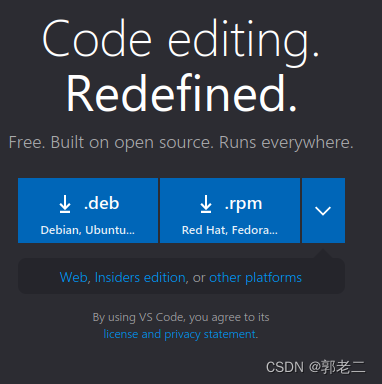
针对ubuntu点击下载deb安装包,默认下载地址如下,下载速度很慢,而且会下载失败,解决方法如下:
将“https://az764295.vo.msecnd.net”改为“https://vscode.cdn.azure.cn”后,下载会很快。
将:
https://az764295.vo.msecnd.net/stable/b06ae3b2d2dbfe28bca3134cc6be65935cdfea6a/code_1.69.1-1657615746_amd64.deb
改为
https://vscode.cdn.azure.cn/stable/b06ae3b2d2dbfe28bca3134cc6be65935cdfea6a/code_1.69.1-1657615746_amd64.deb
3.2 安装
sudo dpkg -i code_1.69.1-1657615746_amd64.deb
3.3 配置
安装中文插件:点击左侧第五个按钮“扩展”,在搜索框中,输入“chinese”,如下图,出现的第一个就是中文简体的插件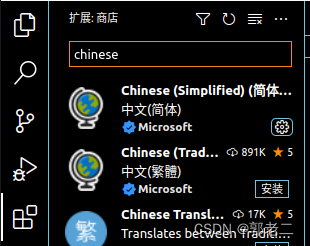
3.4 编辑
vscode是以文件夹为一个工程项目来管理(目前的理解,可能有误),因此先创建一个文件夹。
在终端中执行创建目录的命令,例如:mkdir hello
点击“文件”–>“打开文件夹”–>选择刚刚新建的hello目录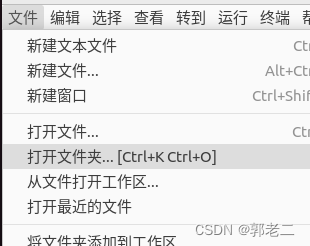
点击“资源管理器”可以看到名为“HELLO”的工作区,点击“新建文件”;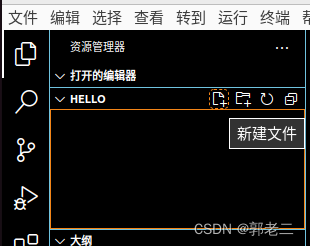
输入文件名,例如:“hello.js”,按下回车,可以在右侧看到创建的文件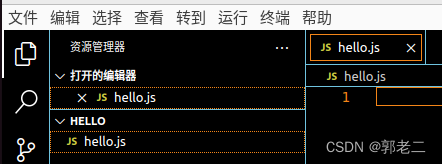
先来个终端打印,在右侧文本编辑区输入:console.log(‘Hello World!’);
这里记得保存下:ctrl+s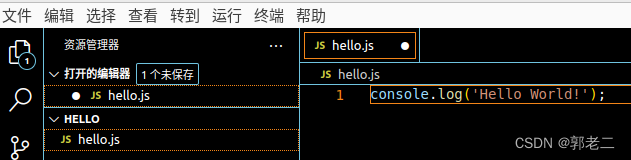
4、编译运行
点击“终端”–>“新建终端”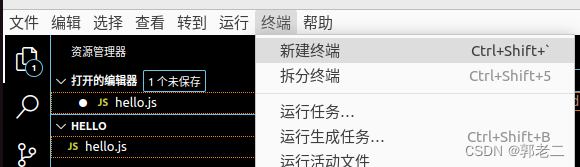
在下方弹出的终端中输入:node hello.js
可以看到打印信息:Hello World!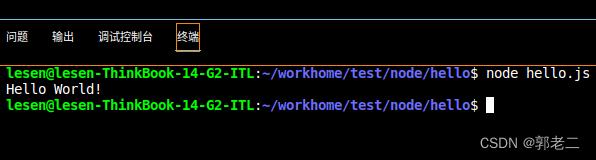
5、第一个http
在文本编辑区写入如下代码:
console.log('Hello World!');

var http = require('http');

http.createServer(function (request, response) {
    response.writeHead(200, {'Content-Type': 'text/plain'});
    response.end('Hello World!\n');
}).listen(8888);

console.log('Server running at http://127.0.0.1:8888/');
在终端运行:node hello.js
打开浏览器输入:http://localhost:8888/
可见:Hello World!
6、升级node、npm
6.1 使用工具n来升级
清除缓存
sudo npm cache clean -f
安装升级工具n
sudo npm install n -g
升级到最新稳定版本
sudo n stable
打印信息
installing : node-v16.17.0
       mkdir : /usr/local/n/versions/node/16.17.0
         fetch : https://nodejs.org/dist/v16.17.0/node-v16.17.0-linux-x64.tar.xz
    copying : node/16.17.0
   installed : v16.17.0 (with npm 8.15.0)

Note: the node command changed location and the old location may be remembered in your current shell.
     old : /usr/bin/node
     new : /usr/local/bin/node
If "node --version" shows the old version then start a new shell, or reset the location hash with:
hash -r  (for bash, zsh, ash, dash, and ksh)
rehash   (for csh and tcsh)
n常用命令:
n <version> 		 // 下载某一版本号node    e.g:n 10.16.0
n latest    				 // 安装最新版本
n stable    			 // 安装最新稳定版
n lts        				// 安装最新长期维护版(lts)
n rm <version>  // 删除某个版本   e.g:n  rm 10.16.0
n   							// 输入命令后直接使用上下箭头选择版本
6.2 全局升级
npm install -g npm@<version>
版权声明:本文为u010168781原创文章,遵循CC 4.0 BY-SA版权协议,转载请附上原文出处链接和本声明。