简介:Allure非常适合作为自动化测试报告,这里总结下Pytest使用的Allure测试报告的用法
环境准备
- 所需环境
- ide使用PyCharm
- python 3.7
- pytest 5.3.2
- allure-pytest 2.8.13
- allure-pytest 安装
在已经安装python3和pytest的前提下,打开PyCharm,进入Project Interpreter,点击“+”,添加allure-pytest包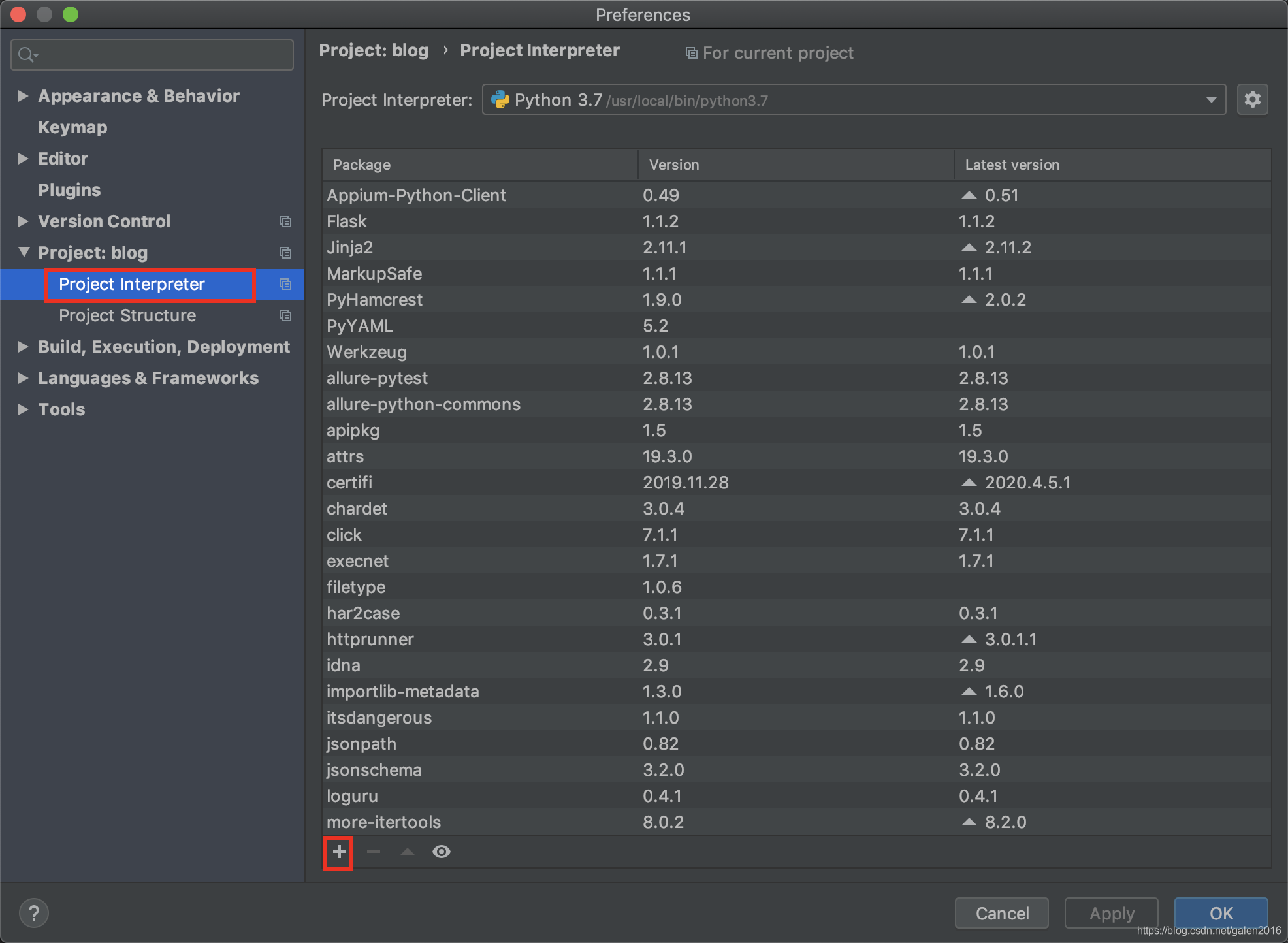
搜索allure,选中allure-pytest,点击“Install Package"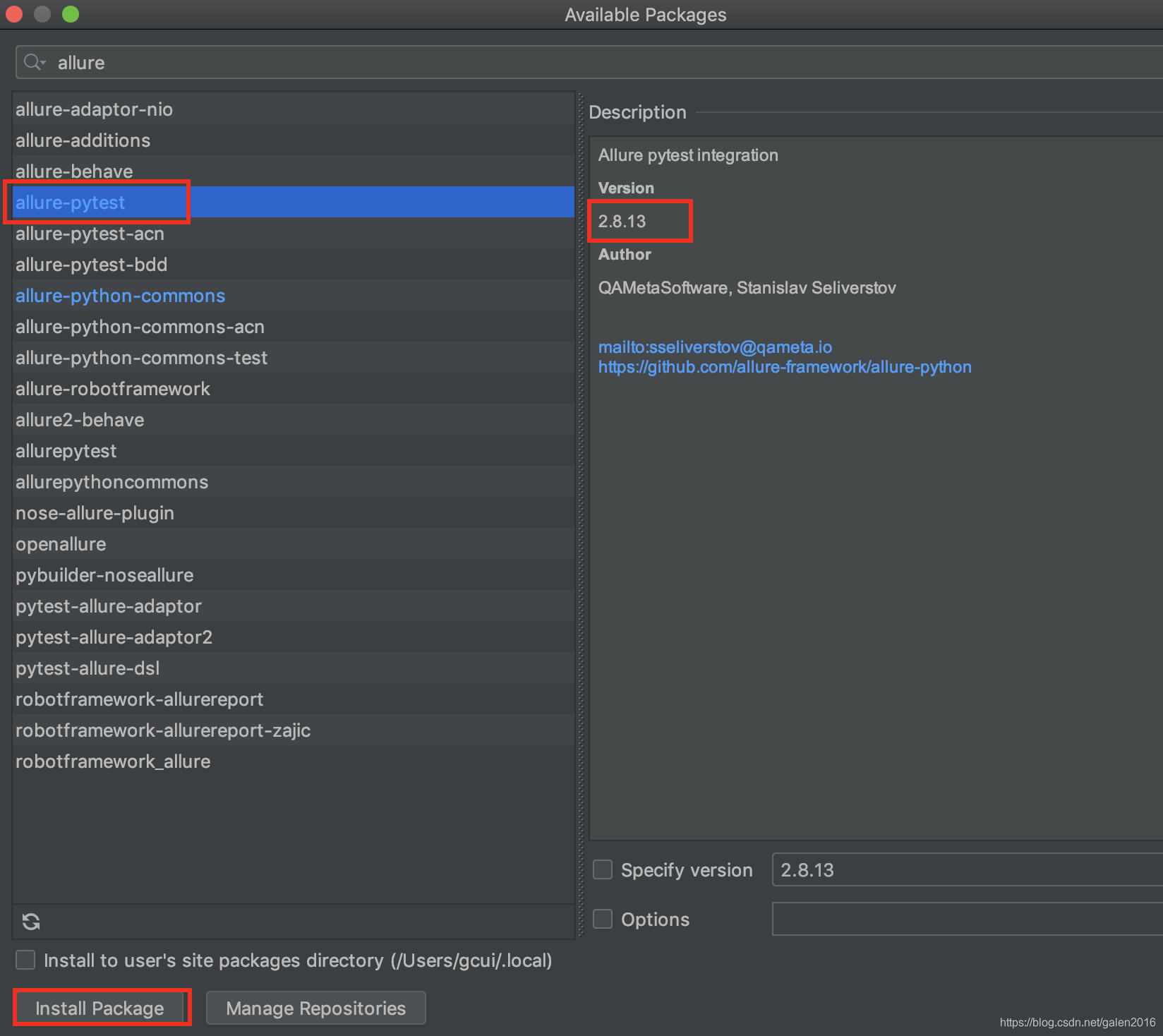
- allure命令行工具安装
这个工具主要用来把测试用例的运行结果转换成html格式
去GitHub上下载:https://github.com/allure-framework/allure2/releases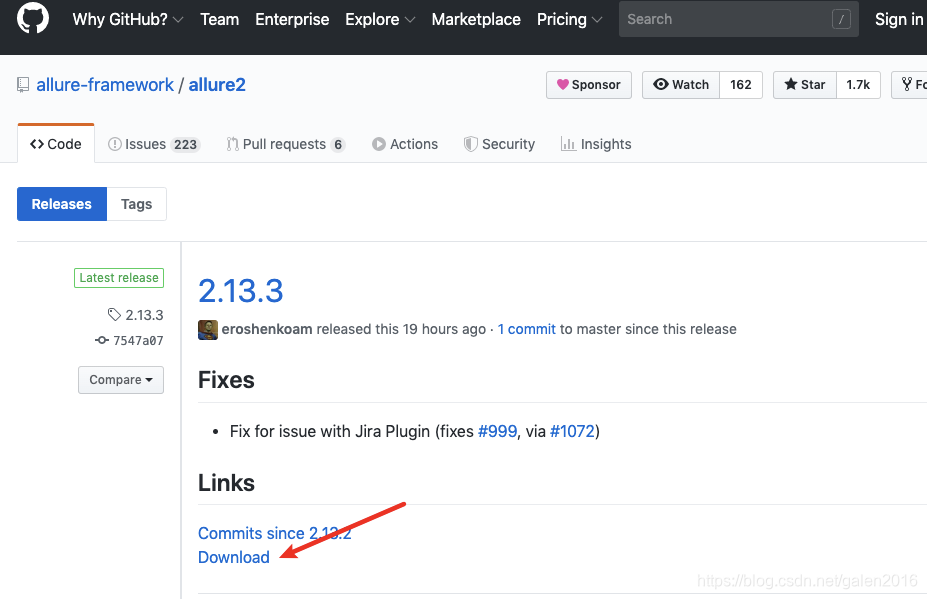
下载完成后解压到本地,并把bin目录添加到环境变量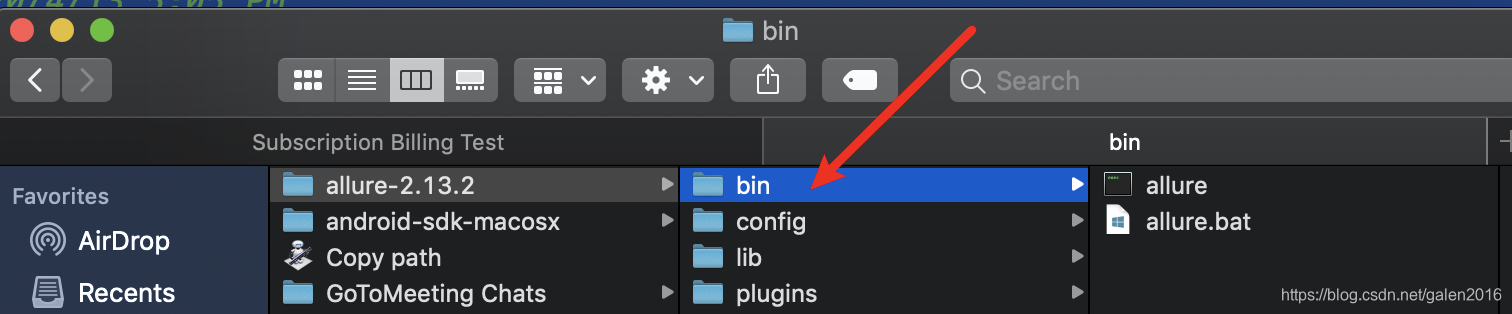
- MAC电脑是这么添加环境变量的:
(1)打开命令行终端,输入:vi ~/.bash_profile
(2)新增如下两行,保存并退出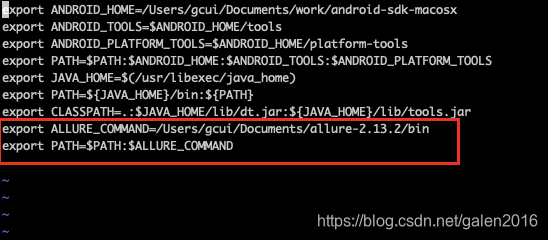
(3)输入“source ./.bash_profile”,让环境变量生效
(4)输入”echo $PATH”,查看环境变量,查看是否添加成功,如下图
代码演示
- 代码如下,test_allure_demo.py
# encoding: utf-8
"""
@File    : test_allure_demo.py
@Author  : 灵枢
@Time    : 2020/4/13 5:05 PM
@Desc    :
"""
import allure


@allure.step("步骤1:打开百度")
def step_1():
    print("111")


@allure.step("步骤2:输入关键字")
def step_2():
    print("222")


@allure.feature("搜索")
class TestEditPage():
    @allure.story("百度搜索")
    def test_1(self):
        '''这是测试百度搜索'''
        step_1()
        step_2()
        print("百度一下,你就知道")

    @allure.story("谷歌搜索")
    def test_2(self):
        '''这是测试谷歌搜索'''
        assert 1 == 2, "搜索失败"
- 在PyCharm的Terminal窗口运行:
先切换到测试代码的目录下,然后执行命令:
pytest test_allure_demo.py --alluredir ./report
运行情况如下图: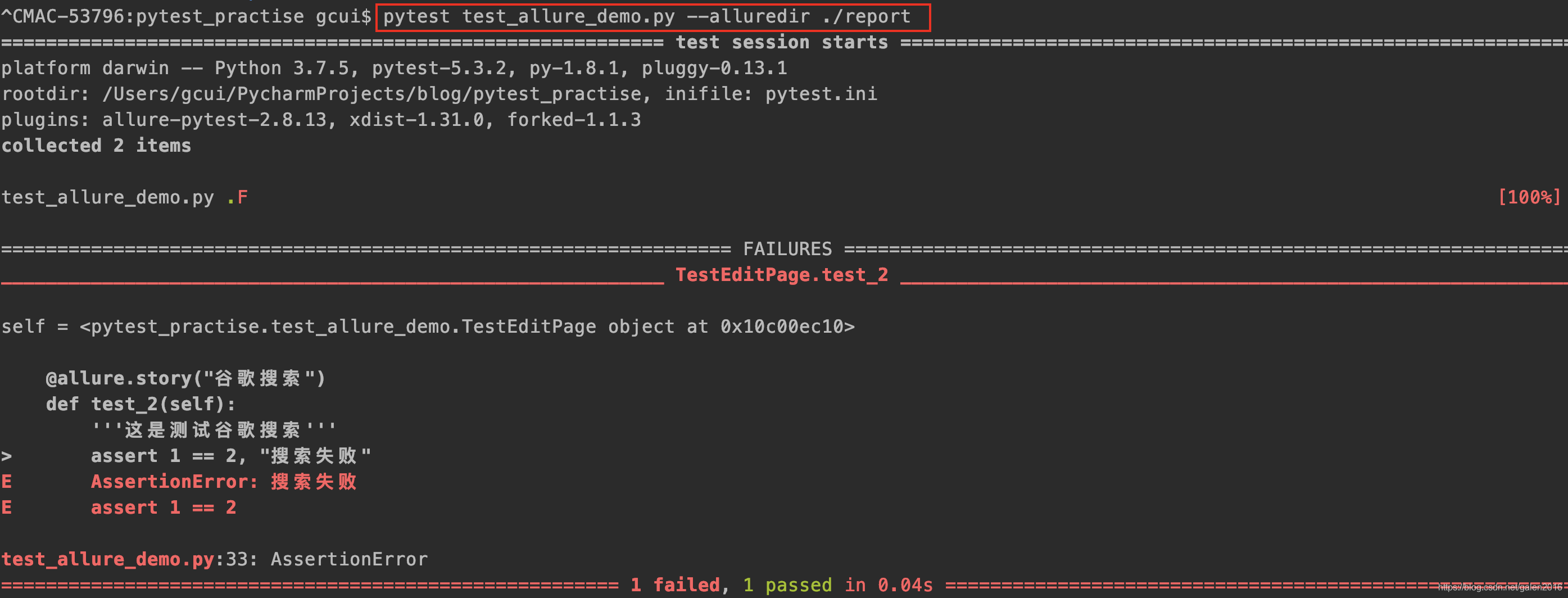
其中: --alluredir参数的作用是指出生成的报告文件夹,这里命名为report,运行完后就会在当前目录下生成一个report文件夹,report文件夹下放着生成报告文件,如下图: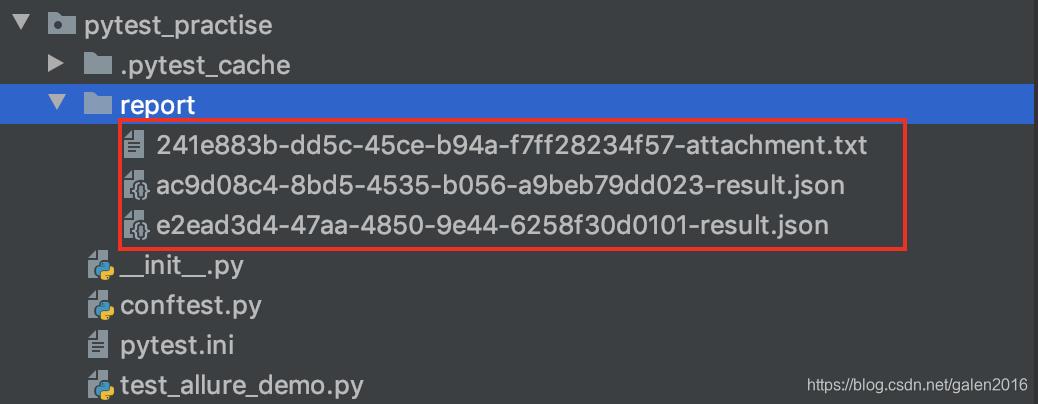
显然,这不是我们想要的html测试报告,我们还需要执行一个命令才能查看报告。
- 执行:allure serve report

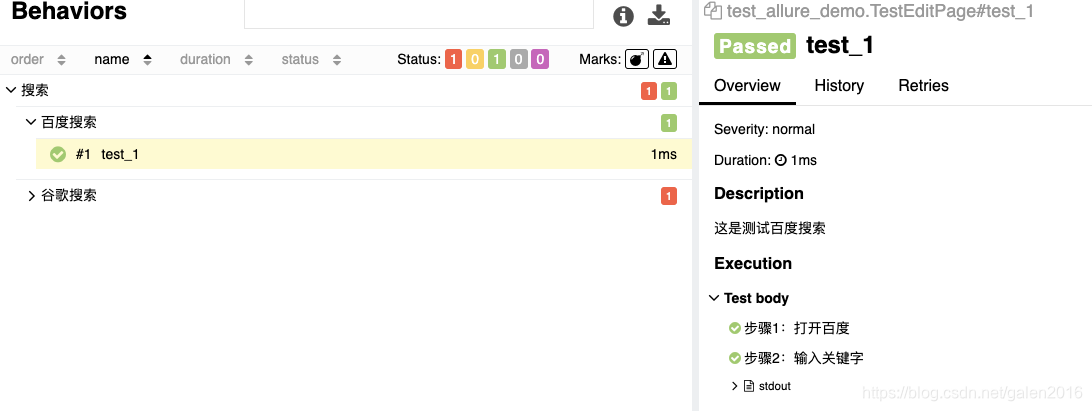
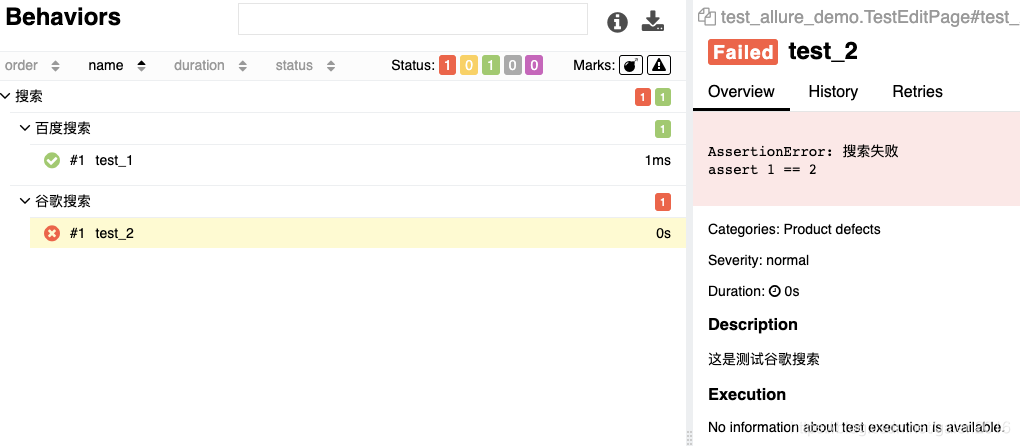
执行后,会自动打开浏览器的一个页面来显示测试报告,如下图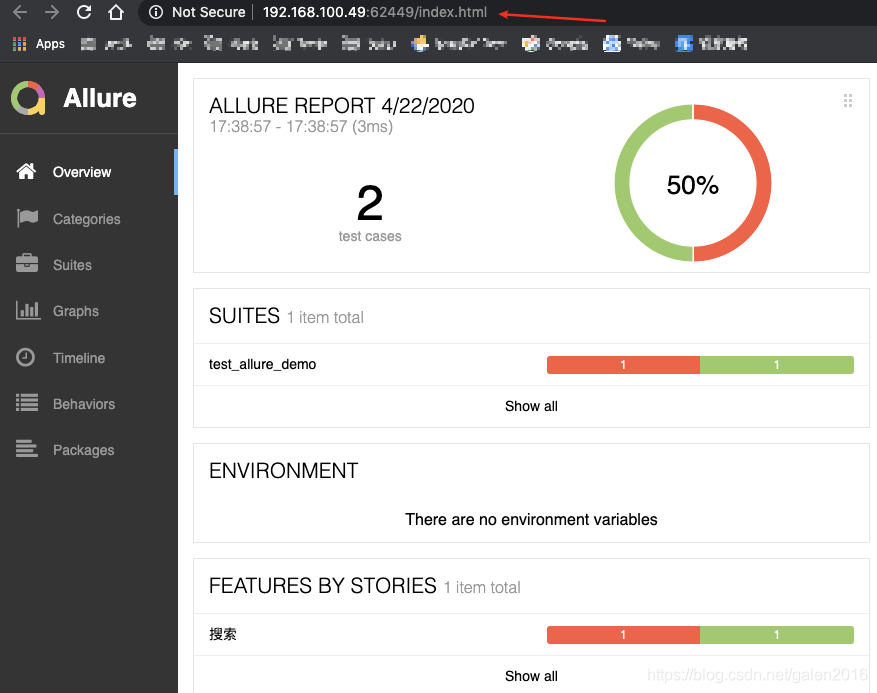
- 查看报告
版权声明:本文为galen2016原创文章,遵循CC 4.0 BY-SA版权协议,转载请附上原文出处链接和本声明。