iOS UICollectionView学习之二,纯代码实现布局,纯代码实现添加头部视图跟尾部视图,Header和footer
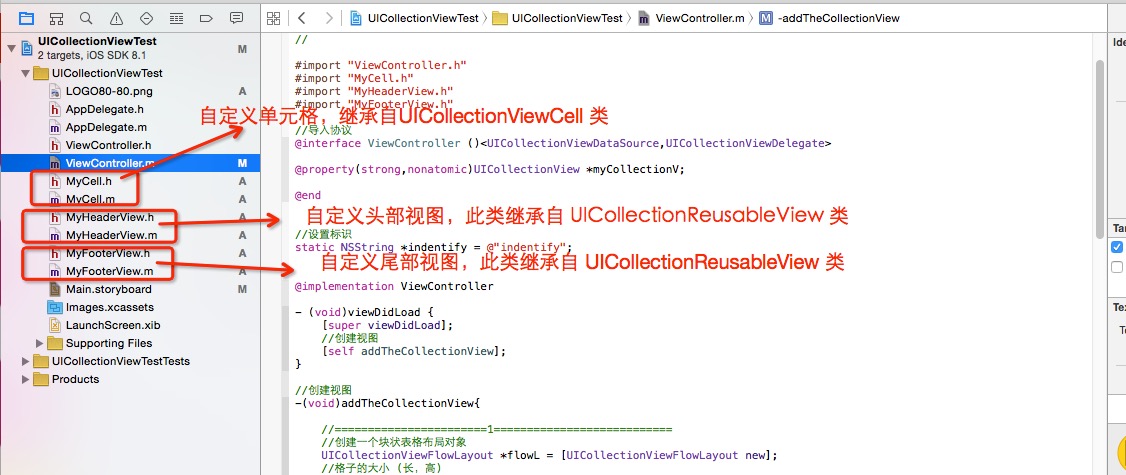
1、首先看下整个Demo的整体结构:如下图
2、直接上代码
1.自定义单元格类----------MyCell.h 里面添加
@interfaceMyCell :UICollectionViewCell
@property(strong,nonatomic)UIImageView *imageV;
@property(strong,nonatomic)UILabel*titleLab;
@end
2.自定义单元格类----------MyCell.m 里面实现
-(instancetype)initWithFrame:(CGRect)frame
{
self = [superinitWithFrame:frame];
if (self)
{
//定义CELL单元格内容
_imageV= [[UIImageViewalloc]initWithFrame:CGRectMake(0,0,100,100)];
_imageV.backgroundColor= [UIColorclearColor];
[self addSubview:_imageV];
_titleLab= [[UILabelalloc]initWithFrame:CGRectMake(0,100,100, 30)];
_titleLab.backgroundColor= [UIColorclearColor];
_titleLab.textAlignment=NSTextAlignmentCenter;
[self addSubview:_titleLab];
}
returnself;
}
3.自定义头部视图------MyHeaderView.h 里面添加
@interfaceMyHeaderView :UICollectionReusableView
//添加一个lable用于显示内容
@property(strong,nonatomic)UILabel*titleLab;
@end
4.自定义头部视图------MyHeaderView.m 里面实现
#import"MyHeaderView.h"
@implementation MyHeaderView
- (id)initWithFrame:(CGRect)frame
{
self = [superinitWithFrame:frame];
if (self) {
_titleLab = [[UILabelalloc]init];
_titleLab.frame=CGRectMake(0,0,self.frame.size.width,self.frame.size.height);
_titleLab.textAlignment=NSTextAlignmentCenter;
_titleLab.backgroundColor= [UIColorredColor];
[self addSubview:_titleLab];
}
returnself;
}
@end
5.尾部视图跟头部视图一致。(就不详细写出)
3、接下来是关键的,如何在控制器使用、直接上代码
#import"ViewController.h"
#import"MyCell.h"
#import"MyHeaderView.h"
#import"MyFooterView.h"
//导入协议
@interface ViewController()<UICollectionViewDataSource,UICollectionViewDelegate>
@property(strong,nonatomic)UICollectionView*myCollectionV;
@end
//设置标识
staticNSString *indentify = @"indentify";
@implementation ViewController
- (void)viewDidLoad {
[superviewDidLoad];
//创建视图
[selfaddTheCollectionView];
}
//创建视图
-(void)addTheCollectionView{
//=======================1===========================
//创建一个块状表格布局对象
UICollectionViewFlowLayout*flowL = [UICollectionViewFlowLayoutnew];
//格子的大小 (长,高)
flowL.itemSize =CGSizeMake(100,130);
//横向最小距离
flowL.minimumInteritemSpacing=1.f;
// flowL.minimumLineSpacing=60.f;//代表的是纵向的空间间隔
//设置,上/左/下/右边距空间间隔数是多少
flowL.sectionInset =UIEdgeInsetsMake(10,0, 0, 0);
//如果有多个区就可以拉动
[flowLsetScrollDirection:UICollectionViewScrollDirectionVertical];
//可以左右拉动
// [flowL setScrollDirection:UICollectionViewScrollDirectionHorizontal];
#pragma mark -- 头尾部大小设置
//设置头部并给定大小
[flowLsetHeaderReferenceSize:CGSizeMake(_myCollectionV.frame.size.width,50)];
//设置尾部并给定大小
[flowLsetFooterReferenceSize:CGSizeMake(_myCollectionV.frame.size.width,50)];
//=======================2===========================
//创建一个UICollectionView
_myCollectionV= [[UICollectionViewalloc]initWithFrame:CGRectMake(0,20,self.view.frame.size.width,self.view.frame.size.height-20)collectionViewLayout:flowL];
//设置代理为当前控制器
_myCollectionV.delegate=self;
_myCollectionV.dataSource=self;
//设置背景
_myCollectionV.backgroundColor=[UIColorwhiteColor];
#pragma mark -- 注册单元格
[_myCollectionVregisterClass:[MyCellclass]forCellWithReuseIdentifier:indentify];
#pragma mark -- 注册头部视图
[_myCollectionVregisterClass:[MyHeaderViewclass]forSupplementaryViewOfKind:UICollectionElementKindSectionHeaderwithReuseIdentifier:@"HeaderView"];
#pragma mark -- 注册尾部视图
[_myCollectionVregisterClass:[MyFooterViewclass]forSupplementaryViewOfKind:UICollectionElementKindSectionFooterwithReuseIdentifier:@"FooterView"];
//添加视图
[self.viewaddSubview:_myCollectionV];
}
#pragma mark --UICollectionView dataSource
//有多少个Section
- (NSInteger)numberOfSectionsInCollectionView:(UICollectionView *)collectionView
{
return 3;
}
//每个section有多少个元素
- (NSInteger)collectionView:(UICollectionView *)collectionView numberOfItemsInSection:(NSInteger)section
{
return 9;
}
//每个单元格的数据
- (UICollectionViewCell *)collectionView:(UICollectionView *)collectionView cellForItemAtIndexPath:(NSIndexPath *)indexPath
{
//初始化每个单元格
MyCell*cell = (MyCell*)[collectionViewdequeueReusableCellWithReuseIdentifier:indentifyforIndexPath:indexPath];
//给单元格上的元素赋值
cell.imageV.image = [UIImageimageNamed:@"LOGO80-80"];
cell.titleLab.text = [NSStringstringWithFormat:@"{%ld-%ld}",indexPath.section,indexPath.row];
return cell;
}
//设置头尾部内容
-(UICollectionReusableView *)collectionView:(UICollectionView *)collectionView viewForSupplementaryElementOfKind:(NSString *)kind atIndexPath:(NSIndexPath *)indexPath
{
UICollectionReusableView*reusableView =nil;
if(kind ==UICollectionElementKindSectionHeader) {
//定制头部视图的内容
MyHeaderView*headerV = (MyHeaderView*)[collectionViewdequeueReusableSupplementaryViewOfKind:UICollectionElementKindSectionHeaderwithReuseIdentifier:@"HeaderView"forIndexPath:indexPath];
headerV.titleLab.text =@"头部视图";
reusableView = headerV;
}
if(kind ==UICollectionElementKindSectionFooter){
MyFooterView*footerV = (MyFooterView*)[collectionViewdequeueReusableSupplementaryViewOfKind:UICollectionElementKindSectionFooterwithReuseIdentifier:@"FooterView"forIndexPath:indexPath];
footerV.titleLab.text =@"尾部视图";
reusableView = footerV;
}
return reusableView;
}
//点击单元格
-(void)collectionView:(UICollectionView *)collectionView didSelectItemAtIndexPath:(NSIndexPath *)indexPath
{
NSLog(@"%ld",indexPath.row);
}
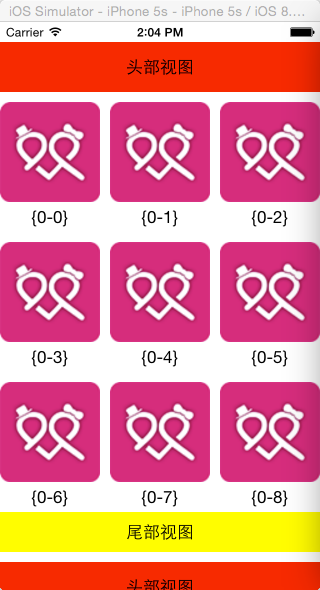
4、效果展示,