在uniapp中有个轮播组件swiper,虽然实现了轮播大部分功能,要弄无缝轮播 只要添加个 circular 就可以实现无缝轮播,虽然框架好用,但我们也要知道他怎么写的 就自己随便造了轮子 组件资源地址
<template>
	<view class="banner-main">
		<view class="banner" :style="{ height: height + 'rpx' }">
			<view
				class="banner-bg-box"
				:class="Trans ? 'Trans' : ''"
				:style="{ left: -(current * elementW) + 'px', width: boxWidth + 'px' }"
				@touchstart="touchstart"
				@touchmove="touchmove"
				@touchend="touchend"
			>
				<slot>
					<image class="banner-bg" :src="item.path" v-for="(item, index) in list" :key="index" @click="imgClick"></image>
				</slot>
			</view>
			<view class="dots" v-if="indicatorDots"><text :class="index == current ? 'active' : ''" v-for="index in banner.length" :key="index"></text></view>
		</view>
	</view>
</template>

<script>
	/**
	 * banner 组件
	 * @description 自定义banner 组件
	 * @property {Array} banner 轮播数据
	 * 		 结构
			banner : [
				{
					path : '/static/home/banner.png',
					url : '',
				},
				{
					path : '/static/class/class-img.png',
					url : '',
				},
				{
					path : '/static/home/live.png',
					url : '',
				}
			],
	 *  @property {String|Number} index 下标
	 *  @property {String|Number} time 播放时间
	 *  @property {String|Number} height 轮播高度
	 *  @property {Boolean} autoplay 自动播放
	 *  @property {Boolean} indicatorDots 是否显示圈圈
	 *
	 */
export default {
	data() {
		return {
			startX: 0, //触摸开始位置
			moveX: 0, //移动的位置
			elementW: 0, //元素的宽度
			transLeft: 0, //位移距离
			boxWidth: 9999, //盒子的宽度
			Trans: false, //滑动效果
			current: 0, //默认下标
			timer: null, //定时器
			frequency: 0, //次数
			list: [] //轮播数据
		};
	},
	props: {
		/* 轮播数据 */
		banner: {
			type: Array,
			default() {
				return [];
			}
		},
		 //下标
		index: {
			type: [String, Number],
			default: 1
		},
		// 自动播放
		autoplay: {
			type: Boolean,
			default: true
		},
		/* 播放时间 */
		time: {
			type: [String, Number],
			default: 3000
		},
		/* 轮播高度 */
		height: {
			type: [String, Number],
			default: 279
		},
		/* 是否显示圈圈 */
		indicatorDots: {
			type: Boolean,
			default: true
		}
	},
	mounted() {
		this.setConfig();
	},
	created() {
		console.log(12144);

	},
	watch: {
		banner(val) {
			if (this.frequency < 1 && this.list.length == 0) {
				this.frequency++;
				this.hanldData();
				this.setConfig();
			}
		}
	},
	methods: {
		/* 处理轮播数据 这里用的是最基本的轮播  头尾各加一张的写法 */
		hanldData() {
			let banner = JSON.parse(JSON.stringify(this.banner));
			let leng = banner.length - 1;
			let homeBanner = banner[0],
				lastBanner = banner[leng];
			banner.unshift(lastBanner);
			banner.push(homeBanner);
			this.list = banner;
		},
		/* 获取对应相关数据 */
		setConfig() {
			const that = this;
			if (that.banner.length != 0) {
				if (this.list.length == 0) {
					this.hanldData();
					this.setConfig();
				} else {
					/* 获取下标 */
					that.current = that.index || 1;
					/* 计算banner宽度 */
					this.elementW = uni.upx2px(690);
					that.Trans = false;
					that.transLeft = that.elementW * that.current;
					that.boxWidth = that.list.length * that.elementW;
					/* 添加过度效果 */
					let timer = null;
					clearTimeout(timer);
					timer = setTimeout(function() {
						that.Trans = true;
						/* 是否开启自动轮播 */
						if (that.autoplay) {
							that.auto();
						}
					}, 300);
				}
			}
		},
		/* 开始触摸 */
		touchstart(e) {
			const touches = e.touches[0];
			let clientX = touches.clientX,
				clientY = touches.clientY;
			this.startX = clientX;
			clearInterval(this.timer);
		},
		/* 触摸移动 */
		touchmove(e) {
			const touches = e.touches[0];
			let clientX = touches.clientX,
				clientY = touches.clientY;
			this.moveX = clientX;
		},
		/* 触摸结束 */
		touchend(e) {
			if (this.moveX - this.startX > 0) {
				//向右滑动
				this.sliderRight();
			} else {
				//向左滑动
				this.sliderLeft();
			}
			this.changeCurrent();
			if (this.autoplay) {
				this.auto();
			}
		},
		changeCurrent() {
			this.$emit('change', this.current);
		},
		/* 向左滑动 */
		sliderLeft() {
			const that = this;
			this.current++;
			this.Trans = true;
			if (this.current >= this.list.length - 1) {
				this.Trans = false;
				this.current = 0;
				setTimeout(() => {
					this.current++;
					this.Trans = true;
				}, 30);
			}
		},
		/* 向右滑动 */
		sliderRight() {
			const that = this;
			this.current--;
			this.Trans = true;
			if (this.current <= 0) {
				this.Trans = false;
				this.current = this.list.length - 1;
				setTimeout(() => {
					that.Trans = true;
					that.current--;
				}, 30);
			}
		},
		/* 自动播放 */
		auto() {
			const that = this;
			that.timer = null;
			clearInterval(that.timer);
			that.timer = setInterval(() => {
				that.sliderLeft();
			}, that.time);
		},
		/* 图片点击事件 */
		imgClick(){
			/* 逻辑操作 也可以暴露出去 */
			console.log('点击了图片');
		}
	}
};
</script>

<style lang="scss" scoped>
.banner {
	width: 690rpx;
	height: 279rpx;
	background-position: 690rpx 0;
	position: relative;
	overflow: hidden;
	border-radius: 10rpx;
	position: relative;
	.banner-bg-box {
		height: 100%;
		position: absolute;
		top: 0;
		left: 690rpx;
		transition: none;
		&.Trans {
			transition: all 1s;
		}
		.banner-bg {
			width: 690rpx;
			height: 100%;
			float: left;
		}
	}
	.dots {
		position: absolute;
		left: 50%;
		bottom: 0rpx;
		transform: translateX(-50%);
		text {
			display: inline-block;
			width: 20rpx;
			height: 20rpx;
			background: #ccc;
			margin: 0 5rpx;
			border-radius: 50%;
			&.active {
				background: $main-color;
			}
		}
	}
}
</style>
上面为组件的简单封装,然后在需要的地方引入组件调用就可以了


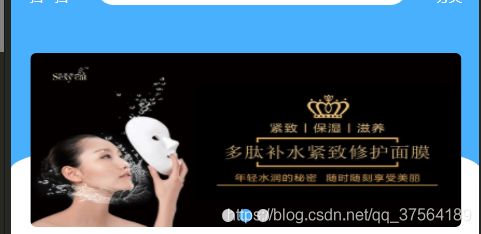
效果
版权声明:本文为qq_37564189原创文章,遵循CC 4.0 BY-SA版权协议,转载请附上原文出处链接和本声明。