来源:由于我们在各种前端框架时都会有提示框,于是我想在安卓的效果也实现这个效果
icon:https://www.iconfont.cn/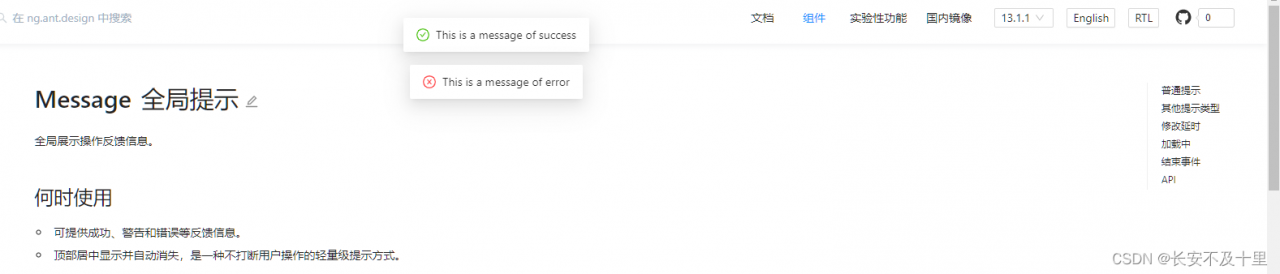
一 效果图
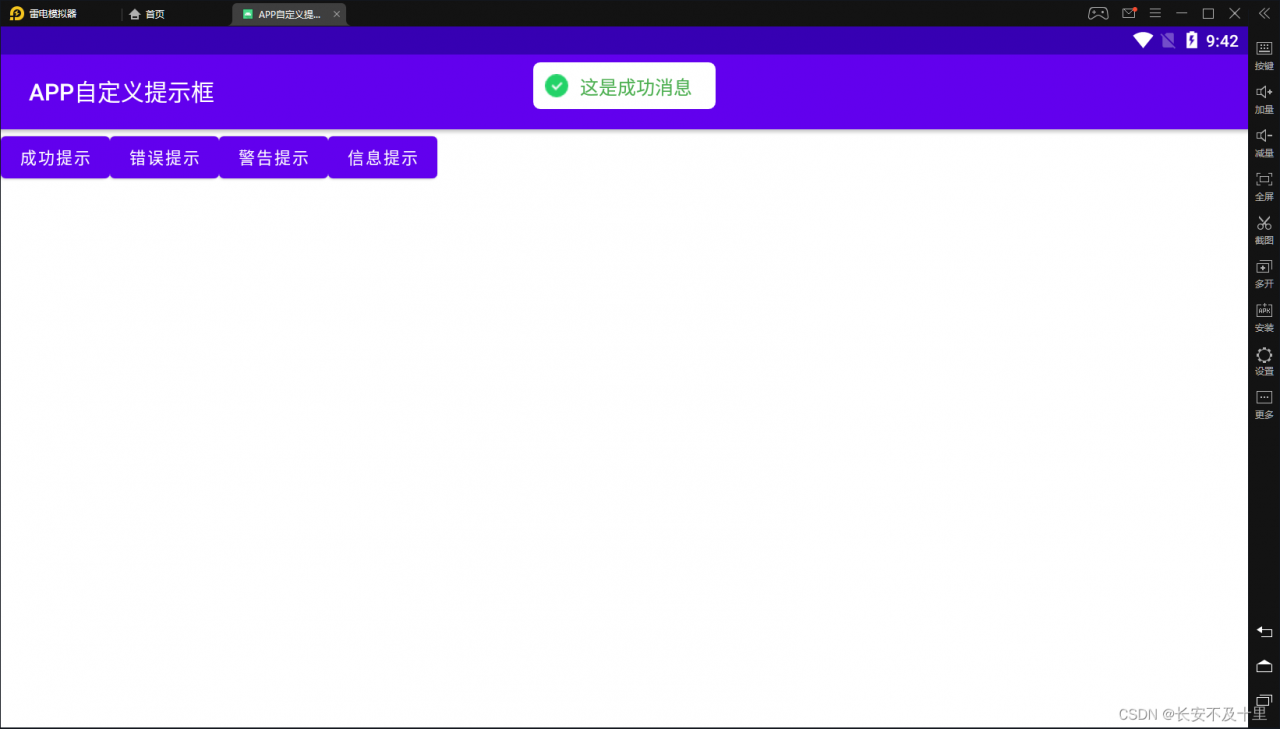
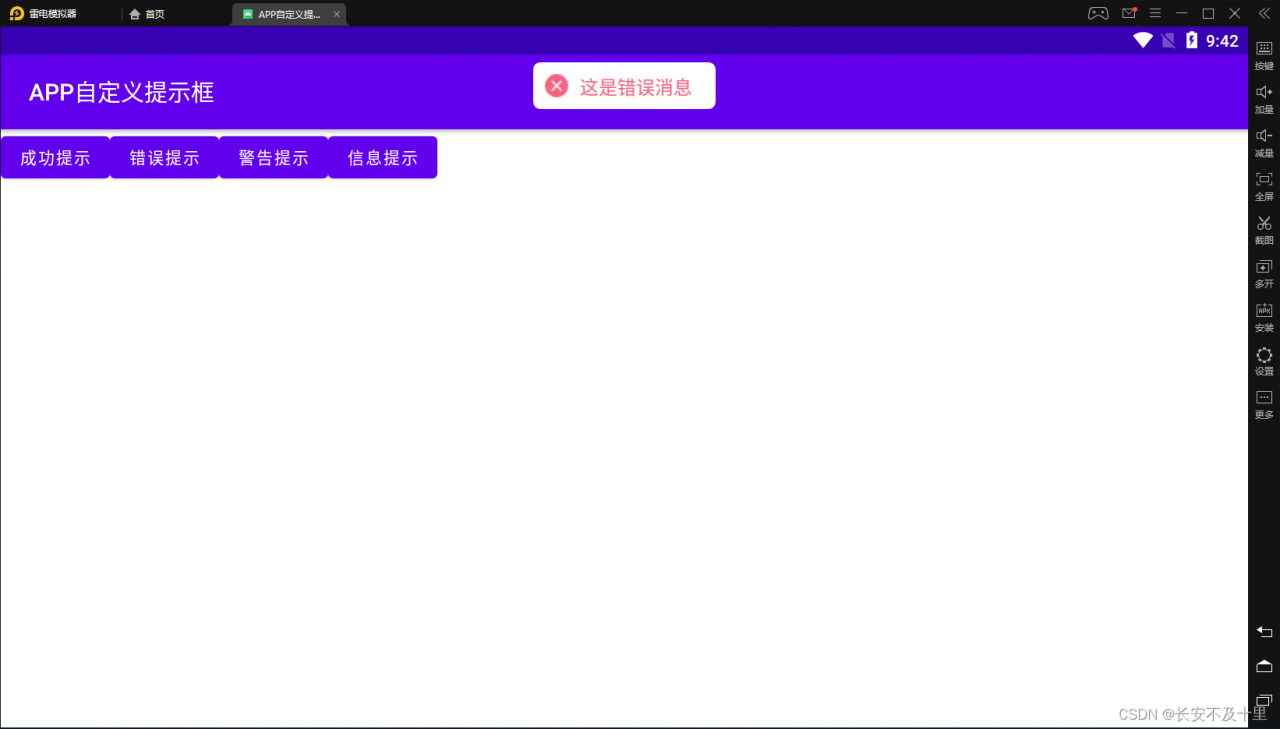
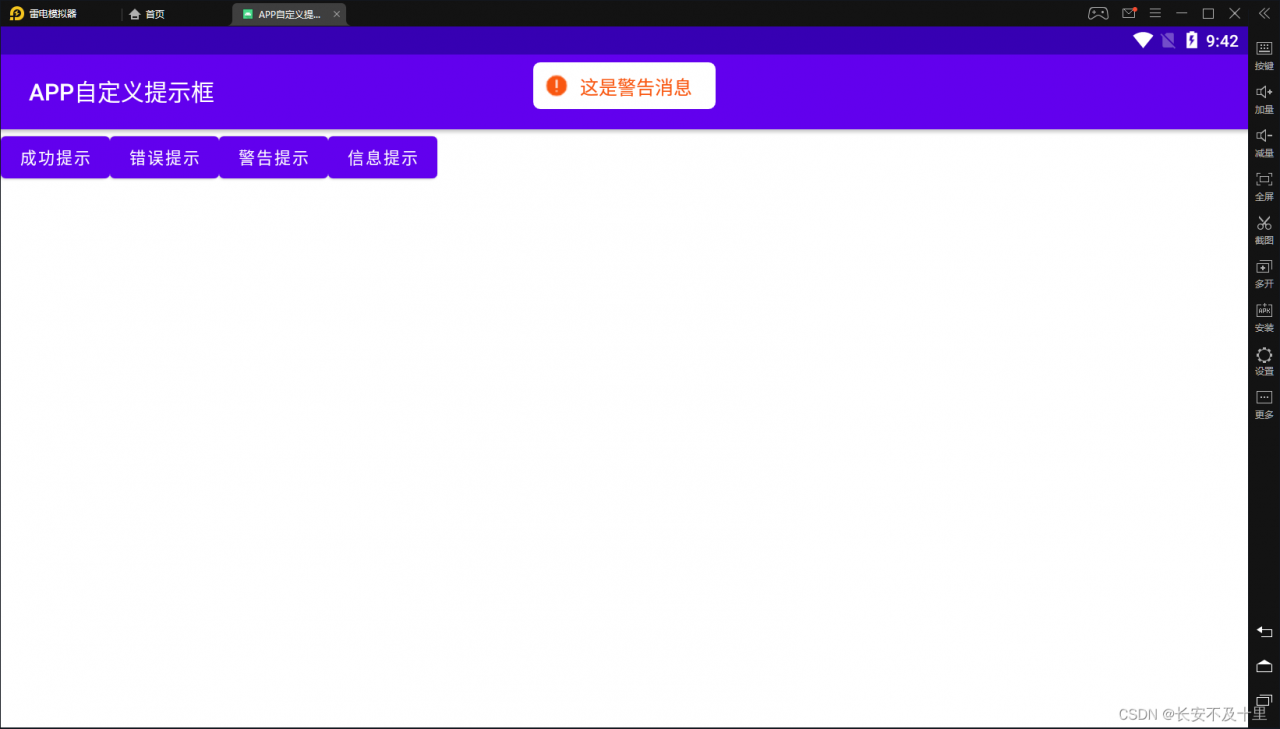
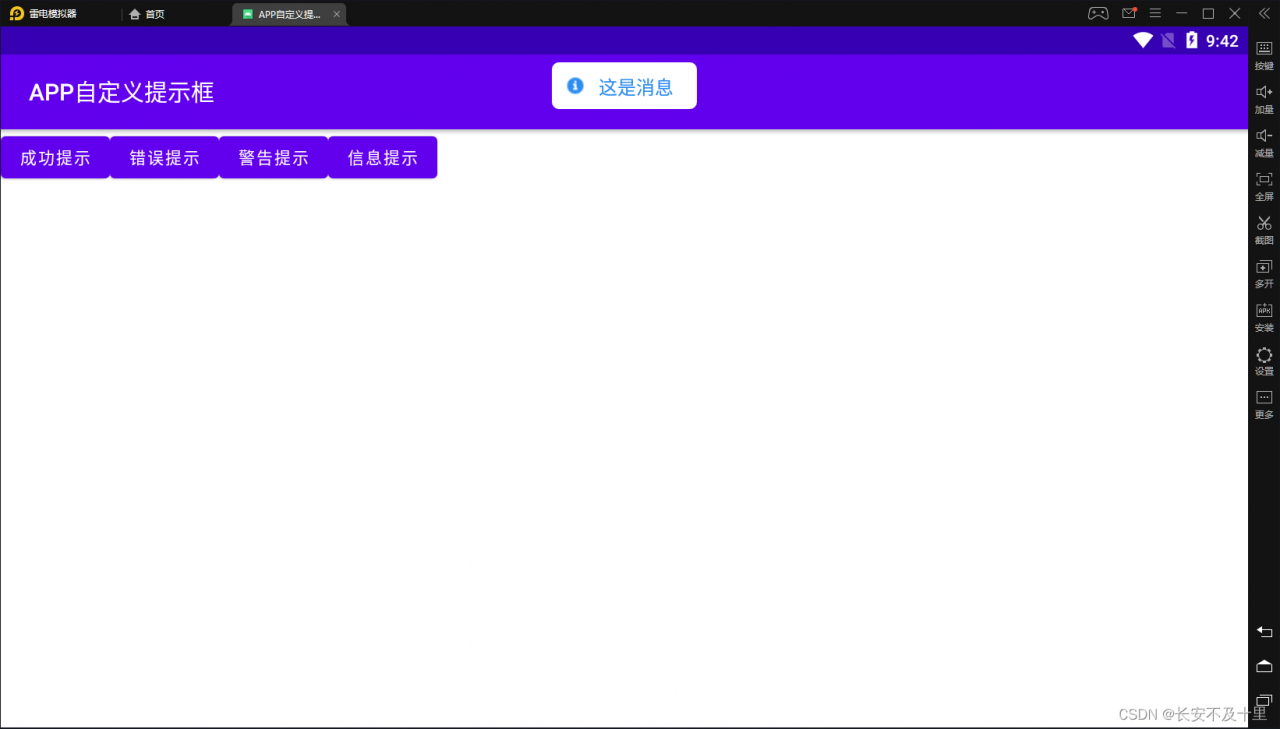
二 代码部分
2.1 定义Shape文件
<?xml version="1.0" encoding="utf-8"?>
<shape xmlns:android="http://schemas.android.com/apk/res/android"
    android:shape="rectangle">
    <solid android:color="#FFFFFFFF"/>
    <corners
        android:radius="6dp"/>
</shape>
2.2 定义布局文件
<?xml version="1.0" encoding="utf-8"?>
<LinearLayout xmlns:android="http://schemas.android.com/apk/res/android"
    android:orientation="horizontal"
    android:layout_width="wrap_content"
    android:layout_height="wrap_content">
    <!-- 自定义布局 -->
    <LinearLayout
        android:background="@drawable/my_toast"
        android:layout_width="wrap_content"
        android:layout_height="40dp">
        <!-- 图标-->
        <ImageView
            android:id="@+id/alter_icon"
            android:layout_margin="10dp"
            android:layout_width="wrap_content"
            android:layout_height="wrap_content"
            android:src="@drawable/alter_success"
            />
        <!-- 提示文字-->
        <TextView
            android:id="@+id/tv_toast"
            android:layout_width="wrap_content"
            android:layout_height="40dp"
            android:textSize="16sp"
            android:textColor="#4CAF50"
            android:layout_marginTop="10dp"
            android:layout_marginEnd="10dp"
            android:paddingEnd="10dp"

        />
</LinearLayout>
</LinearLayout>
2.3 代码文件
package com.shu.Utils;

import android.content.Context;
import android.content.res.ColorStateList;
import android.graphics.Color;
import android.util.Log;
import android.view.Gravity;
import android.view.LayoutInflater;
import android.view.View;
import android.widget.ImageView;
import android.widget.TextView;
import android.widget.Toast;

import com.shu.R;

/**
 * @Author shu
 * @Version 1.0
 * @Date: 2022/04/17/ 20:26
 * @Description 自定义Toast
 **/
public class MyToastUtils {
    protected static Toast toast=null;

    /**
     * 成功提示
     * @param context
     * @param message
     */
    public static void showSuccessToast(Context context, String message){
        View view = LayoutInflater.from(context).inflate(R.layout.customtoast,null);
        TextView showText=view.findViewById(R.id.tv_toast);
        ImageView imageView= view.findViewById(R.id.alter_icon);
        toast=new Toast(context); //创建toast实例
        toast.setView(view);//设置布局
        showText.setText(message);// 消息
        showText.setTextColor(Color.parseColor("#4CAF50"));// 颜色
        imageView.setImageResource(R.drawable.alter_success); // 图标
        toast.setDuration(Toast.LENGTH_SHORT);//设置toast的显示时间
        toast.setGravity(Gravity.TOP,0,10);
        toast.show();
    }

    /**
     * 警告提示
     * @param context
     * @param message
     */
    public static void showWarningToast(Context context, String message){
        View view = LayoutInflater.from(context).inflate(R.layout.customtoast,null);
        TextView showText=view.findViewById(R.id.tv_toast);
        ImageView imageView= view.findViewById(R.id.alter_icon);
        toast=new Toast(context); //创建toast实例
        toast.setView(view);//设置布局
        showText.setText(message);// 消息
        showText.setTextColor(Color.parseColor("#F95710"));// 颜色
        imageView.setImageResource(R.drawable.alter_wran); // 图标
        toast.setDuration(Toast.LENGTH_SHORT);//设置toast的显示时间
        toast.setGravity(Gravity.TOP,0,10);
        toast.show();
    }


    /**
     * 信息提示
     * @param context
     * @param message
     */
    public static void showInfoToast(Context context, String message){
        View view = LayoutInflater.from(context).inflate(R.layout.customtoast,null);
        TextView showText=view.findViewById(R.id.tv_toast);
        ImageView imageView= view.findViewById(R.id.alter_icon);
        toast=new Toast(context); //创建toast实例
        toast.setView(view);//设置布局
        showText.setText(message);// 消息
        showText.setTextColor(Color.parseColor("#2D8CEF"));// 颜色
        imageView.setImageResource(R.drawable.alter_info); // 图标
        toast.setDuration(Toast.LENGTH_SHORT);//设置toast的显示时间
        toast.setGravity(Gravity.TOP,0,10);
        toast.show();
    }


    /**
     * 错误提示
     * @param context
     * @param message
     */
    public static void showErrorToast(Context context, String message){
        View view = LayoutInflater.from(context).inflate(R.layout.customtoast,null);
        TextView showText=view.findViewById(R.id.tv_toast);
        ImageView imageView= view.findViewById(R.id.alter_icon);
        toast=new Toast(context); //创建toast实例
        toast.setView(view);//设置布局
        showText.setText(message);// 消息
        showText.setTextColor(Color.parseColor("#FD6483"));// 颜色
        imageView.setImageResource(R.drawable.alter_error); // 图标
        toast.setDuration(Toast.LENGTH_SHORT);//设置toast的显示时间
        toast.setGravity(Gravity.TOP,0,10);
        toast.show();
    }

}
2.4 使用
package com.shu;

import androidx.appcompat.app.AppCompatActivity;

import android.content.Context;
import android.os.Bundle;
import android.view.View;

import com.shu.Utils.MyToastUtils;

public class AlterActivity extends AppCompatActivity {
    private Context context;
    @Override
    protected void onCreate(Bundle savedInstanceState) {
        super.onCreate(savedInstanceState);
        setContentView(R.layout.activity_alter);
        context=getApplicationContext();
    }

    public void successAlter(View view){
        MyToastUtils.showSuccessToast(context,"这是成功消息");
    }

    public void errorAlter(View view){
        MyToastUtils.showErrorToast(context,"这是错误消息");
    }

    public void warningAlter(View view){
        MyToastUtils.showWarningToast(context,"这是警告消息");
    }

    public void infoAlter(View view){
        MyToastUtils.showInfoToast(context,"这是消息");
    }
}