Python 提供了多个图形开发界面的库,几个常用 Python GUI 库如下:
Tkinter: Tkinter 模块(Tk 接口)是 Python 的标准 Tk GUI 工具包的接口 .Tk 和 Tkinter 可以在大多数的 Unix 平台下使用,同样可以应用在 Windows 和 Macintosh 系统里。Tk8.0 的后续版本可以实现本地窗口风格,并良好地运行在绝大多数平台中。
wxPython:wxPython 是一款开源软件,是 Python 语言的一套优秀的 GUI 图形库,允许 Python 程序员很方便的创建完整的、功能键全的 GUI 用户界面。
Jython:Jython 程序可以和 Java 无缝集成。除了一些标准模块,Jython 使用 Java 的模块。Jython 几乎拥有标准的Python 中不依赖于 C 语言的全部模块。比如,Jython 的用户界面将使用 Swing,AWT或者 SWT。Jython 可以被动态或静态地编译成 Java 字节码。
Tkinter 编程
Tkinter 是 Python 的标准 GUI 库。Python 使用 Tkinter 可以快速的创建 GUI 应用程序。
由于 Tkinter 是内置到 python 的安装包中、只要安装好 Python 之后就能 import Tkinter 库、而且 IDLE 也是用 Tkinter 编写而成、对于简单的图形界面 Tkinter 还是能应付自如。
注意:Python3.x 版本使用的库名为 tkinter,即首写字母 T 为小写。
import tkinter
1
importtkinter
创建一个GUI程序
1、导入 Tkinter 模块
2、创建控件
3、指定这个控件的 master, 即这个控件属于哪一个
4、告诉 GM(geometry manager) 有一个控件产生了。
实例:
#!/usr/bin/python
# -*- coding: UTF-8 -*-
import Tkinter
top = Tkinter.Tk()
# 进入消息循环
top.mainloop()
1
2
3
4
5
6
7
#!/usr/bin/python
# -*- coding: UTF-8 -*-
importTkinter
top=Tkinter.Tk()
# 进入消息循环
top.mainloop()
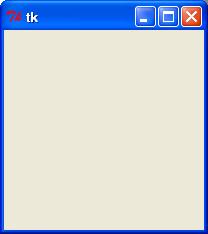
以上代码执行结果如下图:
实例2:
#!/usr/bin/python
# -*- coding: UTF-8 -*-
from Tkinter import * # 导入 Tkinter 库
root = Tk() # 创建窗口对象的背景色
# 创建两个列表
li = ['C','python','php','html','SQL','java']
movie = ['CSS','jQuery','Bootstrap']
listb = Listbox(root) # 创建两个列表组件
listb2 = Listbox(root)
for item in li: # 第一个小部件插入数据
listb.insert(0,item)
for item in movie: # 第二个小部件插入数据
listb2.insert(0,item)
listb.pack() # 将小部件放置到主窗口中
listb2.pack()
root.mainloop() # 进入消息循环
1
2
3
4
5
6
7
8
9
10
11
12
13
14
15
16
17
18
19
#!/usr/bin/python
# -*- coding: UTF-8 -*-
fromTkinterimport*# 导入 Tkinter 库
root=Tk()# 创建窗口对象的背景色
# 创建两个列表
li=['C','python','php','html','SQL','java']
movie=['CSS','jQuery','Bootstrap']
listb=Listbox(root)# 创建两个列表组件
listb2=Listbox(root)
foriteminli:# 第一个小部件插入数据
listb.insert(0,item)
foriteminmovie:# 第二个小部件插入数据
listb2.insert(0,item)
listb.pack()# 将小部件放置到主窗口中
listb2.pack()
root.mainloop()# 进入消息循环
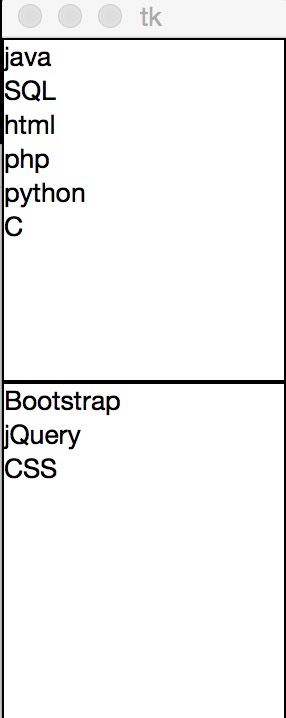
以上代码执行结果如下图:
Tkinter 组件
Tkinter的提供各种控件,如按钮,标签和文本框,一个GUI应用程序中使用。这些控件通常被称为控件或者部件。
目前有15种Tkinter的部件。我们提出这些部件以及一个简短的介绍,在下面的表:
控件
描述
Button
按钮控件;在程序中显示按钮。
Canvas
画布控件;显示图形元素如线条或文本
Checkbutton
多选框控件;用于在程序中提供多项选择框
Entry
输入控件;用于显示简单的文本内容
Frame
框架控件;在屏幕上显示一个矩形区域,多用来作为容器
Label
标签控件;可以显示文本和位图
Listbox
列表框控件;在Listbox窗口小部件是用来显示一个字符串列表给用户
Menubutton
菜单按钮控件,由于显示菜单项。
Menu
菜单控件;显示菜单栏,下拉菜单和弹出菜单
Message
消息控件;用来显示多行文本,与label比较类似
Radiobutton
单选按钮控件;显示一个单选的按钮状态
Scale
范围控件;显示一个数值刻度,为输出限定范围的数字区间
Scrollbar
滚动条控件,当内容超过可视化区域时使用,如列表框。.
Text
文本控件;用于显示多行文本
Toplevel
容器控件;用来提供一个单独的对话框,和Frame比较类似
Spinbox
输入控件;与Entry类似,但是可以指定输入范围值
PanedWindow
PanedWindow是一个窗口布局管理的插件,可以包含一个或者多个子控件。
LabelFrame
labelframe 是一个简单的容器控件。常用与复杂的窗口布局。
tkMessageBox
用于显示你应用程序的消息框。
标准属性
标准属性也就是所有控件的共同属性,如大小,字体和颜色等等。
属性
描述
Dimension
控件大小;
Color
控件颜色;
Font
控件字体;
Anchor
锚点;
Relief
控件样式;
Bitmap
位图;
Cursor
光标;
几何管理
Tkinter控件有特定的几何状态管理方法,管理整个控件区域组织,一下是Tkinter公开的几何管理类:包、网格、位置
几何方法
描述
pack()
包装;
grid()
网格;
place()
位置;
以上内容转自:http://www.runoob.com/python/python-gui-tkinter.html
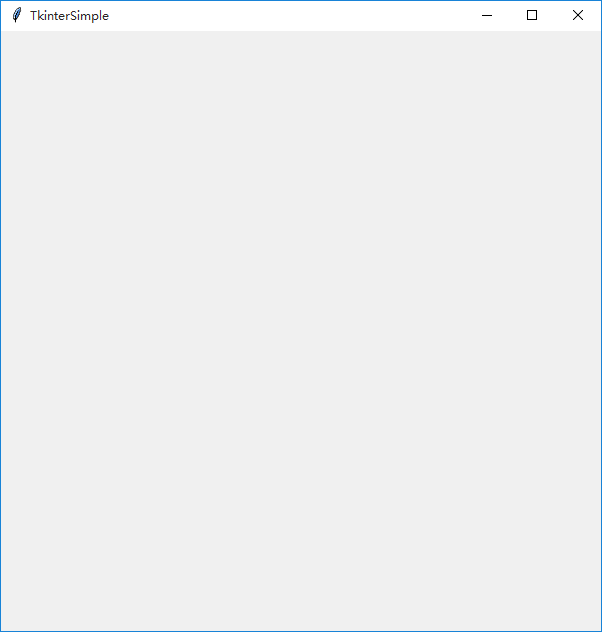
设置标题和大小以及窗口位置
from tkinter import *
root = Tk()
root.title("TkinterSimple")
#窗口大小
width ,height= 600, 600
#窗口居中显示
root.geometry('%dx%d+%d+%d' % (width,height,(root.winfo_screenwidth() - width ) / 2, (root.winfo_screenheight() - height) / 2))
#窗口最大值
root.maxsize(600,600)
#窗口最小值
root.minsize(600,600)
root.mainloop()
1
2
3
4
5
6
7
8
9
10
11
12
13
14
15
fromtkinterimport*
root=Tk()
root.title("TkinterSimple")
#窗口大小
width,height=600,600
#窗口居中显示
root.geometry('%dx%d+%d+%d'%(width,height,(root.winfo_screenwidth()-width)/2,(root.winfo_screenheight()-height)/2))
#窗口最大值
root.maxsize(600,600)
#窗口最小值
root.minsize(600,600)
root.mainloop()
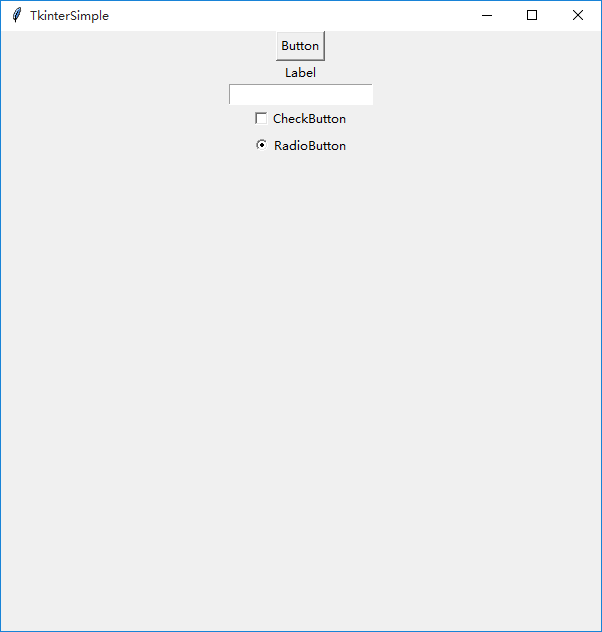
常用的控件
from tkinter import *
root = Tk()
root.title("TkinterSimple")
#窗口大小
width ,height= 600, 600
#窗口居中显示
root.geometry('%dx%d+%d+%d' % (width,height,(root.winfo_screenwidth() - width ) / 2, (root.winfo_screenheight() - height) / 2))
#窗口最大值
root.maxsize(600,600)
#窗口最小值
root.minsize(600,600)
def prints():
print("button")
button = Button(root, text="Button", command=prints)
button.pack()
label = Label(root, text="Label")
label.pack()
entry = Entry(root)
entry.pack()
checkbutton = Checkbutton(root, text="CheckButton")
checkbutton.pack()
radioButton = Radiobutton(root, text="RadioButton")
radioButton.pack()
root.mainloop()
1
2
3
4
5
6
7
8
9
10
11
12
13
14
15
16
17
18
19
20
21
22
23
24
25
26
27
28
29
30
31
32
33
fromtkinterimport*
root=Tk()
root.title("TkinterSimple")
#窗口大小
width,height=600,600
#窗口居中显示
root.geometry('%dx%d+%d+%d'%(width,height,(root.winfo_screenwidth()-width)/2,(root.winfo_screenheight()-height)/2))
#窗口最大值
root.maxsize(600,600)
#窗口最小值
root.minsize(600,600)
defprints():
print("button")
button=Button(root,text="Button",command=prints)
button.pack()
label=Label(root,text="Label")
label.pack()
entry=Entry(root)
entry.pack()
checkbutton=Checkbutton(root,text="CheckButton")
checkbutton.pack()
radioButton=Radiobutton(root,text="RadioButton")
radioButton.pack()
root.mainloop()
喜欢 (3)赏分享 (0)