最近在学习微信小程序,下面提供自己做的微信小程序登录页面,仅供参考。
效果图:

 name.png
 key.png
下面是代码:
login.wxml: 登录
login.wxss:/* pages/login/login.wxss */page{ height: 100%; background-size:100%; background-image: url('http://songlijuan.top/bk2.jpg');} .container { height: 100%; display: flex; flex-direction: column; padding: 0; box-sizing: border-box; /* background-color: #f2f2f2; */} /*登录图片*/.login-icon{ flex: none; margin: 0 auto; margin-top: 200rpx;}.login-img{ width: 220rpx; height: 220rpx; border-radius: 110rpx; opacity: 0.6;} /*表单内容*/.login-from { margin-top: 90px; flex: auto; height:100%;} /* 输入框 */.myno{ width: 90%; height: 80rpx; margin: 0 auto; border:1px solid #ccc; border-radius: 50rpx;}.mypwd{ width: 90%; height: 80rpx; margin: 0 auto; border:1px solid #ccc; border-radius: 50rpx; margin-top: 20rpx;}/*按钮*/.loginBtnView { margin-top: 0px; margin-bottom: 0px; padding-bottom: 0px;} .loginBtn { width: 90%; height: 80rpx; line-height: 80rpx; margin-top: 35px; color: #fff; background-color:#7e8ef0; border: 0.1rpx solid #ccc; border-radius: 40rpx;}.nameImage, .keyImage { margin-right: 10px; width: 14px; height: 14px}
login.js:// pages/login/login.jsconst app = getApp()Page({ /** * 页面的初始数据 */ data: { disabled:false, no:'', pwd:'', noinput:false, pwdinput:false, }, noinput:function(e){ this.setData({no:e.detail.value}); this.setData({noinput:true}); if(this.data.noinput==true && this.data.pwdinput==true){ this.setData({ disabled: false }); } }, pwdinput: function (e) { this.setData({ pwd: e.detail.value }); this.setData({ pwdinput: true }); if (this.data.noinput == true && this.data.pwdinput == true) { this.setData({ disabled: false }); } }, formSubmit: function (e) { wx.showLoading({ title: '登录中...', }) console.log(e); this.setData({ disabled: true}); wx.request({ url: app.globalData.url.login, //仅为示例,并非真实的接口地址 data: { no: e.detail.value.no, pwd: e.detail.value.pwd }, header: { 'content-type': 'application/json' // 默认值 }, success: function (res) { console.log(res); if (res.statusCode == 200) { if (res.data.error == true) { wx.showToast({ title: res.data.msg, icon: 'none', duration: 2000 }) } else { wx.setStorageSync('student', res.data.data); wx.showToast({ title: res.data.msg, icon: 'success', duration: 2000 }) setTimeout(function(){ wx.switchTab({ url: '../teacher/teacher', }) },2000) } }else{ wx.showToast({ title: '服务器出现错误', icon: 'none', duration: 2000 }) } } }) }, /** * 生命周期函数--监听页面加载 */ onLoad: function (options) { this.setData({disabled:false}); var student = wx.getStorageSync('student'); if (typeof (student) == 'object' && student.no != '' && student.classid != '') { wx.switchTab({ url: '../teacher/teacher', }) } }, /** * 生命周期函数--监听页面初次渲染完成 */ onReady: function () { }, /** * 生命周期函数--监听页面显示 */ onShow: function () { if(this.data.no=='' || this.data.pwd==''){ this.setData({ disabled: true }); }else{ this.setData({ disabled: false }); } }, /** * 生命周期函数--监听页面隐藏 */ onHide: function () { }, /** * 生命周期函数--监听页面卸载 */ onUnload: function () { }, /** * 页面相关事件处理函数--监听用户下拉动作 */ onPullDownRefresh: function () { }, /** * 页面上拉触底事件的处理函数 */ onReachBottom: function () { }, /** * 用户点击右上角分享 */ onShareAppMessage: function () { }})
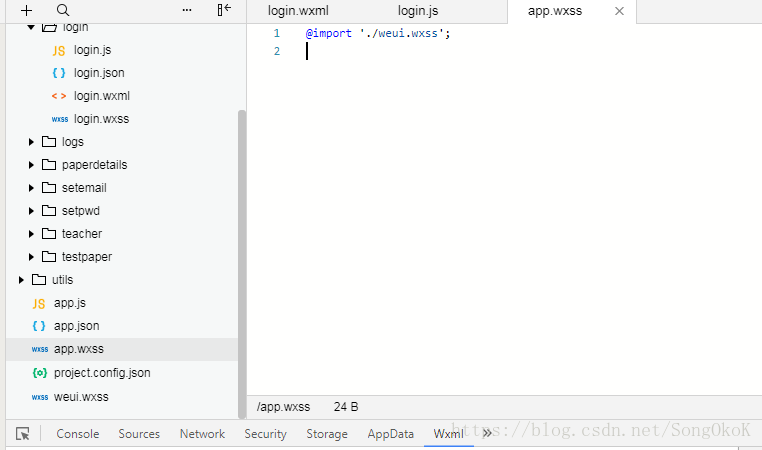
我引用了weui的样式,大家可以参考下weui的样式,下载weui并引用。
后台控制器的代码只需要查下数据库里面的信息就可以了;